
What this is for. Every product you sell is saved once. Two screens show it: Catalog on the register, and My Inventory on OneDive B2B. Change a price in one and the other shows the new price straight away. You never have to keep two lists in step. Each screen has a few jobs the other doesn't, so it helps to know which one to open.
One product, two screens
Catalog, on the register. Open Catalog in the register's top bar. It is built for the counter: stock at a glance, a quick edit, and a fast way to start a new product from an old one. Only the owner, a General Manager or a Manager sees the Catalog tab.
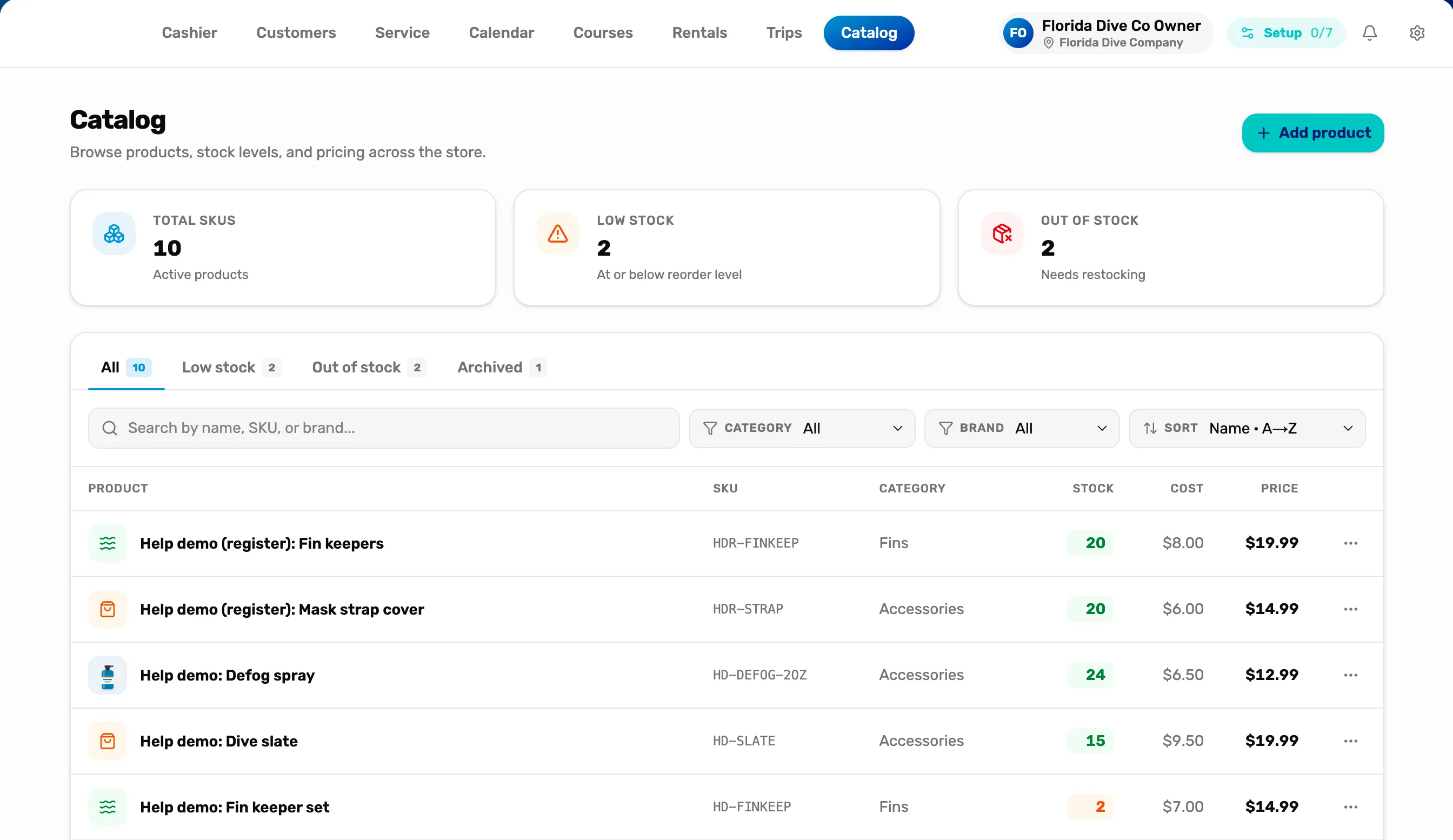
- Catalog. The tab in the register's top bar.
- Add product. Starts a new product. Only the owner or a General Manager can save it.
- A product row. Tap it to open the product. The … at the end has Edit and Use as template.
My Inventory, on OneDive B2B. Open My Inventory. It is built for a desk: importing many products at once, price lists from suppliers, matching products to a distributor's catalog, and removing a product for good.
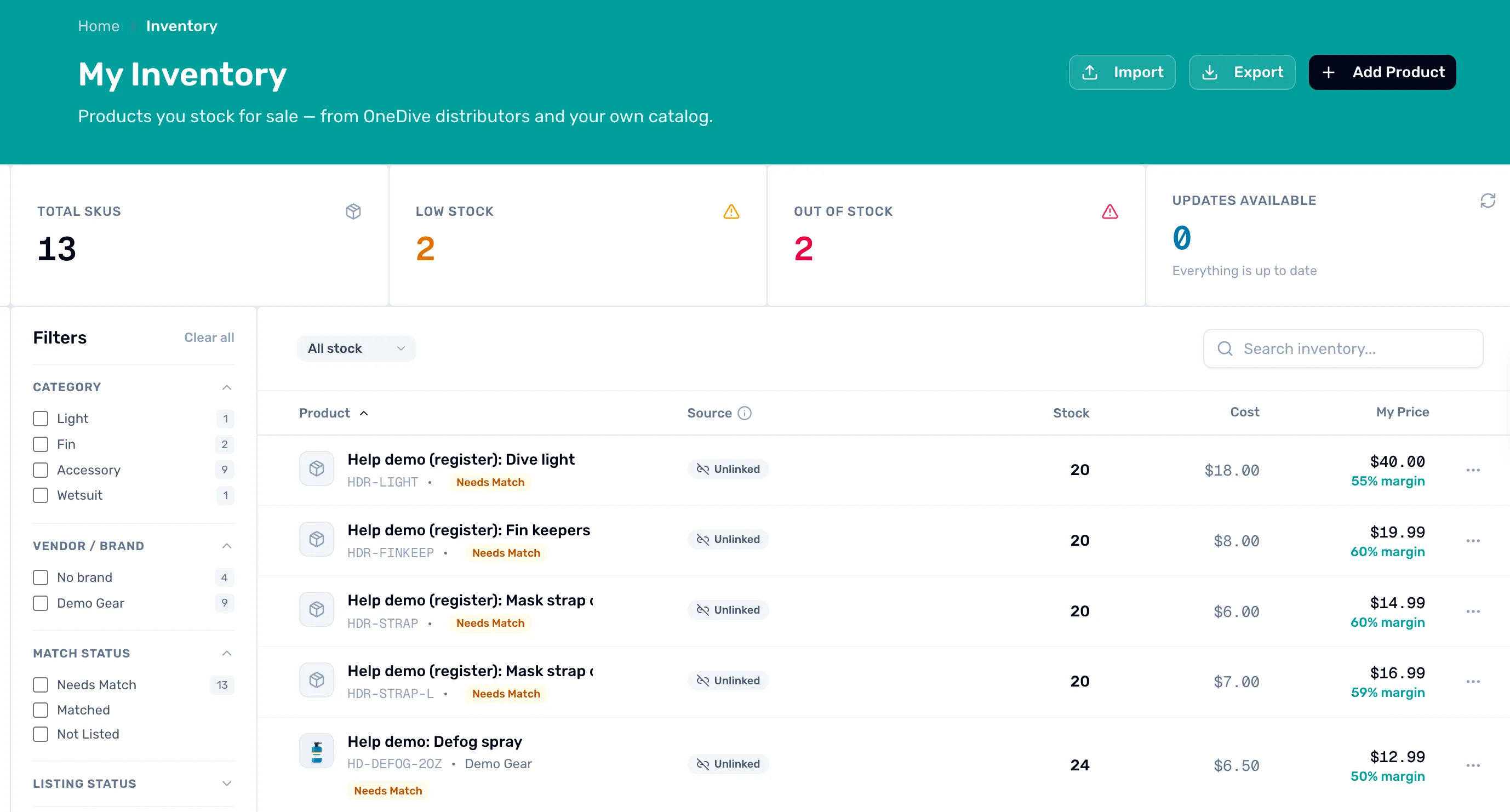
- Import. Brings in many products at once, or a supplier's new prices. Only the owner or a General Manager sees it.
- My Price. Click it to change the price right there in the list.
- The … menu. Edit, Match to catalog…, Hide or Show, and Remove from store.
The register's sale screen sells from the same list. A product shows on the register under Products once it is listed and has a price. See Listed, hidden and archived.
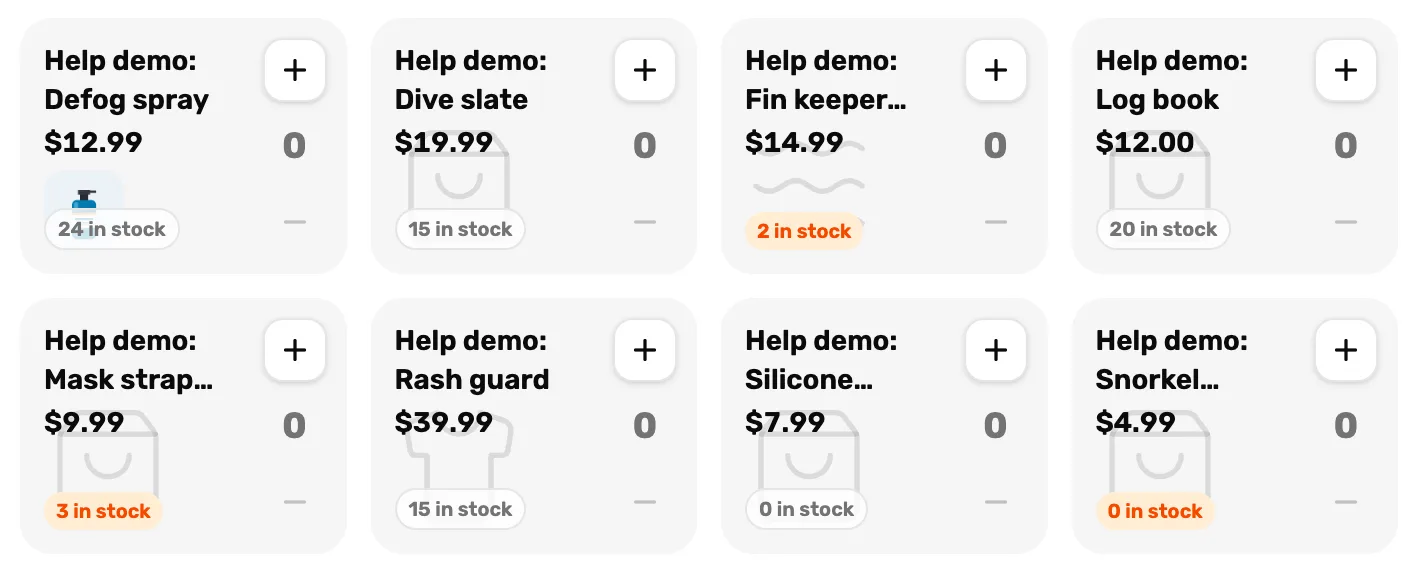
- The same product. The tile reads its price and stock from the one product. A change made in either place shows here too.
Where to change what
Both screens save to the same product. Use whichever is in front of you, except for the few jobs only one of them does.
| To change | Catalog (register) | My Inventory (OneDive B2B) |
|---|---|---|
| The price customers pay | Yes, called Price | Yes, called My Price. Or click it in the list |
| Cost, MSRP and MAP | Yes | Yes |
| A supplier's new prices, many at once | No | Yes, Import › Update Products |
| How many you have (On hand) | Yes | Yes |
| The low-stock alert | Yes | Yes |
| Listed or not | Yes, Status | Yes, Hide and Show |
| Remove a product for good | No | Yes, Remove from store |
| Sizes and colors | Yes | Yes |
| Photos, title, description, brand | Yes | Yes |
| Match to a distributor's catalog | No | Yes, Match to catalog… |
| Add many products at once | No | Yes, Import |
| Copy a product to start a new one | Yes, Use as template | No |
The how-to for each one:
- Prices: Cost, MSRP, MAP and My Price, and for a supplier's list, Update prices in bulk from a price list.
- Stock and the alert: Low stock alerts and the Catalog numbers.
- Listing and removing: Listed, hidden and archived.
- Sizes and colors: Sizes and colors: variants.
- Copying: Use a product as a template.
The same thing, different words
The two screens were built apart, so a few labels differ. They mean the same thing.
- Price on the register is My Price on OneDive B2B.
- Barcode on the register is UPC / Barcode on OneDive B2B.
- Archived on the register is Hidden on the OneDive B2B list.
- This product has variants on the register is This product has options on OneDive B2B.
- Add product on the register is Add Product on OneDive B2B. The forms look different but have the same fields.
The number tiles at the top look alike but don't always count the same way. Total SKUs on the register counts listed products only. On OneDive B2B it counts hidden ones too. The details are in Low stock alerts and the Catalog numbers.
Who can change a product
Only the owner or a General Manager. A Manager can open both screens and every product, but sees it read only. On the register the product panel says "View only. Ask an owner or GM to change this." On OneDive B2B a Manager has no Import button, no Edit, Hide or Remove from store, and the product names aren't links.
What isn't in either list
Both screens list the products you sell. Some things you sell live elsewhere:
- Rental gear is on the register's Rentals tab.
- Services, like a regulator service, are set up in Service › Configure services.
- Courses and trips have their own tabs, Courses and Trips.
What happens next
- Add your first product: Add a product by hand.
- Got a spreadsheet of them? Import products from a spreadsheet.
- See the products on the register: they are under Products once listed with a price.