
What this is for. Your supplier sends a new price list every season. Typing each new cost into each product takes hours. Update Products reads the list and finds your products, then shows you each change as old price → new price before anything is saved. It only touches MAP, MSRP and Cost on products you already have. It never adds a product and never changes what customers pay.
Before you start
- The products must be in your inventory already. A row that matches nothing is skipped. To add new products, use Import products from a spreadsheet instead.
- My Price stays as it is. The price on the register and the receipt never changes here. Change it yourself afterwards if you want to: see Cost, MSRP, MAP and My Price.
- Only the owner or a General Manager sees the Import button.
Open Update Products
In OneDive B2B, open My Inventory and choose Import. Under Update Products, choose From Excel / CSV template.
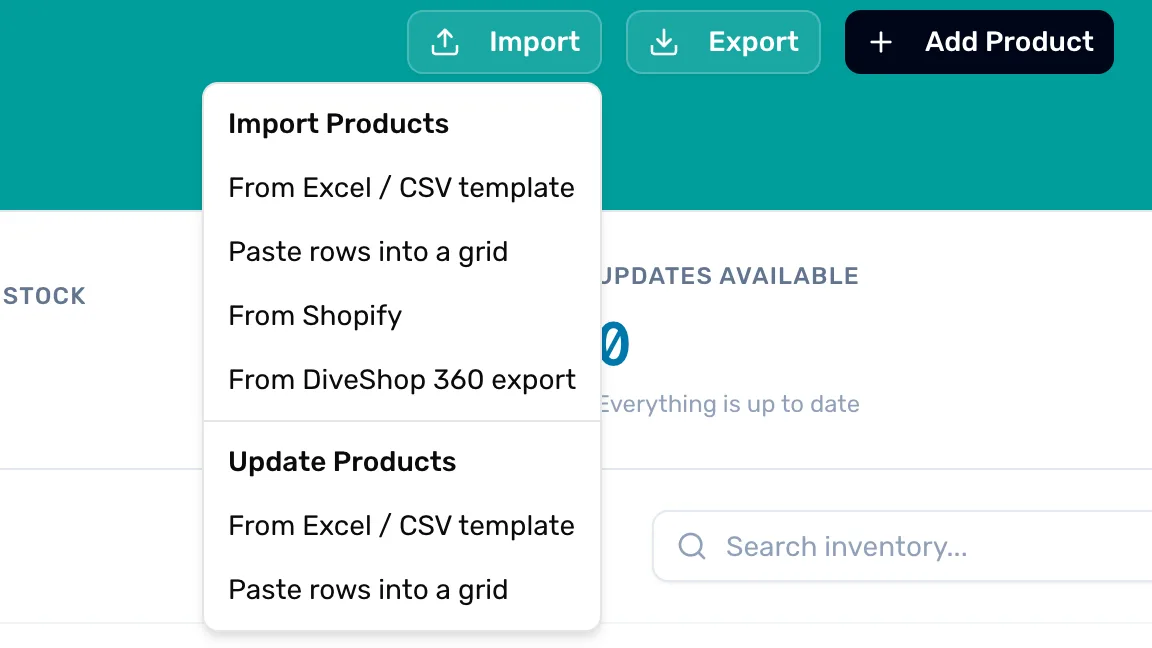
- Update Products. The bottom half of the menu. From Excel / CSV template uploads a file. Paste rows into a grid lets you paste instead, see Paste instead of a file.
Download the template
A window opens, titled Import price updates. Choose Download template. You get a spreadsheet with two sheets: Template, where the rows go, and Instructions.
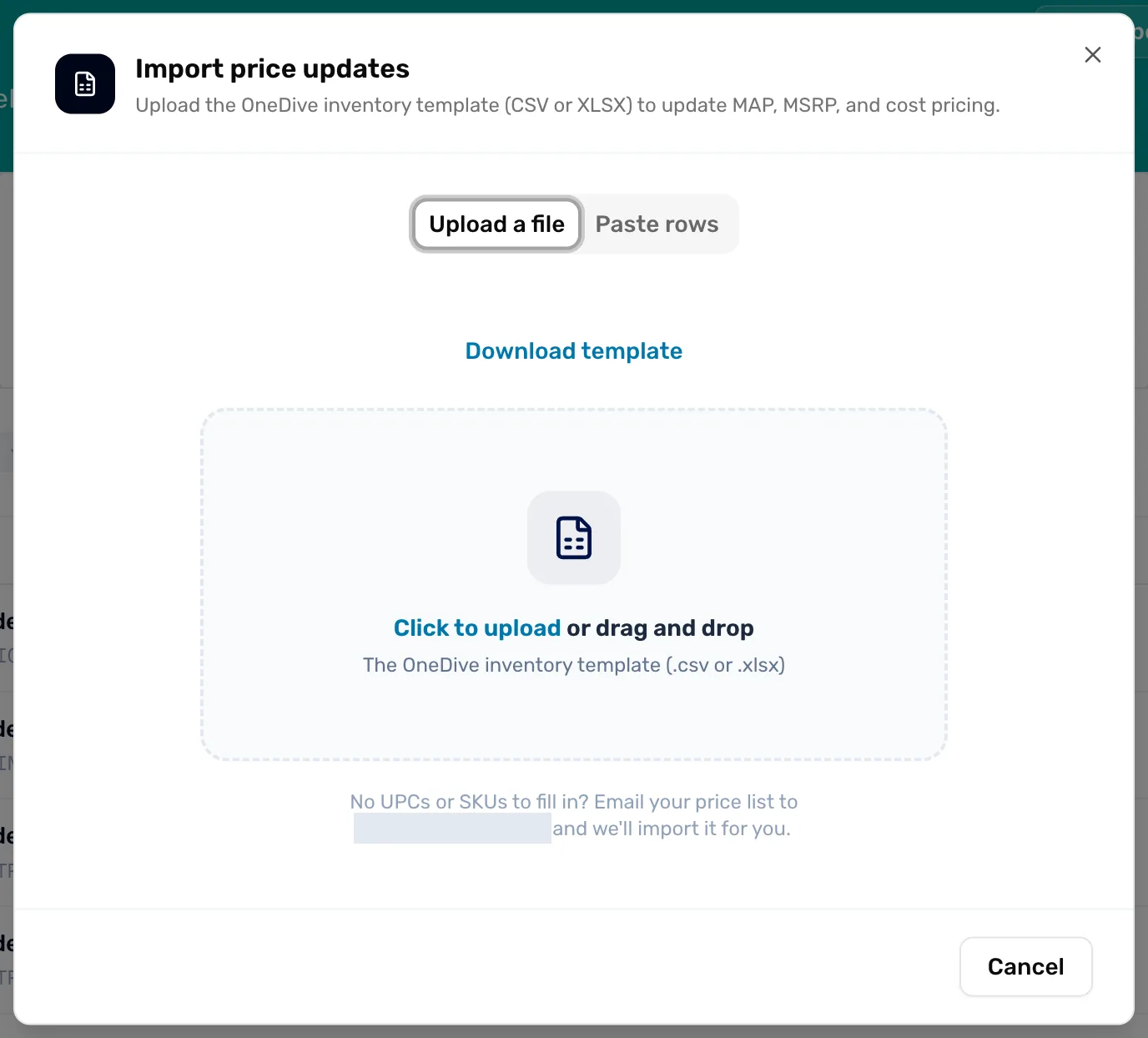
- Download template. The spreadsheet with the right columns and one example row.
- The upload box. Takes a .csv or .xlsx file. OneDive reads it as soon as it lands.
- No UPCs or SKUs? If your supplier's list has neither, email it to the address on that line and OneDive will import it for you.
Fill in one row per product
Keep the header row exactly as it is. Delete the example row (its name says "DEMO"). Then one row per product:
| Column | What goes in it |
|---|---|
| UPC | The barcode number. |
| SKU | Your code for the product. |
| MAP | The new minimum advertised price. |
| MSRP | The new suggested retail price. |
| Cost | Your new cost for one. |
| Name | The product's name, spelled the way OneDive has it. |
- Give each row a UPC, a SKU or a Name so OneDive can find the product. How it uses them is below.
- Leave a price blank to keep it. A blank MAP leaves the product's MAP as it is. You can't clear a price this way.
- Prices can have a dollar sign and commas, or not. "$1,299.00" and "1299" both work.
Save the file as .xlsx or .csv.
Upload it
Drag the file onto the box, or click the box and pick it. Nothing is saved yet. OneDive finds each row's product and opens Review changes.
Check every change
Each row shows the product it found, and each price as old → new. A changed price is in color. An unchanged one is grey. The table is wider than the window: scroll it sideways to see MSRP and Cost.
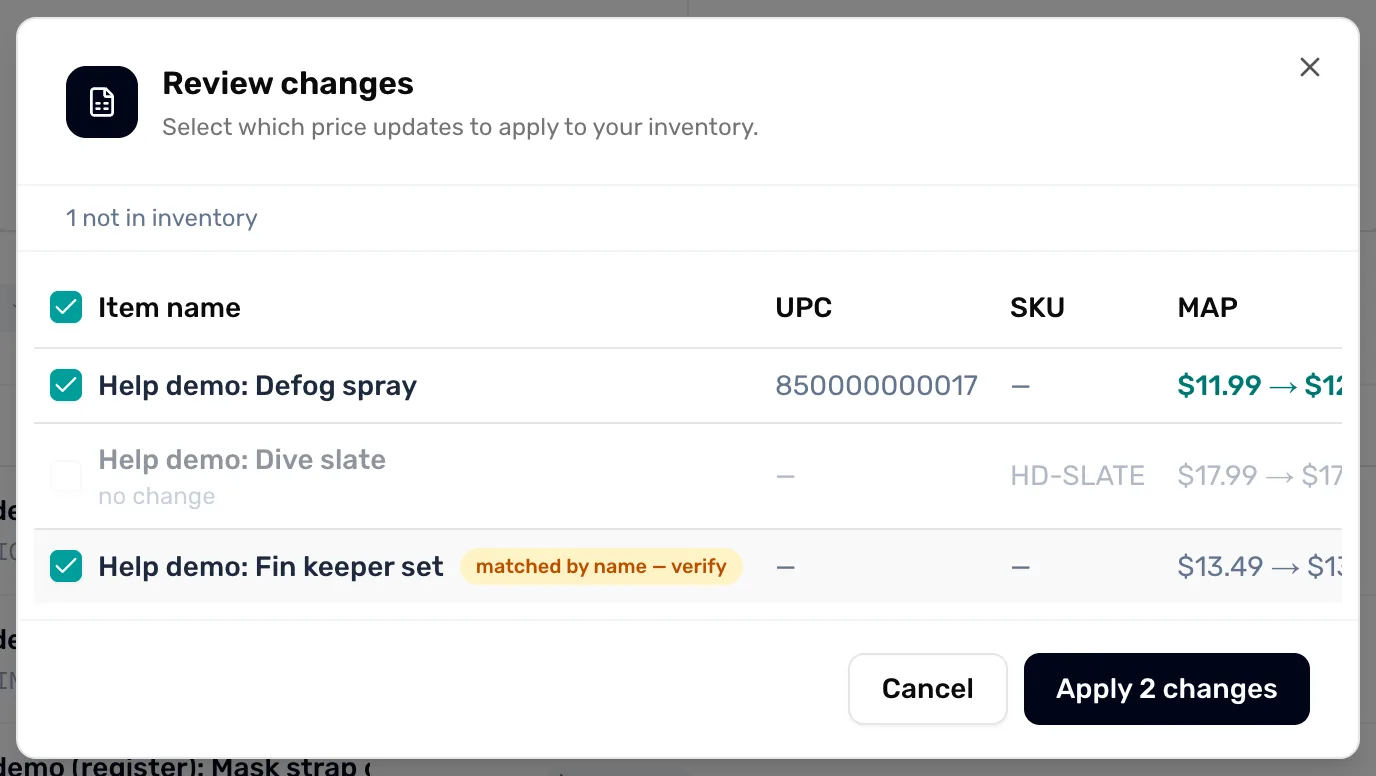
- The skipped line. Rows OneDive couldn't use, counted by reason. The reasons are below.
- The tick box. Ticked rows are the ones that apply. Untick a row to leave that product alone. The box in the header ticks or unticks them all.
- no change. The file has the same prices the product already has. Greyed out, nothing to apply.
- matched by name — verify. Found by its name only. These start unticked: check it's the right product, then tick it.
- Apply. Saves the ticked rows. It counts them, like Apply 2 changes. Grey until at least one row is ticked.
While Review changes is open, clicking outside the window doesn't close it. Cancel closes it and saves nothing.
Apply
Choose the Apply button. Import complete shows how many products were updated, like "Updated 2 products". Choose Done.
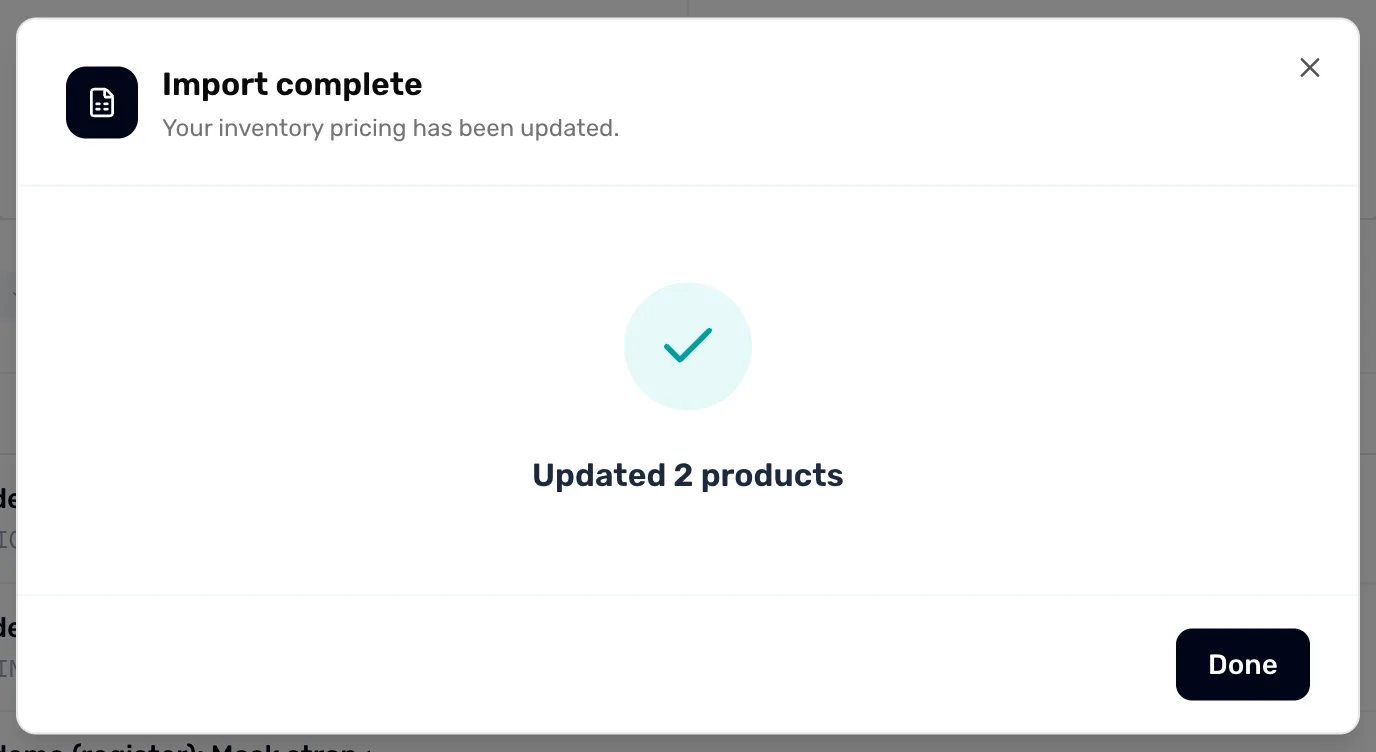
- Updated. How many products got new prices.
- Done. Closes the window. My Inventory already shows the new costs and margins.
How a row finds its product
OneDive uses one column per row, in this order:
- UPC, if the row has one. Only the UPC is tried. If no product has that UPC, the row is skipped, even if its SKU would have matched.
- SKU, if the UPC is empty.
- Name, if the UPC and SKU are both empty.
- The UPC and SKU must match exactly, capital letters and all: "abc-1" doesn't find "ABC-1".
- The name match ignores capital letters and extra spaces, nothing else. These rows start unticked.
- It looks at the product's own UPC and SKU, not a size's. For a product with sizes, leave UPC and SKU empty and use the Name.
- A row with a UPC that belongs to one product and a SKU that belongs to another is skipped as a conflict.
Skipped rows
The line at the top of Review changes counts skipped rows by reason:
- not in inventory. No product has that UPC, SKU or name. Check the number, or add the product first.
- ambiguous. More than one of your products has it. Use a column that is unique, like the UPC.
- conflict. The UPC finds one product and the SKU finds another.
- missing UPC/SKU. The row has no UPC, SKU or Name.
- error. A price cell isn't a number.
Fix those rows and upload the file again. Rows that already went in show no change the second time.
What it never changes
- My Price. Even if a new MAP is above your price, My Price stays. After you apply, look at the margins in My Inventory and raise any price you need to.
- A size's own price or cost. Only the product's MAP, MSRP and Cost change.
- Anything else. Names, stock, barcodes, photos and listing stay as they are.
Paste instead of a file
Choose Paste rows into a grid under Update Products, or the Paste rows tab in the window. You get a grid with the same six columns: UPC, SKU, MAP, MSRP, Cost and Name.
- Copy the rows from your spreadsheet, in that column order.
- Click the first cell of the grid and paste. If you copied the header row too, it is dropped.
- Choose Review changes. From here it is the same as step 5.
Add row adds an empty row to type into. Clear empties the grid.
If something goes wrong
- "Please select a .csv or .xlsx file." The file is another type. Save it as .xlsx or .csv.
- "missing required column(s):" and a list. The header row was changed. Download the template again and copy your rows into it.
- "no data rows found (did you leave only the demo row?)" The file has only the header and the example row.
- "Import failed — please try again." or "Apply failed — please try again." Nothing was saved. Try again in a minute.
What happens next
- New products on the same list? Import products from a spreadsheet adds them.
- What MAP, MSRP and Cost each do: Cost, MSRP, MAP and My Price.
- See your new costs in My Inventory. The margin under each price is worked out again for you.