
What this is for. Typing fifty products one at a time takes an afternoon. With the template you type them in a spreadsheet, where copy and paste work, and bring them all in at once. You end up with every row in your inventory, priced and ready for the register. A row whose SKU you already have updates that product, so you can run the same file again after a price change.
Open the import
In OneDive B2B, open My Inventory, choose Import, then From Excel / CSV template under Import Products.
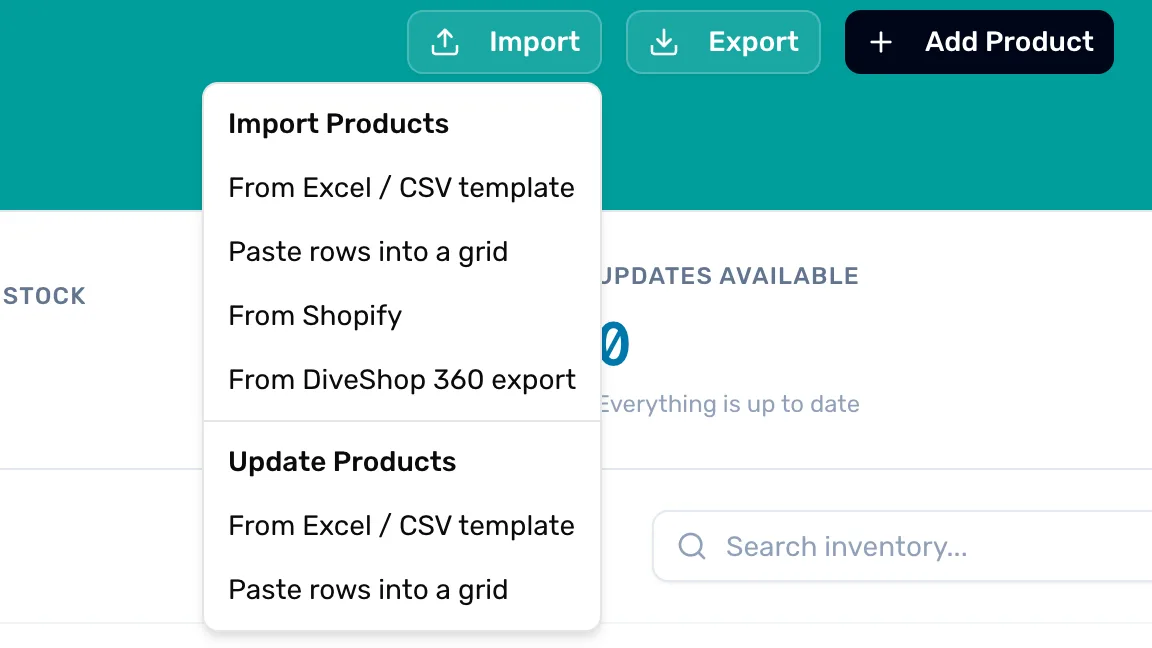
- From Excel / CSV template, under Import Products. Adds new products, or updates ones you have by SKU. This is the one you want.
- Update Products. Changes only MAP, MSRP and Cost on products you already have, with a check of every change first. See the end of this page.
Download the template
The Import products window opens. Choose Download template. You get a spreadsheet with two sheets: Template, where your products go, and Instructions.
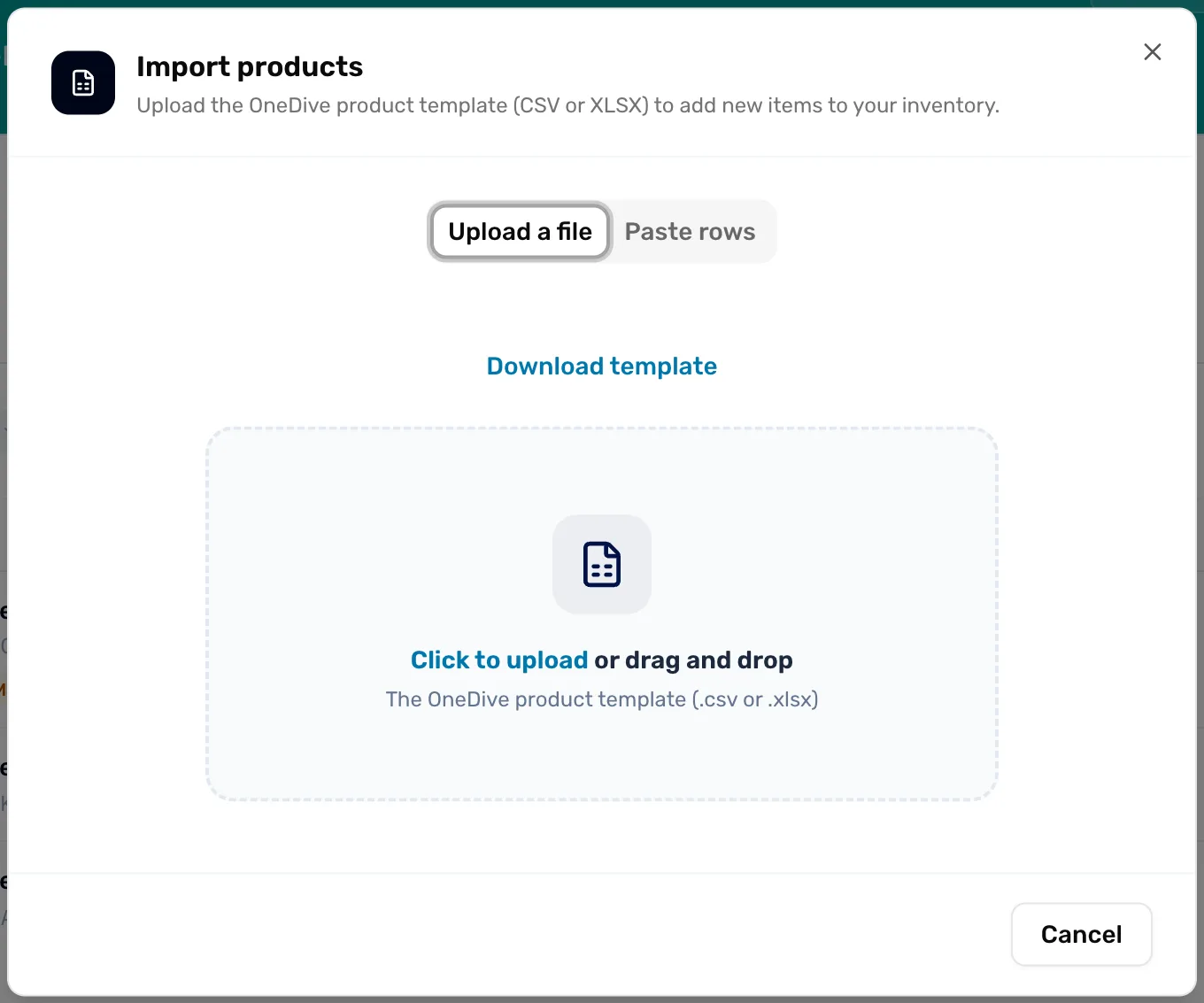
- Download template. The spreadsheet with the right columns and one example row.
- The upload box. Takes a .csv or .xlsx file. The import starts as soon as the file lands.
Fill in one row per product
Keep the header row exactly as it is. Delete the example row (its name starts with "DEMO"). Then type one row per product:
- Name. Required. Every row needs one.
- Category. One of OneDive's categories, like "Mask", "Regulator" or "Accessory". Leave it blank if you're not sure. A word OneDive doesn't know is left blank too.
- Brand. The maker.
- SKU. Your code for the product. This is how OneDive finds a product you already have.
- UPC. The barcode number. Used to find a product only when the SKU cell is empty.
- My Price. What customers pay. Without it, the product imports but isn't on the register until you add a price.
- Cost, MSRP, MAP. Optional. Leave blank if you don't know them.
- Listed. "yes" puts it on sale, "no" saves it without selling it. Blank means yes.
Prices can have a dollar sign or not. Save the file as .xlsx or .csv.
Upload the file
Drag the file onto the box, or click the box and pick it. The window reads Importing… while it works. Don't close it.
There is no preview: every good row goes into your inventory straight away. Check your rows before you upload, especially prices.
Read the result
Import complete shows how many products were added and how many were updated. Choose Done.
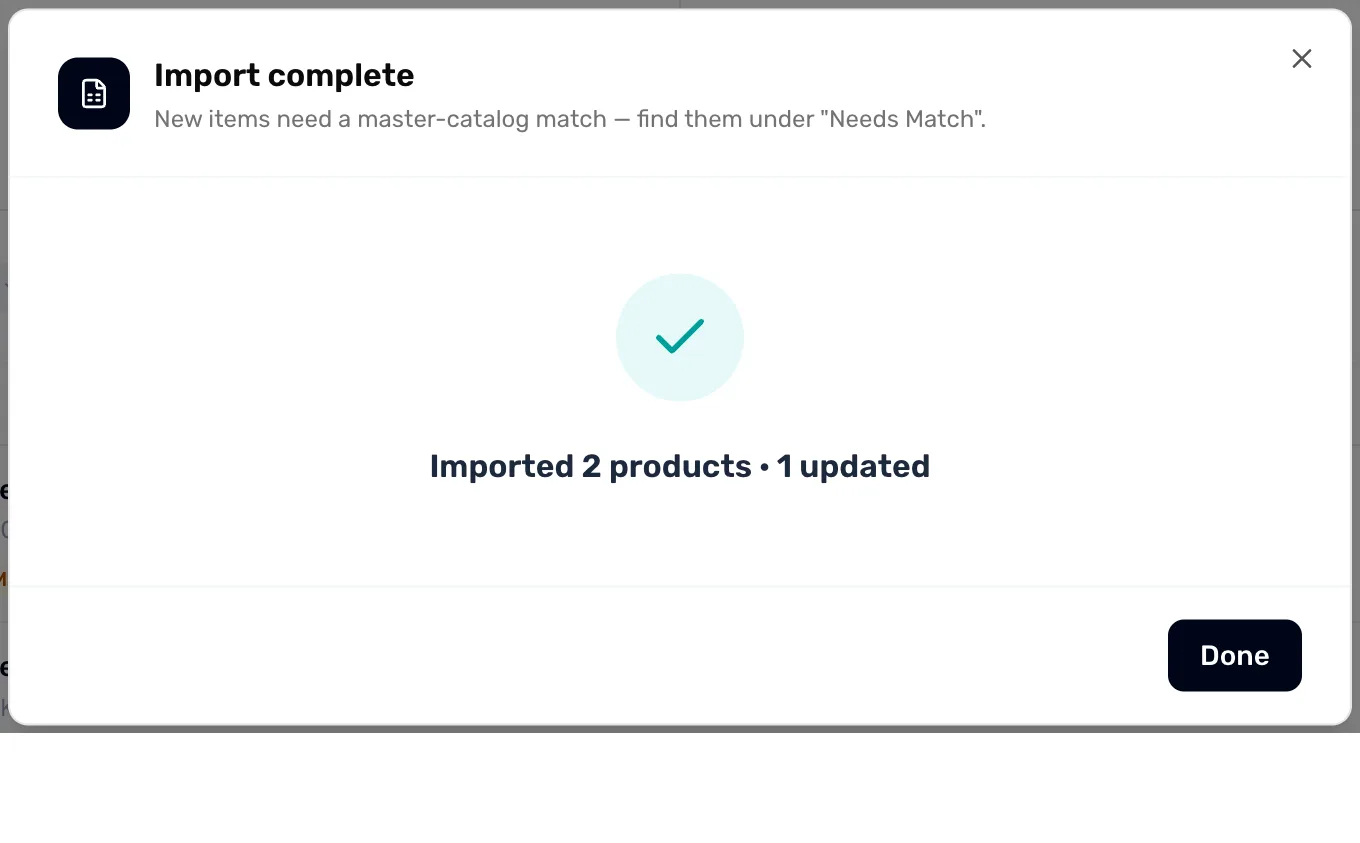
- Imported and updated. "Imported 2 products · 1 updated": two new rows were added, and one row's SKU matched a product you already had, so that product was updated.
- Done. Closes the window. My Inventory already shows the changes.
Rows it couldn't use are counted under skipped, with the reason:
- missing name. The row has no Name.
- bad price. A price cell isn't a number.
- ambiguous SKU/UPC. More than one of your products has that SKU, or the same new SKU is on two rows of the file.
Fix those rows and upload the file again. The rows that already went in are matched by SKU and updated, not added twice.
Check them in My Inventory
Your new products are in My Inventory, each with a Needs Match tag.
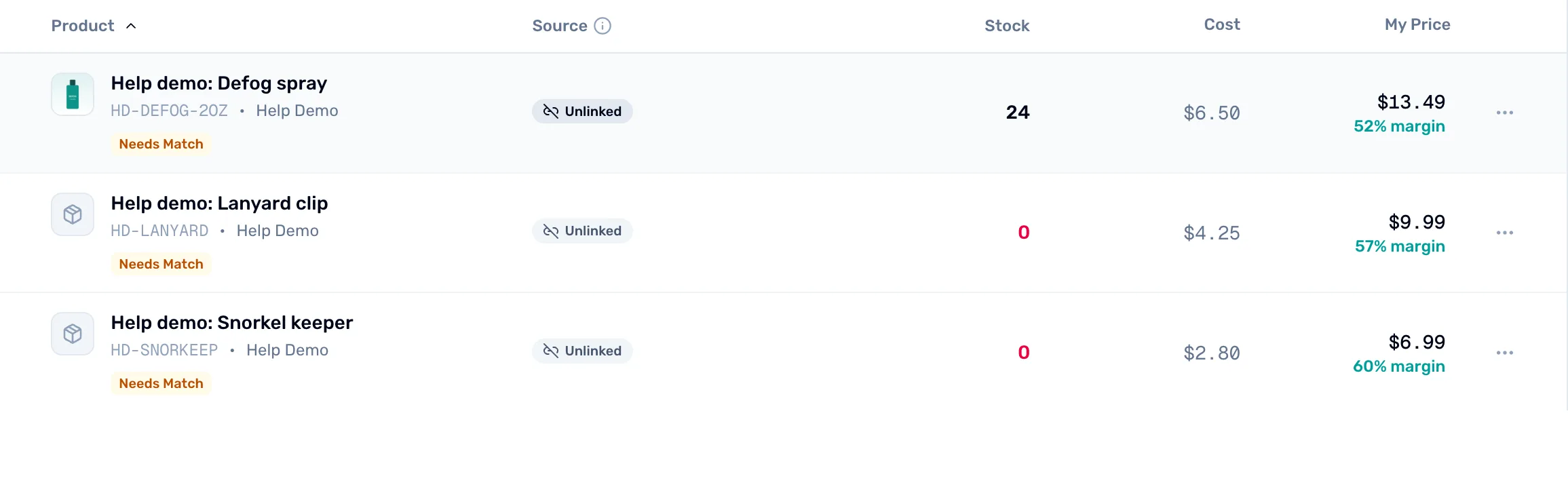
- My Price. The updated product shows its new price. Its stock and photo are untouched.
- Needs Match. Optional. Matching a product to a distributor's catalog keeps its cost and details current. See Match your products to the master catalog.
- Stock 0. Open each new product and type its On hand, or the register sells it with no count.
What an update changes
When a row's SKU matches a product you already have (or its UPC does, if the SKU is blank), OneDive updates that product:
- Name always takes the spreadsheet's name.
- Category, Brand, the four prices and Listed change only if the cell has something in it. A blank cell never clears a value.
- SKU and UPC are filled in only if the product has none.
- Stock, photos, descriptions and sizes stay as they are.
Two other ways in the same menu
- Paste rows into a grid. The same import without a file. Paste rows straight from your spreadsheet into a grid with the same ten columns, then choose Import. Same rules, same instant result.
- Update Products. For a price list from a supplier: it changes only MAP, MSRP and Cost on products you already have, matched by UPC, then SKU, then name. It uses its own template, and shows every change as old price → new price under Review changes. Nothing is saved until you choose the Apply button. It never adds products and never changes My Price.
What happens next
- Only the shop owner or a General Manager can import.
- Your plan's limit sets how many products the register sells. Every row still imports, but past the limit the newest products don't show on the register. See Free, Plus and Pro.
- To take a product off sale later, see Listed, hidden and archived.
- Selling online with Shopify? Import products from Shopify brings them across without a spreadsheet.