
What this is for. A new product is often almost the same as one you already sell: the next size of hood, the same mask in a new color, this year's model of a fin. Use as template opens a new product with the old one's details already filled in. You change what's different, add the new barcode, and save. The product you copied from doesn't change.
Pick the product to copy
Go to Catalog on the register. On the product's row, tap the … at the end, then Use as template.

- Use as template. Opens a new product filled in from this one. Edit changes this one instead.
Use as template is only on the register. OneDive B2B has no copy action.
Check you're on the copy
The Add product panel opens on the right. At the top it says "Copied from" and the product's name, then "Nothing is saved until you press Save."
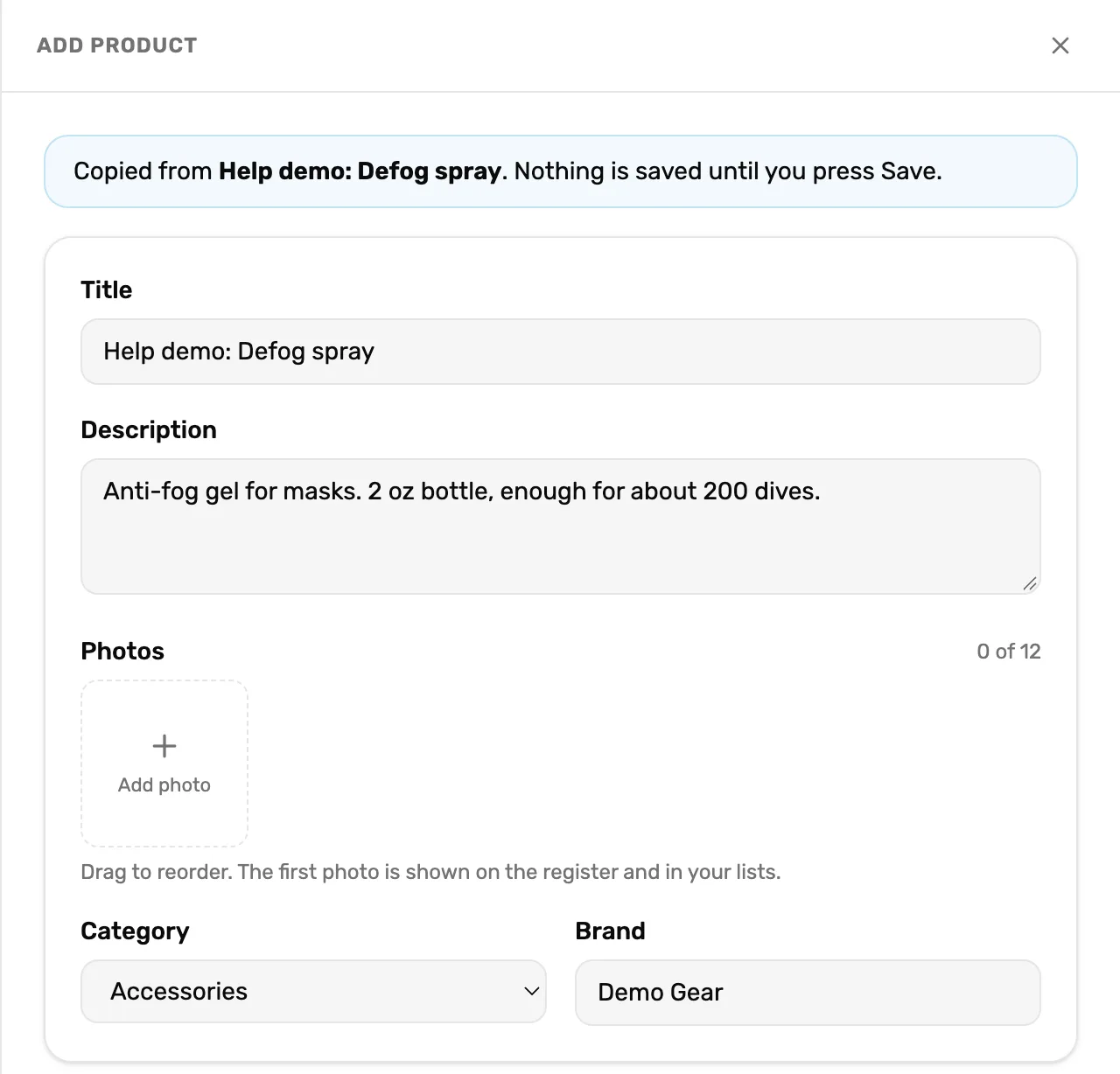
- Copied from. You are making a new product. The one named here stays as it is.
- Title. The same name as the old product. Change it, or both show with the same name on the register.
- Photos. Empty. Photos are never copied: a photo belongs to the product in it.
Change what's different
Work down the panel. Here is what came across and what didn't.
Copied:
- Title, Description, Category and Brand.
- Price, Cost, MSRP and MAP, and so the margin.
- Low-stock alert at.
- Sizes and colors. The same options and values, and each size's Price override and Cost override.
Starts empty:
- SKU, Vendor SKU and Barcode. A copied barcode would make a scan at the register find the wrong product.
- On hand, which starts at 0. With sizes, every size's On hand starts at 0.
- Each size's SKU and barcode.
- Photos.
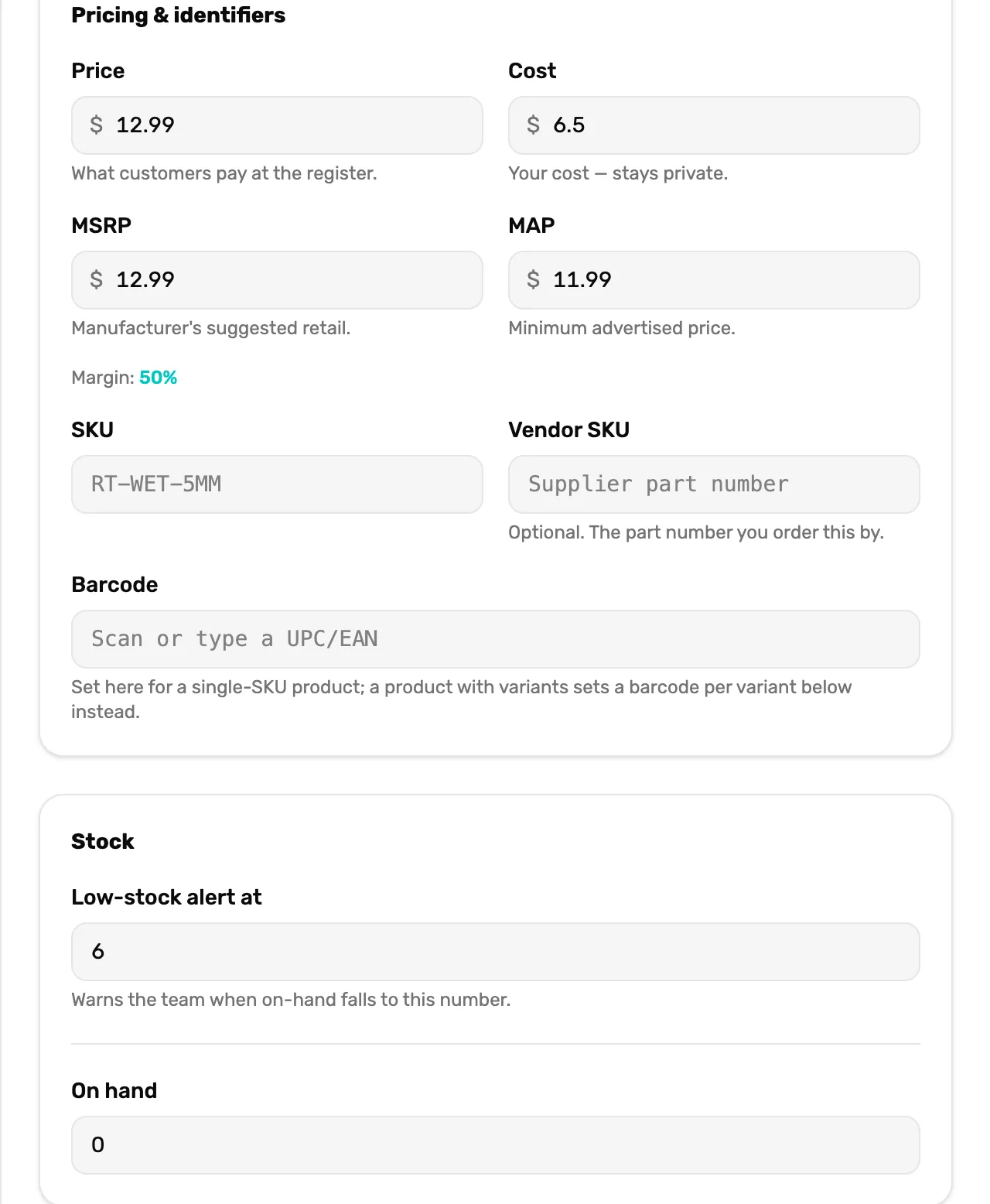
- The four prices. Copied. Change any that differ for the new product.
- SKU and Vendor SKU. Empty. The grey text is only an example. Type the new product's codes.
- Barcode. Empty. Scan the new product's barcode into it.
- Low-stock alert at. Copied from the old product.
- On hand. 0. Count the new stock and type it in.
Sizes and colors. If the old product had sizes, the table has the same rows with empty SKUs and barcodes. Fill blank SKUs fills every empty SKU with a suggested one built from the brand and title. Scan each size's barcode into its row and type its On hand. See Sizes and colors: variants.
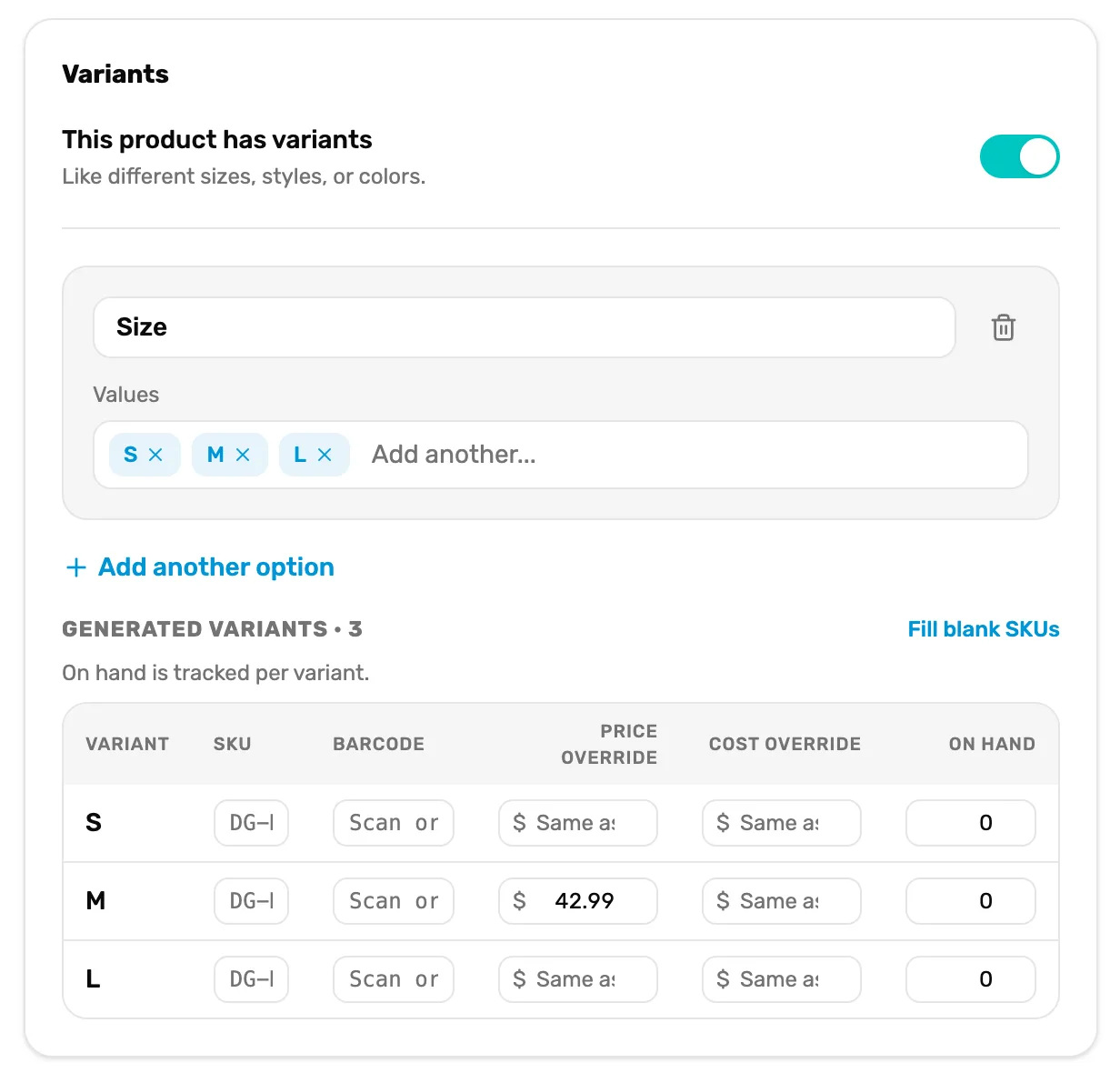
- Fill blank SKUs. Fills every empty SKU. A SKU you typed is never touched.
- SKU. Empty on every row until you fill it. The grey text is only an example.
- Barcode. Empty. Scan each size's barcode.
- Price override. Copied, if the old size had one.
- On hand. 0 on every row.
Save it
At the bottom, Status is on Listed: the copy sells as soon as you save, because it already has a price. Not ready to sell it yet? Pick Archived ("Saved hidden — list it later.") first.
Tap Save. You see the new name and "created", and the product is in the list. Discard closes the panel and saves nothing.
Good to know
- The copy is your own product. It isn't matched to a distributor's catalog, even if the old one was. In OneDive B2B it shows Needs Match. See Match your products to the master catalog.
- Nothing links the two. Changing the old product later doesn't change the copy, or the other way round.
- Sales and stock history stay with the old product. The copy starts with none.
- A message like "Couldn't load "Help demo: Defog spray" to copy. Try again." means OneDive couldn't read the old product. Nothing opened and nothing changed. Tap Use as template again.
What happens next
- The rental fleet, courses and trips have their own Use as template in their row menus. See Courses and Trips.
- Ring up the new product: scan its barcode at the register. See Scan barcodes at the register.
- Every field on the form, explained: Add a product by hand.