
What this is for. Every product can carry a low-stock number. When the count on the shelf falls to it, the product turns orange and joins the Low stock count, so you can see what to reorder before it runs out. This page explains each number at the top of the register's Catalog and of My Inventory, and where you set a product's number.
How a product's stock is judged
Each product is in one of three states, worked out from its On hand and its Low-stock alert at:
- Out of stock. On hand is 0.
- Low stock. On hand is above 0 and at or below the alert number.
- In stock. Anything above the alert number, or any count above 0 when there's no alert.
For example, a product with its alert at 6: with 7 on hand it is in stock, with 6 it is low, with 0 it is out.
A product with sizes is judged as a whole. Its On hand is every size added together, and it is low only when that total falls to the alert number. One size can sell out while the product still shows in stock. To see each size, open the product.
Stock is counted per location. The register shows the stock at the location it works at. OneDive B2B says "Stock is counted at your primary location." With one location, both are the same. See Locations.
The numbers on the register's Catalog
Go to Catalog. Three tiles sit at the top, and the tabs under them filter the list.

- Total SKUs. "Active products": how many listed products you have. Each product counts once, however many sizes it has. Archived products aren't counted.
- Low stock. "At or below reorder level": listed products that are low.
- Out of stock. "Needs restocking": listed products at 0. A product with no stock count at this location counts here too.
- The tabs. All, Low stock, Out of stock and Archived, each with its count. Tap one to list only those products.
The footer under the list says how many it is showing, like "Showing 3 of 3 products", out of the open tab's count.
In the list, the Stock number is in a colored box: green in stock, orange low, red out, grey archived. Hold the pointer on the box to see the product's alert number, like "Reorder at ≤ 6 units". No tooltip means the product has no alert.
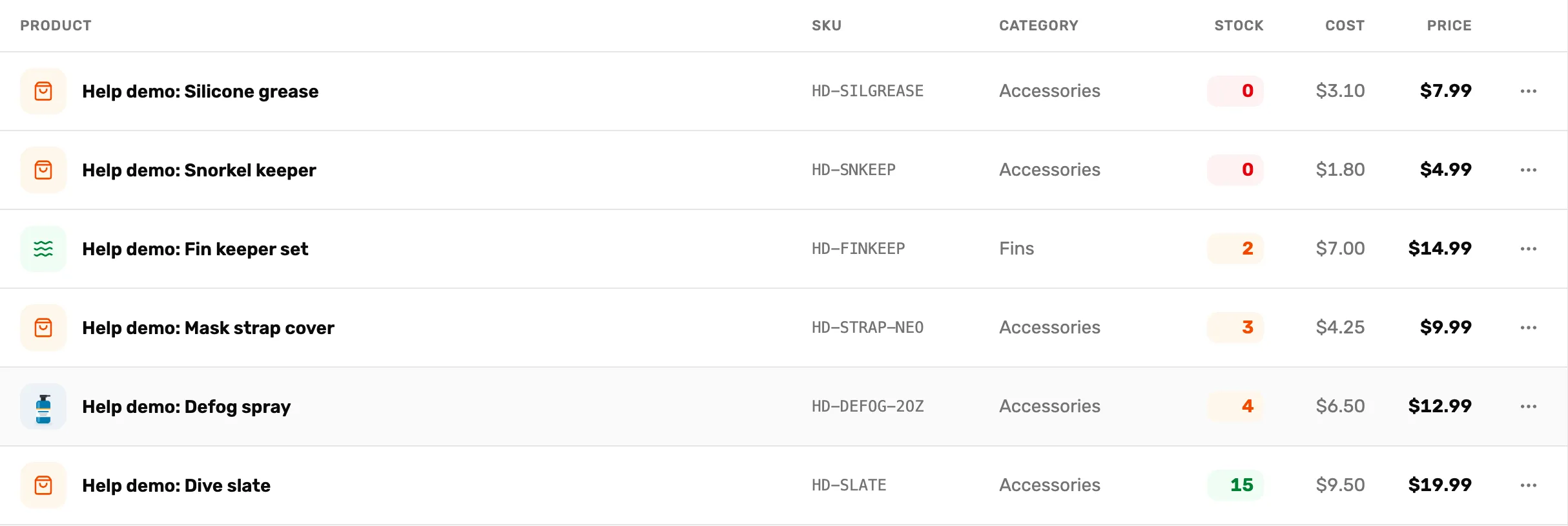
- Orange. Low stock. Hold the pointer on it to see the alert number.
- Red. Out of stock.
- Green. In stock.
On the register, each product tile shows its count, like "4 in stock". The badge turns orange when the product is low, or at 0 with an alert set.
The numbers on OneDive B2B
In OneDive B2B, open My Inventory. Four tiles sit at the top. Click one to filter the list.

- Total SKUs. Every product you have, hidden ones included. Click it to clear the filters.
- Low Stock. Products that are low, hidden ones included. Click it to list only those.
- Out of Stock. Products at 0, hidden ones included. Click it to list only those.
- Updates Available. Not about stock: products with a distributor change waiting for you. See Cost, MSRP, MAP and My Price.
The menu above the list does the same filtering: All stock, Low stock or Out of stock. In the Stock column, a low count is orange and an out one is red. Not tracked means the product has no stock count. It isn't counted as low or out here.
The Low Stock Items tile on the OneDive B2B Overview page ("Need reordering") counts another way again: each size at each location on its own, sold-out sizes and hidden products included.
Set a product's low-stock alert
Only the owner or a General Manager can set it. The number is the same for every size of a product.
On the register. In Catalog, tap the product. In the Stock card, type a number in Low-stock alert at, then tap Save.
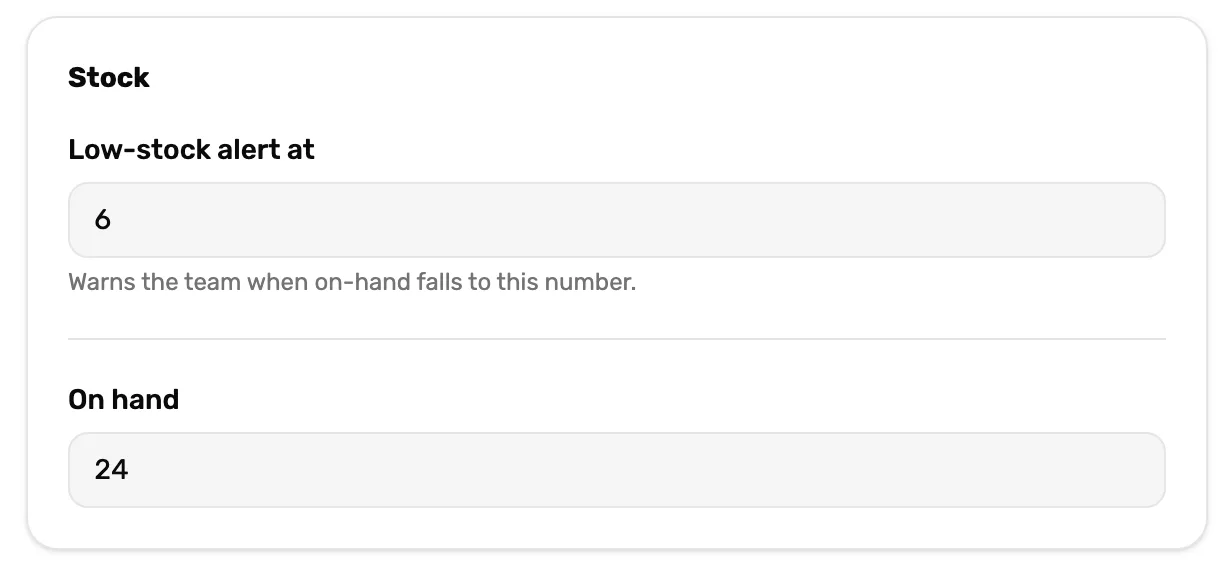
- Low-stock alert at. The count at which this product turns low. Empty reads "No alert".
- On hand. How many you have now. With sizes, each size's count is in the table below instead.
In OneDive B2B. In My Inventory, click the product's name. In the Inventory panel, type a number in Low-stock alert at, then choose Save changes.
- Leave it empty for no alert. The product is then never low, only in stock or out.
- Pick the number you reorder at. If a delivery takes two weeks and you sell three a week, set it at 6 or more.
- New products start with no alert, unless you made them with Use as template, which copies it.
- The spreadsheet imports don't set it. Set it on each product.
What happens next
- What each screen is for: Where your products live.
- Products with sizes: Sizes and colors: variants.
- Put away a product you won't restock: Listed, hidden and archived.