
What this is for. A quote you saved at the register waits on the customer's page until they come back. From there you can ring it up at the quoted prices, print it, email it, or cancel it. Each button does one thing, and two of them can't be taken back, so this page says exactly what happens when you tap each one.
To save a quote in the first place, see Save a cart as a quote.
Find the quote
Go to Customers, tap the customer, then tap the Quotes tab. Every quote saved for them is listed, newest first. There is no list of every quote in the shop, so always start from the customer.
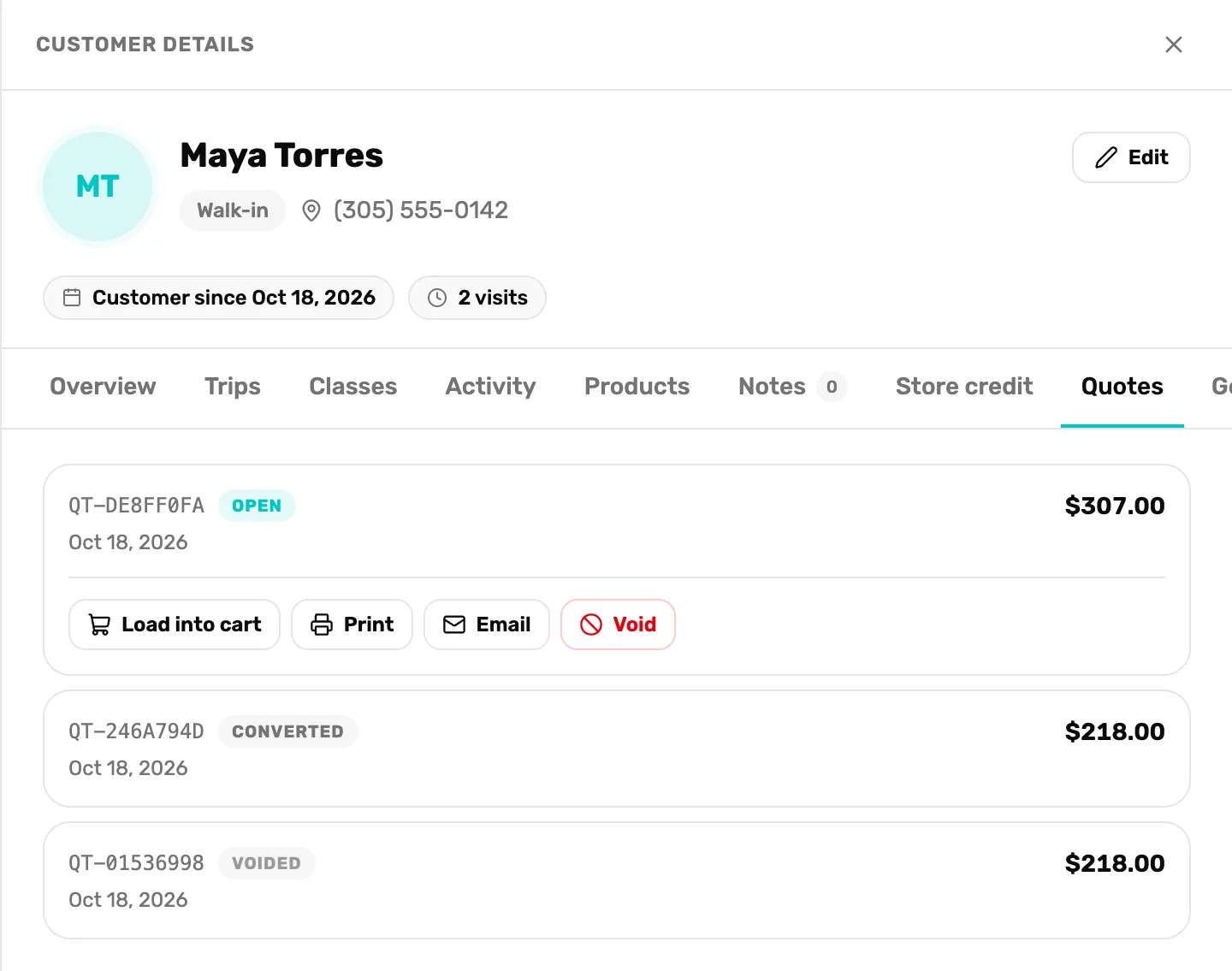
- The quote number and date. The number starts with QT. It's the same number on the printed copy and the email.
- The total. The total before tax, after any discount on the quote.
- The four buttons. Only an Open quote has them.
- Converted. Already loaded into a cart. It can't be used again.
- Voided. Someone tapped Void. It stays on the list as a record. An Expired quote looks the same, with no buttons.
A quote is in one of four states:
- Open. Still good. It has all four buttons.
- Converted. Someone tapped Load into cart.
- Voided. Someone tapped Void.
- Expired. Past the date it was good until. How many days a quote lasts is set for the whole shop: see Save a cart as a quote.
Load into cart
Tap Load into cart when the customer is ready to buy. The register opens with a new cart that has:
- the customer on it;
- every item on the quote, at the price you quoted, even if you have changed the product's price since;
- the quote's discount, if it had one.
Tax is worked out at checkout, the same as any sale. Take payment as usual: see Take payment.
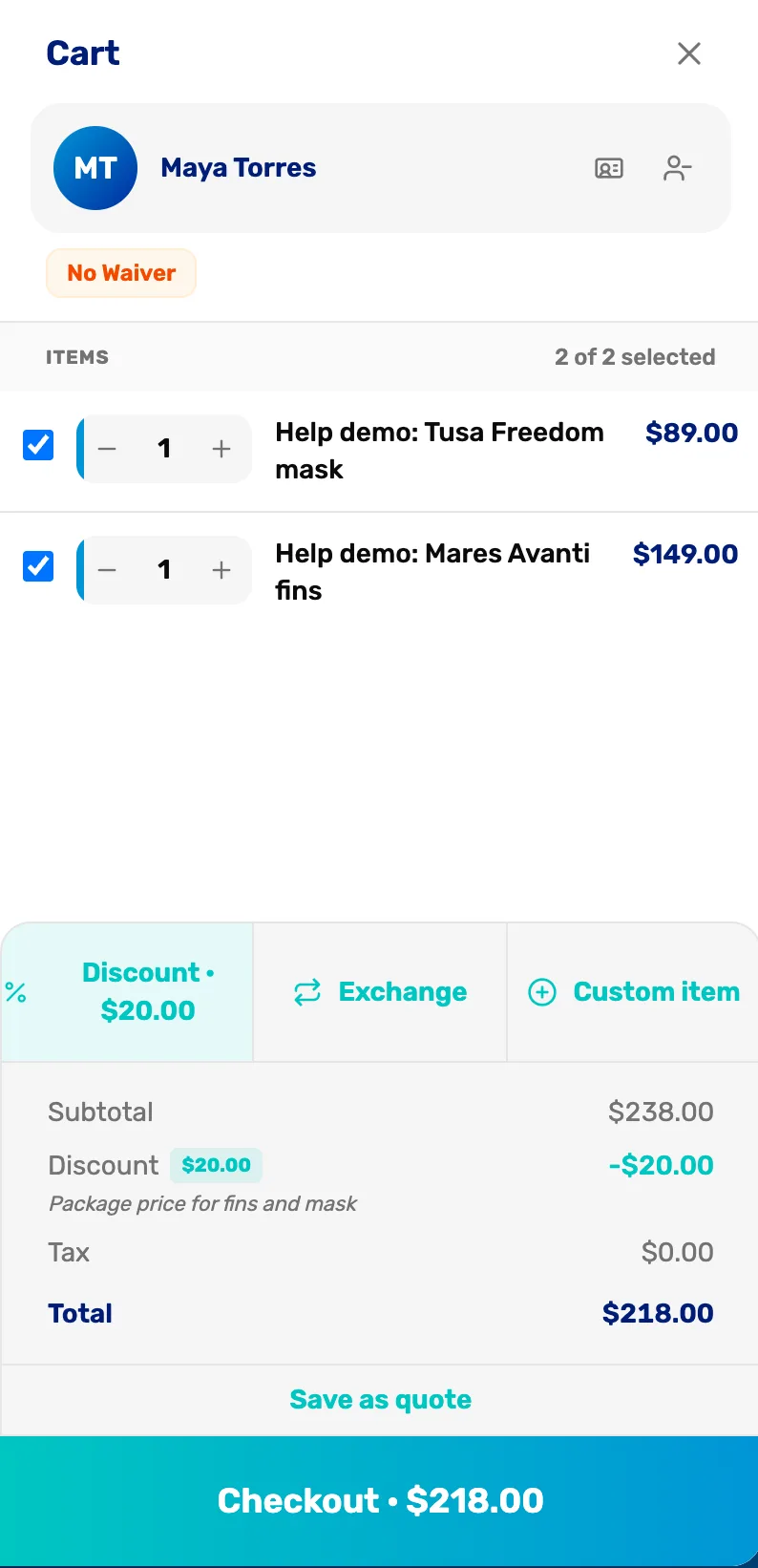
- The customer. Already attached.
- The quoted items. At the quoted prices. Change quantities or add items like any cart.
- Checkout. Tax is added here.
The new cart opens at the location this register is working from, even if the quote was saved at another location.
If something has changed since the quote was saved:
- A size or color you quoted was deleted. The item still loads, without the size or color. Pick the right one on the cart line.
- "This quote has expired." Its date passed. See An expired quote, below.
- "This quote is no longer open." Someone else loaded or voided it a moment ago. Close the customer and open them again to see its new state.
- A message that the quote needs Plus. On the Free plan, a quote with a product your plan doesn't include can't be loaded. See Free, Plus and Pro.
Change a quote
A saved quote can't be edited. To change one, tap Load into cart, change the cart, then save it as a new quote with Save as quote. The old quote shows Converted and the new one shows Open, with a new number and a new expiry date.
Tap Print. The quote opens in a new browser tab, ready to print. Tap Print at the top of that tab to send it to your printer. Back to register takes that tab to the register.
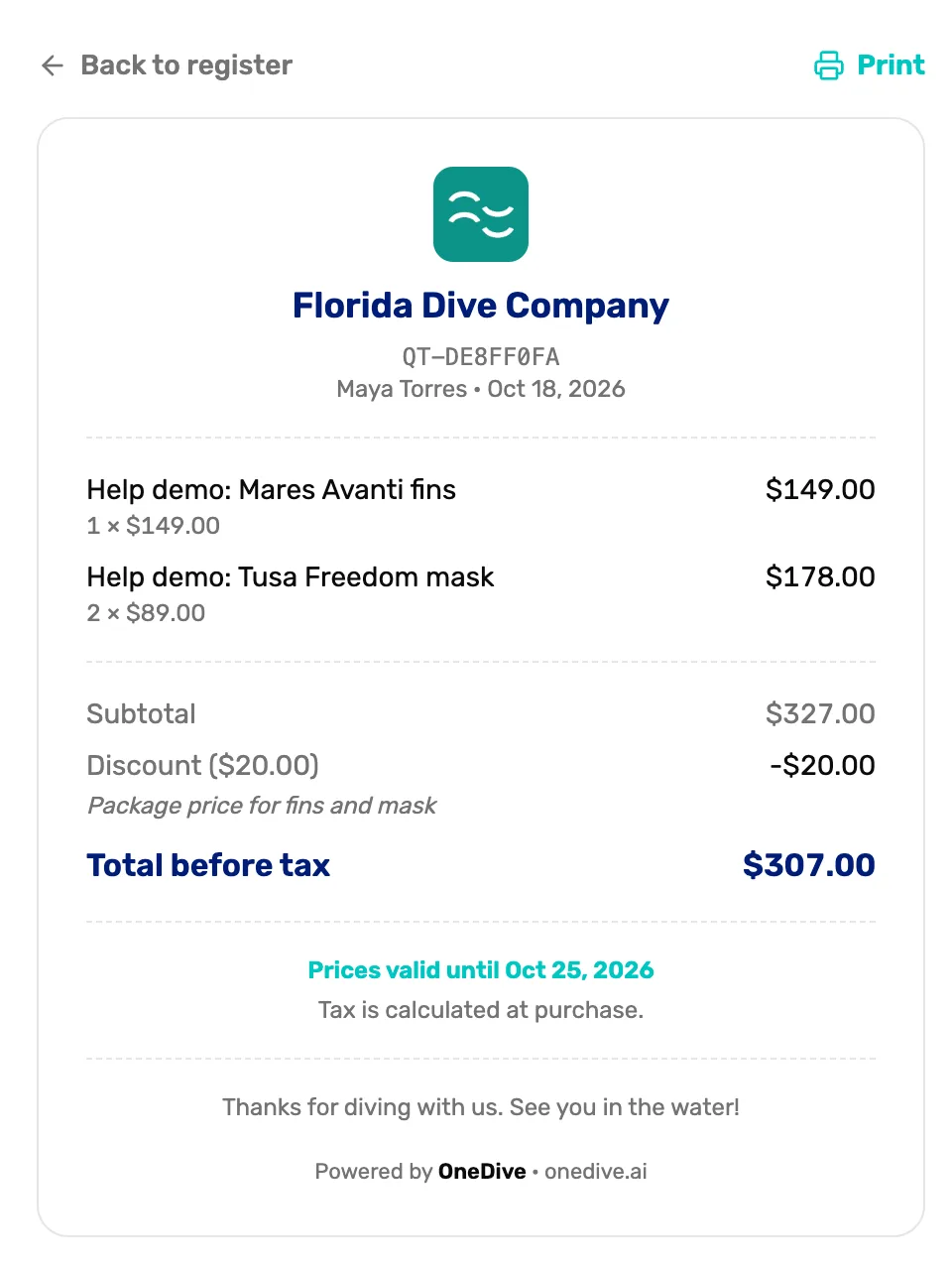
- Back to register. Leaves the quote. It isn't printed on paper.
- Print. Opens your printer's window.
- Your shop and the customer. Your shop's name and logo, the quote number, the customer's name and the date it was saved.
- The items and totals. Each item, then Subtotal, any Discount, and Total before tax.
- Prices valid until. The quote's expiry date, then "Tax is calculated at purchase." and your receipt footer.
Your logo and footer come from your receipt branding. See Shop profile and branding.
Tap Email to send the quote to the email on the customer's profile. A message says who it went to, with part of the address hidden, like "Quote emailed to ma••@gm•••.com". You can't type a different address here: to send it somewhere else, change the email on their profile first.
The customer gets an email with the subject "Quote from" your shop's name and the quote number. It lists the items, the Estimated total, the date the prices are good until, and "Tax is calculated at purchase."
If it says No email on file for this customer., either they have no email, or they haven't shared their profile with your shop. See A customer who is already on OneDive.
Void
Tap Void when the customer has decided not to buy. OneDive asks "Void quote QT-01536998? This can't be undone.", with the quote's own number. Tap OK. A message says "Quote QT-01536998 voided" and the quote shows Voided. It stays on the list as a record, with no buttons.
An expired quote
An expired quote has no buttons, so it can't be loaded, printed or emailed. To sell the same items, ring them up again at today's prices. To hold prices again, save the new cart as a new quote.
What happens next
- Save a new quote: Save a cart as a quote.
- The rest of the customer's page: The customer drawer, tab by tab.