
What this is for. The assignee is the person doing the work. The pickup date is the day you told the customer they'd have the gear back. Set both and the board shows who has what and what's running late, the calendar shows what's due each day, and the printed work order carries the date and the tech's name.
Open the ticket
Go to Service and tap the card. Schedule and Assignee are in the middle of the ticket, below the customer and the gear.
A new ticket has nobody assigned and no pickup date. The drop-off screens don't ask for either, so set them right after you create the ticket.
Pick the assignee
Under Assignee, tap the list. It says None when nobody has the ticket. Tick a name.
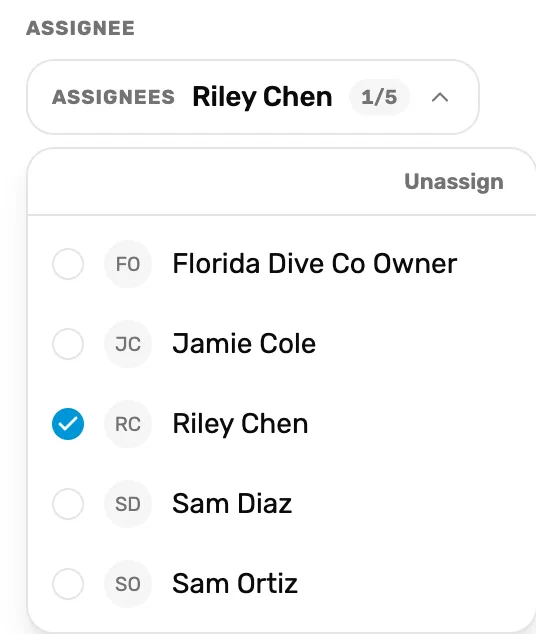
- The list. Shows who has the ticket now, or None.
- Unassign. Takes the ticket off whoever has it.
- A name. Tap to give them the ticket. Tapping someone else moves it to them.
- The names are your staff in Settings › Users & Access, with the owner first.
- Dragging works too. If nobody has a ticket and you drag its card to another column, it's assigned to you, when your name is on the list.
What the assignee is told
The person you pick gets a notice in the bell at the top right of the point of sale, like "Ticket FDC-2026-00012 assigned to you", with the ticket's name and the customer. Tapping the notice opens the ticket. See Your notifications, and where each one opens.
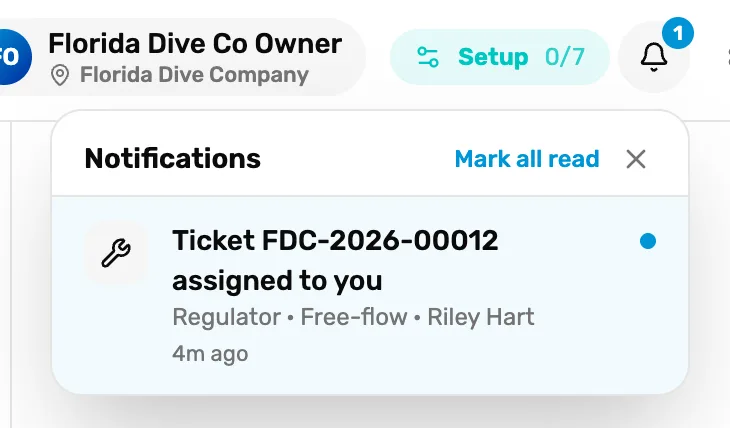
- The bell. The number counts notices they haven't read.
- The notice. The ticket number, then what it's for and the customer. Tap it to open the ticket.
- Assigning yourself sends nothing.
- Moving the ticket to someone else clears the first person's notice if they hadn't opened it.
- Only someone who signs in with their own email login sees it. A person who only uses a PIN has no bell of their own, so tell them.
Set the pickup date
Under Schedule, Submitted is the day the gear came in. Tap Pickup and pick the day you promised. It saves as soon as you pick a day.
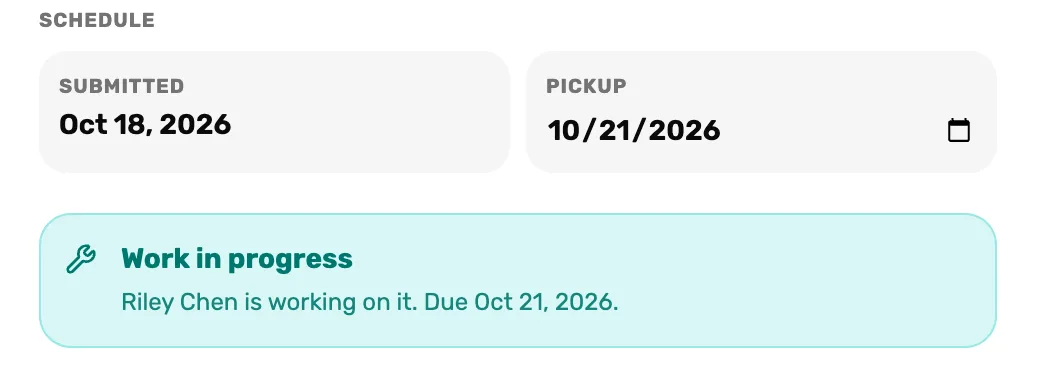
- Submitted. The drop-off day. You can't change it.
- Pickup. Tap to pick or change the day.
- The note. Who has it and when it's due. Late, it says "Overdue, it was due" and the date.
- A pickup date counts as due at 5:00 PM that day.
- You can change it, but not clear it. Pick a new day instead.
- The customer isn't sent the date. Tell them at the counter.
Print the work order, or print it again
The work order has a Due box and a Tech box. Set both before you print and they're filled in. Printed already? Choose Print at the top of the ticket for a new copy. Left empty, each box is a line to write on.
Where they show
On the board, each card shows the assignee, or Unassigned tech in orange, and a chip for the pickup date:
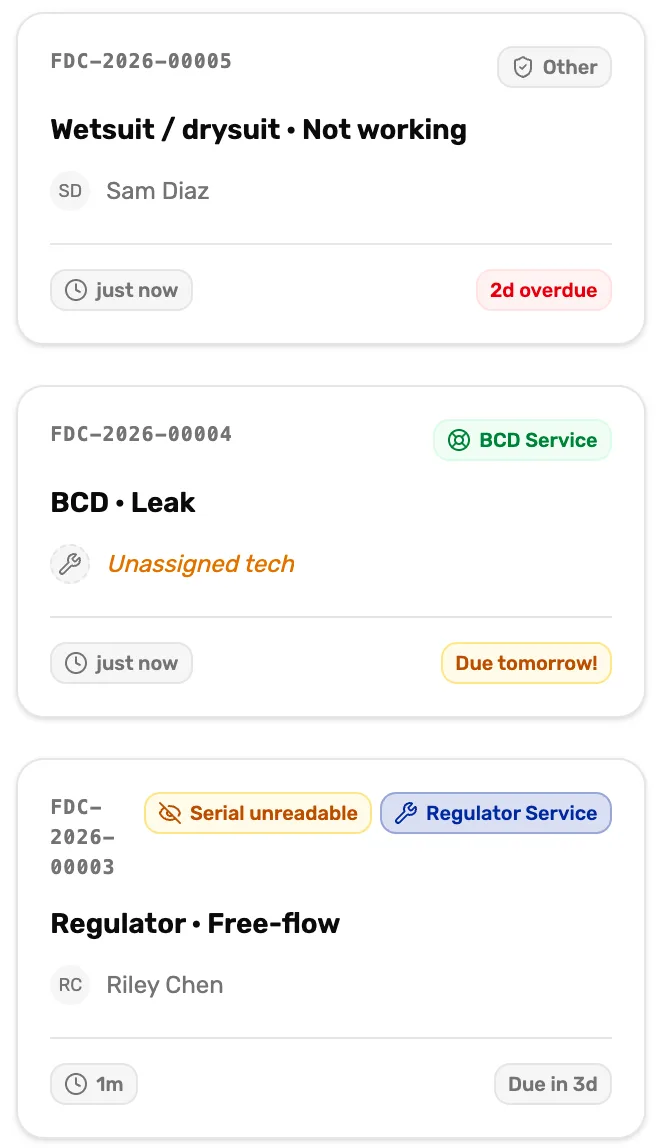
- Due in 3d. Days left until the pickup date.
- Due tomorrow! and Due today! In amber.
- 2d overdue. In red. The pickup date has passed.
A card in Ready for pickup shows how long ago the work finished instead of the date.
On the ticket, the note under Schedule reads "Not started yet." in Intake, or the assignee's name, or "Nobody is assigned yet." in In progress. Then the pickup date, or "No pickup date set."
On the calendar, a ticket with a pickup date is listed under Service due on that day, with its assignee. See Calendar and The calendar, explained.
In Activity, each change has its own line: "Assignee changed", "Unassigned" or "Due date changed", with who did it.
Find tickets by who has them
At the top of the board, Assignees narrows the board to some people. Assigned to me shows only your own tickets.

- Assignees. Untick people to hide their tickets. Select all and Clear are at the top of the list.
- Assigned to me. Only your tickets. Unassigned ones are hidden.
Tickets nobody has show only while every name in Assignees is ticked.
What happens next
- The day-to-day of a ticket: Work a ticket from start to pickup.
- What's due today, on one screen: The calendar, explained.
- Add someone to the list: Roles and what each can do.