
What this is for. A ticket is where the bench keeps track. The buttons at the top move it along, the comments hold what you found, and the Activity shows who did what. Do it this way and anyone in the shop can pick up a job, answer a customer's call, or see why a ticket was paused. For a map of the board and every button, see Service tickets, explained.
Find your tickets
Go to Service and tick Assigned to me to see only the tickets given to you. Tap a card to open its ticket.
New tickets wait in Intake. Nobody has one until it's assigned, so check there too. See Assign a tech and set a pickup date.
Start work
Choose Start work. The ticket moves to In progress, and the box under Schedule says who's working on it and when it's due.
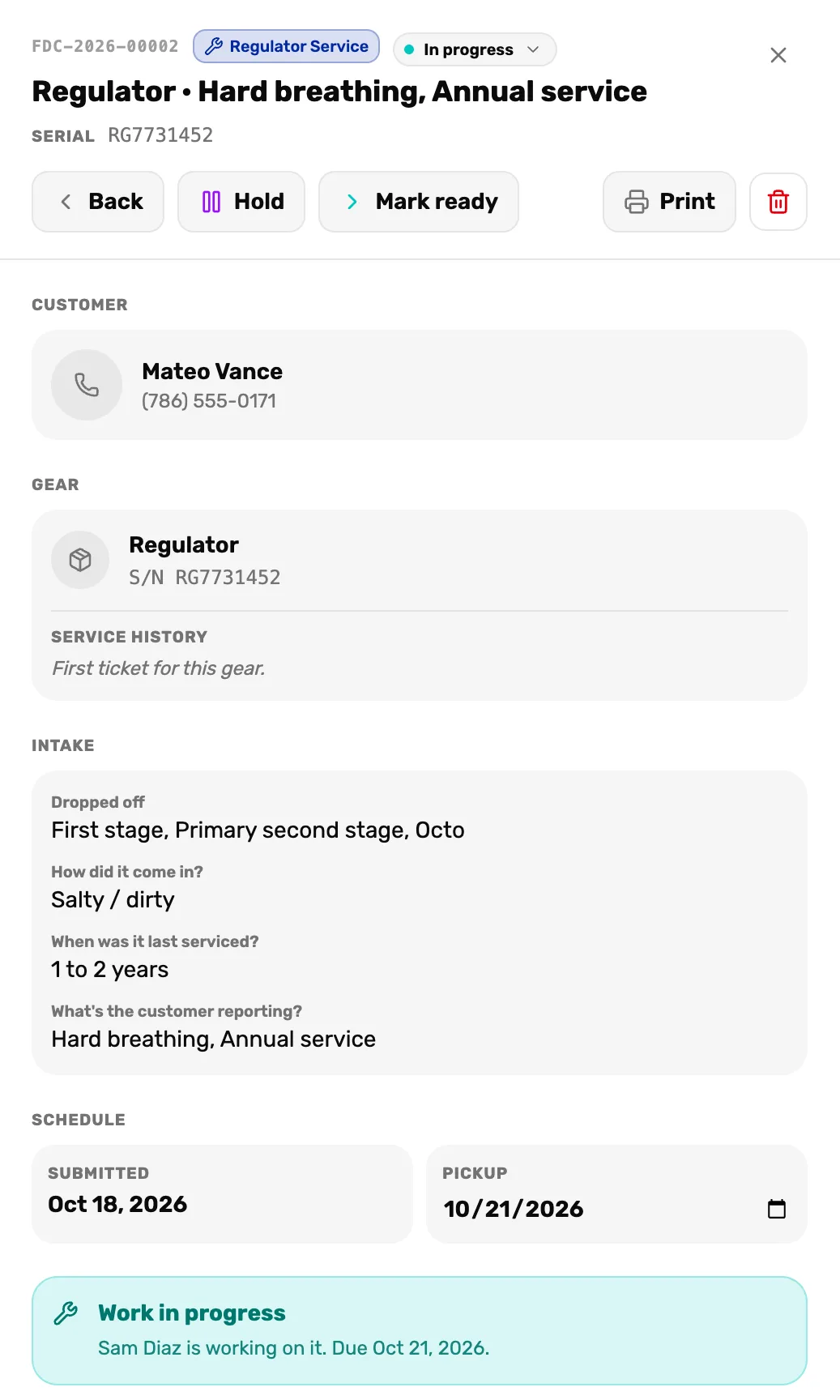
- Back. Puts it back in Intake if you started the wrong ticket.
- Hold. Pauses it. Step 4.
- Mark ready. The work is done. Step 5.
- Work in progress. Who has it and when it's due. "Nobody is assigned yet." means nobody does.
Write down what you find
Open the Comments tab near the bottom of the ticket. Type in Add a comment…, add pictures with Add photo, then choose Post. On a tablet you can take the picture right there.
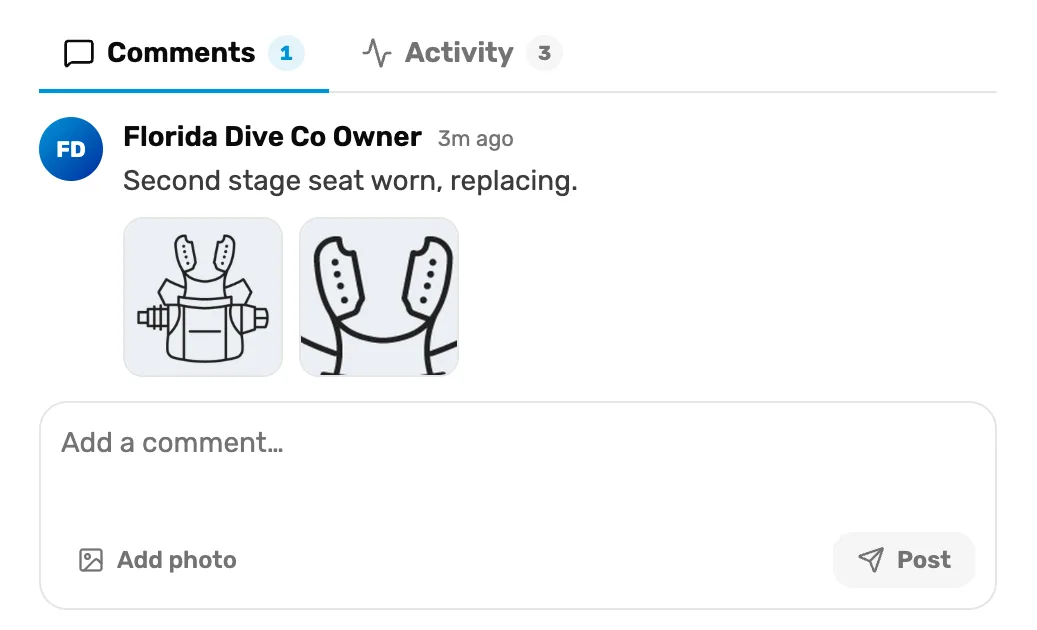
- A comment. Who wrote it and how long ago. Tap a photo to see it full size.
- Add photo. Pick one or more pictures. Each is faded until it's uploaded, and Post waits for it.
- Post. Saves the comment on the ticket.
- Comments are for your team. The customer never sees them.
- They don't print. The work order prints only the note typed at drop-off, under Notes from drop-off.
- A photo that vanishes before you post didn't upload. Add it again.
Waiting on a part? Hold it
Choose Hold when the job can't go on: a part is on order, or the customer has to say yes to a price. The card moves to the On hold group at the bottom of In progress.
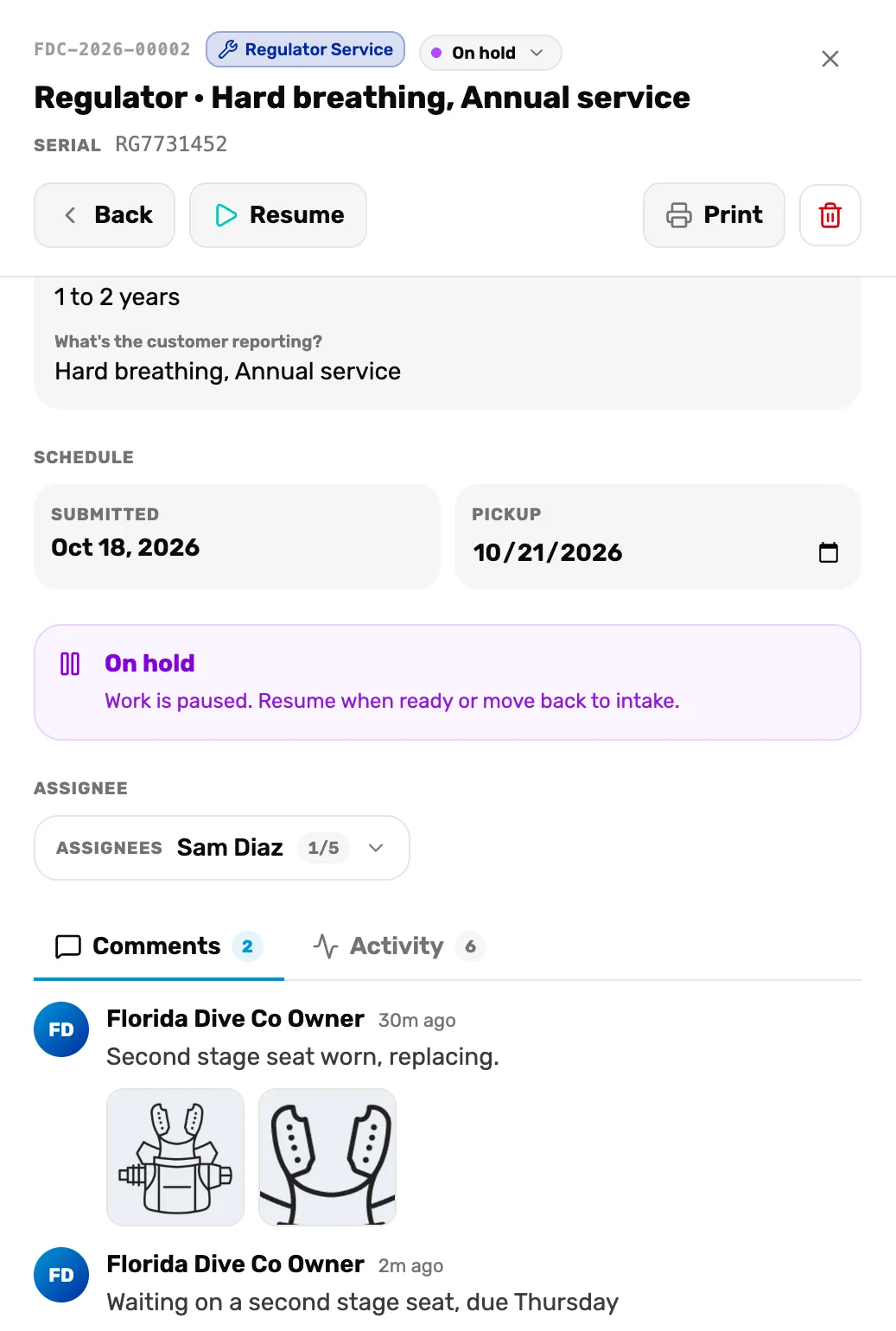
- Resume. Back to In progress when the part arrives.
- On hold. Shows on the ticket and on the board.
- The comment. Hold doesn't ask why. Post a comment, so the next person knows what you're waiting for.
Mark it ready
When the work is done, choose Mark ready. The ticket moves to Ready for pickup, and the customer gets your ready message if it's switched on. See What service customers receive.
Add the services, labor and parts you're charging for before the customer comes in, if your shop charges on tickets. See Charge for the work and hand it back.
Hand it back
When the customer collects the gear, choose Mark picked up. If money is still owed, OneDive asks you to take payment first. The ticket leaves the board and goes to Service › Closed tickets.
If the job is off: cancel the ticket
The customer changed their mind, or the gear can't be fixed. Tap the red bin at the top of the ticket. A box asks Cancel ticket and the number.
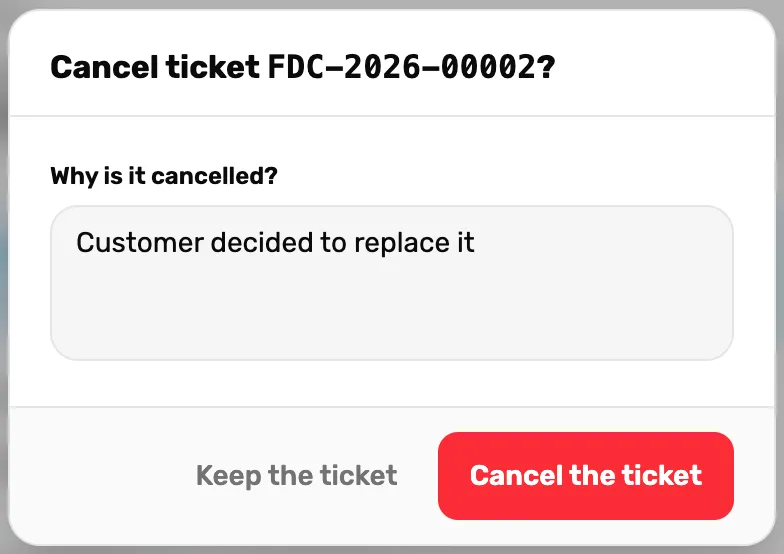
- Why is it cancelled? Required. Saved on the ticket as a comment with your name.
- Cancel the ticket. Grey until you type a reason. Keep the ticket closes the box and changes nothing.
- Parts from your stock? If your shop charges on tickets and parts on this ticket came off your stock and aren't paid, the box also has Put the part back on the shelf count, ticked to start. Untick it if the part was used and can't be sold.
- Cancelling sends the customer nothing. Call them.
- Paid lines stay paid. If some of the ticket was paid, the box says "Lines that are already paid stay paid. To give money back, refund the sale under Settings, Transactions." Refund it in Settings › Transactions.
The gear came back: reopen
Go to Service › Closed tickets and choose Reopen on its row. Or open the closed ticket and choose Reopen ticket. It goes back on the board in Intake, with its comments, its lines and its history.
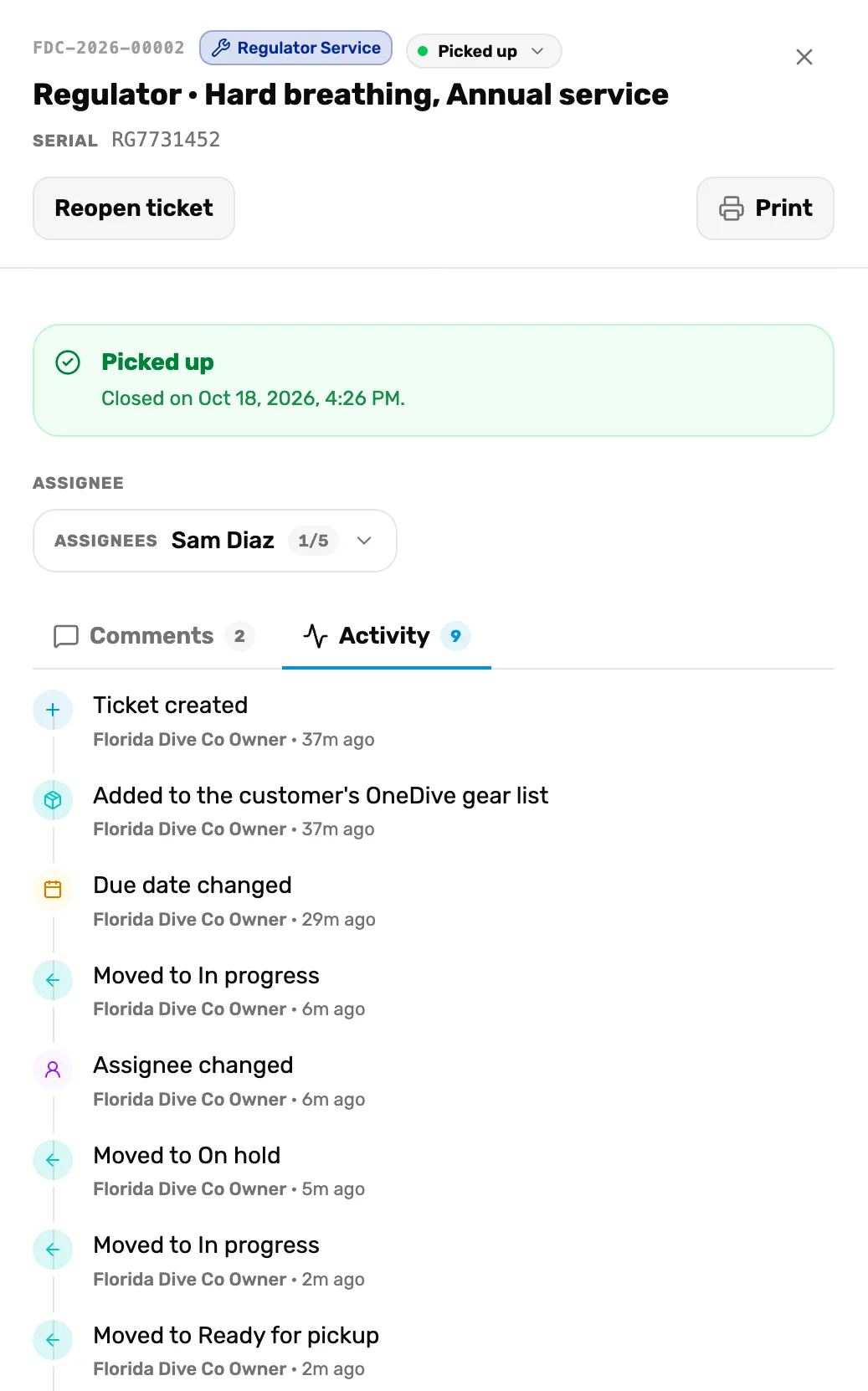
- Reopen ticket. Back to Intake. Comments can be added again.
- Closed on. How and when it closed.
- Activity. Every change, with who made it and when.
See what happened: Activity
Open the Activity tab next to Comments. Each line is one change: the ticket being created, each move, the assignee, the pickup date, payments and each message sent to the customer, with who did it and how long ago. A line by System was done by OneDive itself, like sending the ready message.
What happens next
- Who works on what, and when it's due: Assign a tech and set a pickup date.
- Charging and handing back: Charge for the work and hand it back.
- A serial you find on the bench: Serial numbers on a ticket.