
What this is for. OneDive tells you when something needs you: a repair assigned to you, a diver booking a trip online, a distributor shipping your order. They land in a bell at the top of the screen. There is one bell on the register and one in OneDive B2B, and they don't show the same things. This page says which bell to look in, who gets what, and where tapping each one takes you.
The two bells
| The register's bell | The OneDive B2B bell | |
|---|---|---|
| Where | Top bar, right side, left of the gear if you have one | Top bar, right side, between Messages and your picture |
| Shows | Notifications addressed to you | Everything for you and your shop |
| On a phone | Not shown. The register's top bar is hidden on narrow screens | Shown at every screen size |
| See older ones | No. It shows the newest 20 | View all notifications opens the full list |
Your personal notifications (a ticket assigned to you, a new online booking, a new message) show in both bells. Your shop's business with distributors (orders, invoices, price lists, applications) and your Shopify sync show only in the OneDive B2B bell.
Tap a bell and its list, Notifications, drops down with the newest first.
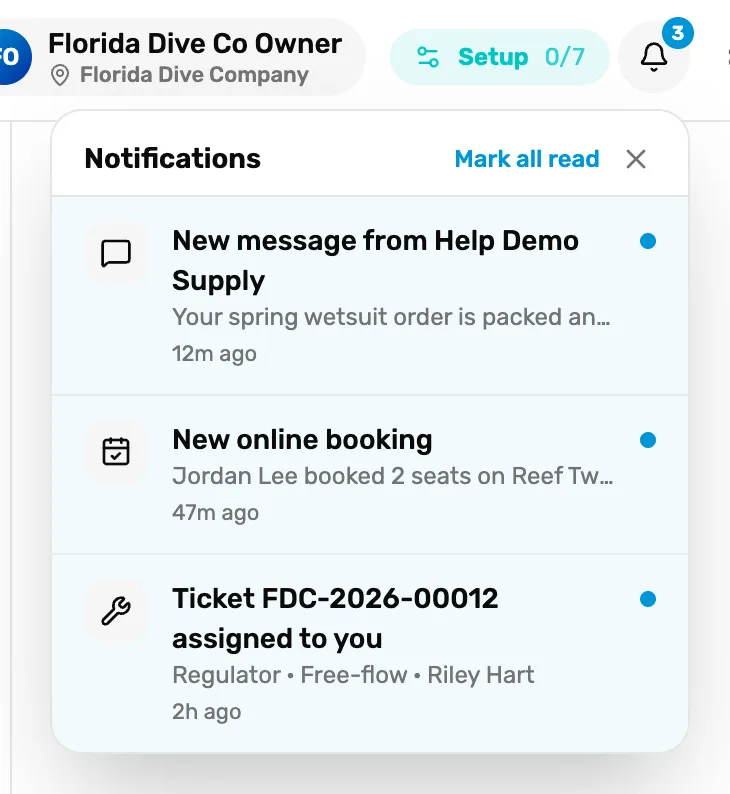
- The bell. The number is how many are unread. Past nine it says 9+.
- Notifications. The newest first. A long line is cut off with "…". The X closes the list.
- Mark all read. Shows only while something is unread.
- A notification. Blue dot: not read yet. Tap it to go to it.
Read and unread
- A blue dot means not read yet.
- Tap a notification and it's marked read, then you're taken to it.
- Mark all read clears the blue dots and the number on the bell. It shows only while something is unread.
- Your shop's notifications are shared. An order, invoice or catalog notification is one notification for the whole shop. When anyone on your team reads it, it's read for everyone.
- Personal ones are yours. A ticket assigned to you, a booking alert or a message is read only when you read it.
- There is no way to turn notifications off. Mark them read instead.
Notifications for you
These go to particular people and show in both bells. The text in quotes is how the notification begins.
| Notification | Who gets it | Tap it to open |
|---|---|---|
| "Ticket … assigned to you", with the ticket number, what it's for and the customer | The person the ticket was just assigned to. Not you if you assigned it to yourself | The ticket on the Service board |
| "New online booking", with who booked, how many seats, the trip and the time | The owner, every General Manager and every Manager | That departure's manifest in Trips |
| A diver "rescheduled", with the seats and the old and new times | The owner, every General Manager and every Manager | The manifest of the new time |
| "New message from" a distributor | The owner and General Managers, and anyone else given access to messages | The conversation in OneDive B2B |
| "One Dive Support replied" | The same people | Your conversation with support in OneDive B2B |
When a ticket is moved to someone else, the old assignee's notification is marked read for them. A teammate who only has a PIN and never signs in with their own email can't see a bell, so they never see their assignments there. Check the board instead. See Assign a tech and set a pickup date.
From the register, a message notification opens OneDive B2B in a new browser tab. Every other one stays on the register.
Notifications for your shop
These are for the whole shop and show only in the OneDive B2B bell. Everyone at your shop who signs in to OneDive B2B sees them.
| Notification | When | Tap it to open |
|---|---|---|
| "Order #… confirmed" or "placed for you" | You placed an order, or your distributor placed one for you | The order |
| "Order #… is being prepared", "is on hold", "has shipped" or "is ready for pickup", "was delivered" or "was picked up" | Your distributor moved your order on | The order |
| "Order #… was cancelled" | Your distributor cancelled it | The order |
| "Order #… was updated", "Shipping added to order #…", "Discount applied to order #…" | Your distributor changed the items, added shipping or gave a discount | The order |
| "Balance due on order #…" | Your card couldn't be charged for a shipping or tax change | The order |
| "Refund on order #…" or "Refund on invoice …" | A refund to your card went through | The order or the invoice |
| "Invoice …" | A distributor sent you an invoice to review | The invoice |
| A distributor "approved your application", or "Update on your application to" a distributor | A distributor answered your application | That distributor |
| "Your dealer authorization with" a distributor "ends on" a date, or "has ended" | Your time as their dealer is ending, or has ended | That distributor |
| A distributor's "catalog is live" | A distributor you applied to is now on OneDive | That distributor |
| "Updated pricing from", "New pricing applied from", "Catalog update from" or "New file from" a distributor | A distributor changed prices, the catalog or their files | New pricing applied opens My Inventory. The others open the catalog or Distributors |
| "Shopify price changes ready to review", "Shopify prices updated" and similar | Your Shopify price sync needs you, or finished | The Shopify sync page |
| "Shopify orders need a look", "Shopify sync paused", "A Shopify listing was removed" | Your Shopify store sync found a problem | Online store, in Settings |
Your own orders' notifications show only in OneDive B2B, because orders live there. See Open the register from OneDive B2B for moving between the two.
The full list in OneDive B2B
In the OneDive B2B bell, tap View all notifications, or go to Notifications.
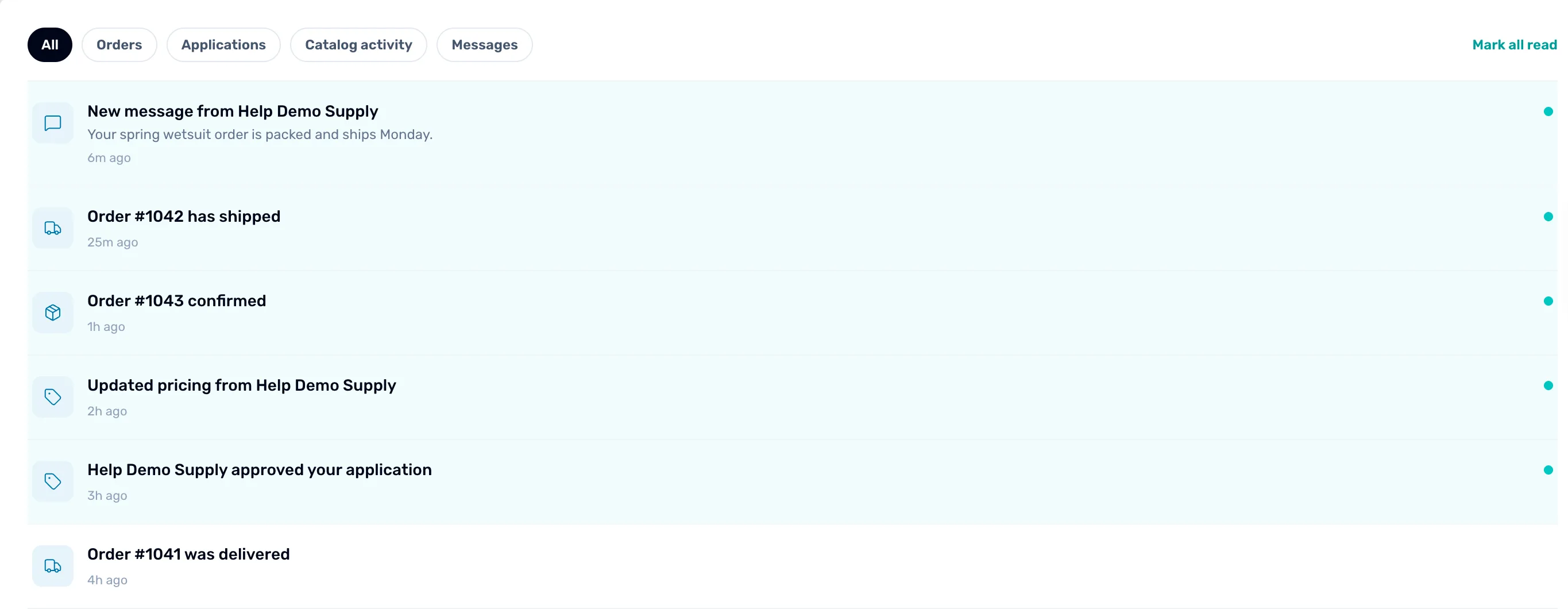
- The tabs. All, Orders, Applications, Catalog activity and Messages.
- Mark all read. Marks every notification read, on every tab.
- A notification. A dot means not read yet. Tap it to go to it.
The page shows 30 at a time. Load more, at the bottom, shows the next 30.
Notification emails
Some of the same news also comes by email. Your shop picks one address for order and account email. The owner or a General Manager can set it in Settings › Notifications, under Notifications email. Leave it blank to send to the owner's and General Managers' sign-in emails. Only the owner and General Managers see this page.
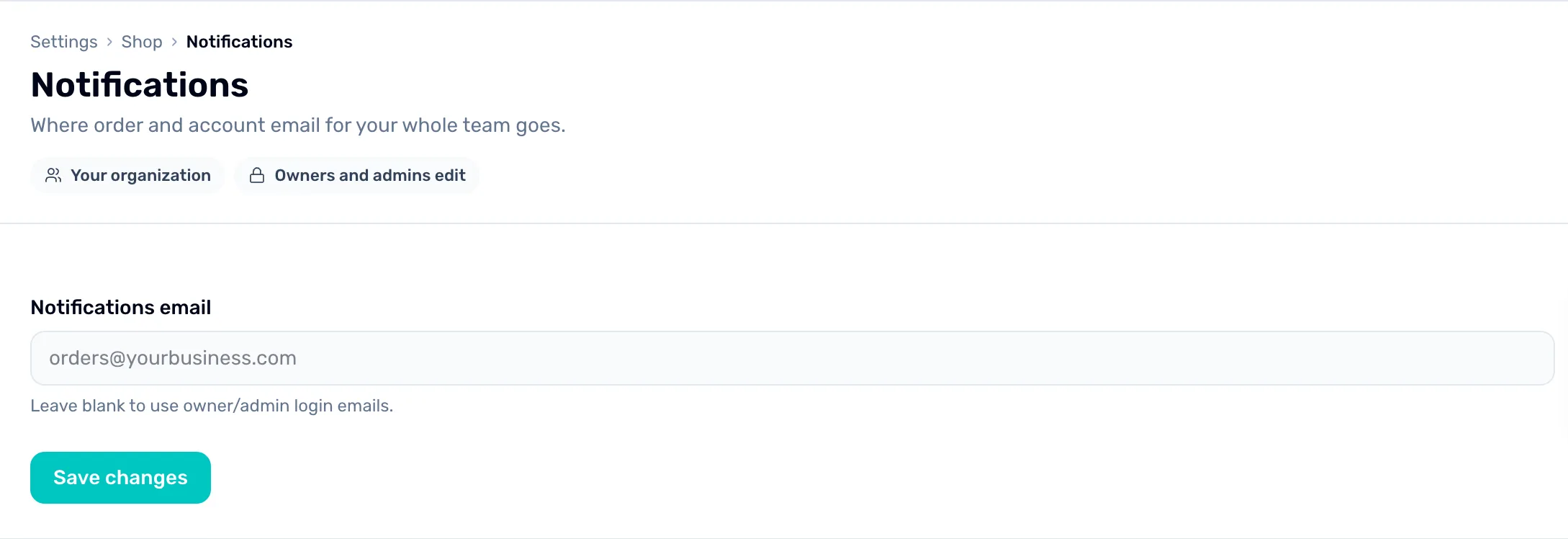
- Notifications email. One address for your whole shop, like a shared orders inbox.
- Leave blank. Email goes to the owner's and General Managers' own sign-in addresses.
- Save changes. Saves it. This changes email only, never the bell.
What happens next
- Who on your team can do what: Roles and what each can do.
- What happens when a diver books online: When a diver books.