
What this is for. Every rental is rung up and paid for at the register, like anything else you sell. You choose the item, its size, when the customer picks it up and how long they keep it, and OneDive works out the price and the due-back time. When they pay, you end up with a rental booking on the Calendar, ready to hand over and take back.
Tap Rentals and pick the item
In the register, tap the Rentals tile. You can also type the item's name in the search box. Tap the item the customer wants.
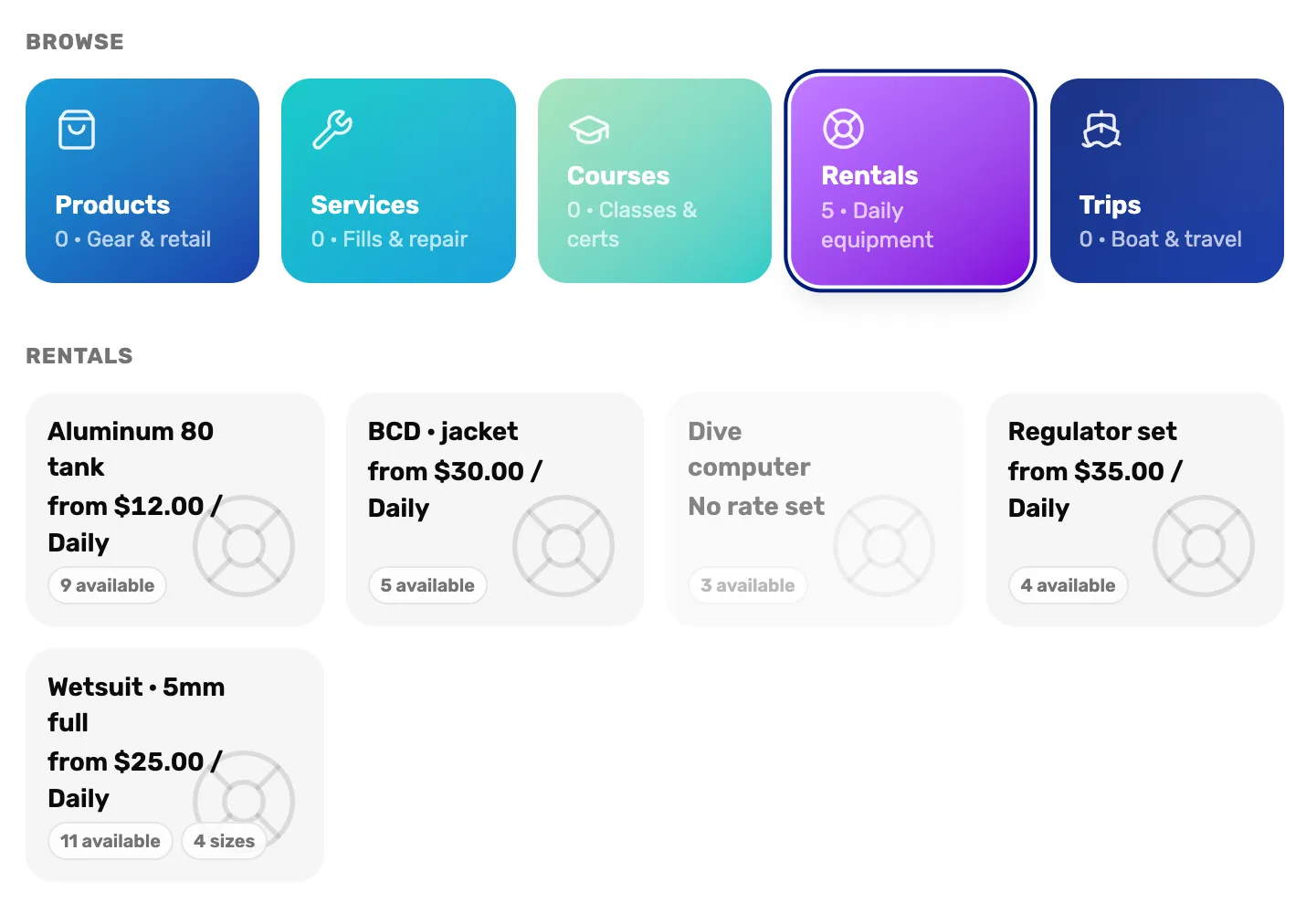
- Rentals. Your rental items. The number is how many you have.
- The price. The item's cheapest rate. The customer can pick any of its rates in the next step.
- Available and sizes. How many you can rent out right now, and how many sizes the item comes in.
- A grey tile. Can't be rented. It reads No rate set when the item has no priced rate, or 0 available when none are free.
A grey No rate set tile needs a price before anyone can rent it. See No rate set on a rental.
Attach the customer if the register asks
A rental needs a customer on the cart, so you know who has your gear. On a guest cart, the register asks first. Search by name, phone or email and tap the customer, or add a new one from the same window. The rental window opens next.
If the cart already has a customer, this step is skipped. More on finding and adding customers: Attach a customer and their waiver.
Pick the size, pickup, rate and periods
The Book rental window opens with the item's name at the top.
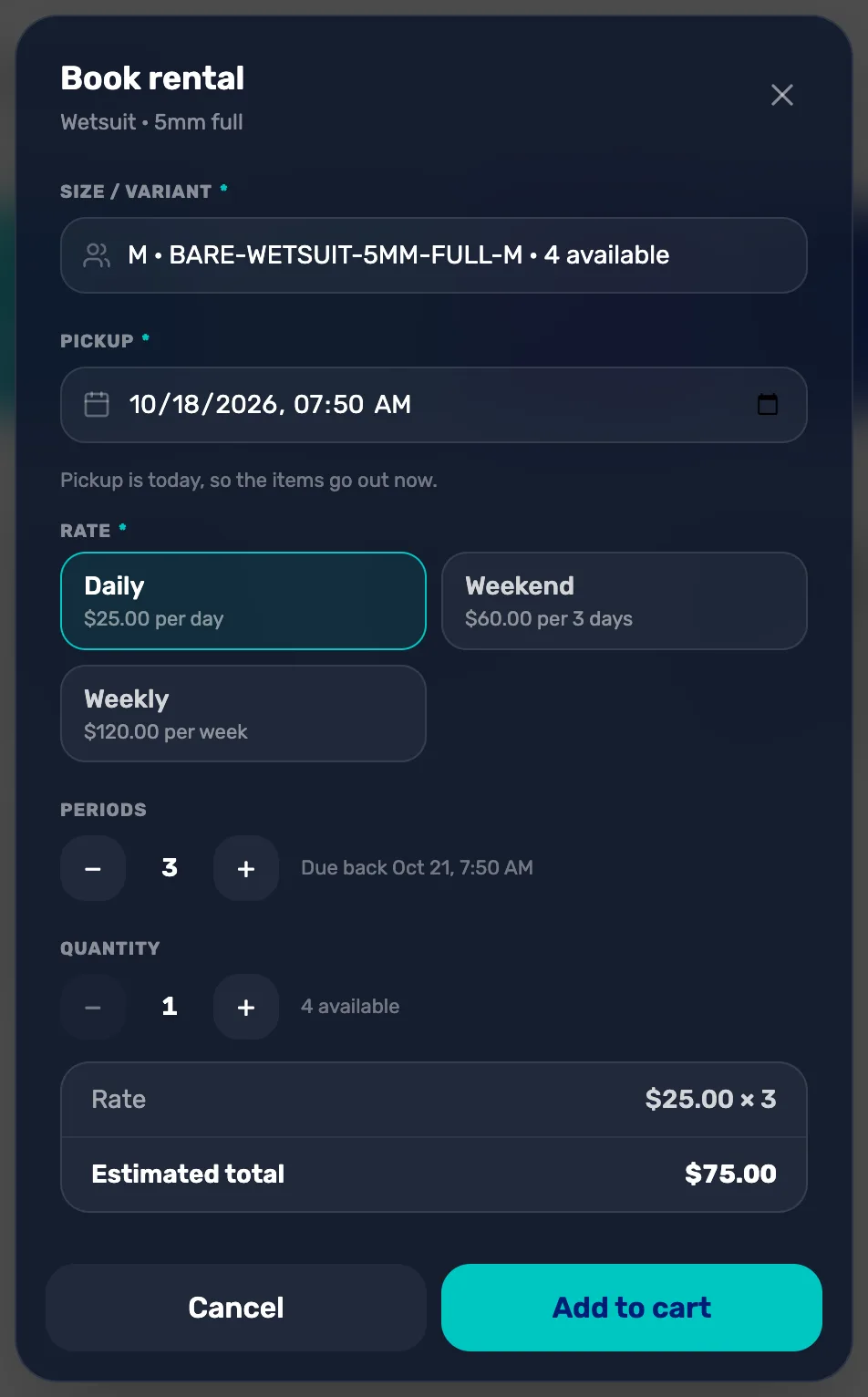
- Size / variant. Only for items with sizes. Each size shows how many are free. A size with none free can't be picked.
- Pickup. When the customer takes the gear. It starts at right now. Change it for a pickup on another day.
- The line under Pickup. "Pickup is today, so the items go out now." means the gear leaves with the customer when they pay. "Booked for pickup on a future date." means it waits on the shelf until that day. "This pickup date has already passed. Check the date before you add it." means the date is in the past, so fix it first.
- Rate. The item's rates that have a price and are switched on. Each shows its price and how long one period lasts.
- Periods. How many of that rate. Three periods of Daily is three days.
- Due back. When the gear is due back, worked out for you.
How the due-back time is worked out. It is the pickup time plus the rate's length, times the number of periods. The gear is due back at the same time of day it went out.
- Daily, 3 periods, picked up Tuesday at 10:30 AM: due back Friday at 10:30 AM.
- Weekend (3 days), 1 period, picked up Friday at 9:00 AM: due back Monday at 9:00 AM.
- Hourly, 4 periods, picked up at 8:00 AM: due back at 12:00 PM the same day.
You can't type a due date. To change it, change the pickup time, the rate or the periods.
Set the quantity and add it to the cart
Set Quantity for more than one of the same item and size. It stops at the number available. Check the totals at the bottom, then tap Add to cart.
- Rate shows the rate's price times the periods.
- Estimated total is that times the quantity, before tax.
Add to cart stays grey until there is a size, a pickup time and a rate. For a second size or a second item, tap its tile again. Each one becomes its own line, and its own booking.
Check the cart and take payment
The rental shows in the cart with its pickup day under its name. Take payment as usual with Checkout. Sales tax is added to a rental the same as to everything else.
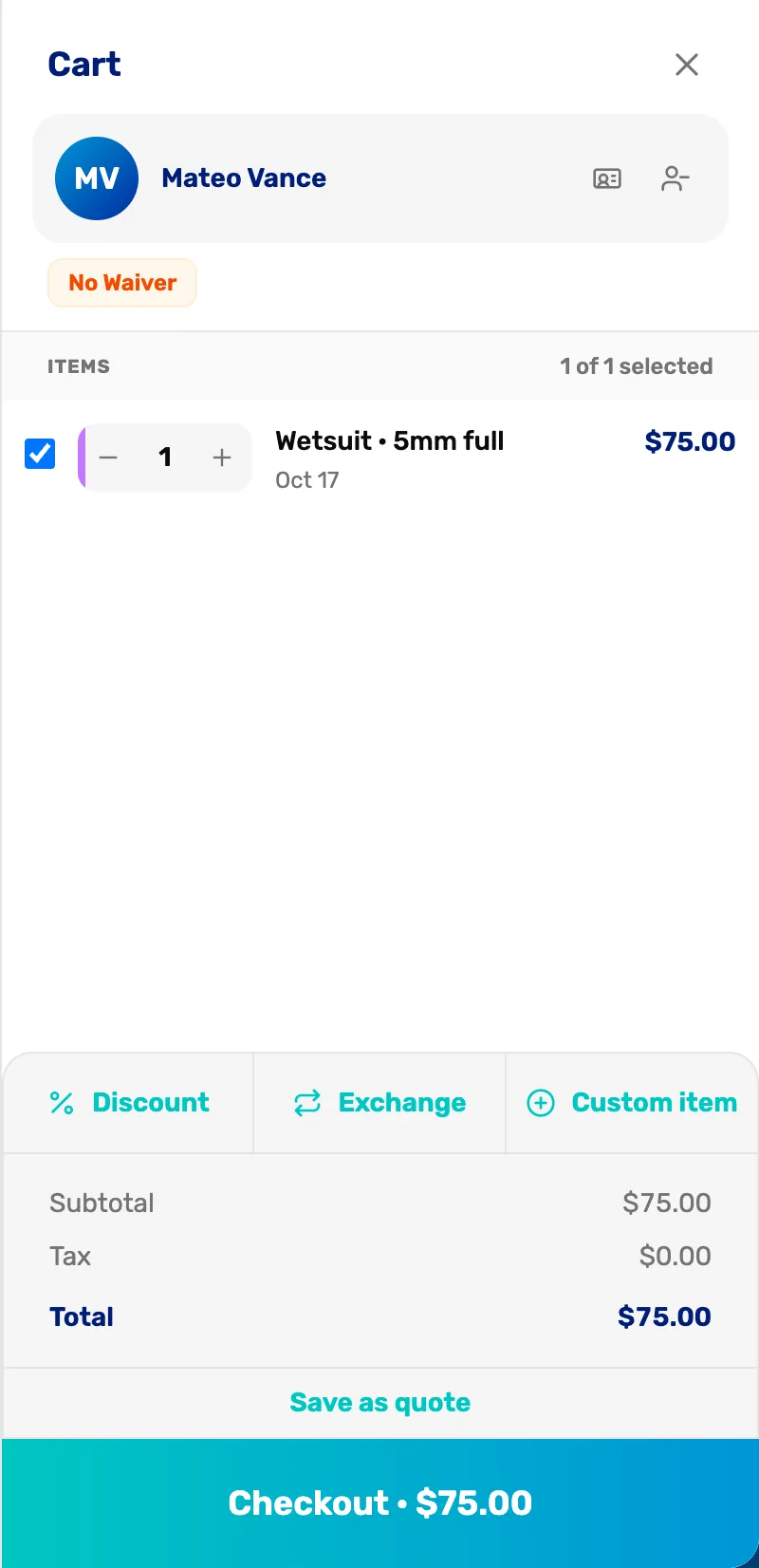
- The rental line. The item and the pickup day. The size, rate and due time are kept with the booking.
- Checkout. Takes payment. See Take payment.
If someone rented out the last one while you were ringing up, checkout says "There isn't enough of that rental available. Adjust the quantity or remove the line." Lower the quantity, or remove the line and pick another size.
What happens next
- Pickup today: the gear is out with the customer as soon as they pay. It shows on today's Calendar, due back on the day you saw.
- Pickup on a later day: it waits on that day's Calendar with Check out items. See Check gear out and back in.
- The receipt on screen shows each rental with its due-back time, like "Due back Sat, Oct 17, 5:00 PM". The emailed receipt doesn't show it yet, so tell the customer too.
- Changed their mind before pickup? Cancel the booking on the Calendar, then refund the sale. See Check gear out and back in.