
What this is for. Checking out says the gear has left with the customer. Checking in says it is back on your shelf, so it can be rented again. Both happen on the Calendar, on the booking itself. You end up with an exact record of when each rental went out and came back, and fleet counts you can trust.
Open the Calendar on the right day
Go to Calendar. It opens on today. To see another day, tap it in the month on the left, under Schedule. Today brings you back.
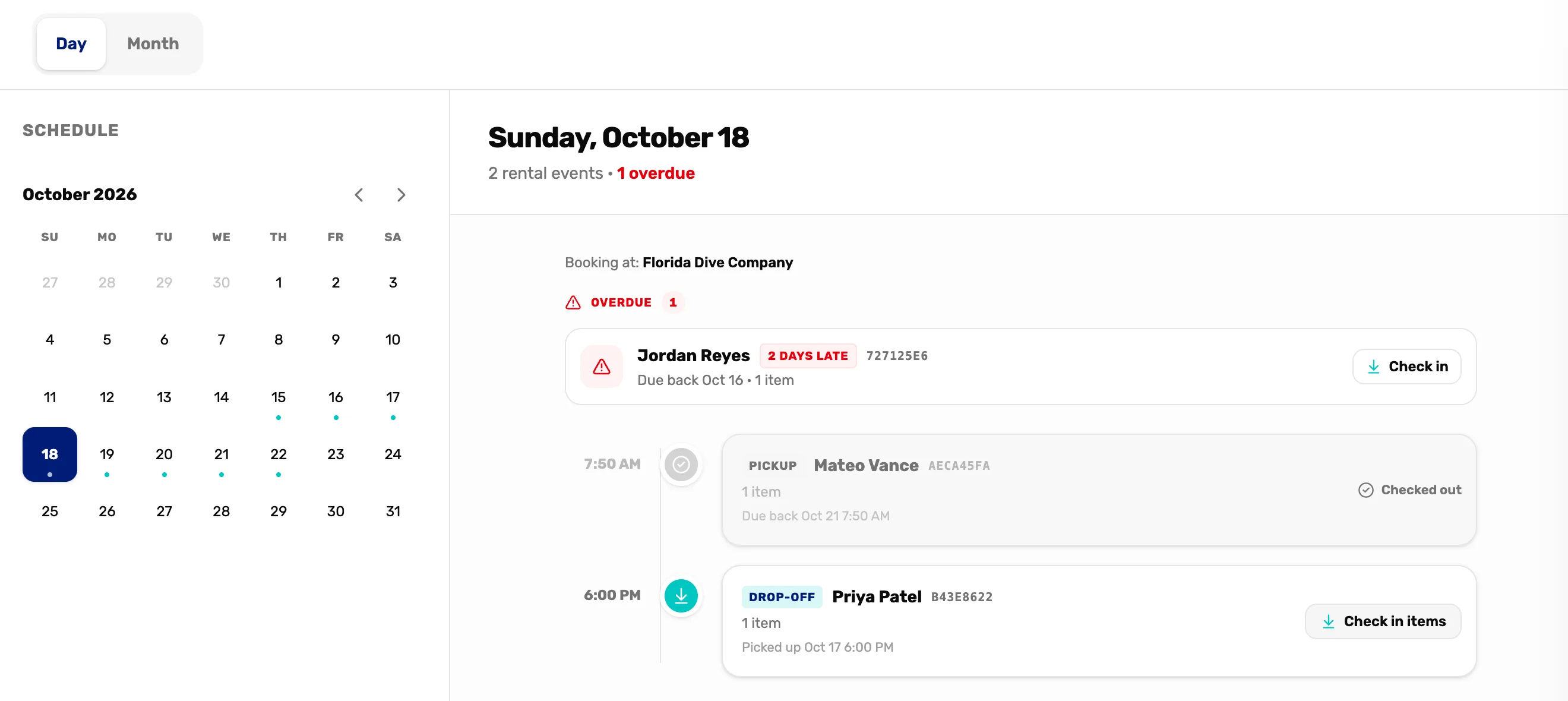
- Day and Month. Day lists one day's rentals. Month shows the whole month. See the note below.
- Overdue. On today only: gear that should have come back before today, with a Check in button.
- Pickup. A rental going out this day, with Check out items until it has gone.
- Drop-off. A rental due back this day, with Check in items until it is back.
- Checked out. The gear has gone out. The row turns grey.
- A booking's card. Tap anywhere on it to open the booking.
Gear that went out on an earlier day and is due on a later one sits under All day · In progress at the top. Tap that bar to open it.
Hand the gear over: Check out items
When the customer picks up their gear, tap Check out items on their Pickup row, or open the booking and tap it there. "Items checked out" confirms it.
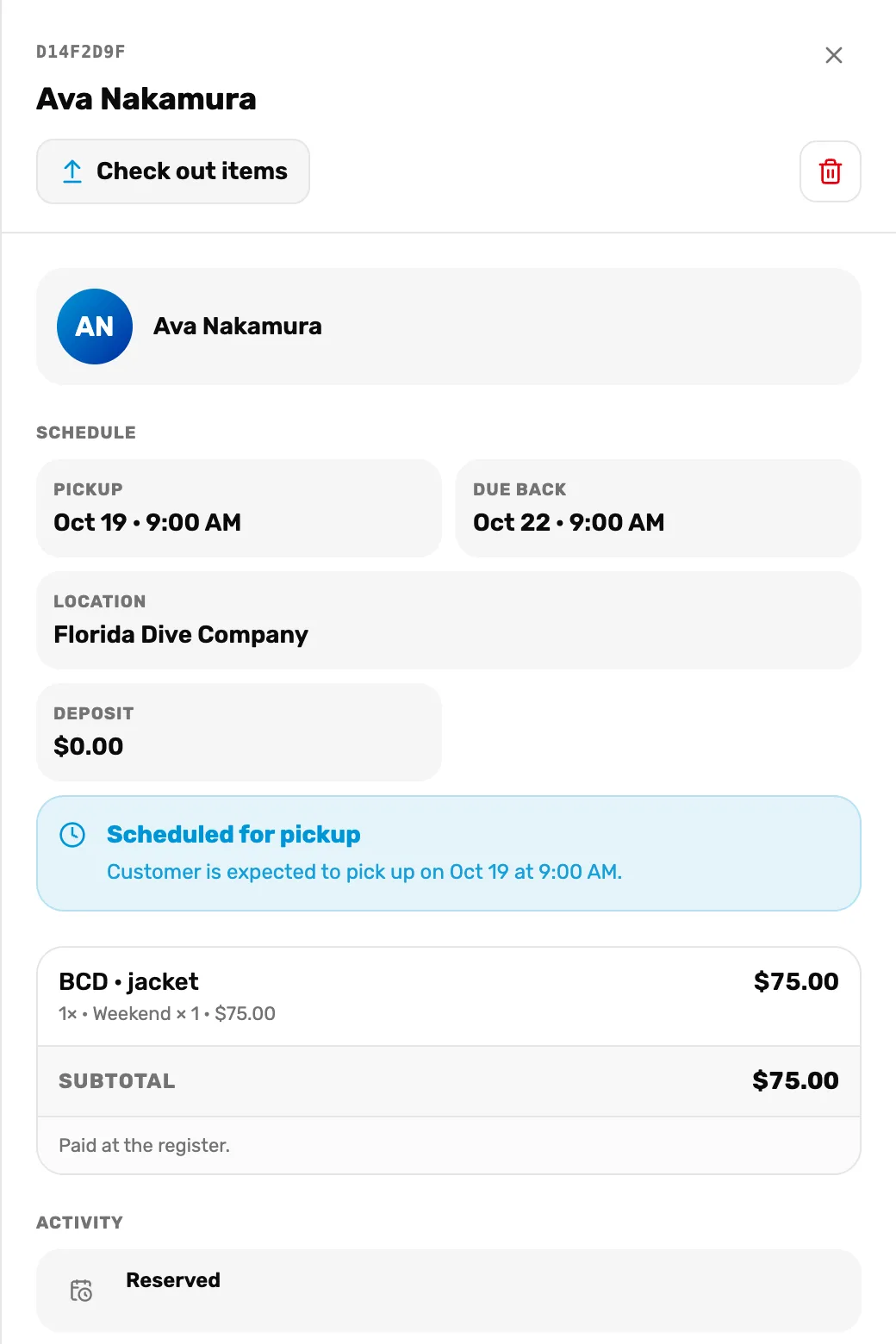
- Check out items. The gear leaves with the customer. The booking moves to out.
- The bin. Cancels the booking. Only before pickup. See Step 4.
- Schedule. Pickup, due back and the location it was booked at. Deposit reads $0.00, because the register doesn't take deposits yet.
- The items. What was rented, how many, the rate and periods, and the price.
- Paid at the register. The rental was paid for when it was rung up. Nothing is charged here.
- Activity. Each step of this booking with its date and time.
A rental with a pickup today is already out when the customer pays. Its Pickup row reads Checked out and there is nothing to tap.
Take the gear back: Check in items
When the gear comes back, tap Check in items on the Drop-off row, Check in on an overdue card, or open the booking and tap Check in items. "Items checked in" confirms it, and the gear is back on your counts.
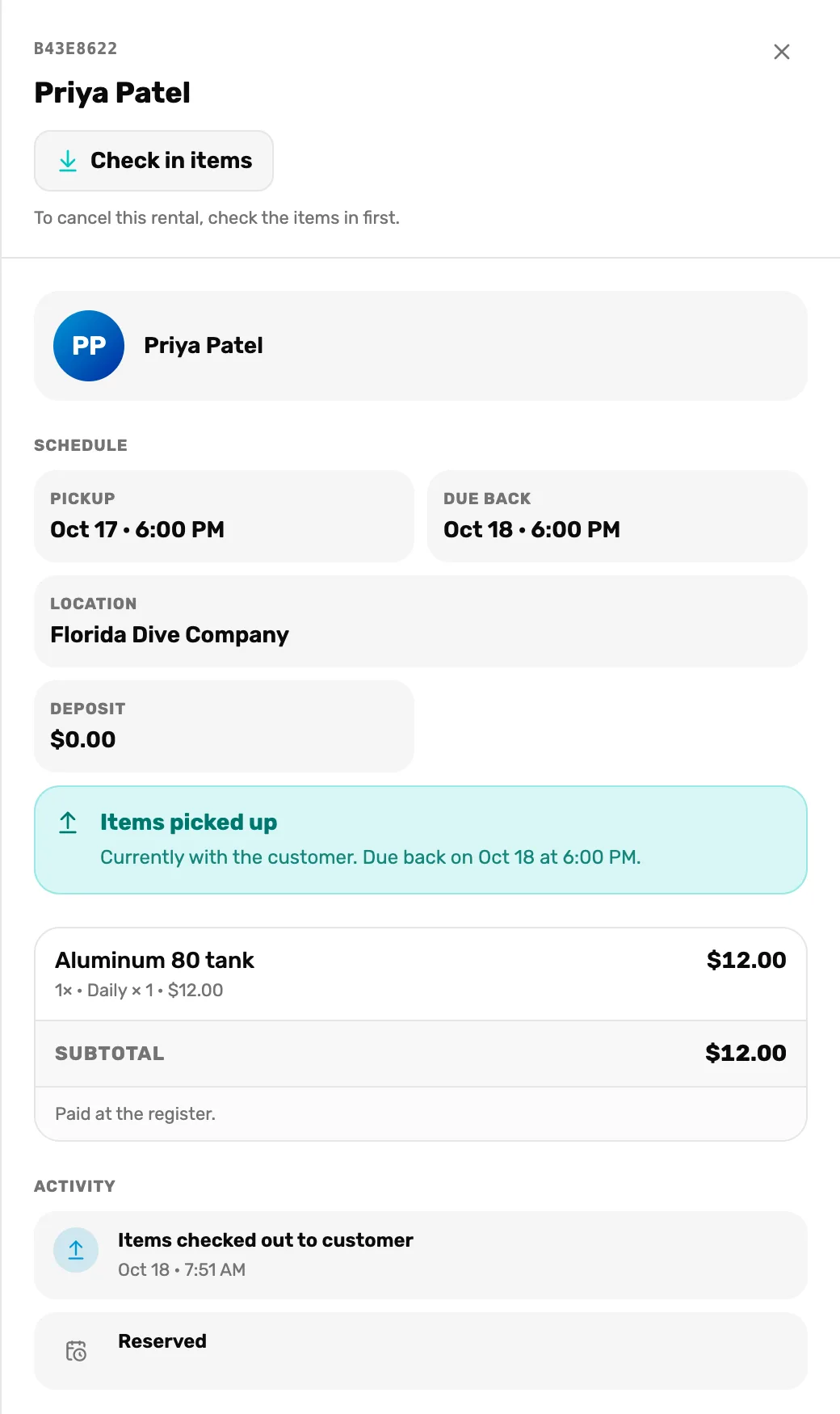
- Check in items. Brings back everything on this booking.
- Items picked up. Shows when it is due. Once it is late this reads Items are late, with how many days, or "due back earlier today".
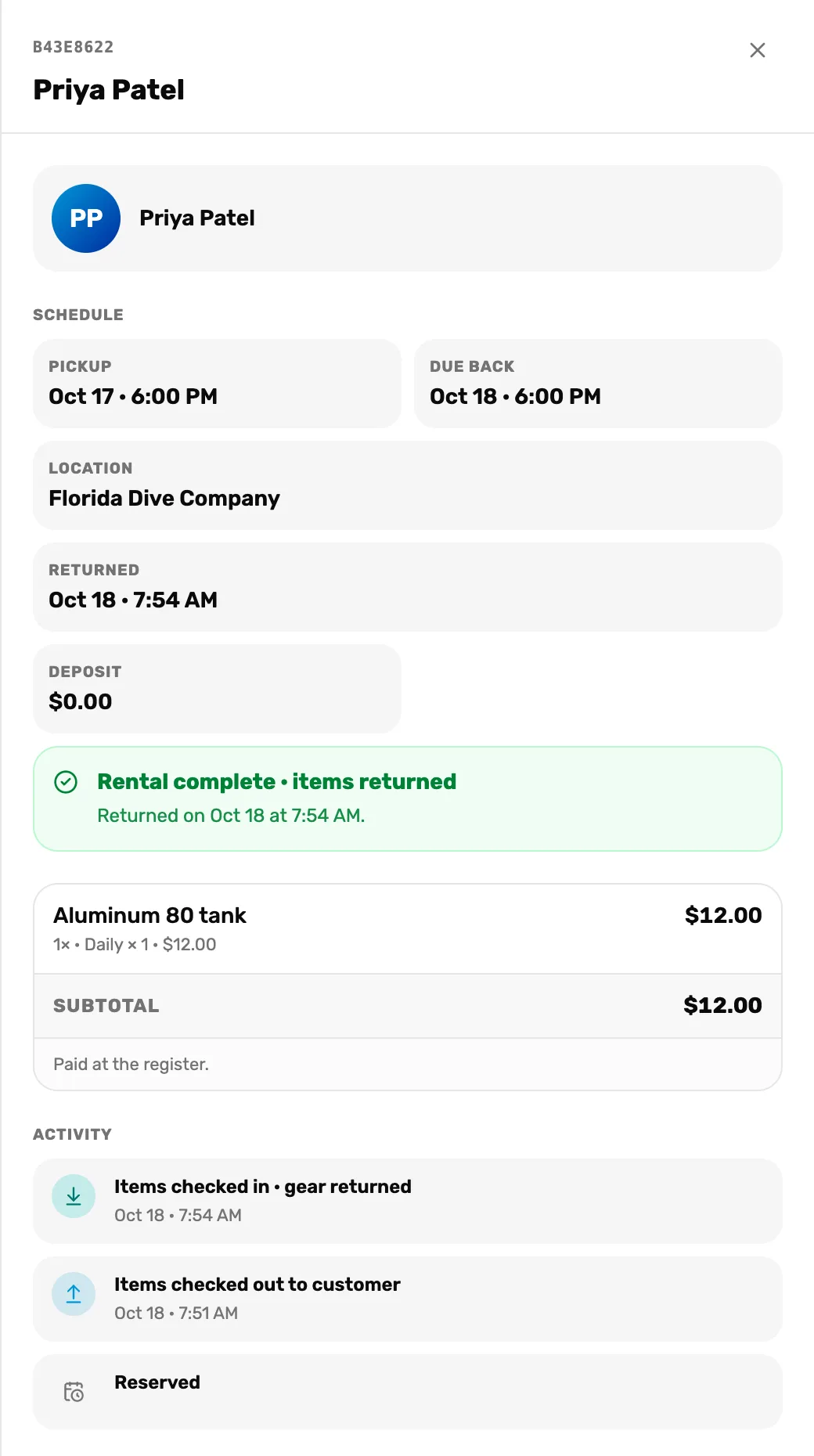
- Rental complete · items returned. The booking is closed. When you close this panel it leaves the Calendar. It stays in the item's rental history.
Back early? Go to the day it is due back and tap Check in items on its Drop-off row. Or open it on any day it is out, under All day · In progress or on its pickup day, and tap Check in items there.
Cancel a booking that never went out
If the customer won't pick the gear up, open the booking and tap the bin. OneDive asks "Cancel this rental? This releases the reserved gear and cannot be undone." Tap OK and "Rental cancelled" confirms it. The held gear can be rented again.
Cancelling doesn't give the customer their money back. To refund them, a manager refunds the rental line of the sale. See Find a sale and refund a line.
If something looks different
- "Paid with the trip booking." This gear came with a seat on a trip booked online. Check it out and in the same way. It has no bin: it reads "Cancel the seat on the trip's manifest to release this gear."
- "That action isn't allowed from this status". Someone else already checked it out, in or cancelled it. Close the booking and open it again.
- "You don't have permission". Your sign-in can't change rentals. Ask the owner or a General Manager.
- "No pickups or drop-offs scheduled." Nothing goes out or comes back that day. Check the day you rented it for, or All day · In progress.
- A booking that isn't on the Calendar. Returned and cancelled bookings leave the Calendar. The owner or a General Manager can still see a returned one in the item's Rental history on the Rentals page. A cancelled one isn't shown anywhere.
Rental bookings don't have a list of their own yet, and they don't show on the customer's profile. The Calendar is the one place to open a booking.
What happens next
- Late, damaged or lost gear: Overdue, lost and damaged rentals.
- Each item's full history is on the Rentals page: open the item and scroll to Rental history.