
What this is for. Renting gear in OneDive uses three places. The Rentals page is your fleet: what you own and what you charge for it. The register is where a rental is sold and paid for, and every rental you ring up becomes a rental booking. The Calendar is where you hand the gear out and take it back. This page is the map. To set up your first item, start with Add a rental item and its rates.
Your fleet
Go to Rentals. Each row is one kind of gear you rent out, with every size you have of it.
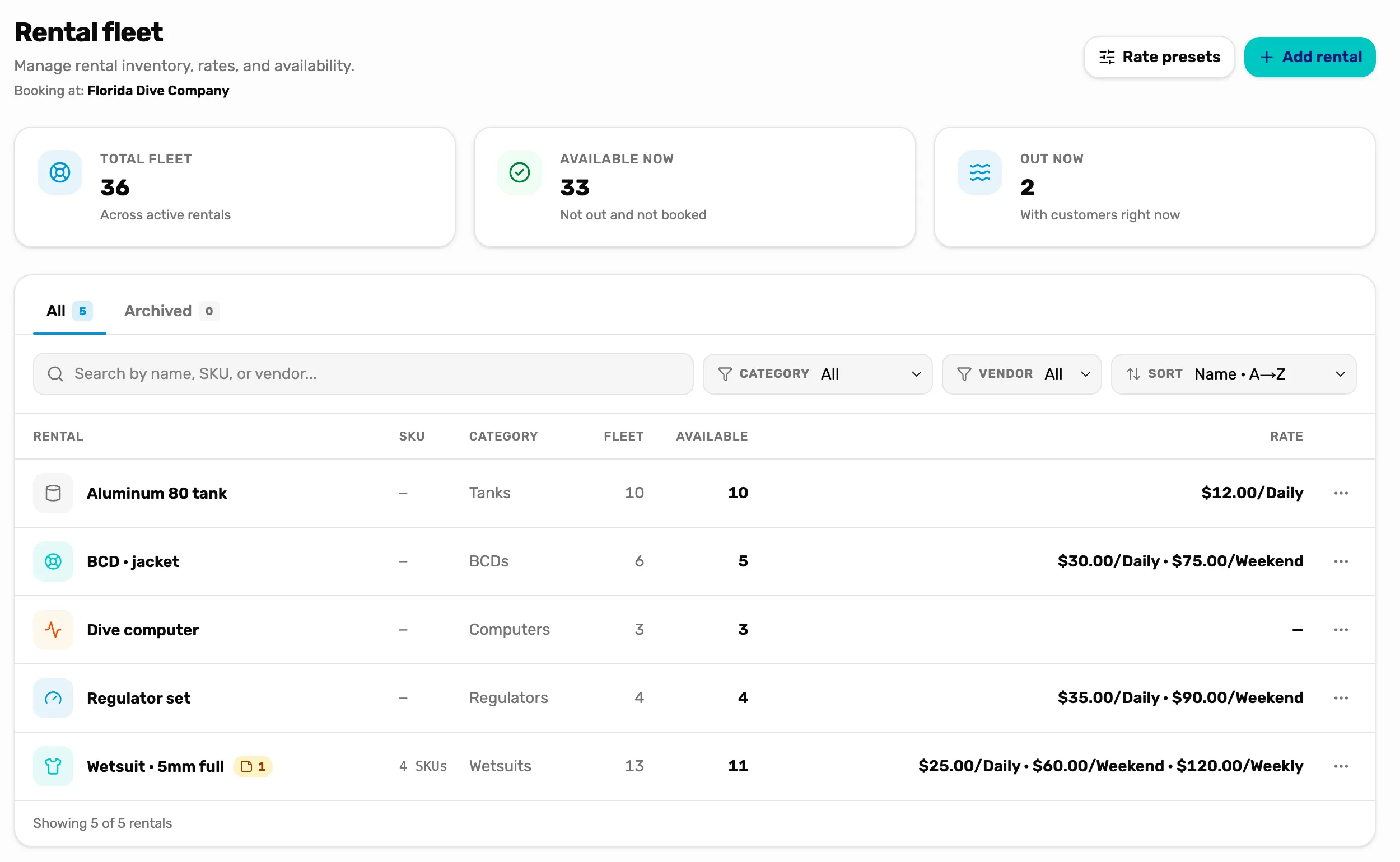
- Rate presets and Add rental. Add rental makes a new item. Rate presets are the rates every new item starts with. Only the owner or a General Manager sees these two buttons.
- Total fleet, Available now and Out now. Added up over every item at the location named under the title. Total fleet is every unit you own. Available now is "Not out and not booked". Out now is "With customers right now".
- The item's name. Opens the item, with its rates, sizes, notes and rental history.
- Fleet. Every unit of the item you own, including any out with customers.
- Available. How many you can rent out right now: not out with a customer and not booked for a later pickup.
- Rate. Up to three of the item's rates. A dash means it has no rate yet and can't be rented at the register.
A rental booking
A booking is made when you ring up a rental at the register and the customer pays. It says who has the gear, which item and size, how many, when they pick it up and when it is due back.
- One line, one booking. Rent a wetsuit and a BCD in the same sale and you get two bookings. Each is checked out and checked in on its own.
- It needs a customer. A rental can't go on a guest cart, because you need to know who has your gear.
- The gear is held from the moment of the sale. A wetsuit booked for next Saturday comes off Available today, not on Saturday. Keep that in mind before you book gear far ahead.
- The due date is worked out for you, from the pickup time and the rate you chose. See Rent gear at the register.
The Calendar
Go to Calendar. The day view lists the rentals going out and coming back that day, and on today's date, anything overdue. Tap any booking to open it.
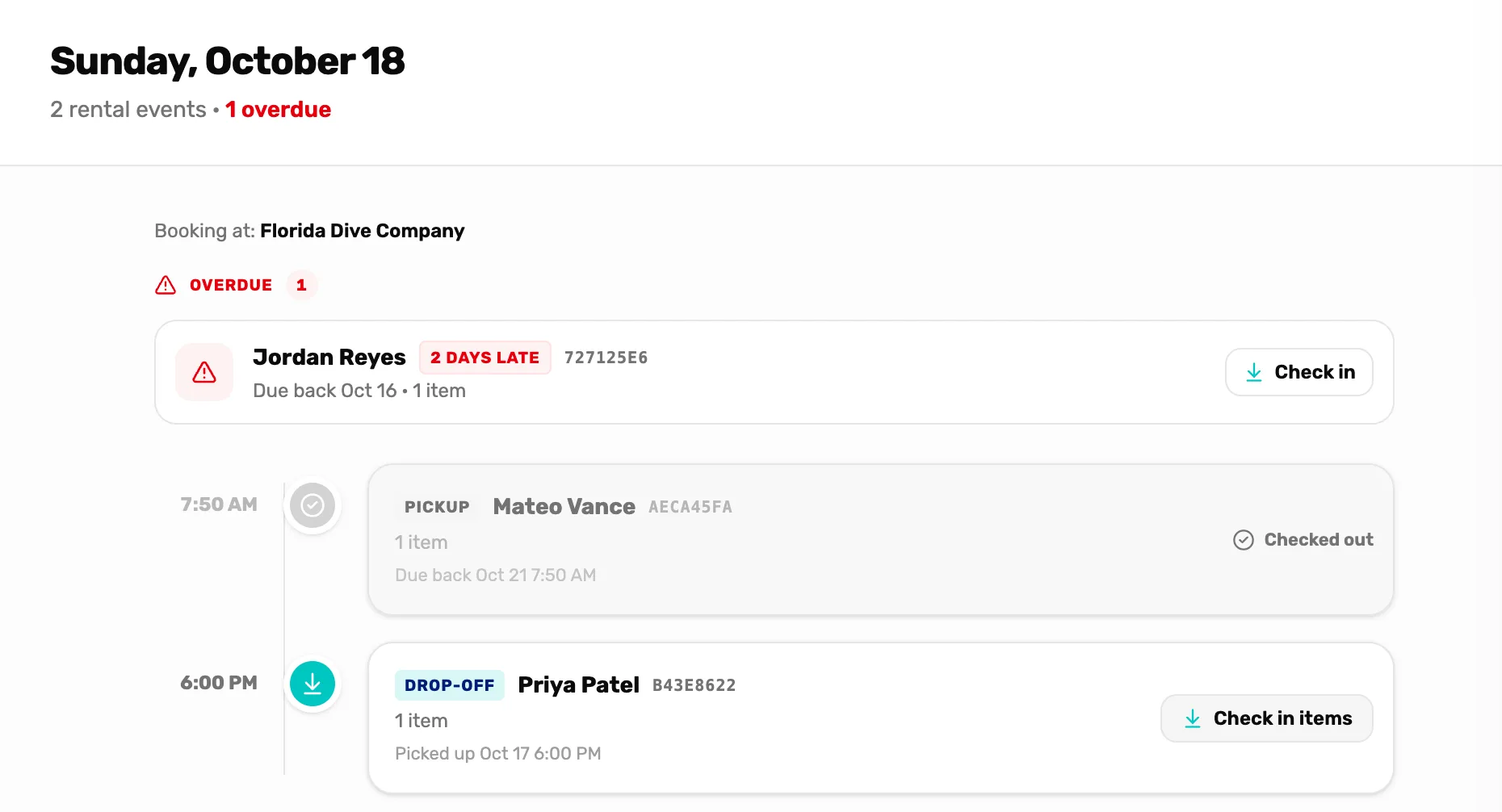
- Overdue. Gear that should have come back before today. Only shows when you are looking at today.
- Pickup. A booking that goes out this day. Check out items hands it over.
- Drop-off. A booking due back this day. Check in items takes it back.
How to hand gear out and take it back, step by step: Check gear out and back in.
The life of a rental
Every booking is in one of these states. The item's Rental history shows each booking's state with these names.
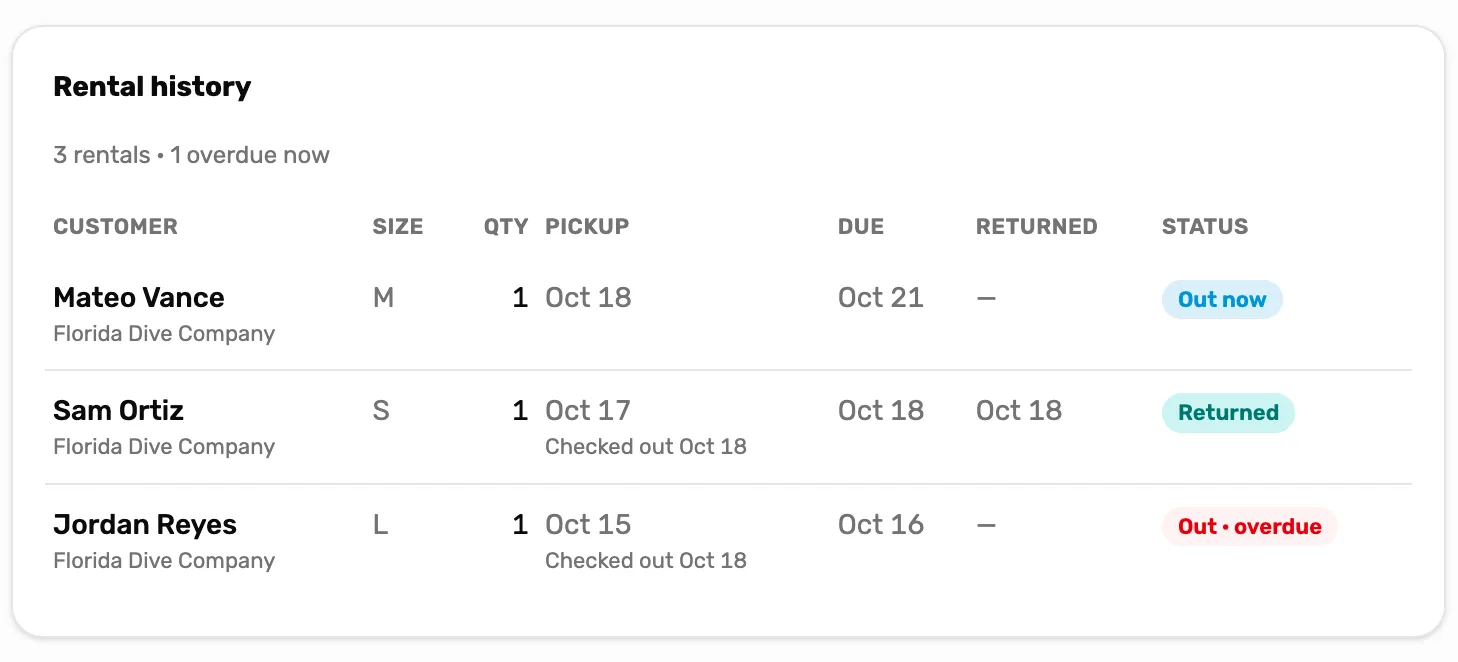
- Rental history. Every booking of this item, newest first. Open the item on the Rentals page to see it.
- Scheduled. Paid for, with a pickup later than today. The gear is held for the customer. On the pickup day the Calendar shows it with Check out items.
- Out now. The customer has the gear. A rental with a pickup today goes straight to this state when it is paid for. Any other rental gets here when someone taps Check out items.
- Out · overdue. Still out after its due-back time. Nothing is charged for being late. The Calendar puts it in the red Overdue band until it is checked in.
- Returned. Someone tapped Check in items. The gear leaves Out now and is back in Available.
- Cancelled. Someone cancelled the booking with the bin before pickup. Its gear is free for others. Gear that is out can't be cancelled: check it in first. Cancelling doesn't refund the sale, and a cancelled booking leaves the Calendar and the item's rental history.
- Lost / stolen. For gear that is never coming back. OneDive has this state, but no button to set it yet. See Overdue, lost and damaged rentals.
Who can do what
- Anyone on staff can rent gear at the register, check it out, check it in, and cancel a booking before pickup.
- The owner or a General Manager can add and change rental items, their rates and the rate presets, and can see each item's rental history and notes.
- Managers see the Rentals page and can open an item with View, but can't change it or see its history and notes.
What happens next
- Set up your first item: Add a rental item and its rates.
- Rent it out: Rent gear at the register.
- Hand it over and take it back: Check gear out and back in.