
What this is for. A rental item is one kind of gear you rent out, like a 5mm wetsuit, with every size you have of it. It holds what you charge (its rates), how many you own (its fleet) and its sizes. You end up with an item the register can rent out, priced the way you price it today: by the hour, the day, the weekend or the week.
Open the editor
Go to Rentals and tap Add rental. To change an item you already have, tap its name in the list.
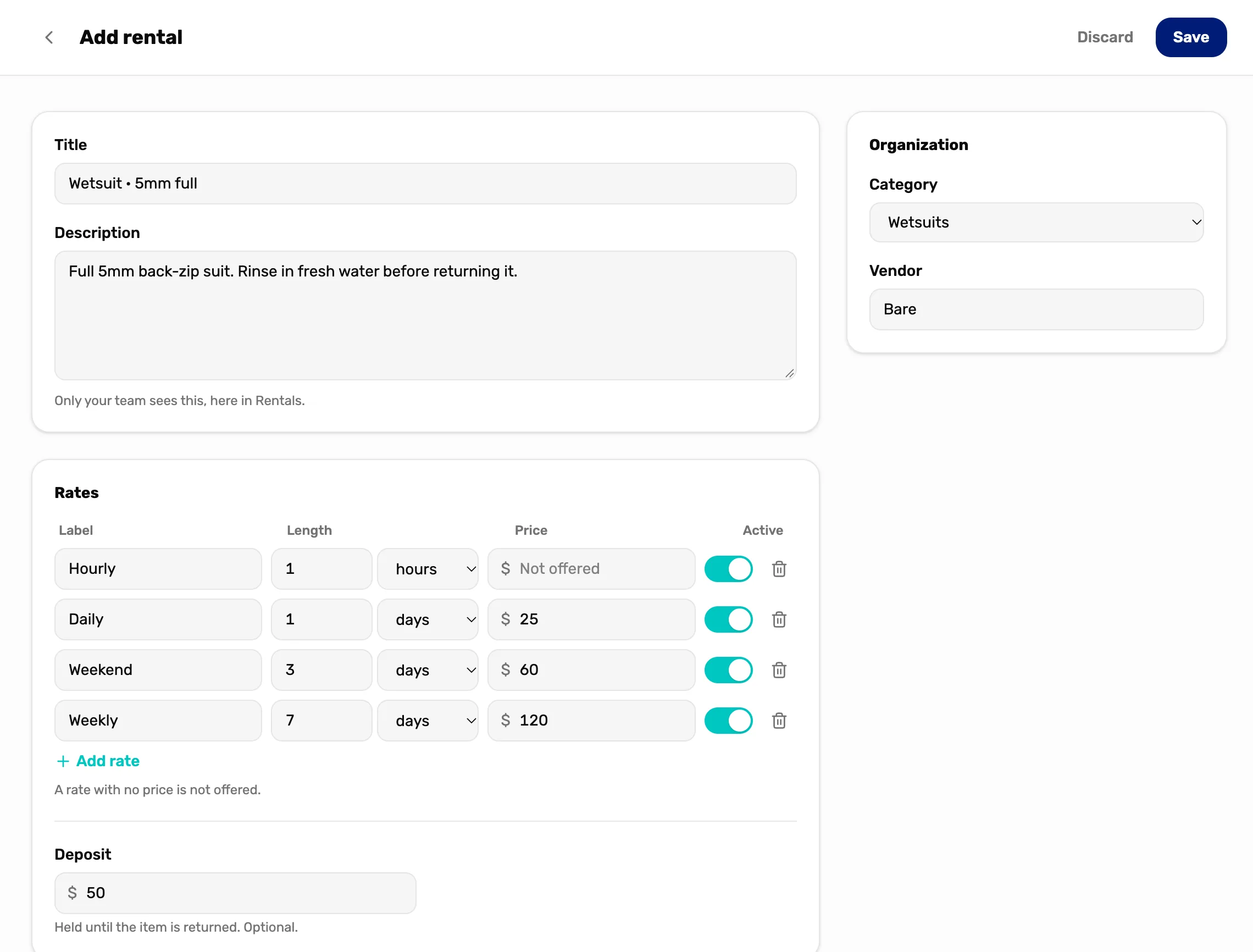
- The back arrow and Discard. Leave without saving.
- Save. Stays grey until the item has a title. Saves the item and takes you back to the list.
- Title. The name staff see on the register tile and the customer sees on the receipt.
- Description. What is included and anything staff should know. The line under it says "Only your team sees this, here in Rentals." It doesn't print anywhere.
Rates
A rate is a way you charge for the item: a name, a length, and a price for that length. A new item opens with your shop's rate presets, with the prices blank.
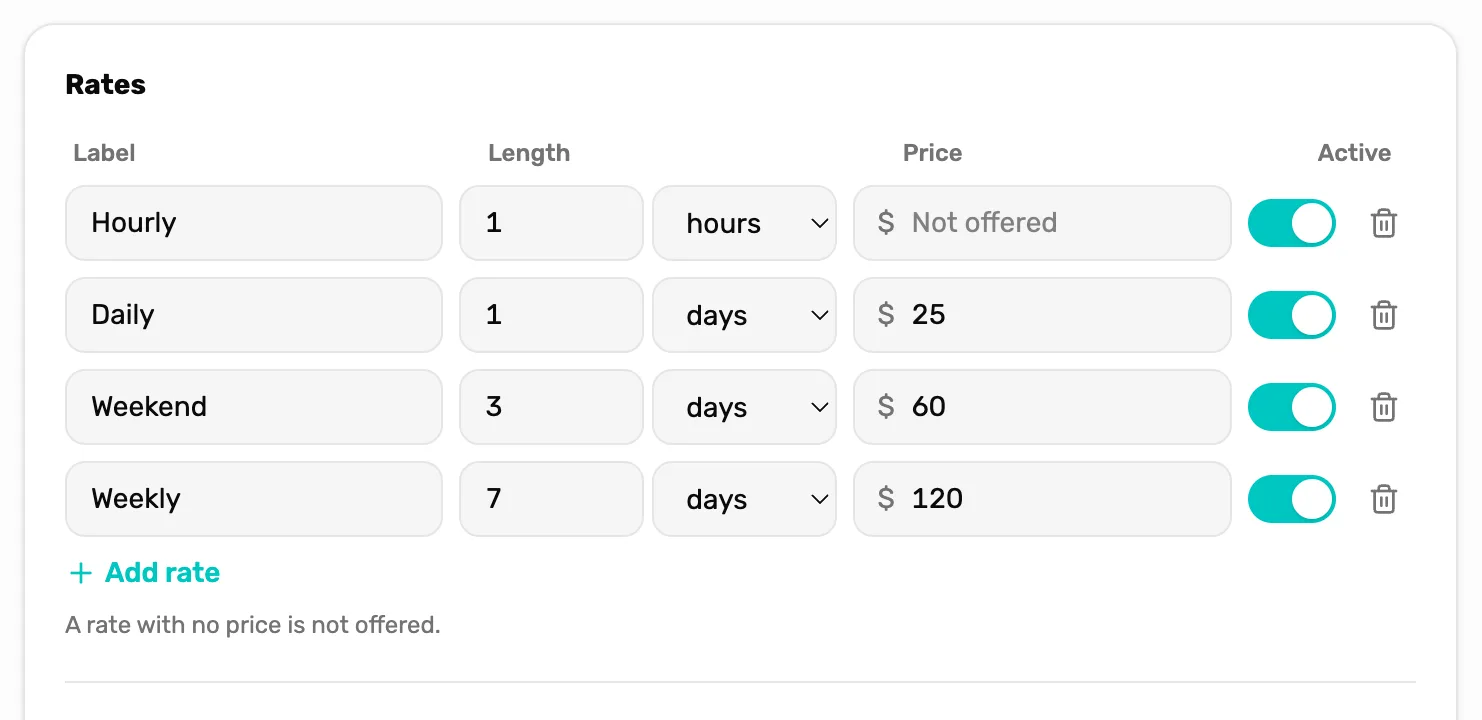
- Label. The name of the rate, up to 40 characters. The cashier picks it by this name.
- Length. How long one period of this rate lasts, in hours or days. A Weekend of 3 days picked up Friday at 9:00 AM is due back Monday at 9:00 AM.
- Price. The price for one period of one item. Leave it blank and the rate is not offered. Type 0 for a rate that is free.
- Active. Off hides the rate at the register but keeps it on the item for later.
- The bin. Removes the rate from this item.
- Add rate. Adds a blank row. The register lists the rates in this order.
An item needs at least one rate with a price, switched on, before the register can rent it. Without one, its register tile reads No rate set. See No rate set on a rental.
Deposit reads "Held until the item is returned. Optional."
Fleet
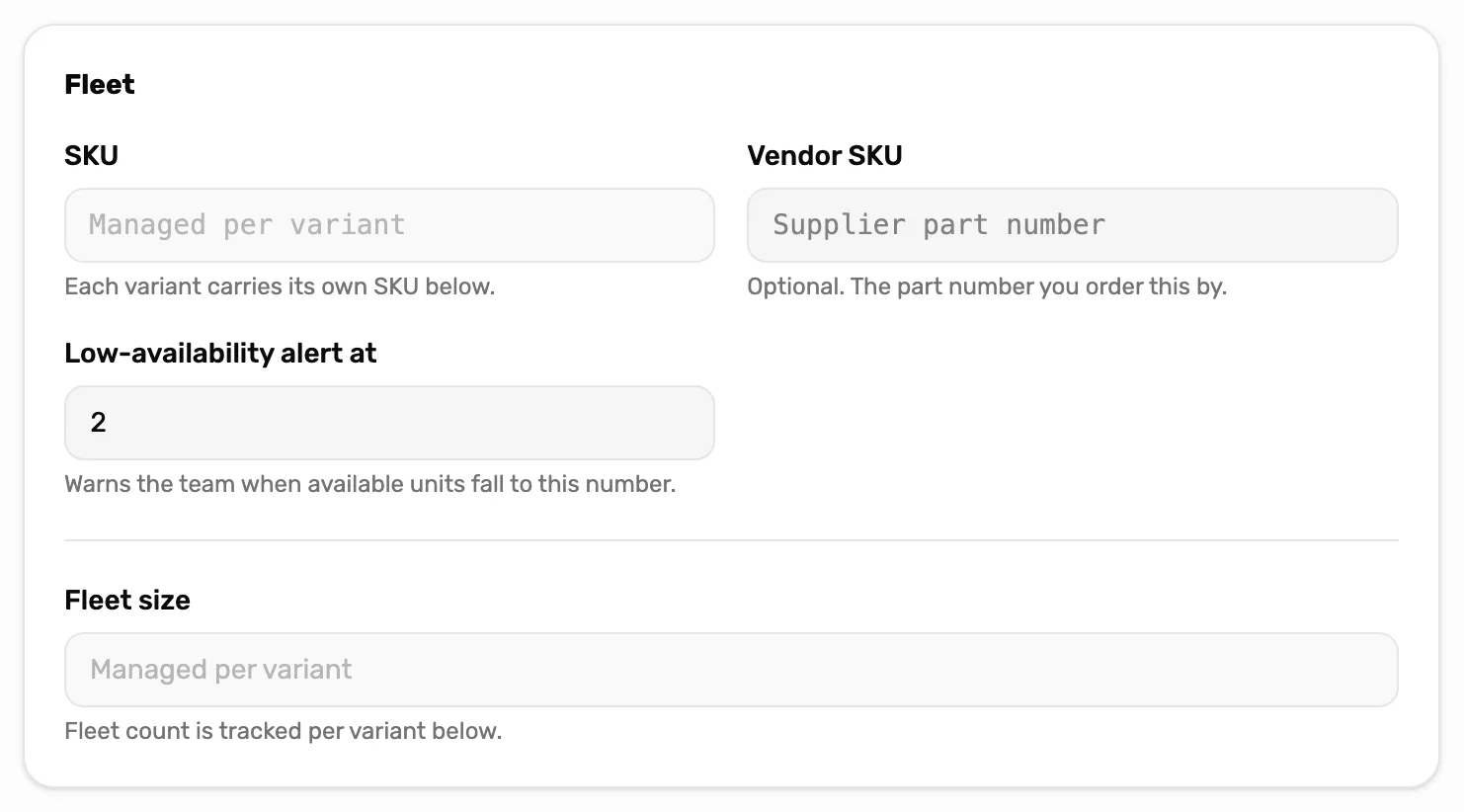
- SKU. Your own code for the item. With sizes on, each size has its own SKU instead.
- Vendor SKU. Optional. The part number you order this by.
- Low-availability alert at. Meant to warn your team when this few are left. It is saved, but nothing warns anyone yet. Keep an eye on Available on the Rentals page.
- Fleet size. "Every unit you own, including any out with customers." With sizes on, you type a count for each size instead.
Sizes
Turn on This rental has options for gear that comes in sizes, like wetsuits, BCDs and fins.
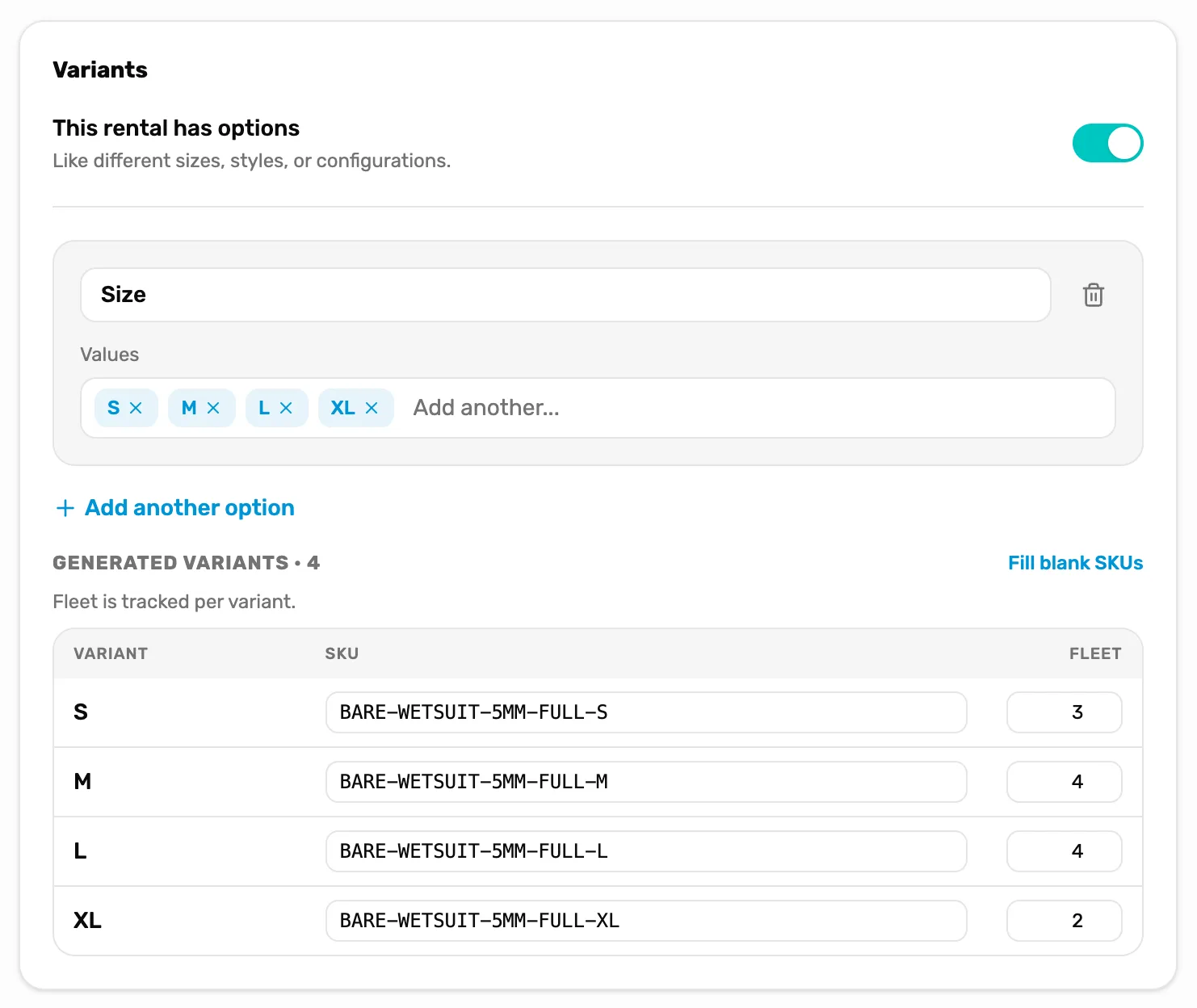
- Option name. What the choice is, like Size. Add a second with Add another option, like Thickness.
- Values. Type each value and press Enter. Every combination becomes a size of the item.
- Fill blank SKUs. Makes a SKU for every size that has none.
- Fleet. How many of that size you own. The cashier sees how many of each size are free when they rent it.
For more on options and combinations, see Sizes and colors (variants). Rental sizes work the same way, without a price or barcode per size.
Status, notes and history
These show once the item is saved. Open it again from the list.
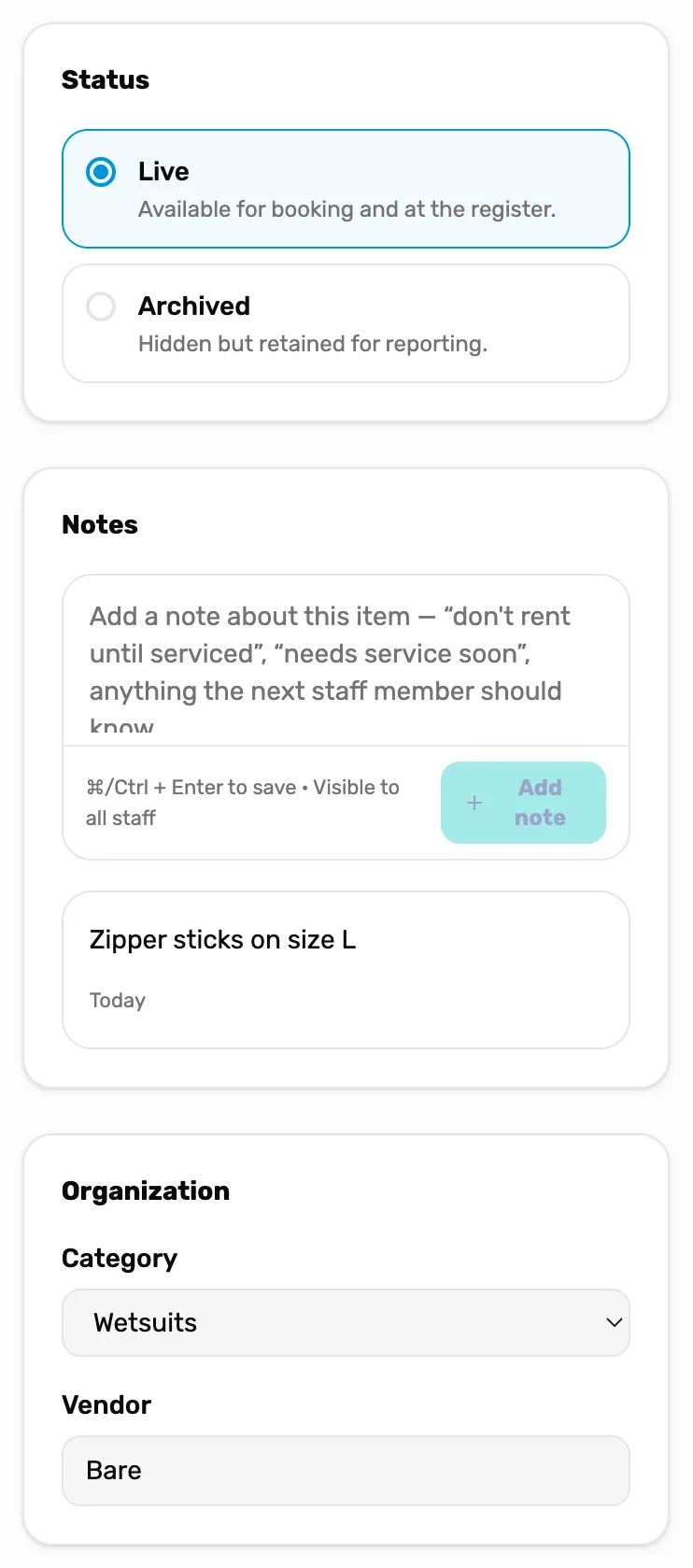
- Status. Live is ready to rent at the register. Archived hides the item but keeps its history for your reports.
- Notes. The item's condition and anything the next person should check, like "don't rent until serviced". The list shows a note count beside the item's name.
- Category and Vendor. The Rentals page can filter the list by these.
Below the sizes, Rental history lists every booking of this item: who had it, which size, how many, its pickup day, when it was due and when it came back. If the gear was checked out on a different day than its pickup, the pickup day says so. See Rentals, explained for what each status means.
Rate presets
Rate presets are the rows a new item's Rates card opens with. Set them once to match how your shop prices rentals. Tap Rate presets on the Rentals page.
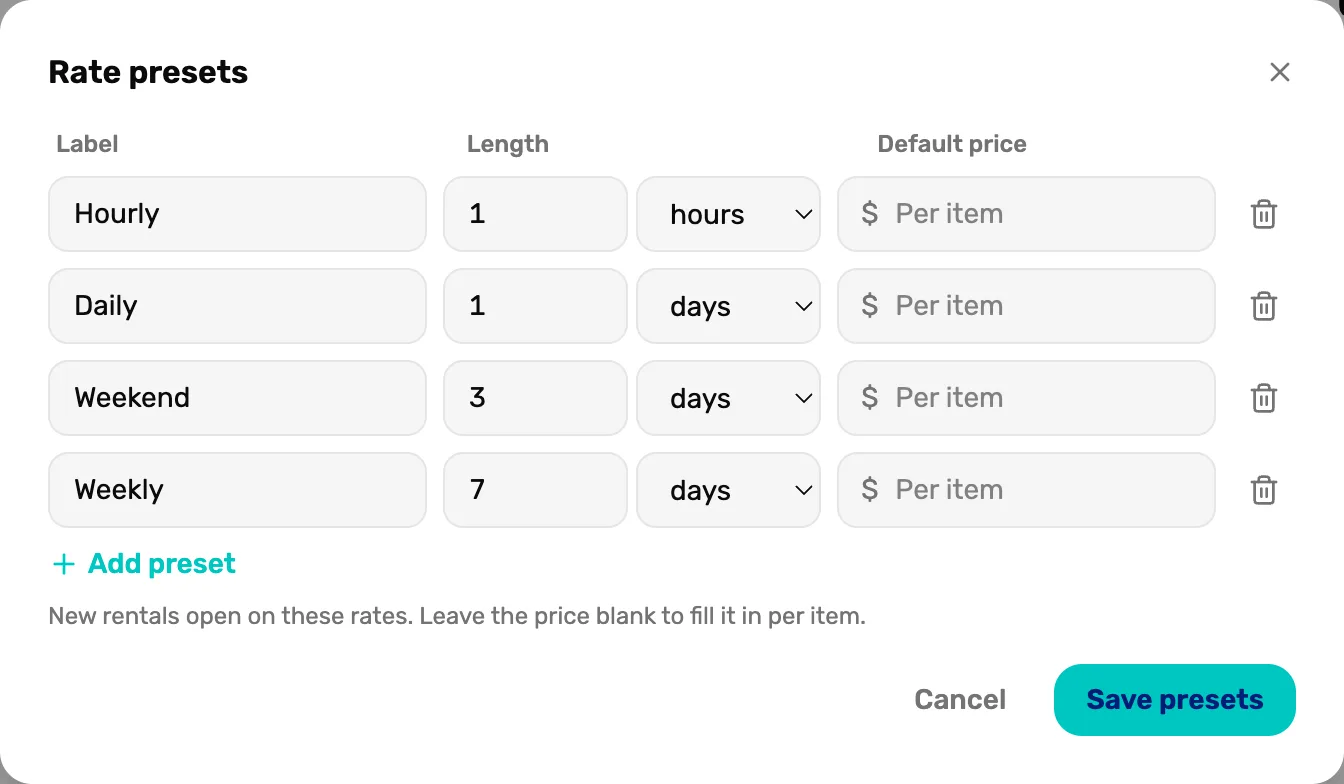
- Label and Length. The same as on an item's rate.
- Default price. Fills in this price on every new item. Leave it blank to type a price on each item instead.
- Add preset. Up to 12 presets.
- Save presets. Saves them for the next item you add. Items you already have keep their own rates.
If Save presets stays grey, the line beside it says why: "Every preset needs a label.", "Two presets have the same label." or "A label is 40 characters at most." With no presets at all, new items open with Hourly, Daily, Weekend and Weekly.
Copy, archive and restore
The ⋯ at the end of each row in the list has three choices.
- Edit opens the item, the same as tapping its name.
- Use as template opens a new item filled in with this one's details, rates and sizes. Change what is different and tap Save.
- Archive asks "Archive "Wetsuit · 5mm full"? It will be hidden from the active fleet." The item leaves the register. Its history stays.
Archived items are on the Archived tab. Their ⋯ has Restore to bring one back.
Who can do what
- The owner or a General Manager can add, change, copy and archive items, and change the rate presets.
- A Manager sees the list, without Add rental or Rate presets. The ⋯ menu offers View. The item shows Back in place of Discard, "View only. Ask an owner or GM to change this." in place of Save, and "Only the owner or a General Manager can see this item's rental history and notes."
What happens next
- Rent it out: Rent gear at the register.
- How the whole thing fits together: Rentals, explained.