
What this is for. Cancelling a class and giving a student their money back are two separate jobs in OneDive. Cancelling never refunds anyone. A refund gives the money back but leaves the student in their seat, still getting course emails. Do them in the right order and your class lists, seats and takings all stay true.
The rules
- A class can only be cancelled when it hasn't finished and nobody is on it. Move the students out first.
- A refund doesn't take the student off the class. They keep their seat and their course emails until you mark them Withdrew.
- Marking a student Withdrew doesn't give money back. It frees the seat and stops their course emails. The money only comes back with a refund.
- Nothing tells the students for you. Cancelling sends no email. Tell them yourself before you move them.
Tell the students first
Open the class from Courses and tap Message everyone to write to the whole class at once, for example to offer the new dates. Do it before you cancel: a cancelled class has no Message everyone button.
Move each student out
On the class page, tap the three dots on a student's row.
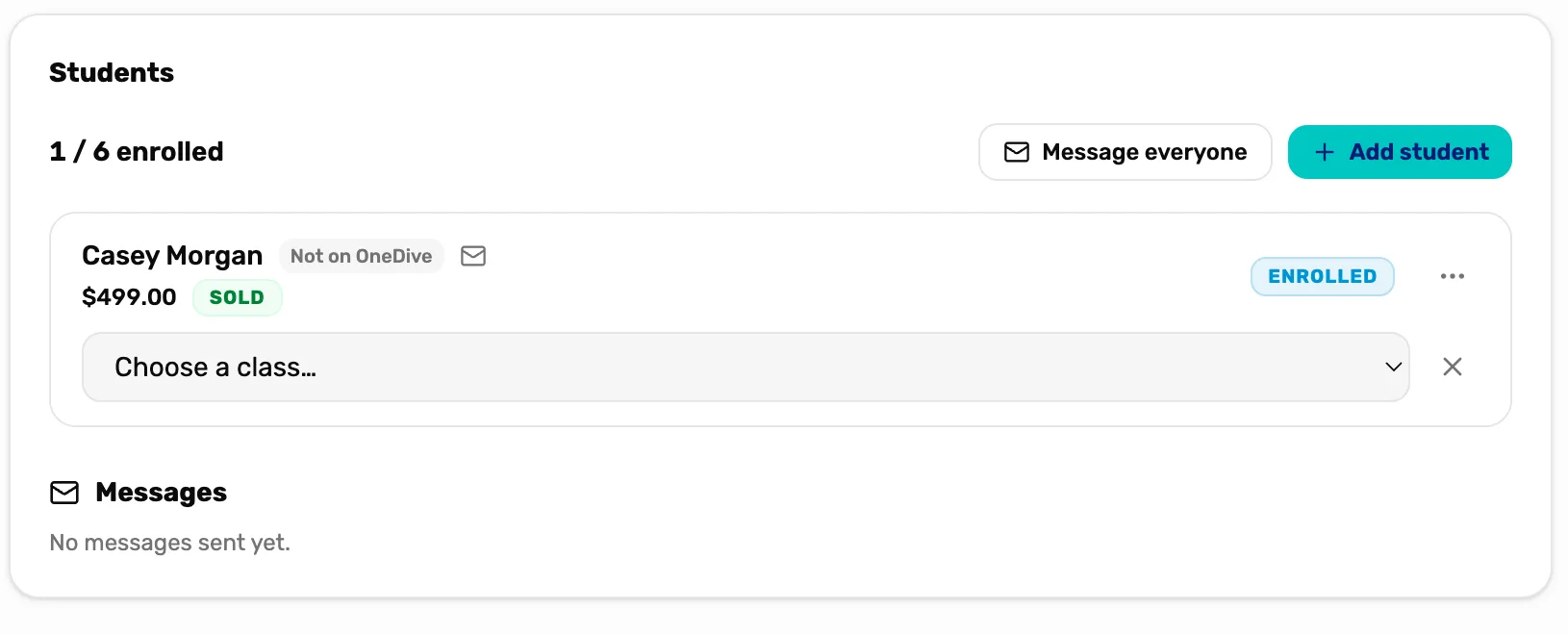
- Choose a class…. Pick another class of the same course with a seat. The student moves with their payment, still Sold.
- The cross. Closes it without moving anyone.
- Move to another class opens Choose a class… under the row. Pick the new class and the student moves straight away. It lists only classes of this course with a seat left. If none has one, it says No other class with seats: schedule a new class first, or use Unschedule.
- Unschedule takes the student off this class without picking a new one. They wait on the course page under Awaiting a class until you assign them. See Students waiting for a class.
- A student who isn't coming and wants their money back: refund them and mark them Withdrew, below.
Both choices only show for a student marked Enrolled or Attending. Students marked Withdrew or No-show don't count as on the class, so they can stay.
Cancel the class
Once nobody is left on it, cancel it one of two ways:
- On the course page, tap the three dots on the class's row under All classes, then Cancel class.
- On the class page, tap Actions, then Cancel class.
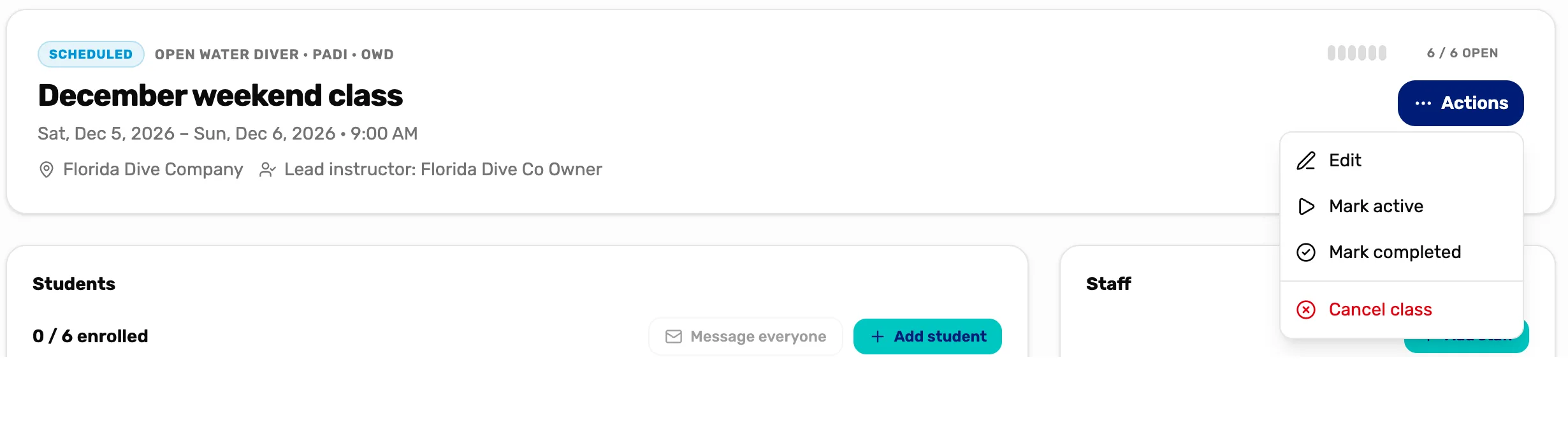
- Cancel class. Red when the class can be cancelled.
- Mark completed. For a class that ran. Use it instead of cancelling once the dates have passed.
It asks Cancel this class? This cannot be undone. Tap OK. You see Class cancelled.
If Cancel class is grey, hold the pointer on it: it says Only a future class with no students can be cancelled. Either someone is still on the class, or its last day has passed.
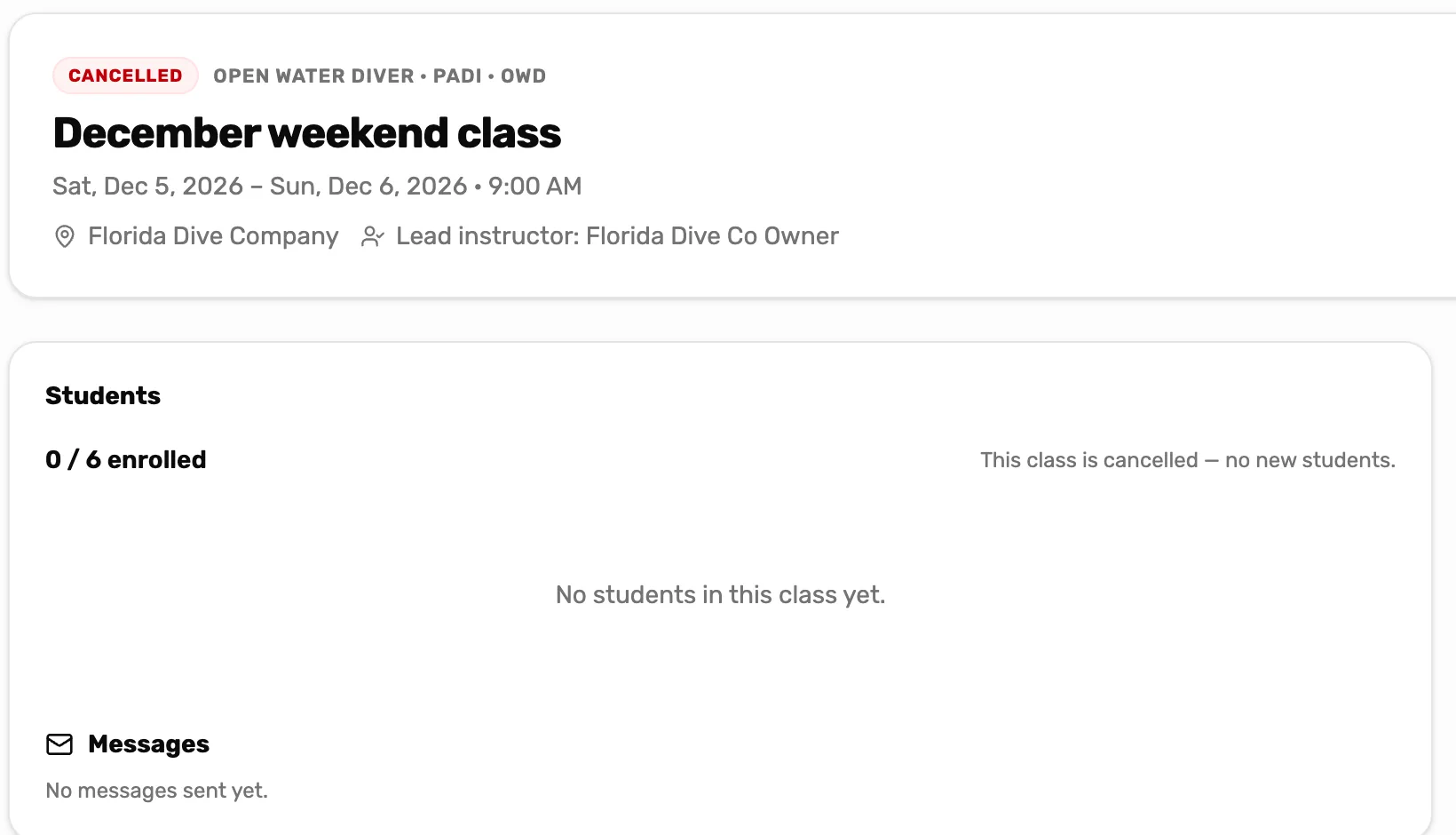
- Cancelled. The class is closed for good. It can't be reopened: schedule a new class instead.
- No new students. Add student is gone, and the register no longer offers this class.
Under All classes the class stays on the list, struck through, marked Cancelled. It counts as neither upcoming nor past.
Refund a student
A student's course money comes back the way any sale does, then you take them off the class.
- Refund the course line. Find the sale in Settings › Transactions and refund the course line. It is named after the course and the class, like Open Water Diver · Halloween weekend class, or the course alone if no class was picked at the sale. The steps are in Find a sale and refund a line. Your return window applies, as for any sale: see Refund rules.
- Mark them Withdrew. Open the class from Courses, tap the three dots on the student's row, then Withdrew. The seat opens up and their course emails stop.
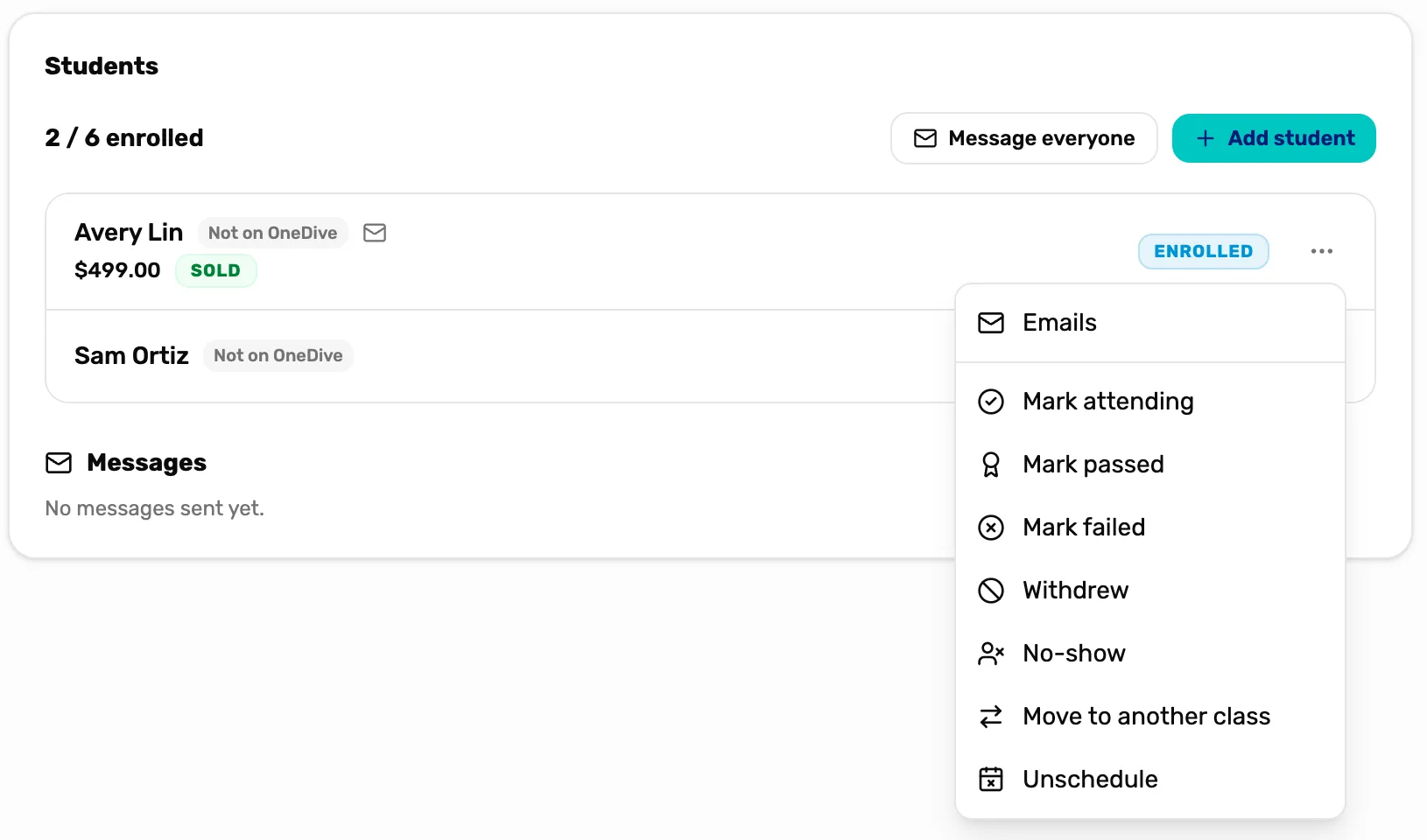
- Sold and Enrolled. The class list doesn't change when you refund. Avery still holds a seat.
- Withdrew. Takes them off the count. The seat opens for someone else.
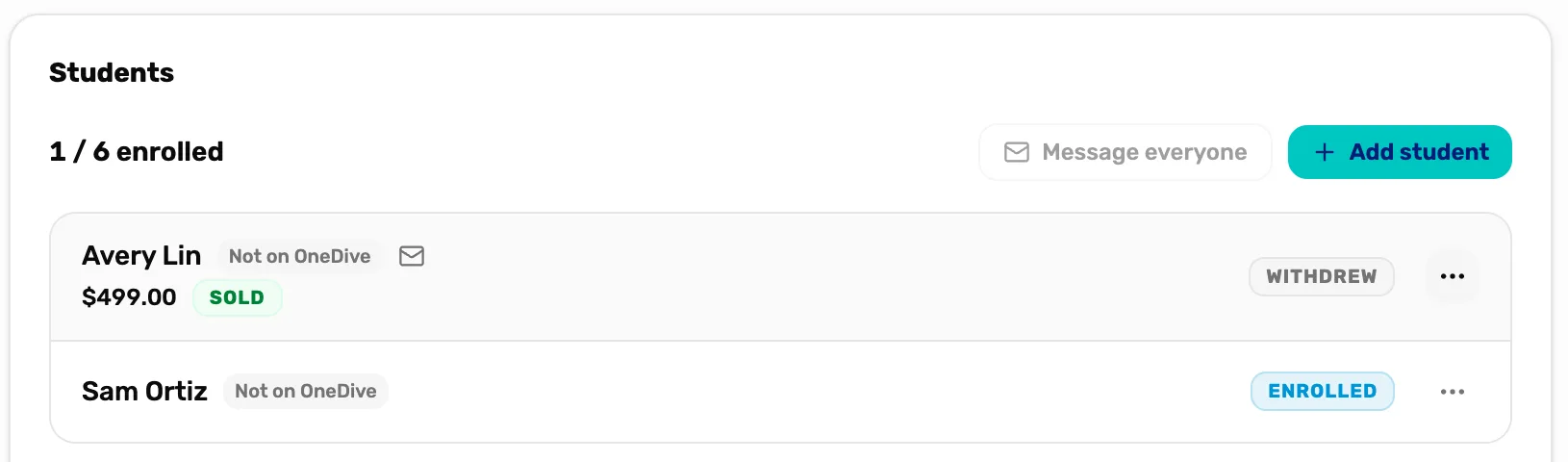
- 1 / 6 enrolled. Avery no longer takes a seat. Sam is the one student left.
- Withdrew. Avery stays on the list as a record. Sold stays too: it shows the seat was sold, not that the money is still with you.
A course line is refunded whole, for what the student paid. To keep a fee, refund the line, then ring the fee up as a custom item.
Refund a waiting student
A paid student under Awaiting a class has no Withdrew and no bin on the course page. Refund their sale as above, then:
- Under Awaiting a class, use Assign to class… to put them in any class with a seat.
- Open that class and mark them Withdrew straight away.
They stay on that class's list marked Withdrew, and the seat is free again. Do both steps together, so no class reminder goes out in between.
Marking Withdrew or No-show
Withdrew and No-show only change the class list. Neither one refunds anything. A student who leaves part way through and gets nothing back is marked Withdrew, and their sale stays as it is in Transactions.
What happens next
- Mark the rest of the class to the end: Run a class and complete it.
- What each refund method does, card, cash or store credit: Refund rules.
- What course emails do after a move or a cancel: Course emails.