
What this is for. Course emails go out on their own, so nobody has to remember. A welcome when a student signs up, a reminder two days before class, a thank-you the day after. You write them once for the whole shop and every course uses them. One course needs something different? Give it its own copy. Nothing is sent until you add an email, and each student has a list of what they were sent, so you can answer "did you email me?" in seconds.
Open your shop's course emails
Go to Courses and tap Course emails, top right, next to Add course. Only the owner or a General Manager sees this button.
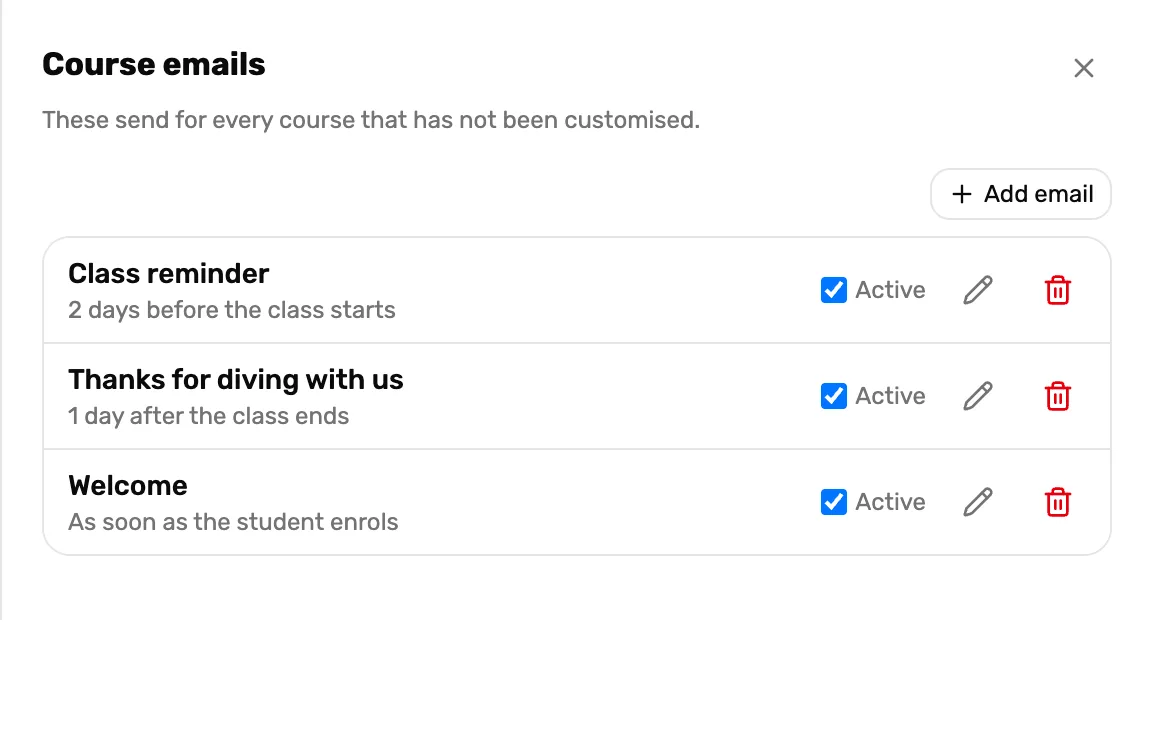
- Add email. Writes a new email. Step 2.
- The email's timing. When it goes out, in plain words.
- Active. Untick to stop it sending without deleting it.
- The pencil. Changes the email.
- The bin. Deletes it, after you confirm.
A new shop has none: the panel says No course emails yet. Nothing sends until you add one.
Write an email
Tap Add email, fill it in, and tap Save. You see Email saved.
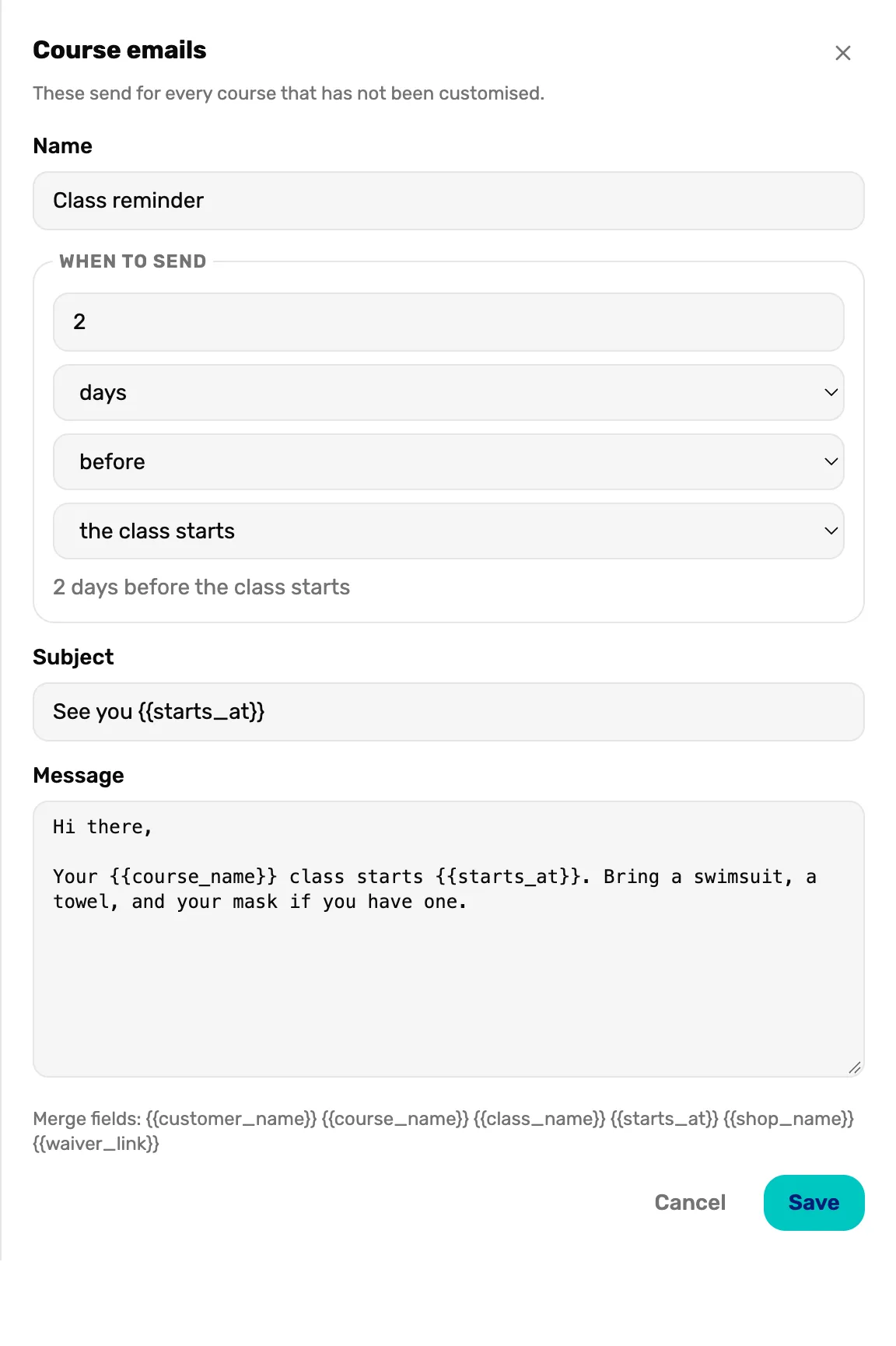
- Name. For you, not the student. It shows in the list and in each student's email history. Two emails can't share a name.
- When to send. A number, minutes, hours, days or weeks, before or after, and what it counts from: the student enrols, the class starts or the class ends.
- The line under it. Reads your choice back, like 2 days before the class starts. Check it says what you meant.
- Subject and Message. What the student reads. A blank line in the message starts a new paragraph.
- Merge fields. Words in double braces that fill in for each student. See the list below.
- Save. Saves the email. It starts sending from now on.
Three emails most shops start with:
- Welcome: 0 minutes after the student enrols. The line reads As soon as the student enrols.
- Class reminder: 2 days before the class starts.
- Thanks for diving with us: 1 day after the class ends.
The merge fields:
{{customer_name}}: the student's name.{{course_name}}: the course, like Open Water Diver.{{class_name}}: the class's label, like Halloween weekend class. Blank if the class has no label.{{starts_at}}: when the class starts, like Sat, Oct 31 at 9:00 AM. Blank until the student is in a class.{{shop_name}}: your shop's name.{{waiver_link}}: a link to sign your SmartWaiver waiver, made for this student. Only works if SmartWaiver is connected.
{{customer_name}} shows the student's email address instead of their name when OneDive can only reach them at the Student email typed in Book course or Add student. Starting with "Hi there" reads well either way.When the message has {{waiver_link}}, a tick box appears: Don't send to students who already signed. Tick it for a "please sign your waiver" reminder, so students with a current waiver aren't nagged. An email timed more than 30 days before the class shows a warning, because waiver links stop working after 30 days.
When students write back, the reply goes to the Public email in Settings › Business.
Know when emails go out
OneDive checks for emails that are due every 15 minutes, so an email goes out within about 15 minutes of its time.
- Emails timed from the class wait until the student is in a class. A student under Awaiting a class gets the welcome, then the reminder once you assign them. See Students waiting for a class.
- Each email goes once per student. Move a student to a later class and the reminder follows the new dates, unless it already went out for the old ones. Then resend it, step 6.
- An email doesn't go back in time. Add a welcome today and students who enrolled yesterday don't get it. Their history says it was added after the moment passed. The same goes for an email you untick and tick again: it only sends for moments from then on.
- Students marked Withdrew or No-show get no more emails. Students marked Passed or Failed still get the after-class emails.
- A cancelled class sends no class reminders or after-class emails. Emails timed from when the student enrols still go.
Turn an email off, or delete it
In Course emails, untick Active to stop an email. It stays in the list marked inactive, ready to turn back on. The bin asks Remove "Class reminder"? and deletes it: you see Email removed.
Give one course its own emails
Open the course from Courses. The Emails card lists what this course sends. Shop defaults means it uses the shop's set from step 1.
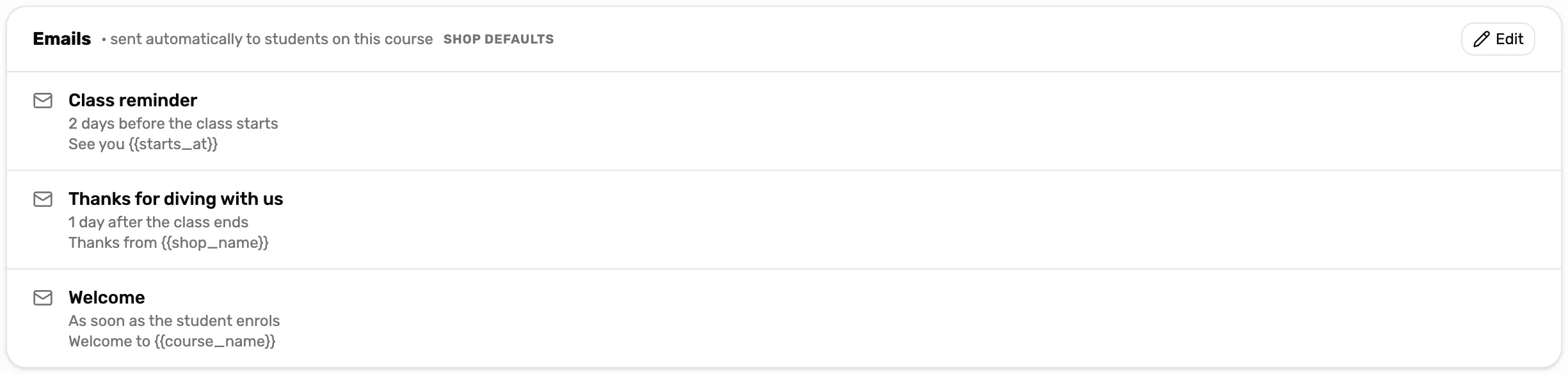
- Shop defaults. This course sends the shop's set.
- Edit. Opens this course's emails. Only the owner or a General Manager sees it.
- The emails. Each one's name, timing and subject. The owner, a General Manager and a Manager all see this list.
Tap Edit. The panel is titled Emails for Open Water Diver and says Editing here creates this course's own copy. Other courses keep the shop defaults. Change what you need and tap Save. The course now has its own copy of every email, and the card says Customised.

- Customised. This course sends its own copy. Changes to the shop's set no longer reach it.
- Reset. Throws away this course's copy and goes back to the shop's set.
Reset asks This course will go back to the shop's default emails. Its own copies are removed. Tap OK and you see Back to the shop's default emails.
See what a student was sent, and resend
Open the class the student is in, tap the three dots on their row, then Emails. A panel lists every email this student has had, newest first. It never shows their email address.
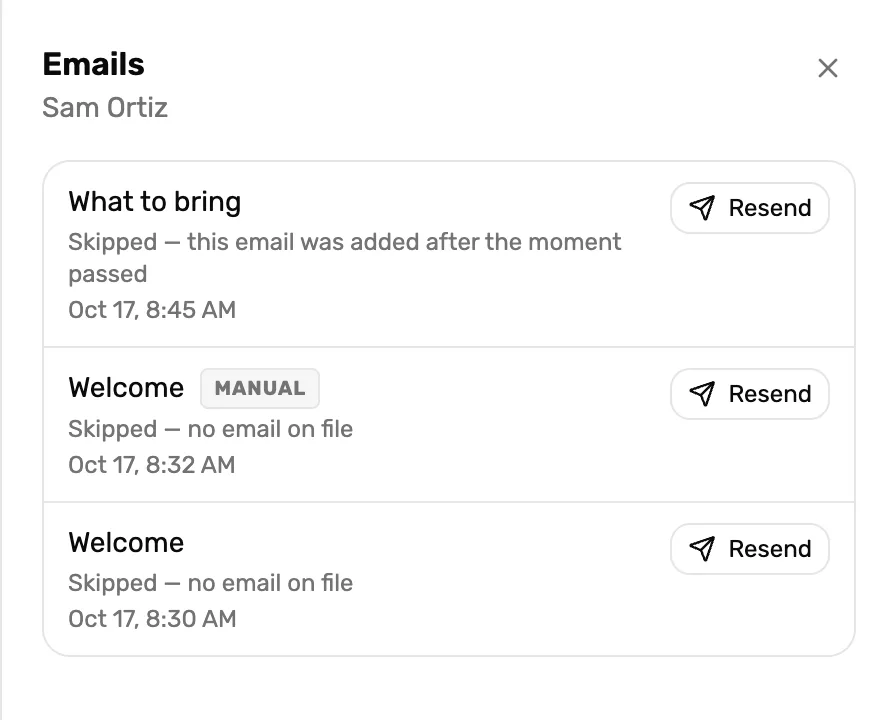
- The email's name. Which email it was. Manual means someone sent it by hand with Resend.
- What happened. Sent, Queued (on its way), Failed, or Skipped with the reason.
- The time. When it went, or for Queued, when it is due.
- Resend. Sends it again now. Not shown while it is Queued.
Resend says Queued — it'll send within 15 minutes. It adds a new row and leaves the old one as it was. It sends even if the email's time has passed, and it doesn't stop the automatic one going out when it is due.
What a skip means:
- no email on file: add an email to the customer, then tap Resend.
- student hasn't shared their details: the student hasn't agreed to share their own email with your shop, and none was typed at the register.
- this email was added after the moment passed: see step 3.
- the waiver link couldn't be created: check SmartWaiver is connected and has a default waiver.
- already signed: the student had signed their waiver, and the email is set not to nag them.
- the class was cancelled: see step 3.
What happens next
- Who gets emails while they wait for a class: Students waiting for a class.
- What happens to emails when you move students or cancel a class: Cancel a class or refund a student.
- To write to a whole class once, use Message everyone on the class page. See Run a class and complete it.