
What this is for. Three short missions take you from no courses to a finished class with students marked passed. You set a course up once, schedule its classes, and sell seats at the register. Each student lands on the class list, paid, and their progress follows them to their customer page. Most shops finish in about 20 minutes.
Before you start
A course is what you teach, like Open Water Diver, with its price. A class is one run of it, with dates and an instructor. You sell a seat in a class, or sell the course now and pick the class later.
The owner or a General Manager adds courses in Courses. Anyone on staff can schedule classes, sell seats and mark progress.
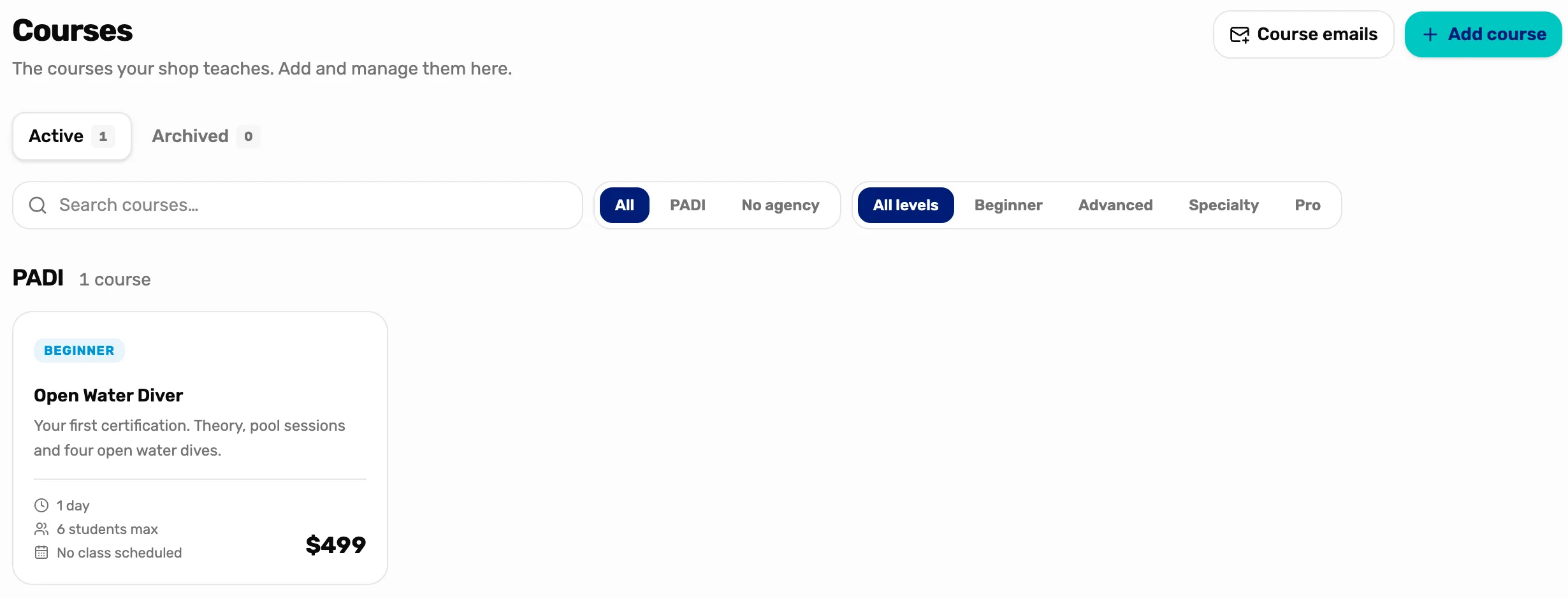
- Add course. Mission 1 starts here.
- Course emails. The emails every course sends students by default. Optional, and you can change them per course.
Mission 1: Add a course and schedule a class
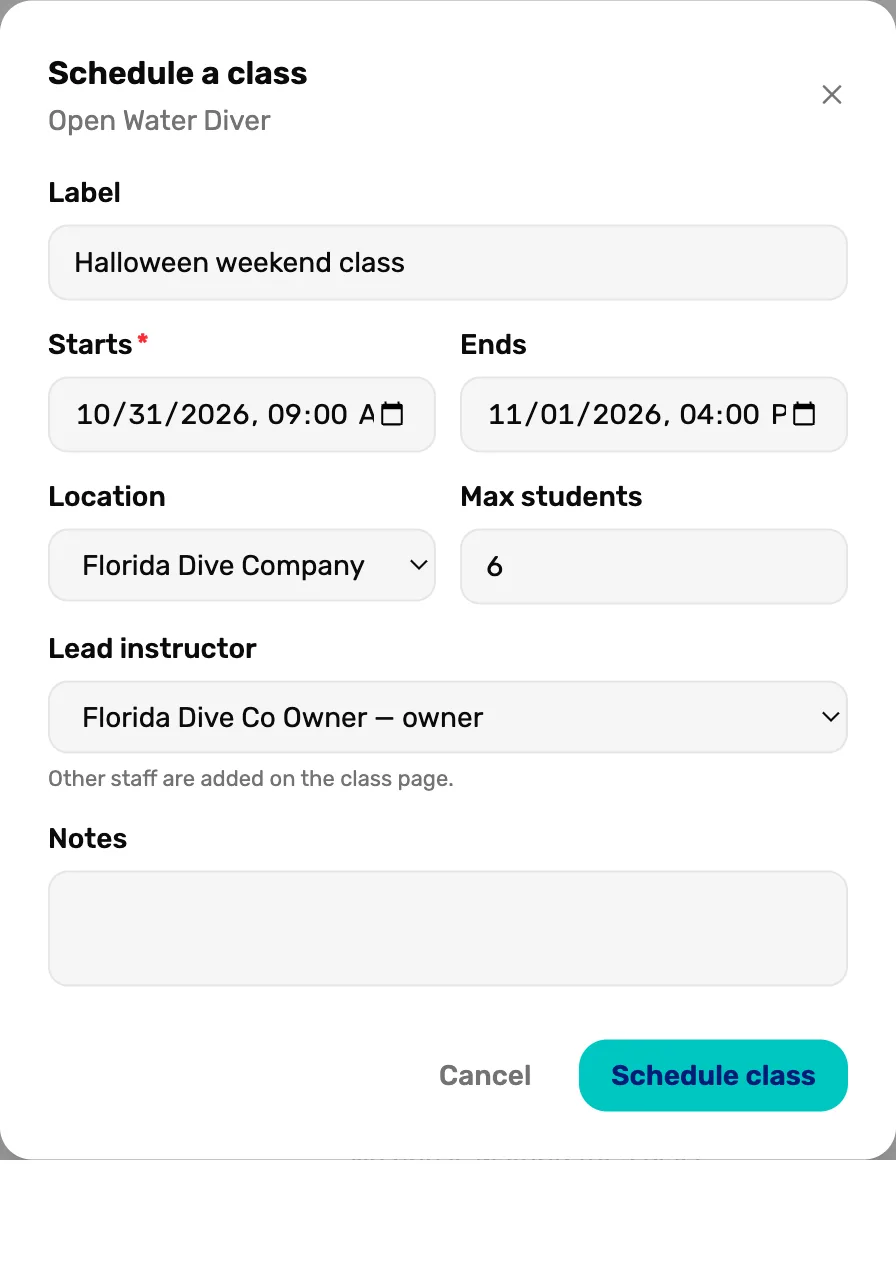
The course once, then the dates it runs.
- Name, agency, level and price
- How many students fit
- A class with dates and an instructor
Mission 2: Sell a class seat
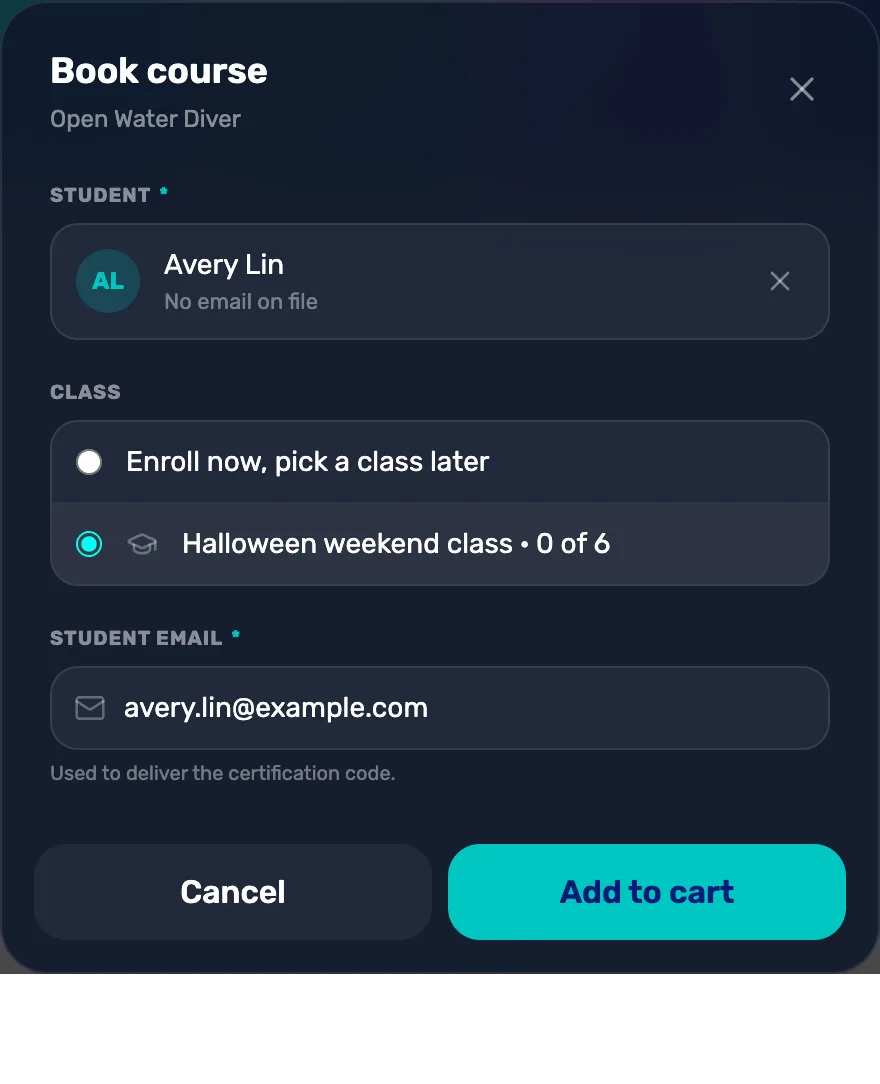
Enrol a student and take payment in one sale.
- Pick the student
- A class now, or pick it later
- The student's email
- Check out as usual
Mission 3: Run the class and complete it
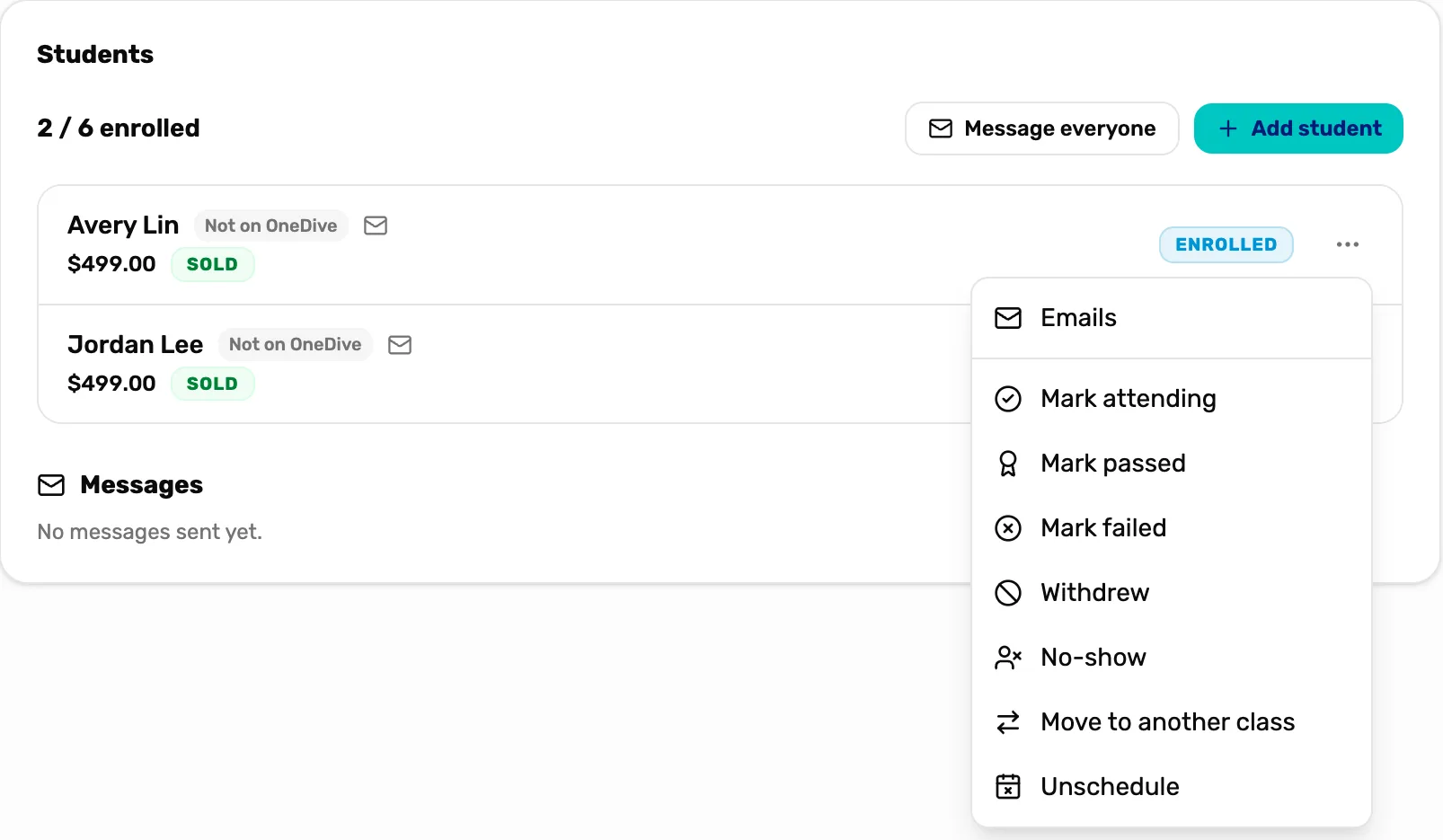
The class list from the first day to the last.
- Mark attending, then passed or failed
- Move or unschedule a student
- Mark the class completed
When you are done
The class reads Completed, every student has a result, and each student's Classes tab on their customer page shows it.
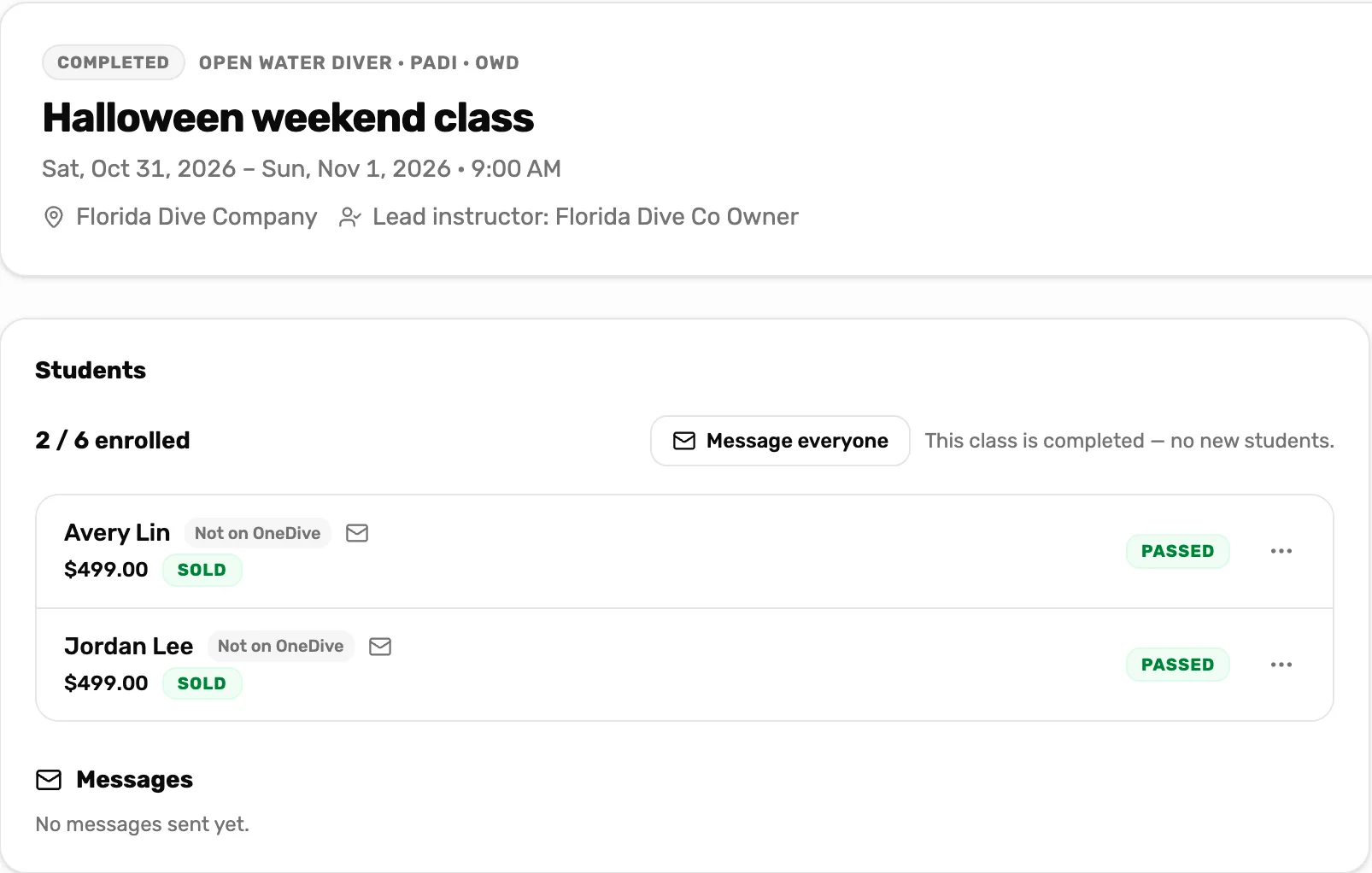
- Completed. The class is over and closed to new students.
- Passed. Each student's result.
- Selling trips as well? See Your first trip.