
What this is for. A student pays for their course at the counter. One window names the student, puts them in a class (or leaves the class for later) and adds the course to the cart. When the sale goes through, the student is on the class's list, marked Sold, and the class has one seat fewer.
Tap the course in the register
In the register, tap the Courses tile, then tap the course. If no cart is open, the register starts one. Book course opens.
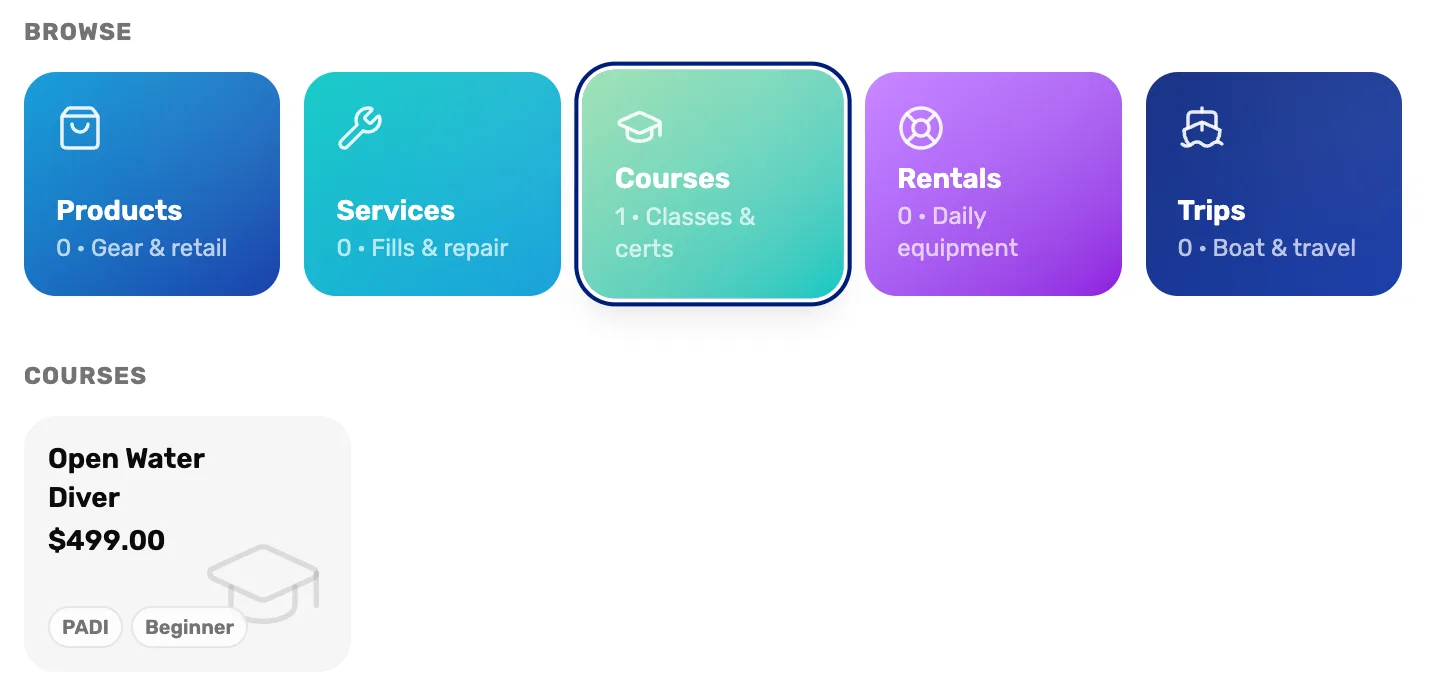
- Courses. Every active course your shop teaches.
- The course. Tap to enrol a student in it.
Pick the student, their class and their email
Under Student, search for the student's name, phone or email and tap them. Not a customer yet? Tap Create new customer in the results and fill in their name and a phone or email.
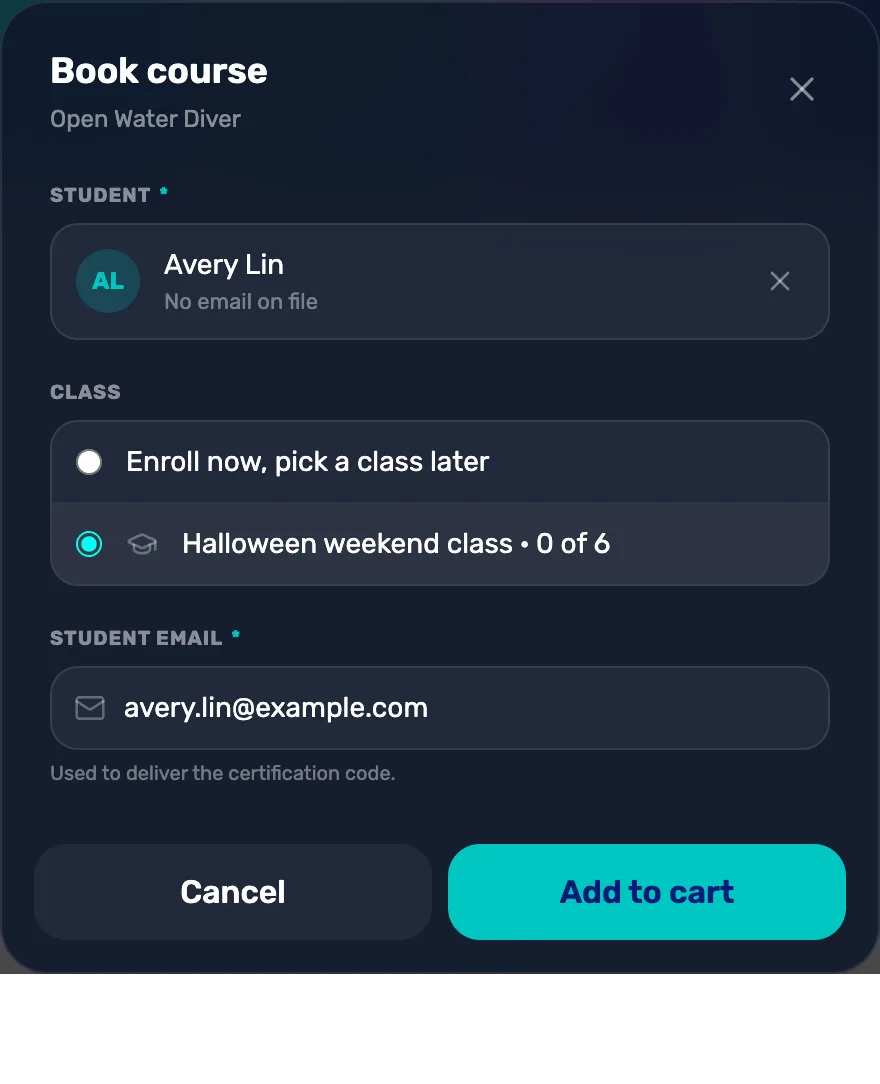
- Student. Who is taking the course. The cross picks someone else.
- Enroll now, pick a class later. The student pays now and waits under Awaiting a class on the course page. Use it when the dates aren't set yet.
- A class. Puts the student in that class now. It shows seats taken out of the size. Only classes with a seat left are listed.
- Student email. Required. The screen says it is used to deliver the certification code. It fills in when the customer has an email.
- Add to cart. Stays grey until there is a student and an email.
If no class has a seat, the window says No class has a seat. The student can join one later. Enrol them now and pick the class later.
Check the cart and take payment
The course is one line in the cart, with the class after its name and the student under it. Put the person paying on the sale with Search in the cart (see Attach a customer and their waiver), then tap Checkout and take payment as usual.
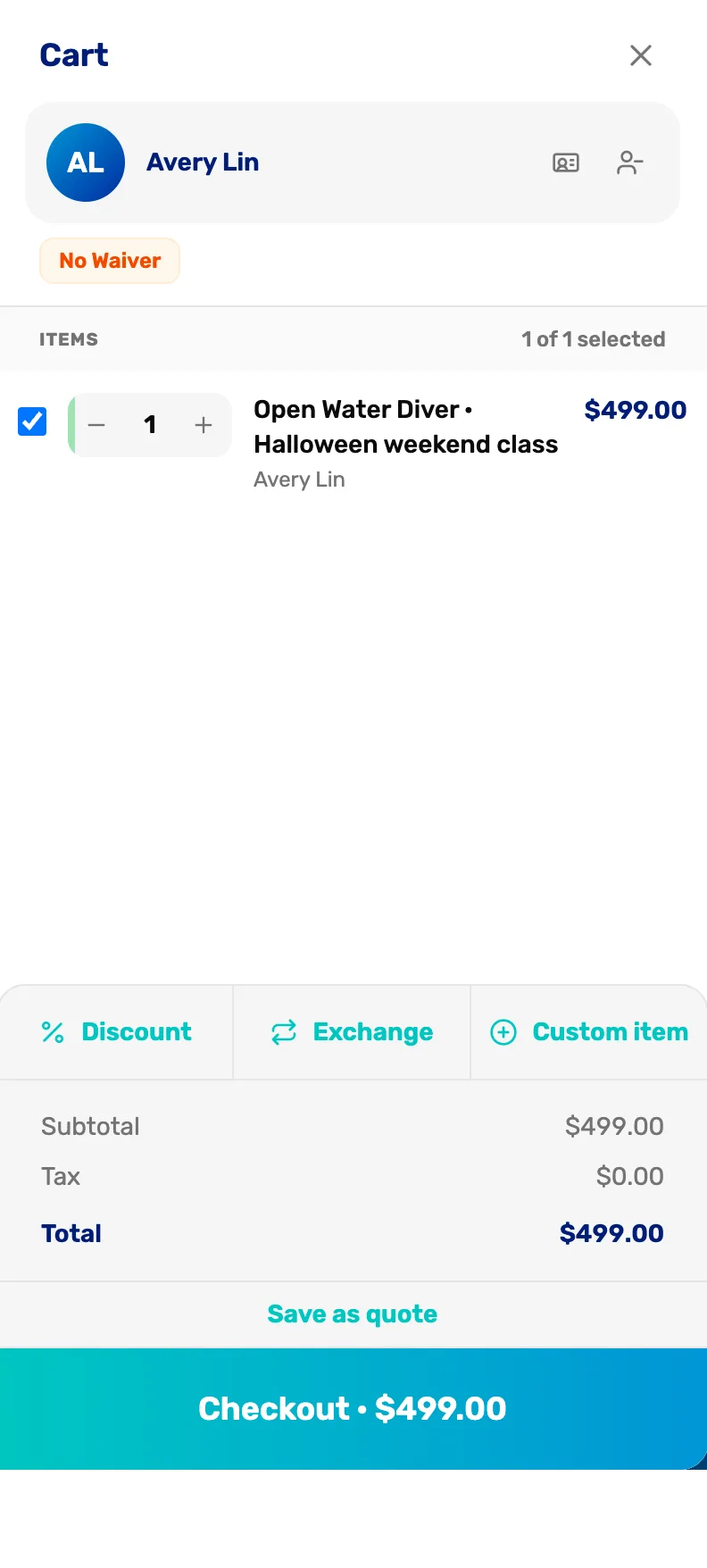
- The customer. Who is paying. It doesn't have to be the student.
- The course line. The course, the class, and the student under it.
- Checkout. Takes payment. The student is enrolled when the payment goes through.
To enrol two students, tap the course again for each one. Each student is their own line.
Later: put a waiting student in a class
A student enrolled with Enroll now, pick a class later waits on the course's page. Go to Courses, open the course, and find them under Awaiting a class.

- Sold. They paid at the register.
- Assign to class…. Pick a class with a seat. You see Assigned to class, and they move into it.
What happens next
- The student's Classes tab on their customer page shows the class and their progress. See The customer drawer, tab by tab.
- Next: Run the class and complete it, Mission 3.