
What this is for. The class page is your class list. As the class runs you mark who turned up and who passed, and when it's over you mark the class completed. Each student's progress shows on their customer page too, so anyone at the counter can see where they are.
Open the class
Go to Courses, open the course, and tap the class under All classes.

- The status. Scheduled, Active, Completed or Cancelled.
- Lead instructor. Who runs it. More staff are added with Add staff on the right.
- Actions. Edit the class, start it, complete it or cancel it. Step 4.
Add student puts someone in the class without a sale, like a staff member sitting in. To charge for a seat, sell it at the register: see Sell a class seat. Message everyone writes to every student in the class.
Mark each student's progress
Tap the three dots on a student's row. The choices change with where the student is.
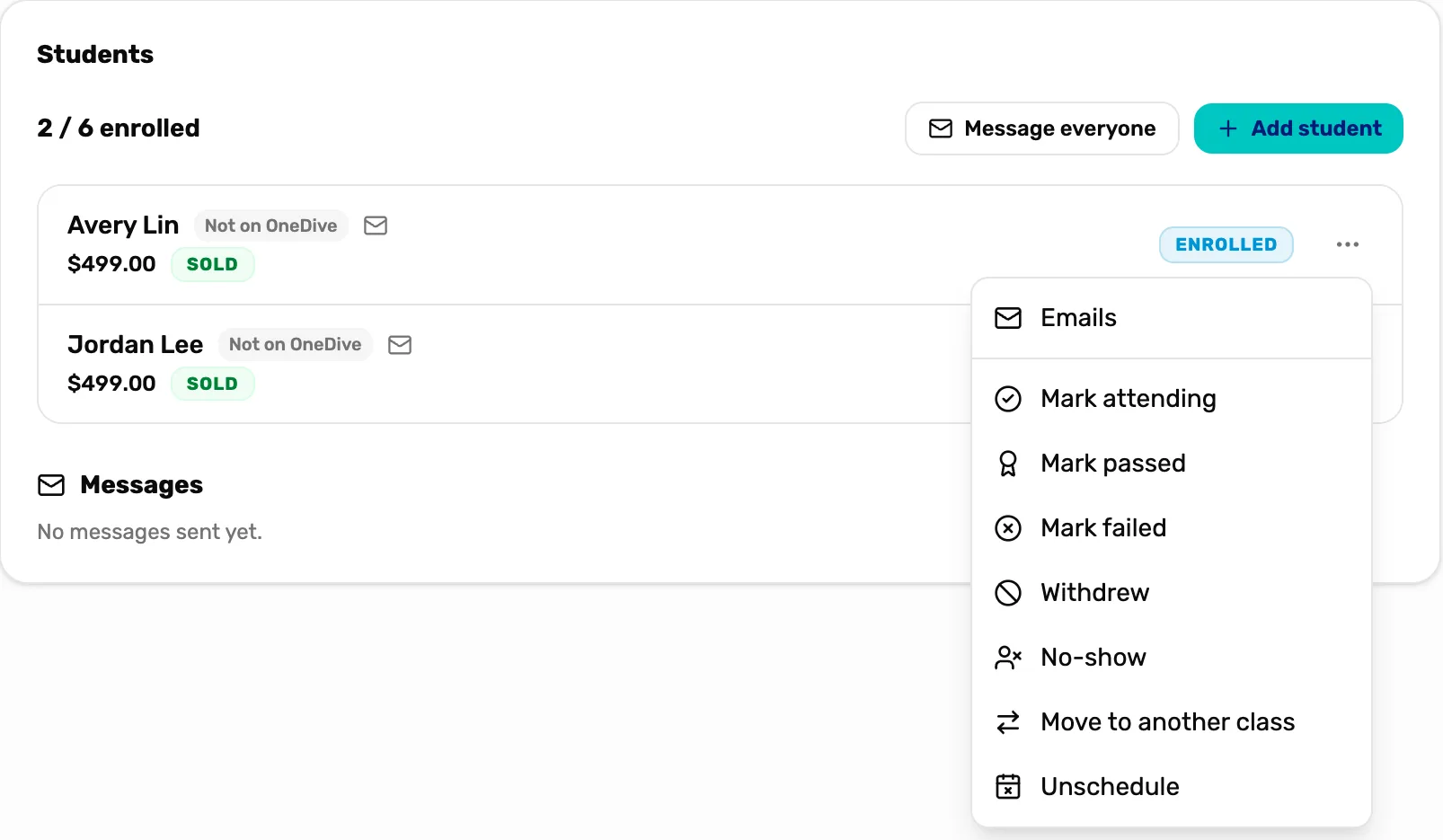
- Sold. The seat was paid for at the register.
- The three dots. This student's choices.
- Mark attending. They have started. The pill reads Attending.
- Mark passed. They passed. Mark failed is the other result.
- Withdrew and No-show. They left the course, or never came. Reinstate puts them back.
- Move to another class. Pick another class of this course with a seat.
- Unschedule. Takes them out of this class and back to Awaiting a class on the course page. They stay enrolled and paid.
Emails in the same menu lists the emails this student has been sent, so you can answer "did you email me?" and send one again. A student whose seat was sold can't be removed from the class; mark them Withdrew instead. Refund the sale from Settings › Transactions if they get their money back.
Check everyone has a result
When the last day is done, every student should read Passed, Failed, Withdrew or No-show.
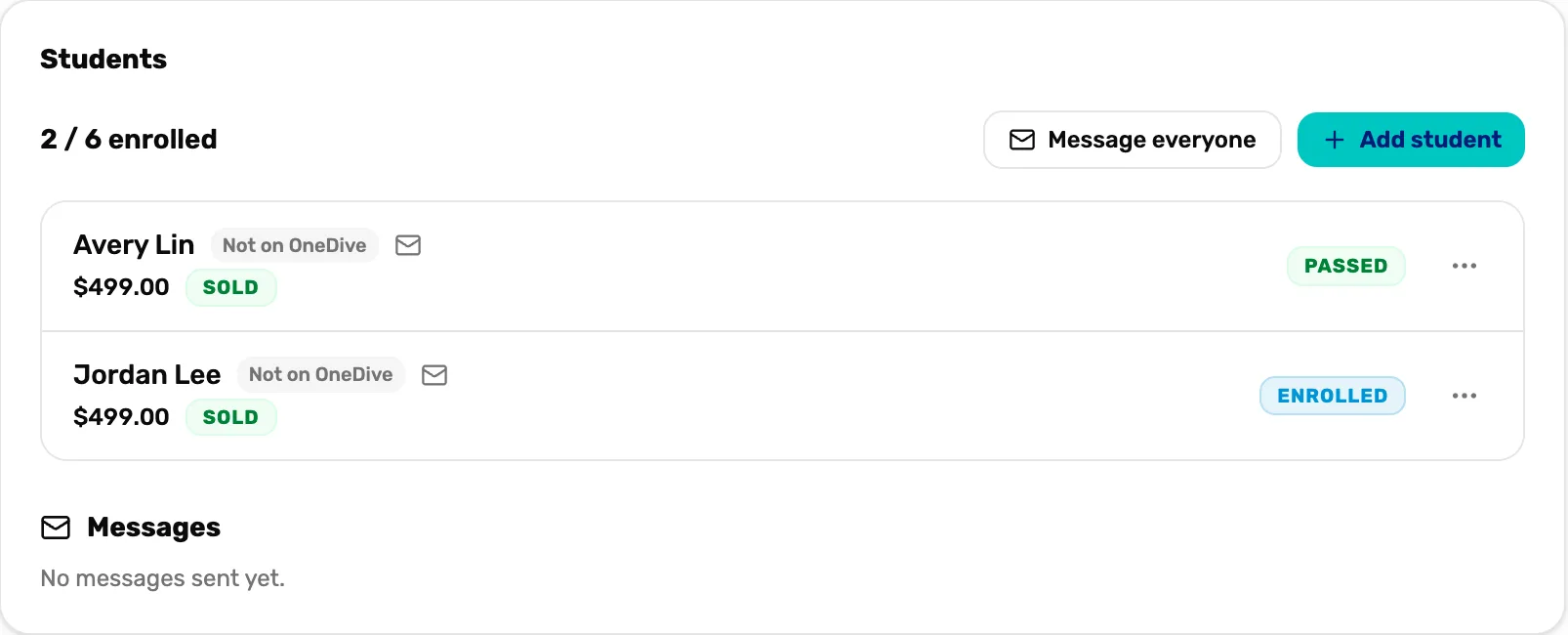
- Passed. Avery has a result. It shows on the Classes tab of their customer page too.
- Enrolled. Jordan still needs a result. Use the three dots on that row.
Mark the class completed
Tap Actions, then Mark completed. You see Class marked completed.
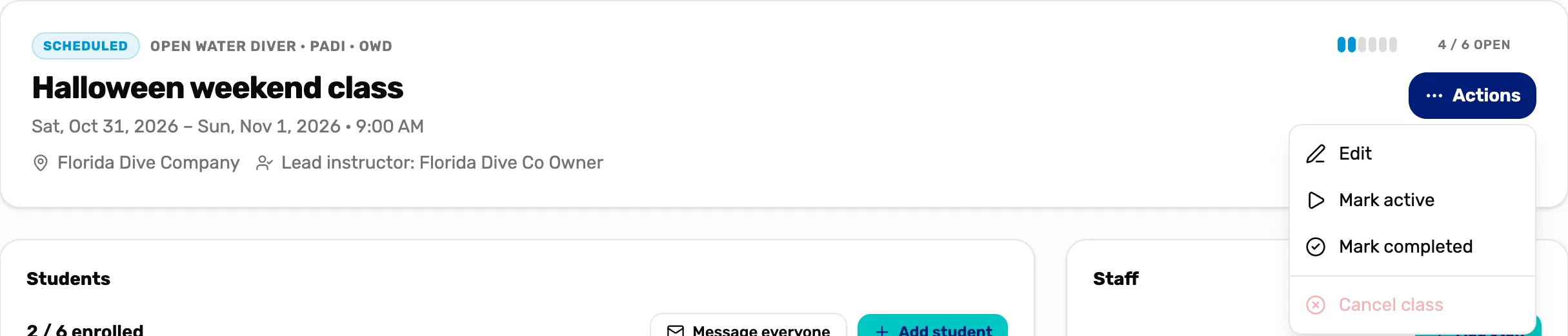
- Actions. Opens the class menu.
- Mark active. The class has started. The status reads Active.
- Mark completed. The class is over. It closes to new students.
- Cancel class. Only for a future class with no students. It stays grey otherwise.
The class keeps its list as a record. It says This class is completed — no new students.
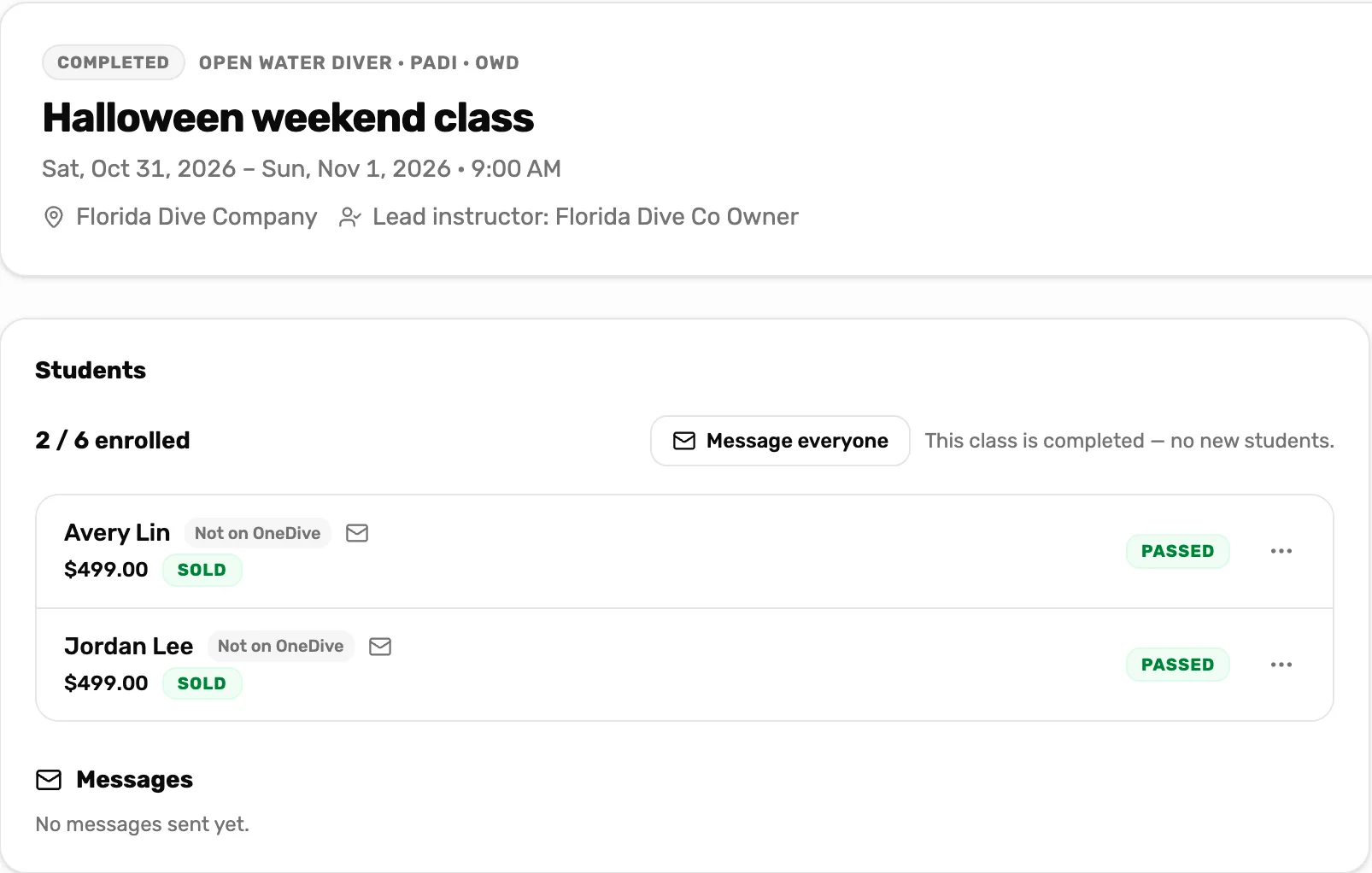
- Completed. The class is over.
- No new students. Add student is gone, and the class isn't offered at the register.
What happens next
- The class moves to Past under All classes once its dates have gone by.
- Each student's Classes tab shows Passed. See The customer drawer, tab by tab.
- Completed a class by mistake? Actions, then Mark active, reopens it.