
What this is for. OneDive puts every trip you sell online into your Shopify store as a product. You set up one page design for those products in your theme. Divers then see the next open times and a Book button, and book and pay with OneDive in a window over your page. You don't need the code from Settings › Online Booking › Your website; OneDive adds it to your store for you.
Open your theme editor
In your Shopify admin, choose Online Store. On your current theme, choose Edit theme.
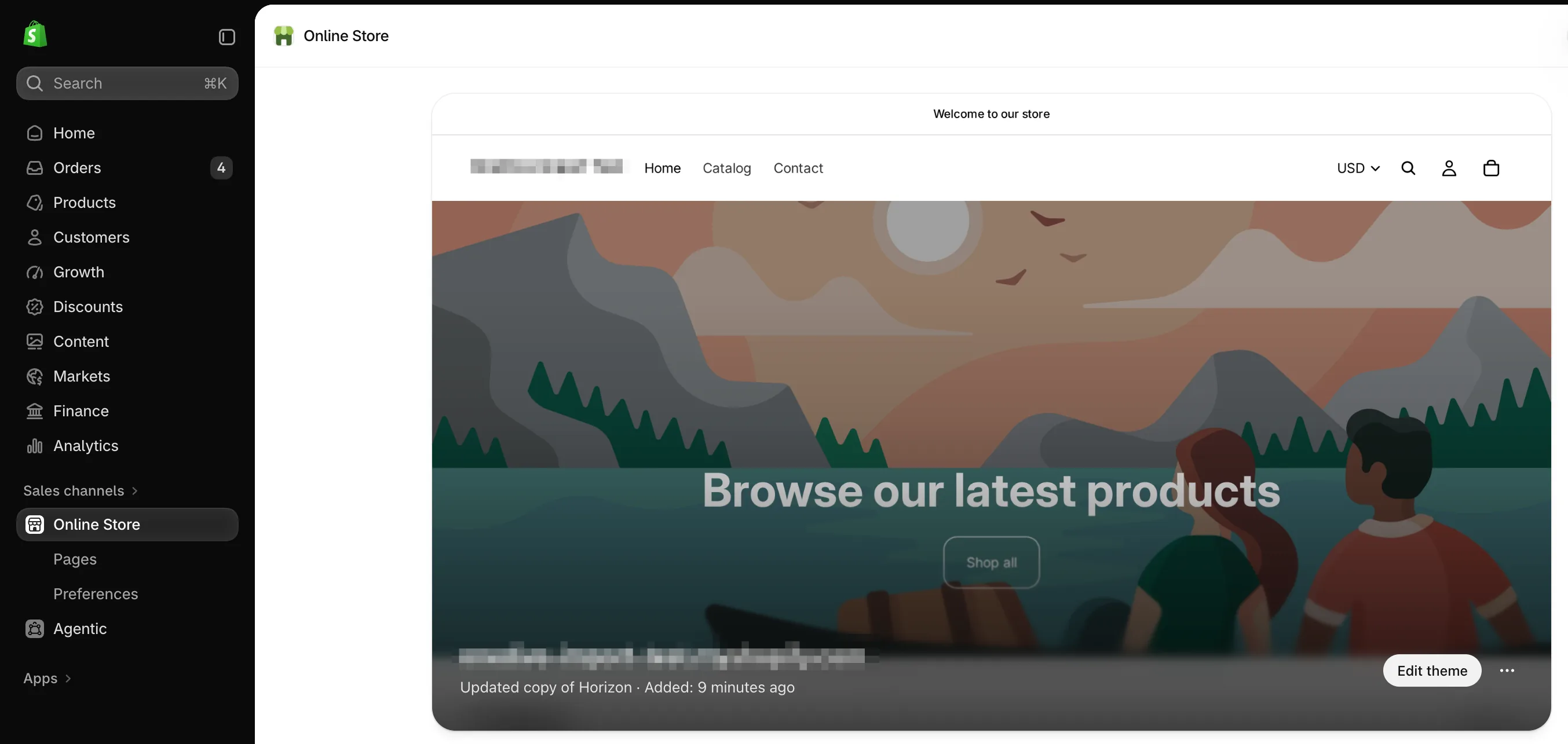
- Online Store. Under Sales channels on the left.
- Edit theme. Opens the theme editor on your home page.
Create the trip template
In the page picker at the top, choose Products, then Create template.
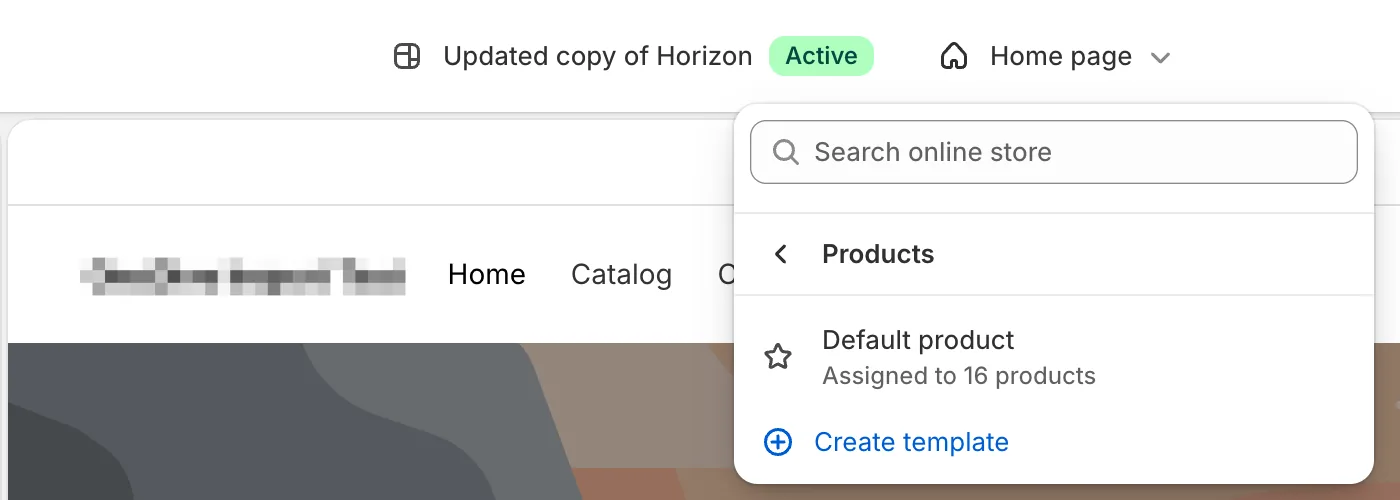
- Page picker. Says Home page until you change it.
- Products. Your product page designs.
- Create template. Starts a new design for your trips.
Name it onedive-tour, leave Based on as Default product, and choose Create template.
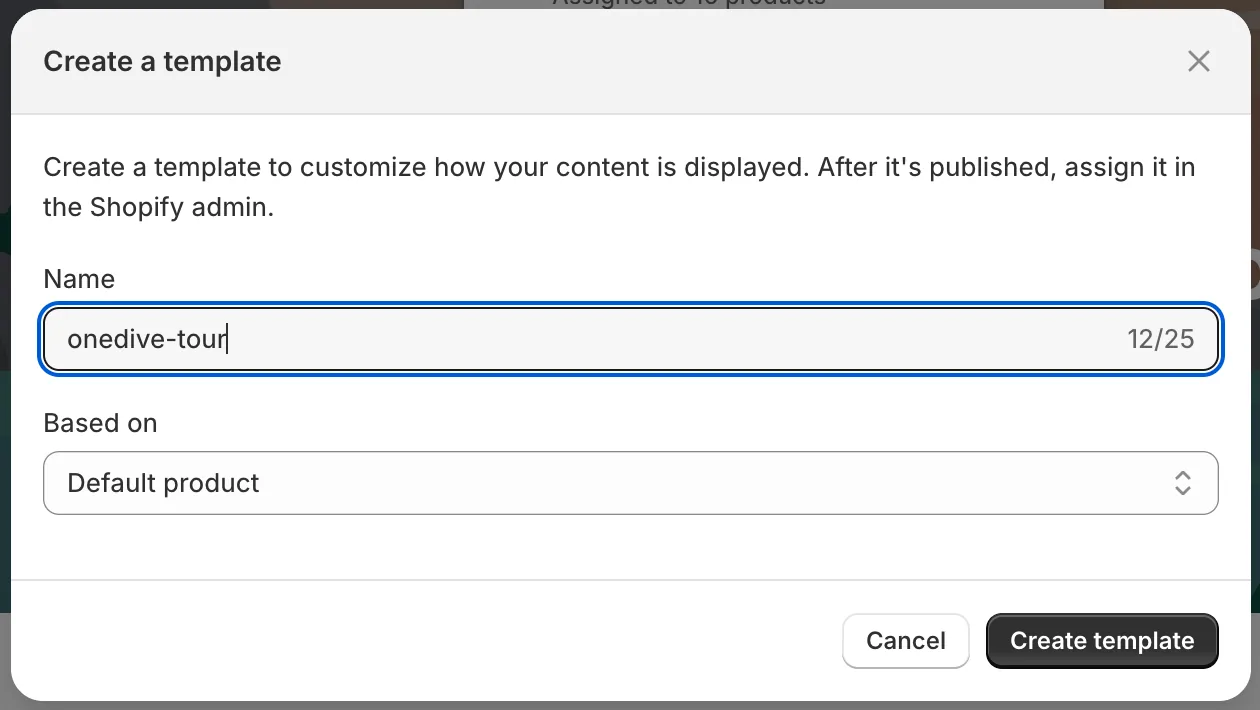
- Name. onedive-tour, lower case, with the hyphen.
- Based on. Default product.
- Create template. Opens the new template in the editor.
Remove the buy buttons
In the new template, open Product information, then Details. Hover Variant picker and choose the bin, then do the same for Buy buttons. A trip is booked with OneDive, never through your Shopify cart. Only this template changes; your other products keep theirs.
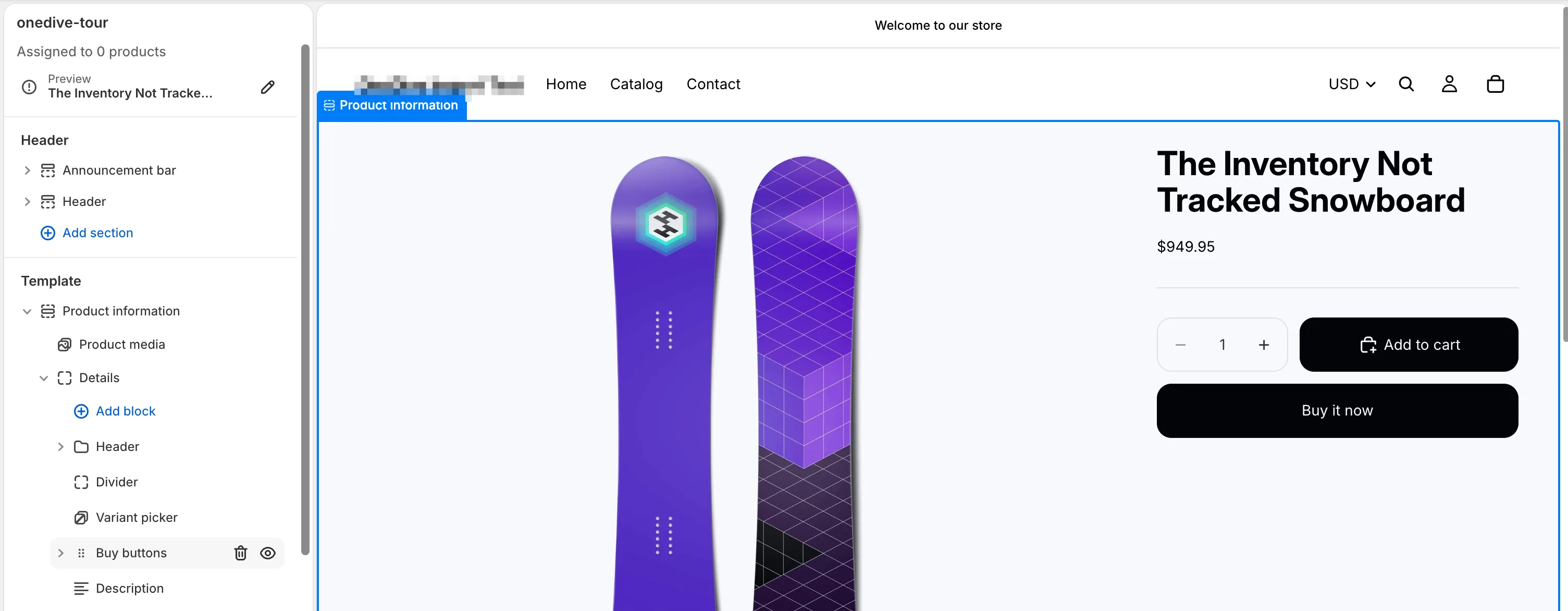
- Variant picker. Remove it.
- Buy buttons. The bin shows when you hover. It holds the quantity too.
- Add to cart and Buy it now. Gone from the preview once both are removed.
Then choose Product information itself to open its settings, and switch off Sticky add to cart bar.
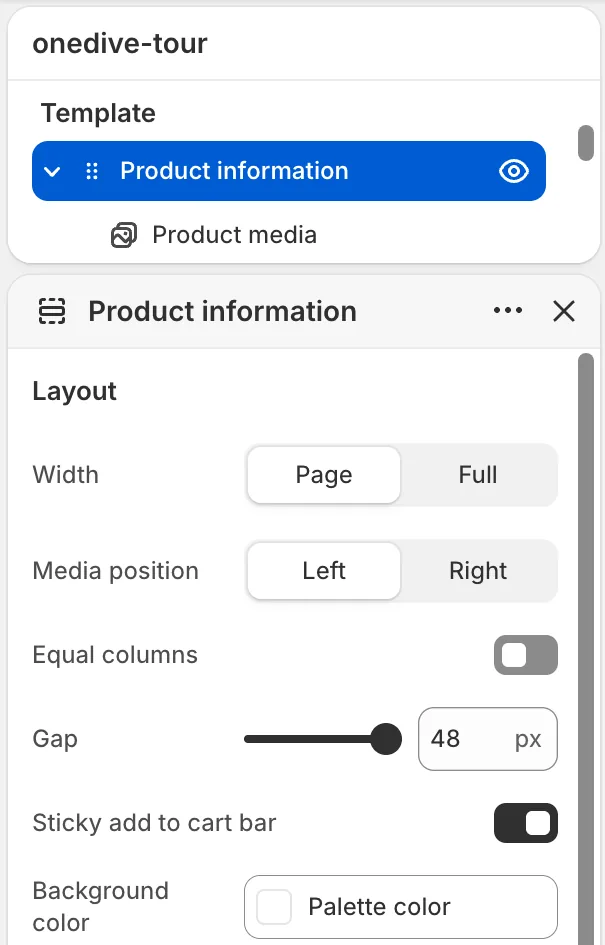
- Product information. Choose the section name to see its settings.
- Sticky add to cart bar. On to start with. Left on, your trip pages show an Add to cart bar as divers scroll. Switch it off.
Add the OneDive block
Under Details, choose Add block, then the Apps tab, then OneDive tour booking. Put it between Divider and Description, where the buy buttons were.
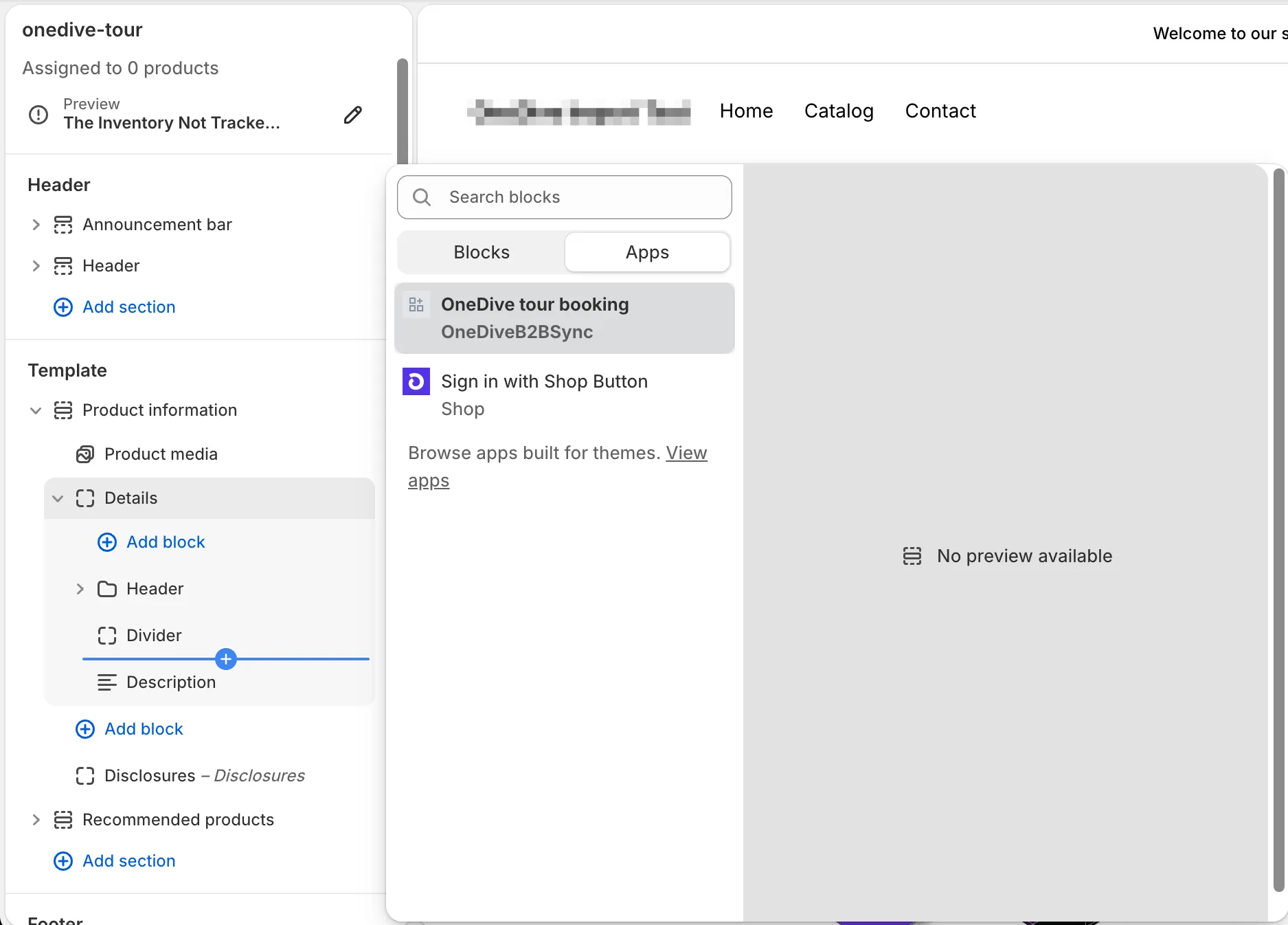
- Add block. The one under Details.
- Apps. Blocks from the apps on your store.
- OneDive tour booking. Not listed? See If something looks wrong, below.
- Where it goes. Between Divider and Description.
Choose Save at the top right. The block shows the trip's next open times and its Book button.
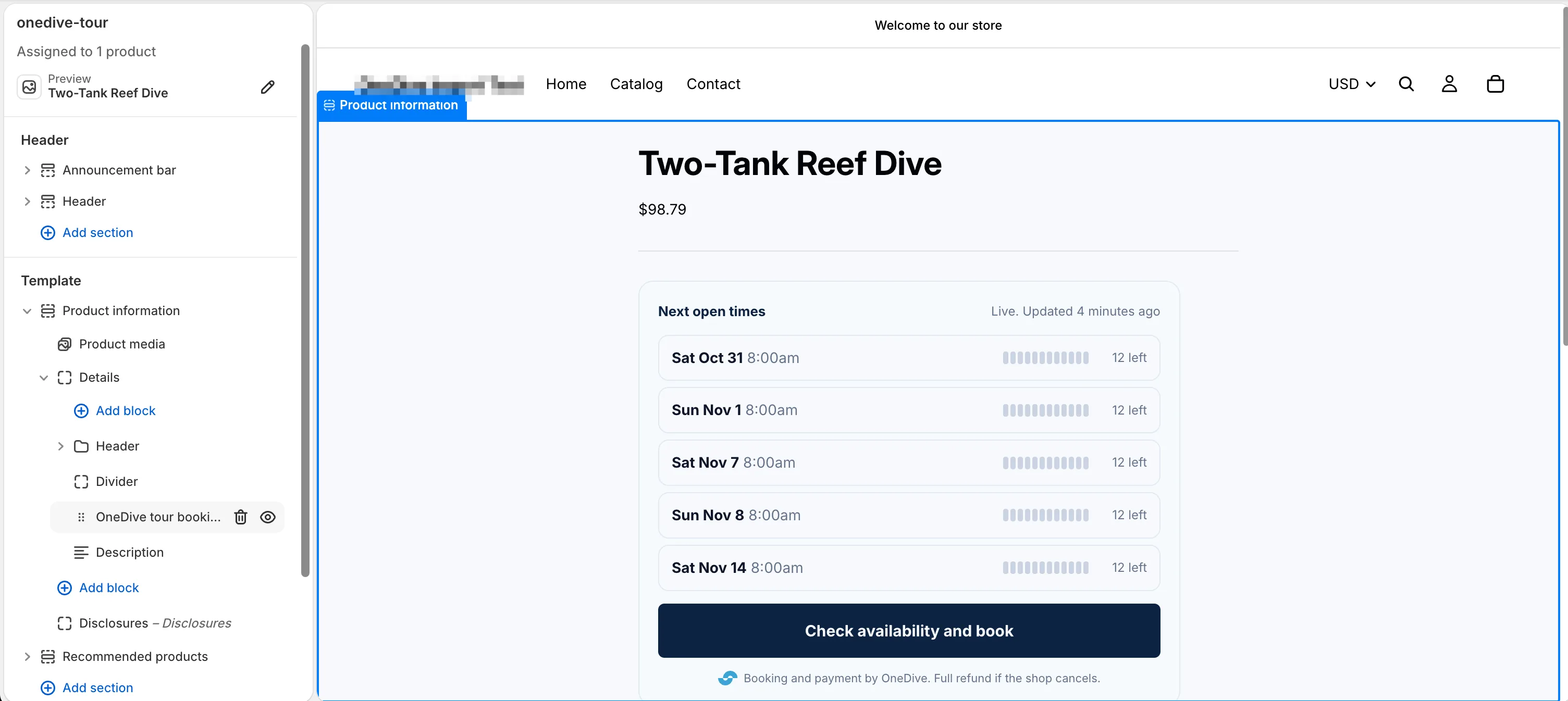
- OneDive tour booking. Where the buy buttons were.
- Next open times. Live from the trip's schedule in OneDive.
- Book. Its text and color are yours to change: choose the block to see them.
Signed in to OneDive B2B? Open my theme with the block ready opens your theme editor with the block ready to drop in.
Check a trip uses the template
In your Shopify admin, open Products and one of your trips. On the right, Theme template says onedive-tour. OneDive sets it, so you only check.
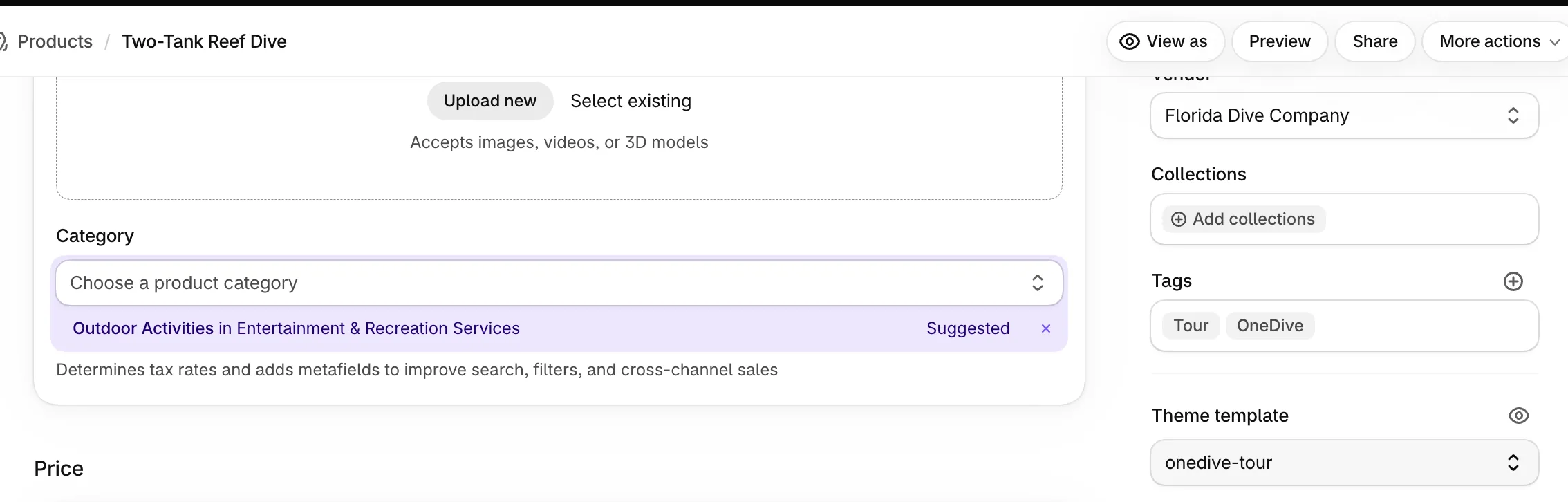
- Theme template. Says Default product? Check the spelling from step 2.
Publish each trip to your online store
On the same product page, next to Publishing, choose Manage publishing.

- Manage publishing. Until you do this, it says This product is not published anywhere.
Switch on Online Store and choose Done.
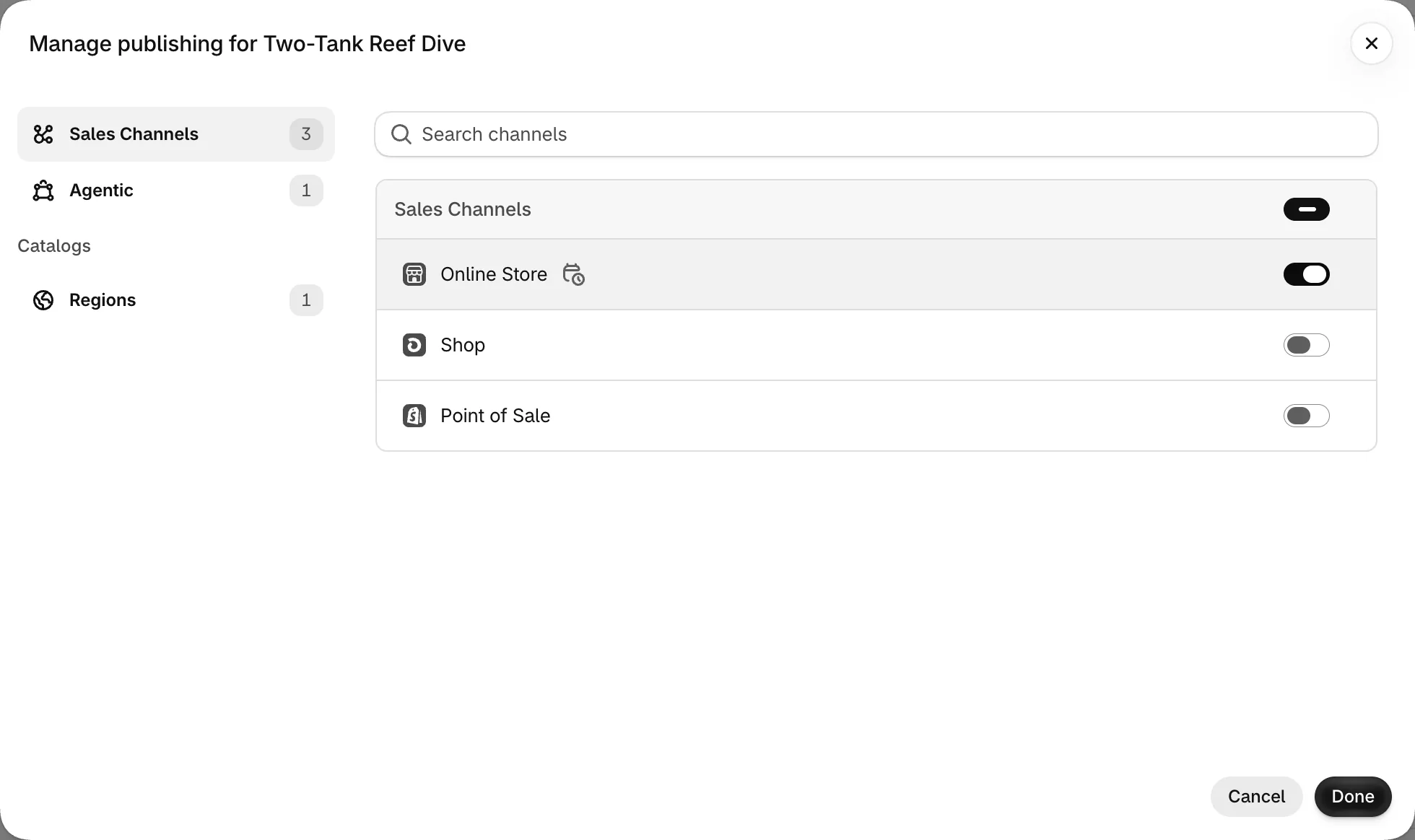
- Online Store. Your store's website. Leave Shop and Point of Sale off.
- Done. Closes the list. Nothing is saved yet.
Then choose Save in the bar at the top.

- Save. Leave without it and the trip isn't published.
- Online Store. The trip is live on your store.
Check the page
Open the trip on your store. You see the next open times and a Book button, and no Add to cart.
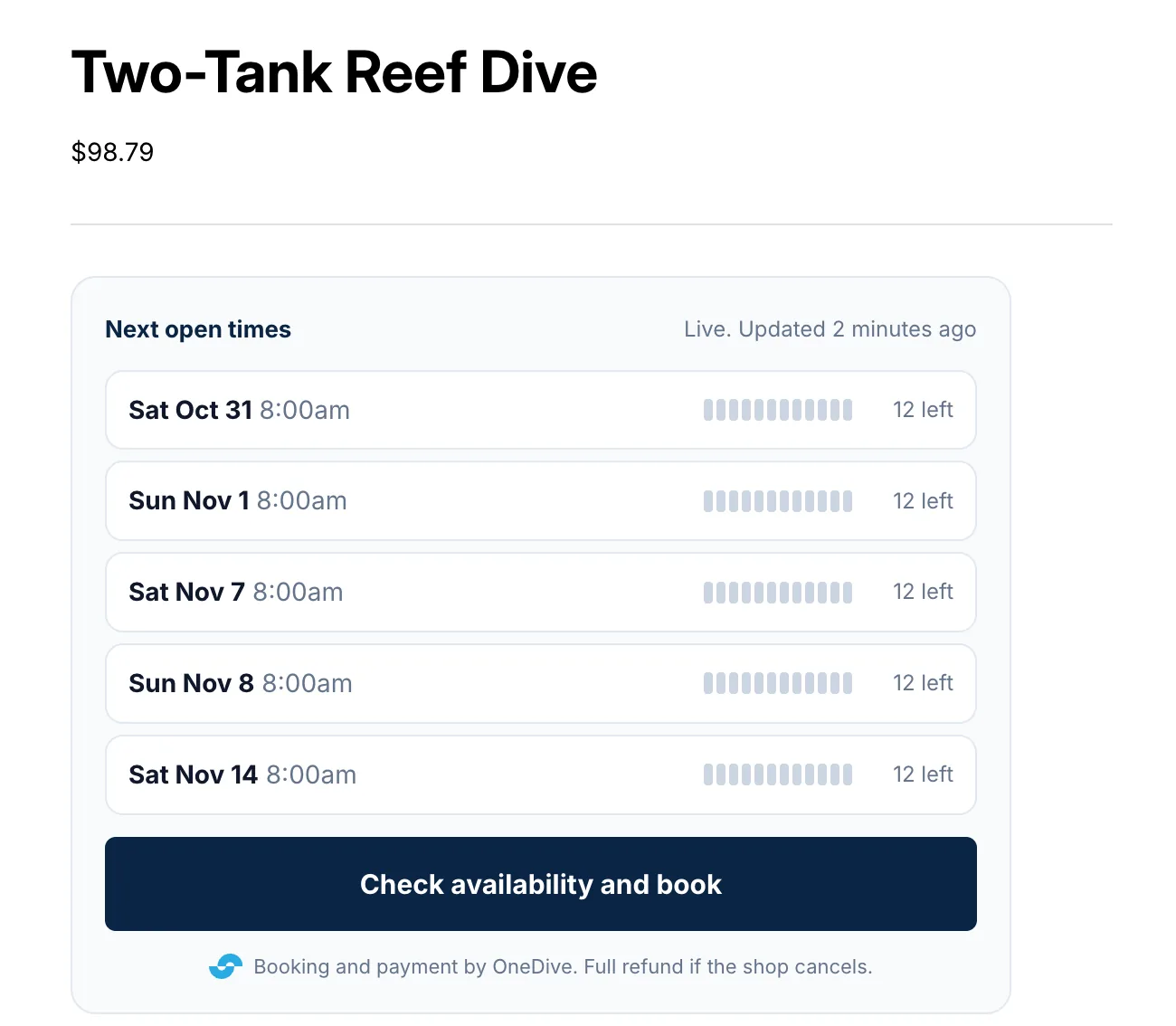
- Next open times. From the trip's schedule in OneDive.
- Book. Opens a new tab instead of a window? See If something looks wrong, below.
Choose Book. The OneDive booking window opens over your page, and the diver picks a time and pays there.
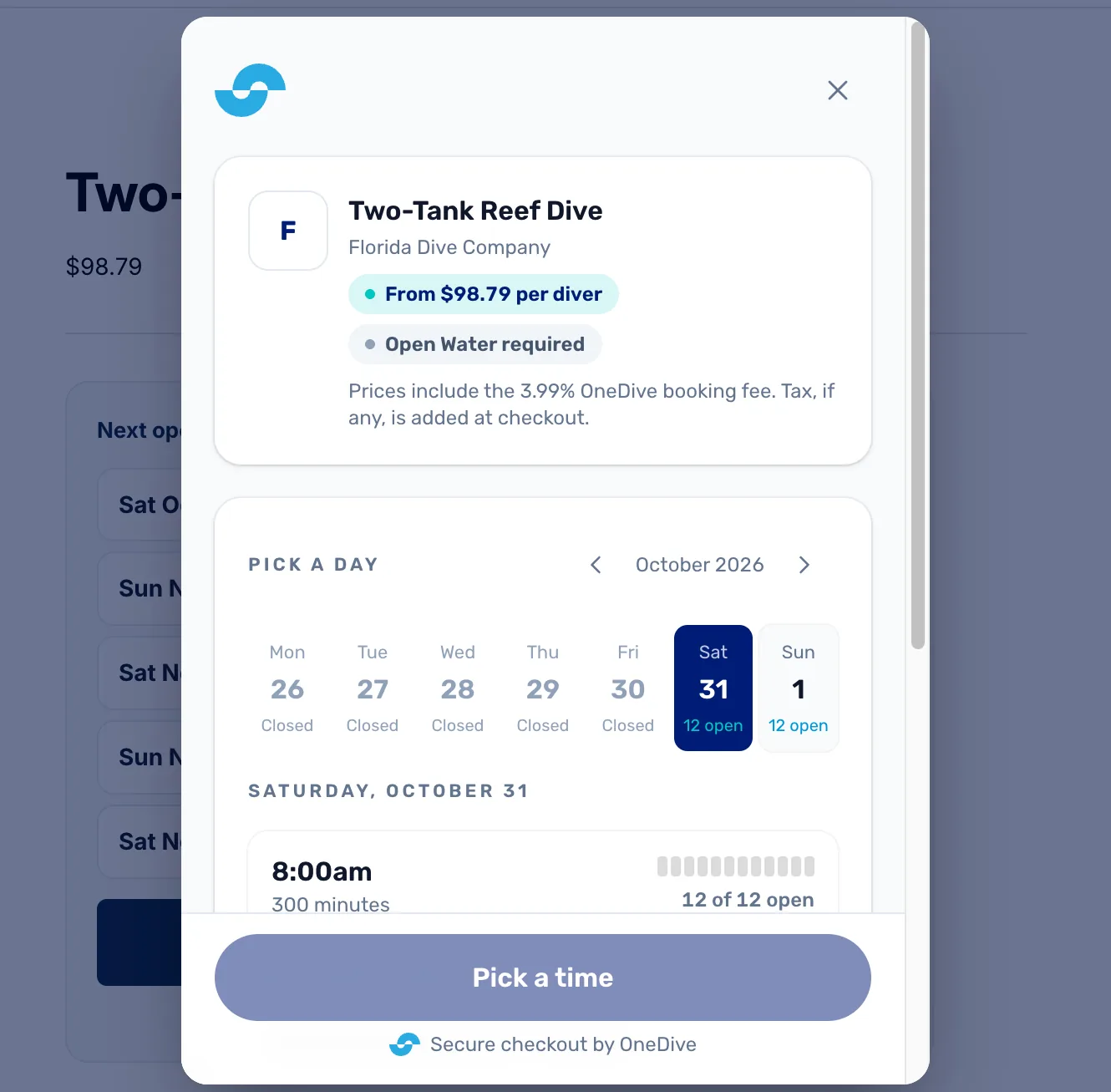
- Close. Back to your page. Nothing is booked until the diver pays.
Optional: give the page a short address
On the trip in Shopify, under Search engine listing, change the URL handle to something short, such as two-tank-reef-dive. Leave the redirect box ticked. OneDive never changes it back.
Your own trip listings switch on their own
Once your trip page design is set up (steps 1 to 4), OneDive moves each of your own trip listings, the Shopify products you linked to a trip, from Default product to onedive-tour by itself. It moves a page back when you turn the switch off, keep Shopify's checkout, unlink the trip or turn Trips on your store off, and when OneDive can't show the booking card on that page, for example when the product is also a class page. A trip that is full or between seasons keeps the Book button, since a full trip shouldn't get Add to cart.
- Only the booking area changes. OneDive never touches the title, description, photos or price of a listing.
- Your own design is left alone. A listing you put on another design isn't switched, and a change you make later in Shopify wins.
- You choose. Settings › Online store has the switch, Book with OneDive on your own trip pages, and shows each page's status. OneDive turns it on store by store, after checking how your trip pages look.
- A store on its own Shopify app is never switched. Set each trip's template to onedive-tour by hand (step 5). Call (352) 501-9334 and we'll do it with you.
If something looks wrong
- Book opens a new tab instead of a window. The page's address isn't on your allowed sites yet. OneDive adds your store's own addresses within 15 minutes of connecting. A page on any other address needs that address added in Settings › Online Booking › Your website.
- The page still has Add to cart. The trip isn't using onedive-tour (step 5), or the sticky bar is still on (step 3).
- No OneDive tour booking under Apps. Check the OneDive B2B Sync app is installed on your store. Connected your store with your own app, or on a theme older than 2021? Use the snippet instead, in Settings › Online store › Trip page guide. Still stuck? Message support.
Good to know
- OneDive keeps each trip's title, description, price and template in step with the trip. The price includes the 3.99% OneDive booking fee. Photos, tags, collections and the page address are yours to change in Shopify.
- A new trip you put online shows up in Shopify on its own. Publish it (step 6) and it's live. Steps 1 to 4 are done once.
- A trip linked to a product you already have in Shopify is covered too. OneDive adds the trip's booking details to that product and leaves the rest of it alone, and moves its page to onedive-tour for you: see "Your own trip listings switch on their own" above.
- When a season ends, OneDive archives the trip's product. When the next one opens, check it's still published to Online Store.
- Your class pages can use this same design, with a Book button for each class: see Class pages on your Shopify store. The block has its own Button text on class pages setting, Check dates and book to start with, beside Button text for trips.
- Seeing a red banner in Settings › Online Booking about pages that sell through Shopify's cart? See Make your trip pages book through OneDive.
- Next: when a diver books, Mission 4.