
What this is for. The register adds sales tax to every sale by itself, using the rates you set here. Most shops pay more than one tax, such as a state rate and a county surtax, so you add each one as its own line with its own name and rate. The register adds them up. Each location has its own lines, and you can set a separate rate for repair labor if your state taxes it differently. Until you add a line, the register charges no tax at all.
Open Tax configuration
Go to Settings › Payments & Finance › Tax configuration. Each of your locations is listed by name with its own lines. A new shop starts with none.
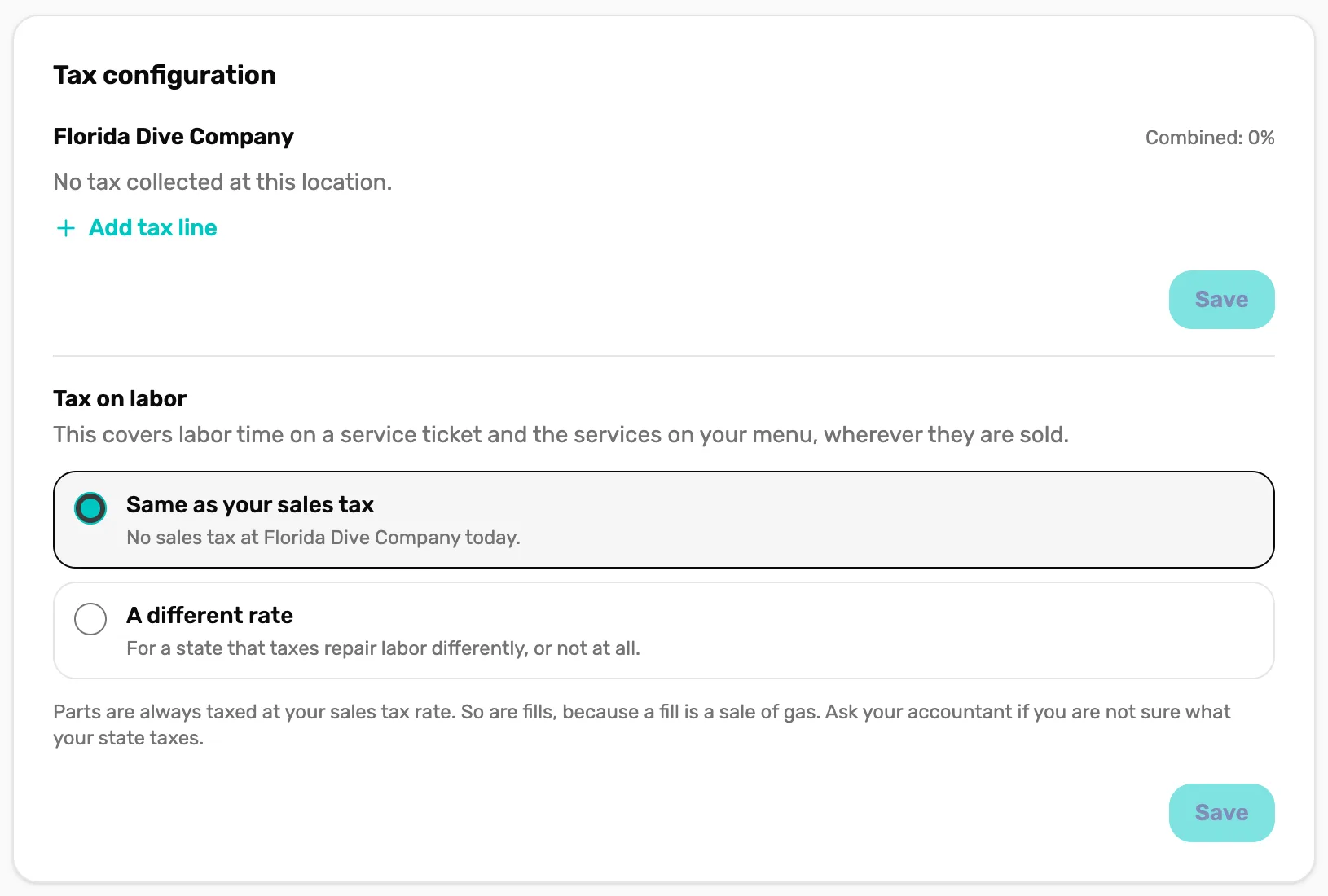
- No tax collected at this location. No lines yet. Sales here are charged no tax.
- Add tax line. Adds an empty line to fill in.
- Same as your sales tax. The starting choice for labor. Labor is taxed like everything else.
- A different rate. For a state that taxes repair labor at its own rate, or not at all. See step 4.
Only the owner or a General Manager can change tax. Anyone else sees the lines greyed out under "Only the shop owner or an admin can change tax."
You may have set these already during setup: the Sales tax step in Setup shows the same lines, without Tax on labor.
Add a line for each tax
Tap Add tax line once for each tax. Type its name in the left box and its rate in the right box, as a percent. Combined at the top right adds them up as you type.
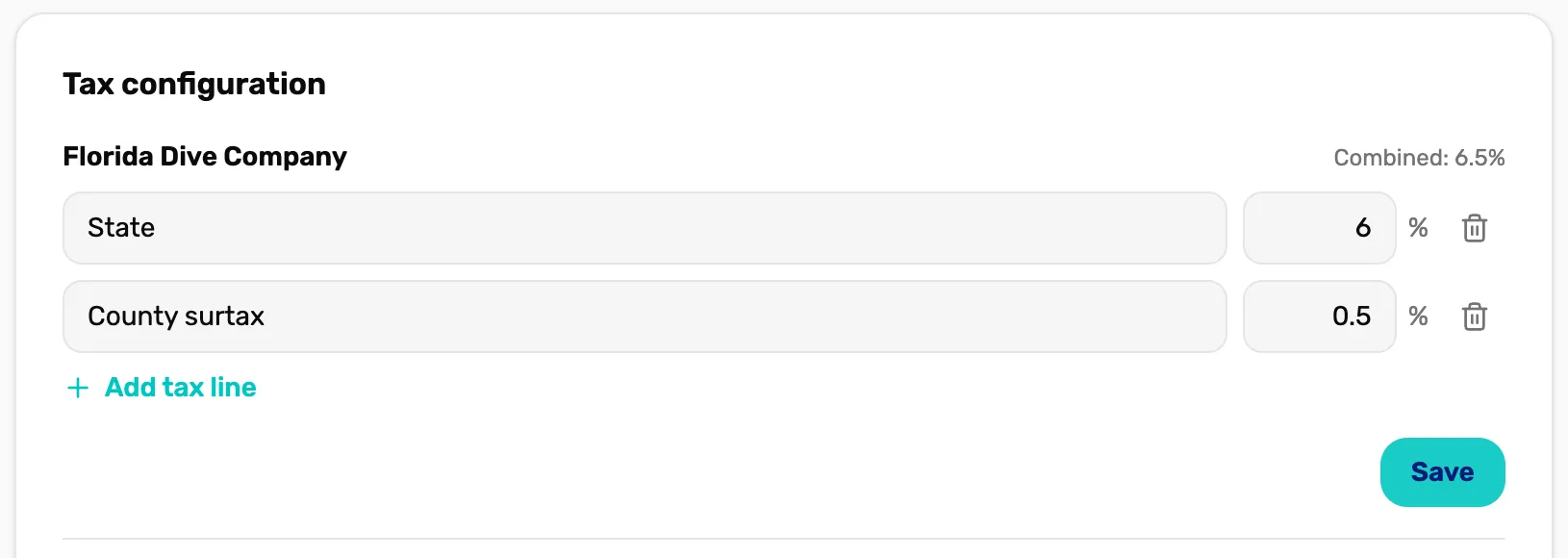
- The location. These lines are for this location only. A second location has its own list below.
- Combined. All the rates added together.
- The name. What you call this tax, for example State or County surtax. Up to 40 characters.
- The bin. Removes the line. Tap Save to make it stick.
- The rate. A percent, like 6 or 6.25. Don't type the % sign.
- Add tax line. Adds another line. Disappears at 8 lines.
- Save. Saves this location's lines. Turns blue once you change something.
The rules, all checked when you tap Save:
- Up to 8 lines per location.
- Every line needs a name, and two lines at one location can't share a name (capitals don't count, so State and STATE are the same name).
- Each rate is between 0 and 100. Rates are kept to four decimal places.
- All the lines together can't come to more than 100%.
If something is wrong, Save shows why under the lines and nothing is saved.
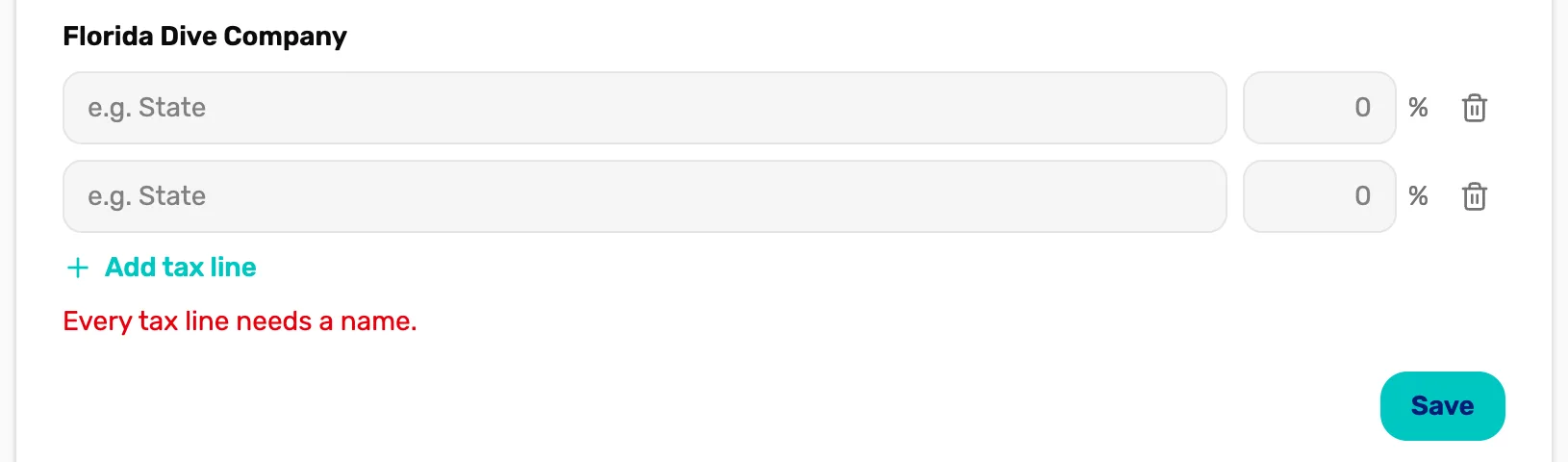
- The message. Fix what it says, then tap Save again. The other messages are "Tax line names must be unique.", "Enter each rate as a percentage, like 6.25." and "Combined rate can't exceed 100%."
Save, and the register uses the new rates straight away
Tap Save under the lines. Saving replaces this location's whole list with what's on screen. The next sale checked out at this location is taxed at the new rates. There is no way to set a change for a future date, so save it on the day the new rate starts.
To stop charging a tax, tap its bin and then Save. Remove every line and the location charges no tax.
If your state taxes labor differently, set a labor rate
Skip this unless your state taxes repair labor at another rate, or not at all. Tax on labor sits under each location's lines and has its own Save.
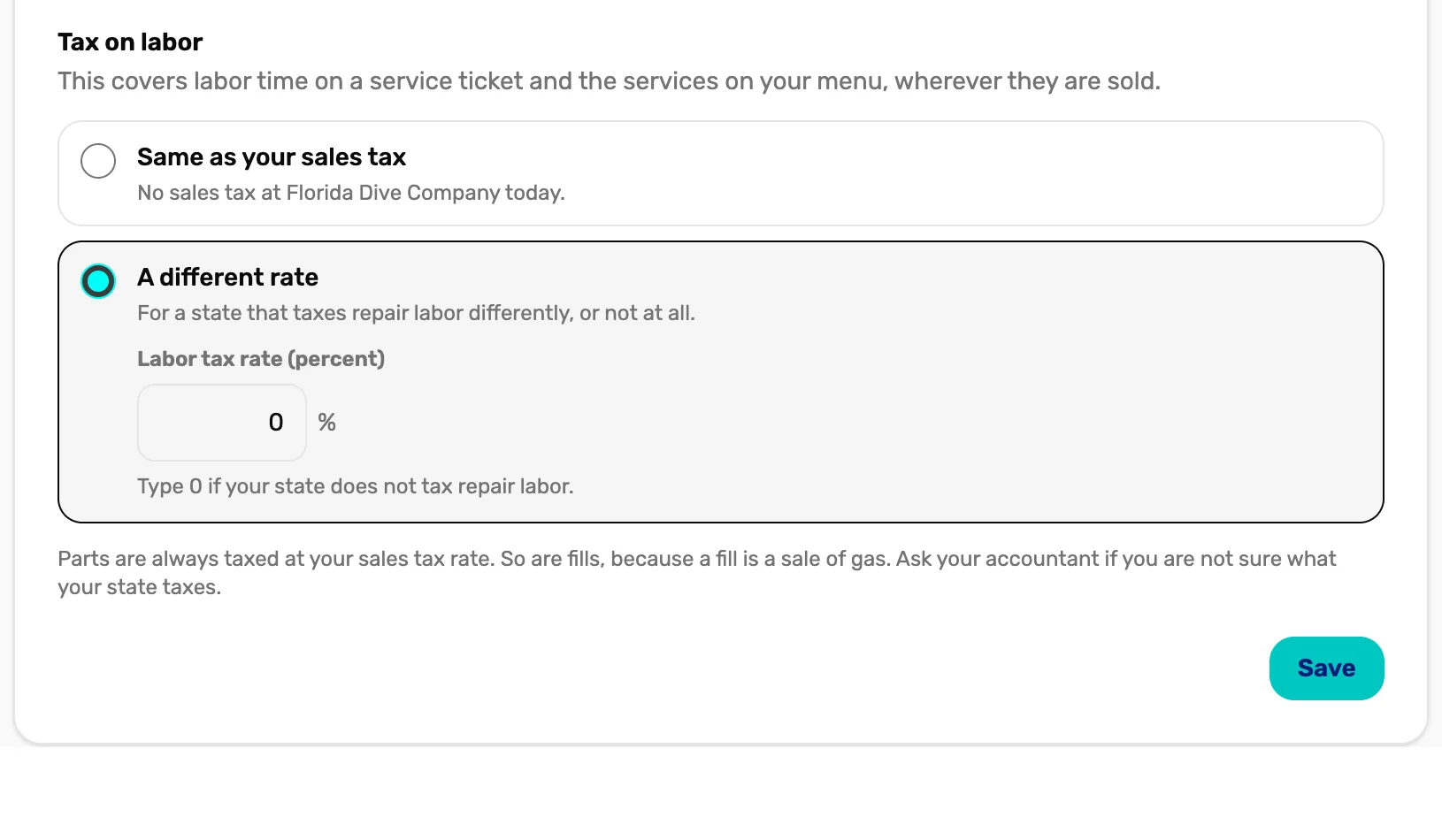
- Same as your sales tax. Labor is taxed at your sales tax lines, like everything else. The line under it shows today's saved combined rate.
- A different rate. Labor gets its own rate instead.
- Labor tax rate (percent). Type 0 if your state doesn't tax repair labor.
- Save. Saves the labor rate for this location.
What counts as labor: the labor time on a service ticket, and the services on your service menu, wherever they are sold. A tank fill is not labor: it's a sale of gas. Parts and fills are always taxed at your sales tax lines.
How the register works out tax
- Which location's lines: the location the register is working at when the cart is started.
- On what: the ticked items, after any discount. Paying part of the sale with store credit doesn't lower the tax.
- Line by line: each line's tax is worked out on its own and rounded to the cent, then added up.
- Trip seats: seats on a trip with Charge sales tax on seats switched off are not taxed. That switch is on each trip's booking settings in Trips. See Put a trip online.
How tax shows on the receipt
Most receipts, and the cart at the register, show one line called Tax: the total of all your lines. Your line names don't print one by one.
The one exception is a sale with labor at a location that has its own labor rate. Then each line prints with its rate and what it was charged on, for example "State (6%) on $80.00" and "Labor tax (0%) on $135.00 of labor". The printed and emailed receipts follow the same rule.
When you change a rate
- Past sales don't change. Each sale keeps the tax it was charged, and its receipt reads the same as before.
- Refunds use the old rate. Refunding a past sale gives back the tax at the rates that sale was charged, not today's.
- Open carts and quotes use the new rate. Tax is worked out at checkout, so a cart left open or a quote loaded later is taxed at whatever is saved on the day it's paid. A quote shows its total before tax for that reason.
What happens next
- Ring up a sale and check the tax line: Your first sale.
- Discounts come off before tax: Give a discount on a sale.
- Why a quote leaves tax until checkout: Save a cart as a quote.