
What this is for. A customer brings something back. If they want something else instead, use Exchange in the cart: what they bring back turns into store credit, and that credit pays for what they take home. If they don't want anything today, they can keep it as store credit for next time. If they want their money back, that's a refund, not an exchange.
Which one to use
- They want a different size or another item. Use Exchange, below.
- They want their money back. Refund the item. See Find a sale and refund a line.
- They want store credit for another day. Either one. Use Exchange and don't ring anything up, or refund the item and pick Store credit. See Take a return as store credit, below.
Before you start
- The customer has to be on the cart. Exchange stays grey on a guest cart.
- They have to be the customer on the original sale. Exchange only lists sales that had this customer on them. A sale rung up as a guest can't be exchanged. Refund it instead.
- The sale has to be inside your return window. See Refund rules.
- An online trip booking can't be exchanged. It's refunded from the trip's manifest.
Attach the customer and tap Exchange
In the register, start a cart for the customer, or attach them to the cart you're on. See Attach a customer and their waiver.
Exchange is under the cart, between Discount and Custom item. Tap it.
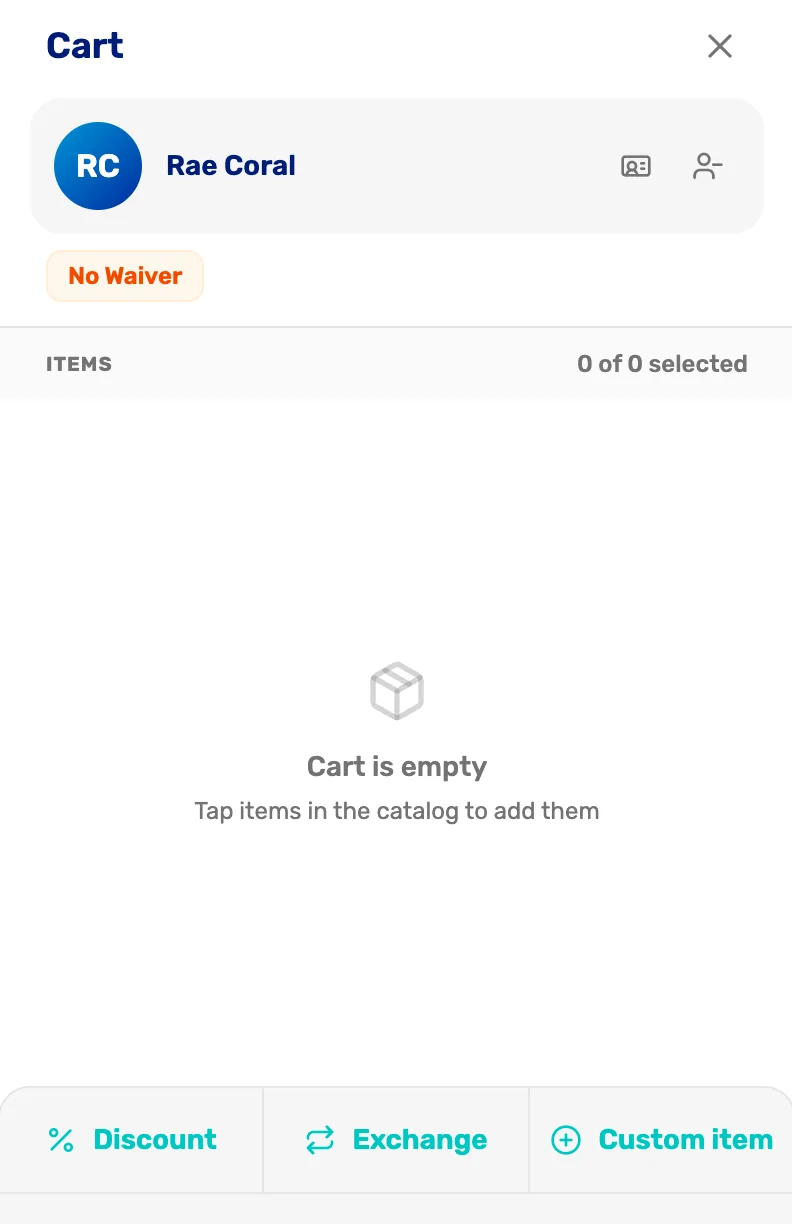
- The customer. Who the cart is for. Exchange only finds their sales.
- Exchange. Opens the exchange. Grey until a customer is on the cart.
Pick the sale the items came from
A box opens called Exchange · and the customer's name. It lists their sales, newest first. Each one shows its receipt number, the date, how many items, and the total. A sale that has already had something back says Partially refunded.
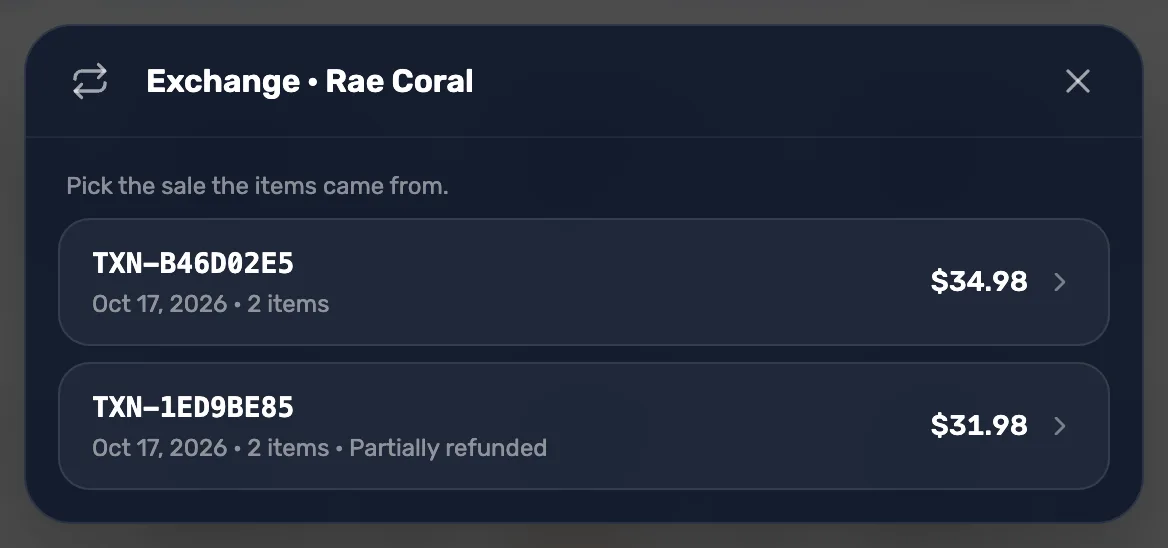
- Pick the sale the items came from. Match the receipt number to the customer's receipt if you're not sure.
- The receipt number. The TXN code printed on their receipt.
- Partially refunded. Some of this sale already came back. What's left can still be exchanged.
If it says No past sales for this customer., the sale was rung up as a guest or for someone else. Close the box and refund it from Settings › Transactions instead.
Choose what's coming back
The box shows the items on that sale: "Select what's coming back — it's refunded to store credit, then ring up the new items in this cart."
Tap + beside each item that came back, once for each one. Each item shows its price and how many can still come back, like 2 refundable, or already refunded.
The button at the bottom works out the credit, then shows it, like Add $14.99 store credit. If the sale had tax, a line under it says how much of that is tax, like Includes $1.05 tax the customer paid. Tap the button.
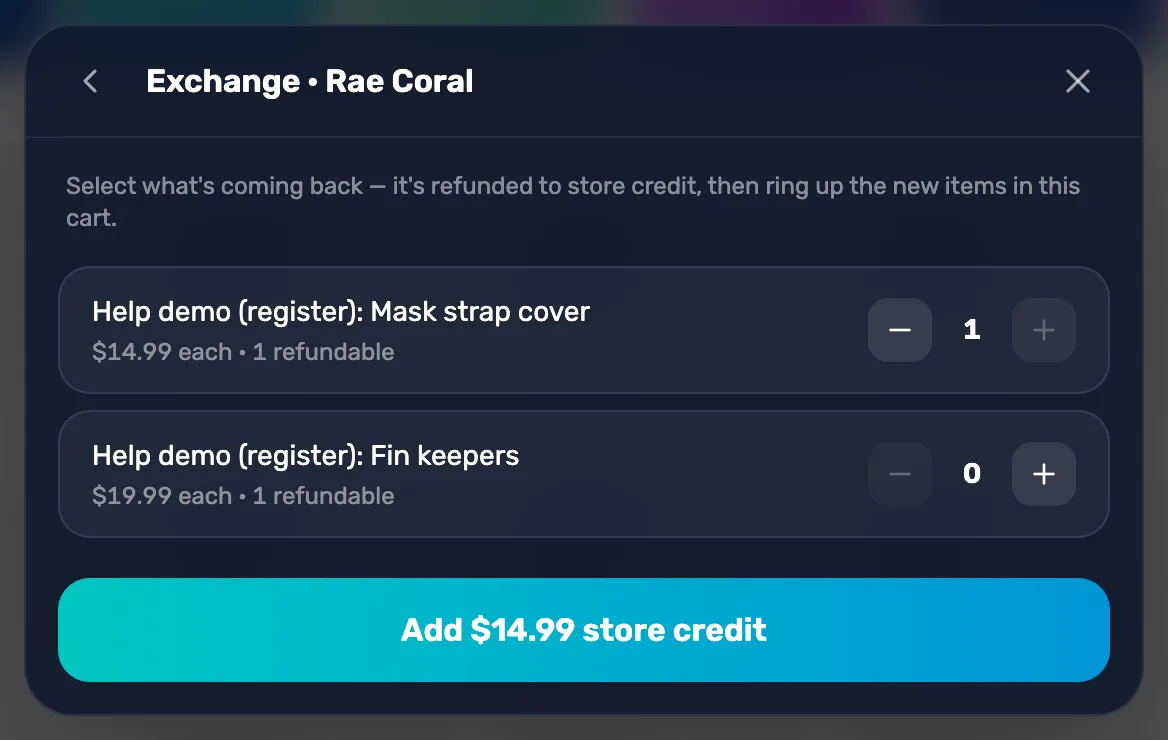
- + and −. How many of this item came back. It stops at what's left on the sale.
- Add store credit. Refunds those items to the customer's store credit. The amount is exactly what they paid, tax and any discount included.
If the sale can't be exchanged, the box says why instead, with Pick another sale:
- "The return window for this sale has closed."
- "This sale has already been fully refunded or can't be refunded."
- "This is an online booking. Refund it from the trip's manifest."
Ring up the new items
The box closes and you see a message like $14.99 store credit added — ring up the new items. The cart now shows the customer's credit, like $14.99 credit.
Add what they're taking instead, the same way as any sale. The cart takes the credit off on a Credit line. Total is what's left to pay.
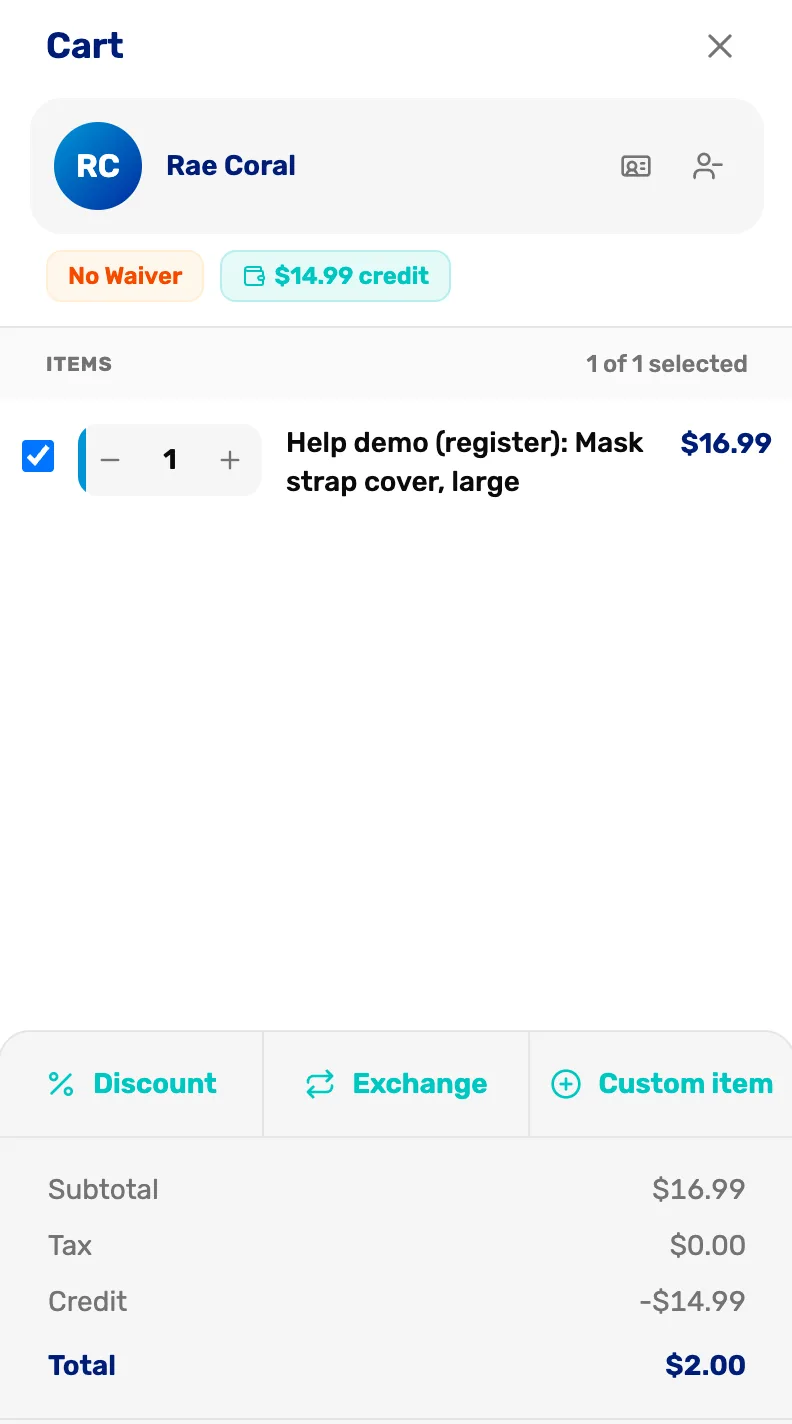
- The credit chip. What the customer has to spend.
- The new item. Rung up as normal.
- Credit. The credit coming off this sale.
- Total. What the customer still pays.
Check out
Tap Checkout. The top reads Store credit applied — and the amount.
- The new items cost more. Take the rest in cash, by card or by check, as usual.
- They cost the same or less. Checkout says Covered entirely by store credit. Tap Complete with store credit. Any credit left over stays on the customer's account.
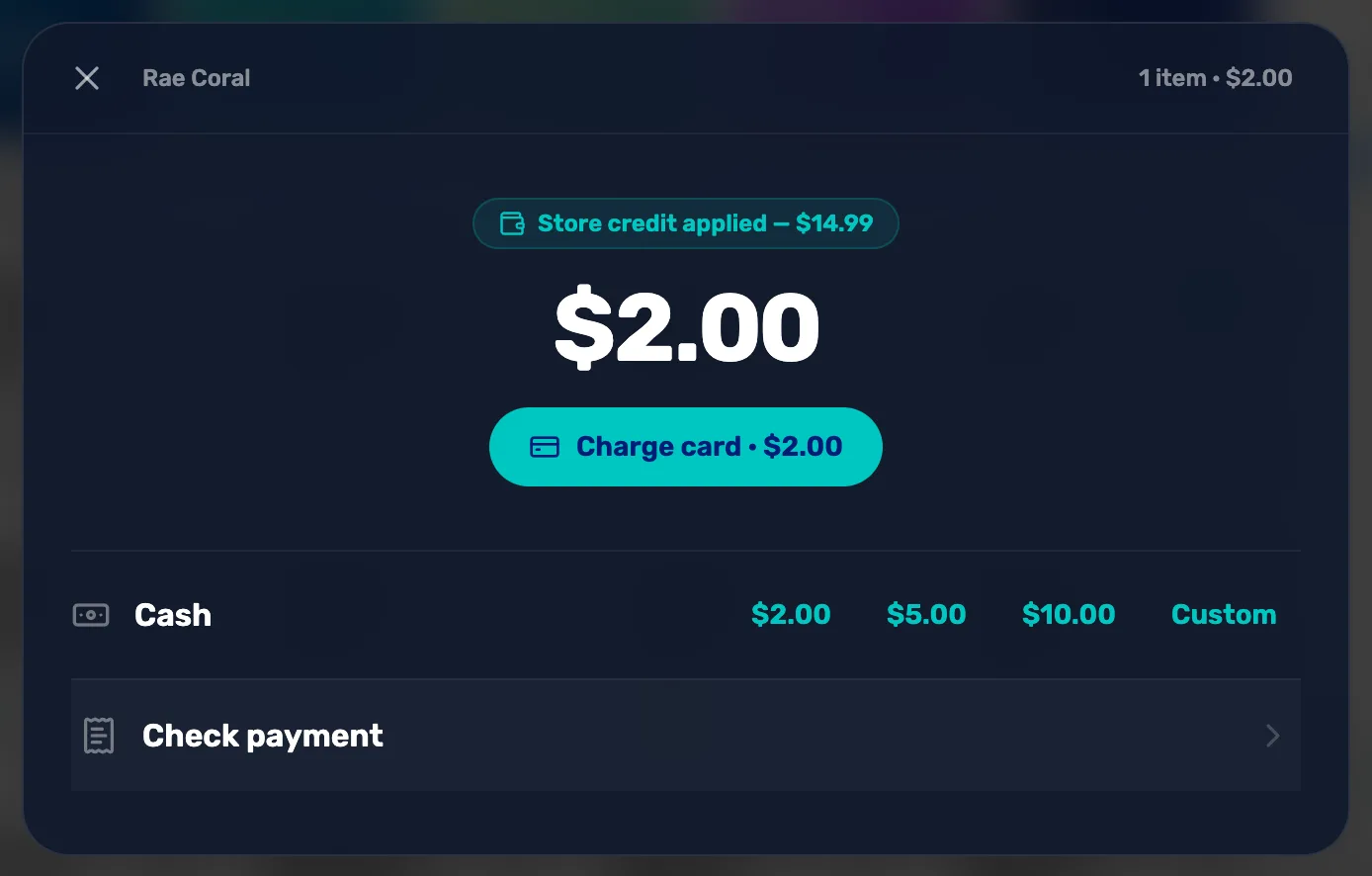
- Store credit applied. The credit used on this sale.
- The amount due. What's left to pay.
What an exchange leaves behind
- The original sale reads Partially refunded, or Refunded once everything on it has come back. The return is its own refund line with its own TXN number, in Settings › Transactions.
- The new items are a new sale, with the credit shown on it.
- Stock. Retail items that came back go back into stock. See Refund rules.
- The customer's Store credit tab shows the credit going in as Grant, with the note "refund", and coming out as Redeemed. See Store credit.
- Reports. Exchanges are in the Refunds & exchanges report in Settings › Reporting.
Take a return as store credit
Use this when the customer wants credit and nothing today, or when the sale is too old to show in Exchange. Only the owner, a General Manager or a Manager can do it, because it's done in Settings › Transactions.
- Find the sale and pick what came back. The steps are in Find a sale and refund a line.
- On Confirm refund, choose Store credit: "Credited to the customer's account."
- Tap Refund. You see a message like Refunded $14.99 as store credit. The credit is on the customer's account straight away.
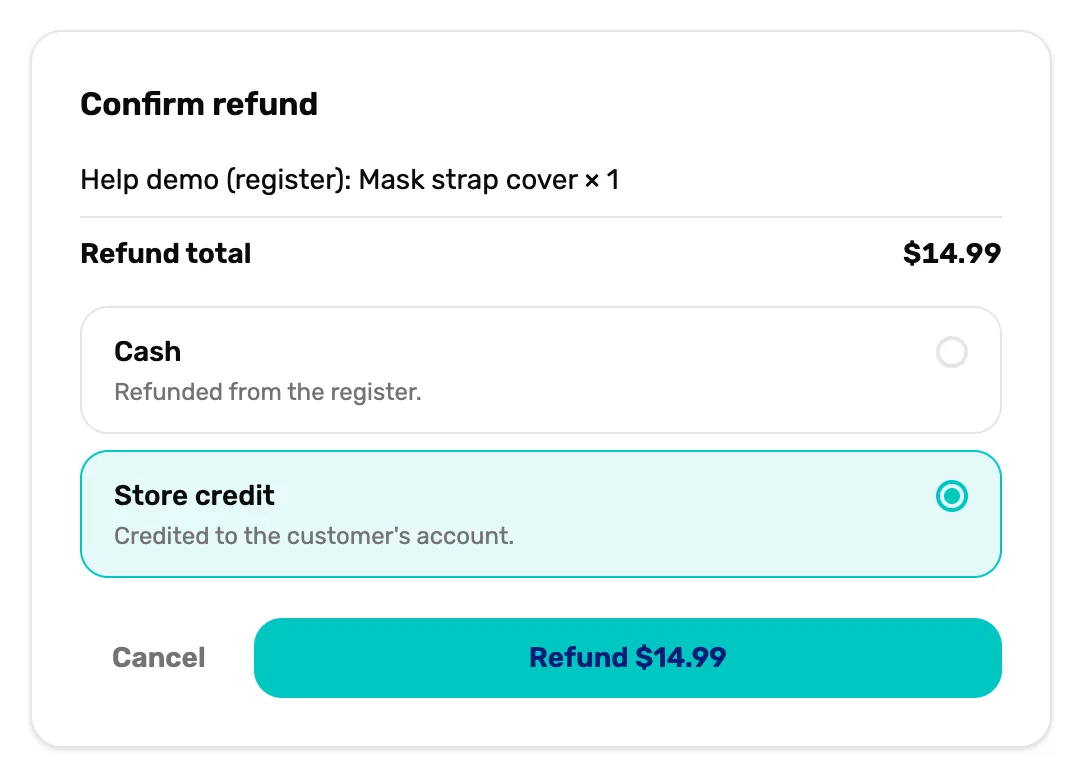
- Store credit. Adds the refund to the customer's store credit. Greyed out on a guest sale, with the words "No customer on this sale".
- Refund. Does it. The button shows the amount.
- A card sale starts on Card. Store credit is behind Refund another way.
- Store credit default. If it's on in your Refund policy, Store credit is picked for you on a sale with a customer.
- A guest sale can't go back as store credit. Refund it as cash or to the card.
If the exchange says something else
- "The credit changed since you picked these items. Check the new amount and add it again." Someone refunded part of this sale while you had the box open. Check the new amount on the button and tap it again.
- "Quantities changed — reopen and retry" Close the box and start again.
- "This sale can no longer be refunded — pick another" It changed since you opened it, for example it was refunded in full. Go back and pick another sale.
What happens next
- The rules behind every return, from the return window to tax: Refund rules.
- Give, correct and track a customer's credit: Store credit.
- How store credit is used at checkout: Take payment.