
What this is for. Your accountant wants last month's sales. You want to know who sold the most this week, or how much went back as refunds. Reporting in the register's settings has three reports you can run for any dates, and three files you can download. This page lists each one, what's in it, and which need a bigger plan.
Where they are
Go to Settings › Reporting. From the register, tap the gear in the top bar, then Transactions. In the settings list on the left, Reporting is under Data & Analytics. The owner, a General Manager or a Manager can open it.
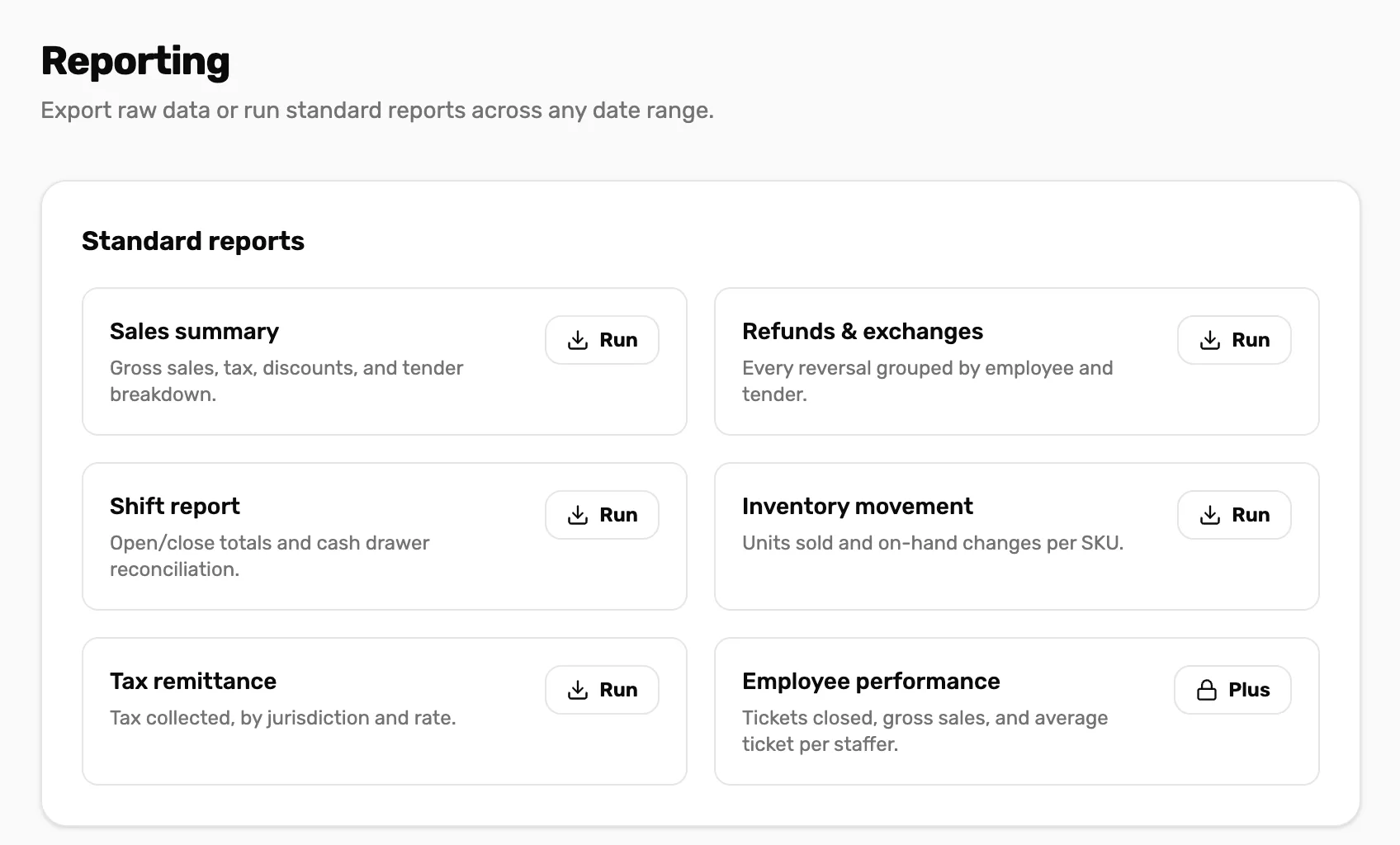
- Sales summary. One of the reports you can run today.
- Run. Opens the report. On a report that isn't built yet, it only says the report "is coming soon".
- Plus. A lock: your plan doesn't include this report. Tap it to see plans.
The standard reports
Three of the six tiles are reports you can run today:
| Report | What it shows | Plans |
|---|---|---|
| Sales summary | Your takings: Gross, Refunds, Discounts, Tax, Tips and Net, and a Tenders table of how customers paid. | Every plan |
| Refunds & exchanges | Every refund with when, who and how: Refund count, Total refunded, Failed attempts, then By employee and By tender. | Every plan |
| Employee performance | One row per staff member: Tickets (sales they rang up), Gross, Refunds, Net and Avg ticket. | Plus and Pro |
Shift report, Inventory movement and Tax remittance aren't built yet. Their Run says "is coming soon" and opens nothing.
| Plan | |||
|---|---|---|---|
| Loading the current plans… | |||
| What you get | |
|---|---|
| Loading the current plans… | |
| What you get | |
|---|---|
| Loading the current plans… | |
| What you get | |
|---|---|
| Loading the current plans… | |
A report your plan doesn't include shows a lock with the plan that has it. Hold the pointer on it and it says "This report needs Plus." Tap it to go to Settings › Subscription & Billing. See Free, Plus and Pro.
Run a report
- Tap Run on the report.
- Set From and To. The report opens on this month so far.
- Read the numbers. They update as soon as you change a date.
- To keep them, tap Download CSV at the top right. The file has the same numbers.
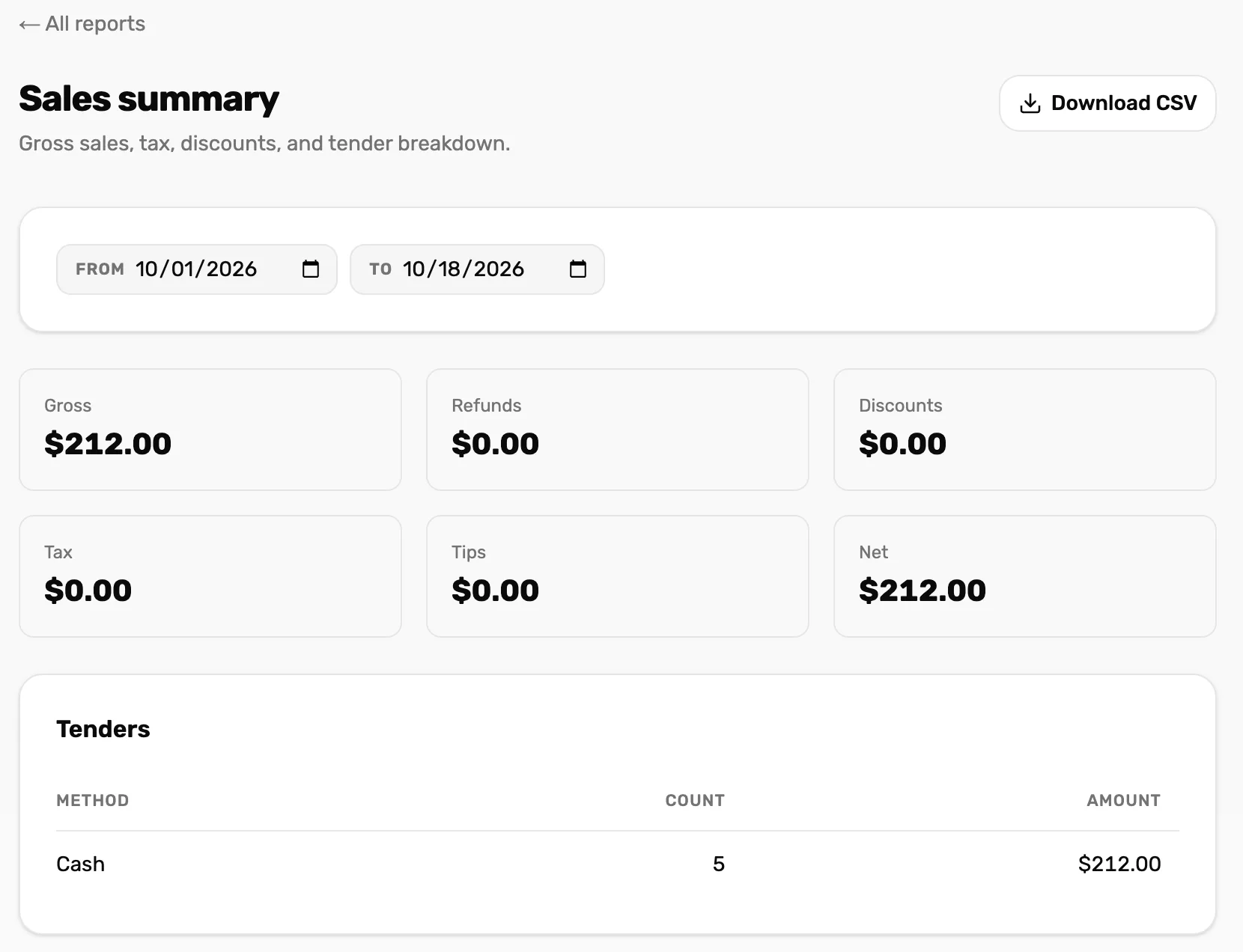
- ← All reports. Back to the Reporting page.
- From and To. The days to report on. Both days are included in full.
- Download CSV. The numbers on screen as a spreadsheet file.
- The tiles. Net is Gross with refunds taken off. Refunds show as a minus amount.
- Tenders. How customers paid: how many sales and how much, per payment method.
- Days run midnight to midnight on your shop's clock. Set your time zone first, or a late sale can land on the wrong day. See Time zone, currency and date format.
- Up to about a year at a time. A longer range, or a From after To, says "Could not run the report."
- A card refund that failed isn't counted as money back. The Refunds & exchanges report counts them under Failed attempts.
- Sales with no staff member on them show in Employee performance as Unattributed.
- "No data in this range." means there were no sales in those dates.
Exports
The Exports card, under the reports, has three files. Each one downloads at once as a CSV file, which opens in Excel, Numbers or Google Sheets. They have no dates to pick: each file has everything.
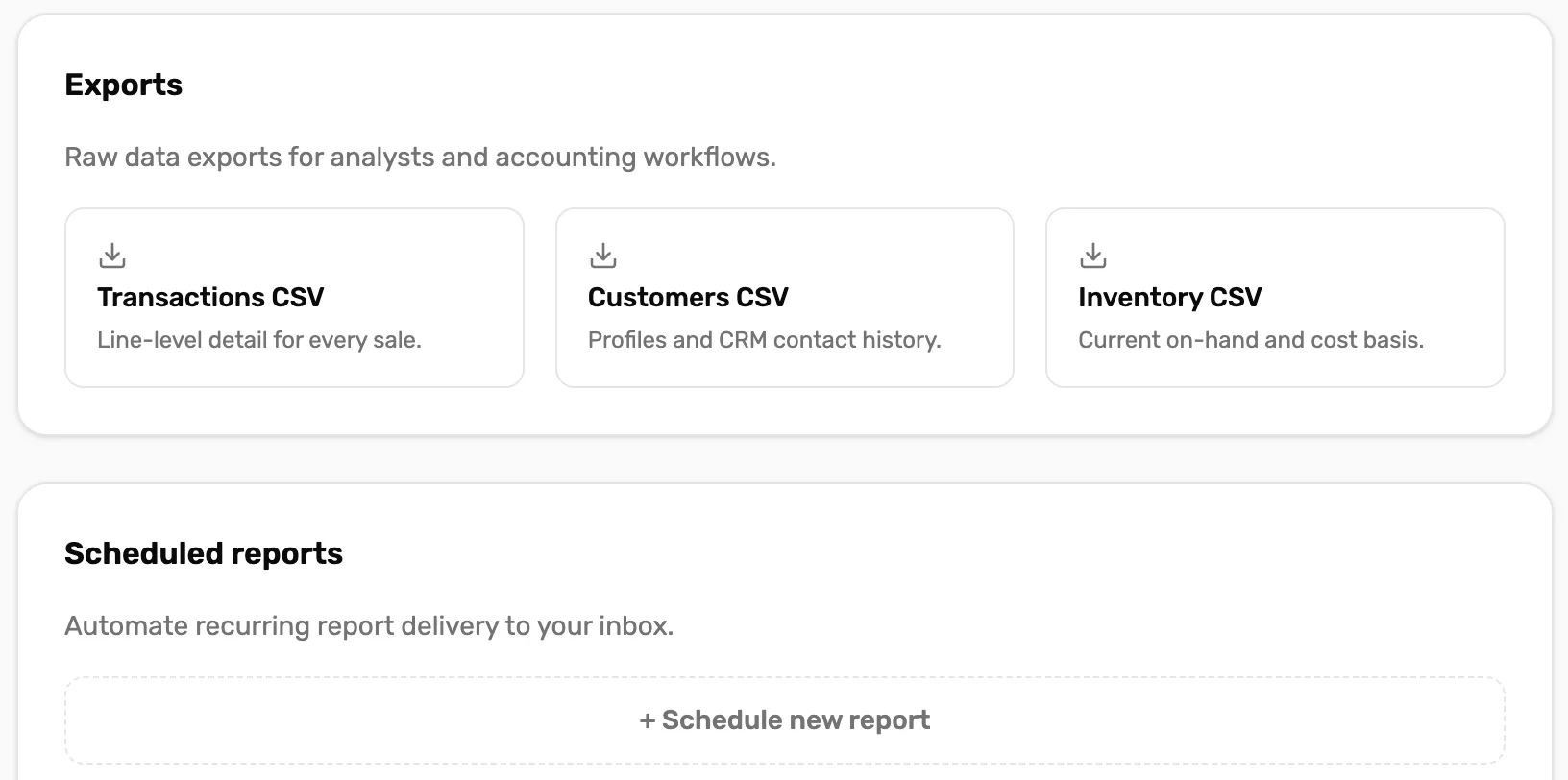
- Transactions CSV. "Line-level detail for every sale."
- Customers CSV. "Profiles and CRM contact history."
- Inventory CSV. Serial-numbered units only. Read the note below.
- Scheduled reports. Not built yet. + Schedule new report only says it is coming soon.
- Transactions CSV. One row per item on every sale and refund your shop has ever made: when, who rang it up, how it was paid, its state, the item, quantity, price, discount and line total. Failed card refunds are left out. Times are in UTC, not your shop's time.
- Customers CSV. One row per customer: name, email, phone, when they became your customer, and your notes on where they are as a prospect and when you last contacted them. Only customers who share their details with your shop are in it.
- Inventory CSV. Despite its description, this isn't your stock list. It lists gear tracked one unit at a time with a serial number, such as rental gear brought over from DiveShop 360. Most shops get a file with headings only. For your products and counts, use Catalog or My Inventory.
Other downloads, elsewhere
- The sales list you are looking at. Export at the top of Settings › Transactions downloads the list with your filters: one row per sale. See Find a sale and refund a line.
- Your trips. Export on Trips downloads the trips listed.
- Who did what. CSV (30 days) in Settings › Users & Access › Audit access downloads the last 30 days of the audit log. Only the owner or a General Manager.
- Your products, for Shopify. Export on My Inventory in OneDive B2B downloads only products brought in from Shopify, in Shopify's own format. With none, it says "no Shopify-linked inventory to export".
What happens next
- Find one sale and refund it: Find a sale and refund a line.
- What each plan includes: Free, Plus and Pro.
- Your stock numbers live on the products screens: Low stock alerts and the Catalog numbers.