
What this is for. Store credit is money a customer can spend at your shop instead of cash. You can give it as a goodwill gesture, a refund or an exchange can put it there, and it comes off their next sale on its own. Every change is kept in a list with the date, the amount and who did it, so the balance is never a mystery.
The rules
- Only the owner or a General Manager can grant or adjust credit. Everyone else on staff sees the balance and its history, not the buttons.
- An adjustment needs a reason. A grant's note is optional.
- A balance can't go below zero.
- Credit is used by itself. Whenever the customer is on a cart, their credit comes off that sale. There's no switch to save it for later.
- Credit belongs to your shop. Another shop the customer buys from can't spend it.
- Credit has no end date. OneDive never takes it away on its own.
How a customer gets store credit
- You grant it, below. For a cancelled boat, a price match, or to say sorry.
- A refund to store credit. See Find a sale and refund a line.
- An exchange at the register. See Exchanges and returns.
Open the customer's Store credit tab
Go to Customers and tap the customer's row. Their details slide in from the right. Tap the Store credit tab.
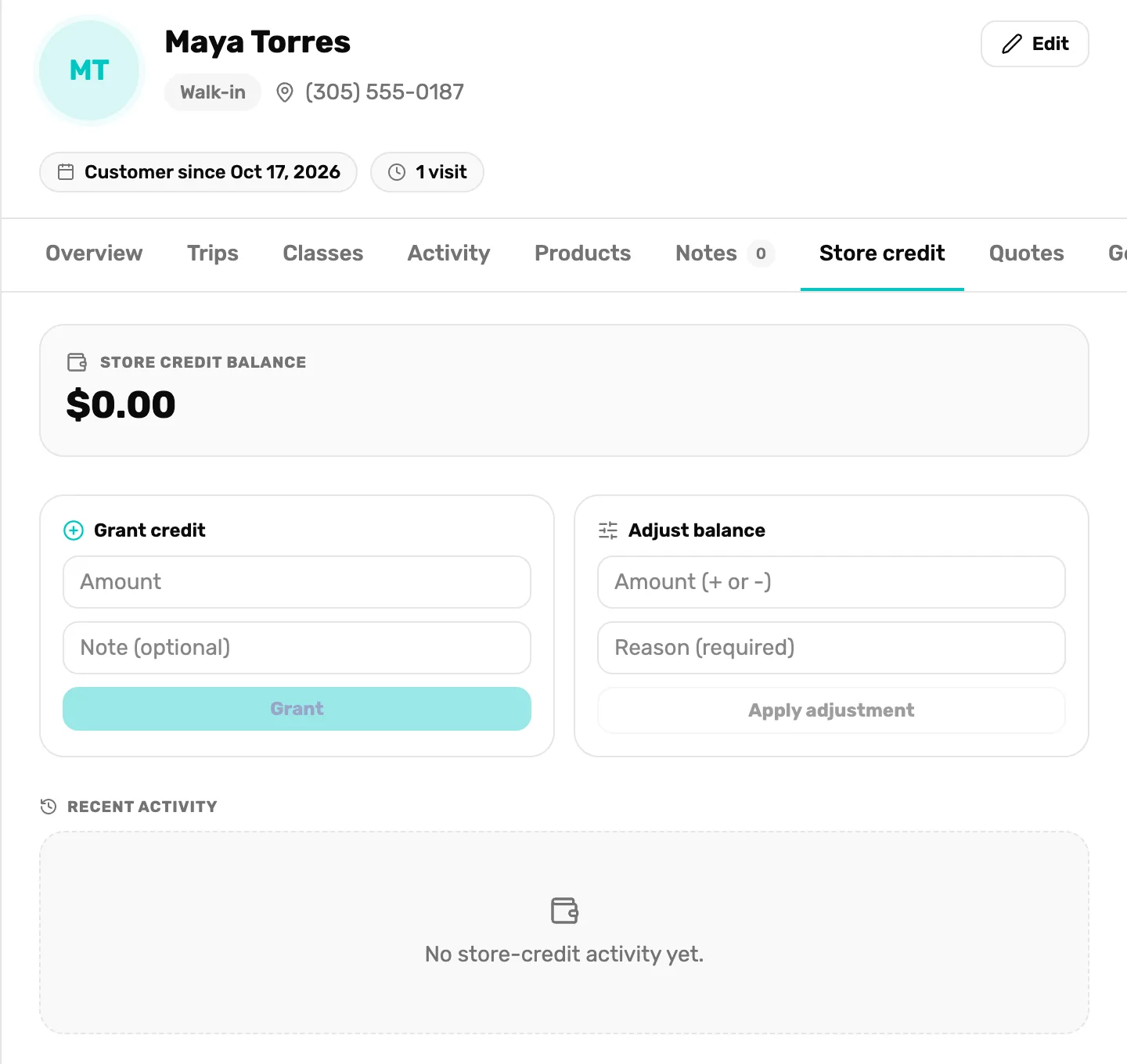
- Store credit balance. What they can spend at your shop right now.
- Grant credit. Adds credit. Step 2.
- Adjust balance. Corrects the balance up or down. Step 3.
- Recent activity. Every change. Step 4.
If you don't see Grant credit and Adjust balance, you aren't signed in as the owner or a General Manager. Ask one of them.
Grant credit
Under Grant credit, type the Amount in dollars, like 25. Add a note if you want one, like "Boat cancelled Oct 12". Tap Grant.
A box asks you to check it, like Grant $25.00 store credit to this customer? Tap OK. The balance goes up straight away.
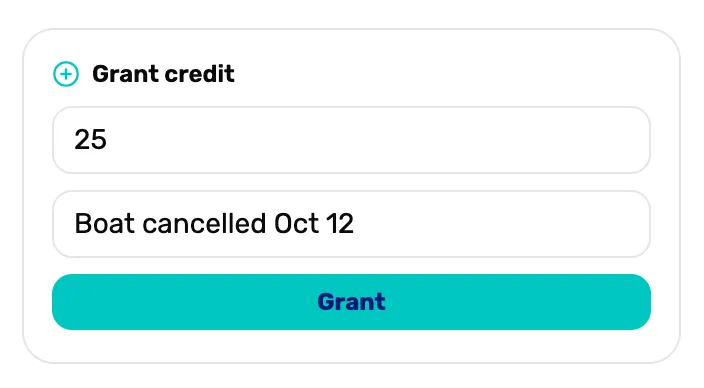
- Amount. Dollars and cents, more than zero.
- Note (optional). Why you gave it. It shows in Recent activity.
- Grant. Grey until there's an amount.
Adjust the balance, with a reason
Use this to fix a mistake, or to take credit away. Under Adjust balance:
- Type the Amount (+ or -). Type 5 to add $5.00. Type -5 to take $5.00 off.
- Type why in Reason (required), like "Granted twice by mistake".
- Tap Apply adjustment. It stays grey until both are filled in.
- A box asks you to check it, like Adjust this customer's store credit by +$5.00? Tap OK.
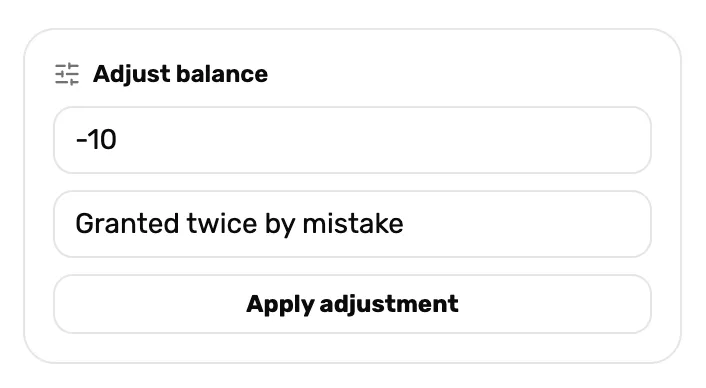
- Amount (+ or -). A minus takes credit away.
- Reason (required). Kept with the change for good.
- Apply adjustment. Grey until there's an amount and a reason.
If it doesn't go through, a message says why:
- "That would take this customer's store credit below zero." Take off less.
- "This customer has no store credit to adjust yet." They have never had credit. Use Grant credit to give some.
- "Only the owner or a General Manager can change store credit." You're signed in as someone else.
Check the history
Recent activity lists every change, newest first, up to the last 20. Each line says what it was, the amount, the note, when, and who did it.
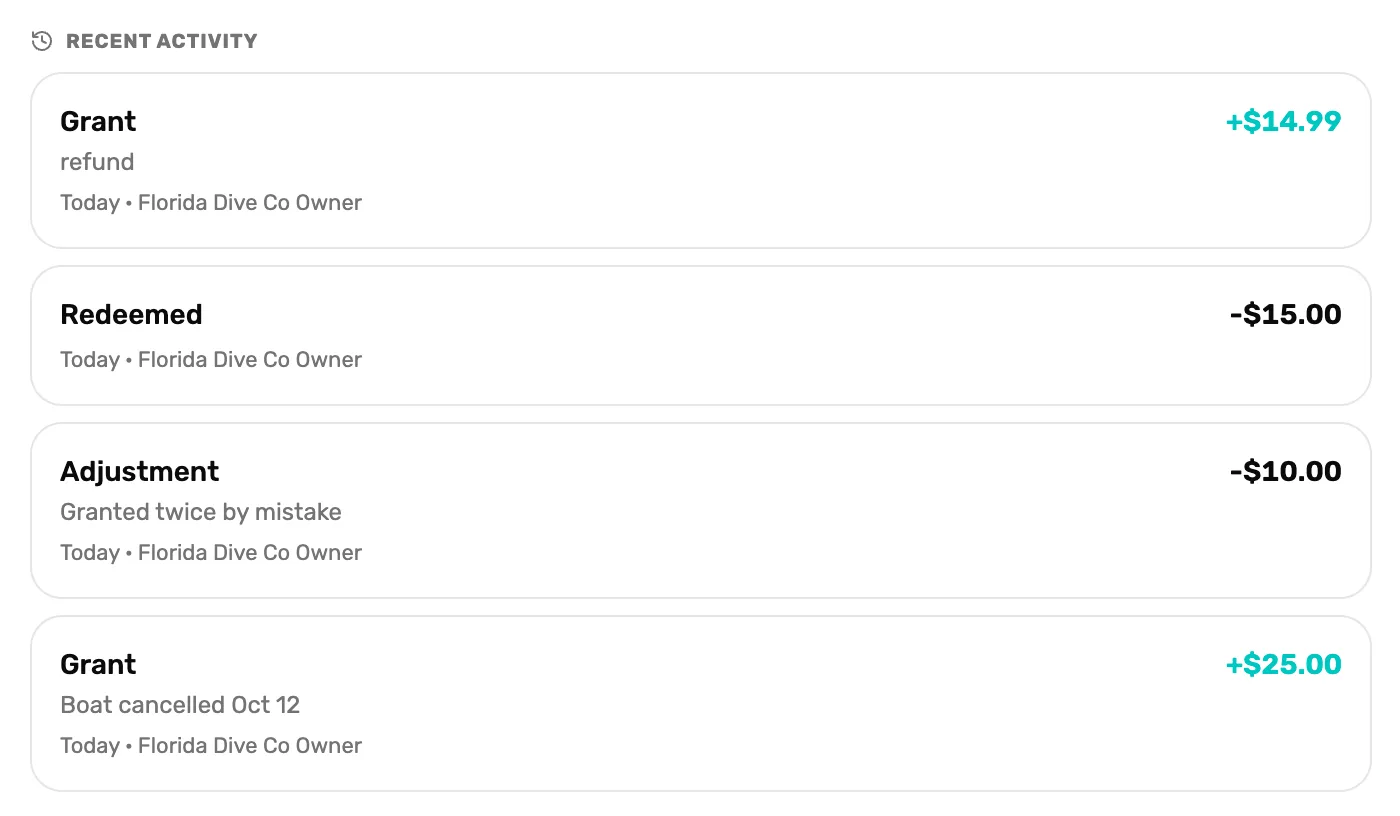
- Grant with the note refund. Credit from a refund or an exchange.
- Redeemed. Spent at the register. A minus amount.
- Adjustment. A correction, with its reason.
- Grant. Credit you gave, with your note.
Spend it at the register
You don't do anything to use it. When the customer is on the cart:
- The cart shows a teal chip with their balance, like $25.00 credit.
- The credit comes off the sale on a Credit line. Total is what's left.
- Checkout shows Store credit applied — and the amount, and asks only for the rest.
- If the credit covers the whole sale, checkout says Covered entirely by store credit. Tap Complete with store credit.
Whatever isn't used stays on their account. See Take payment.
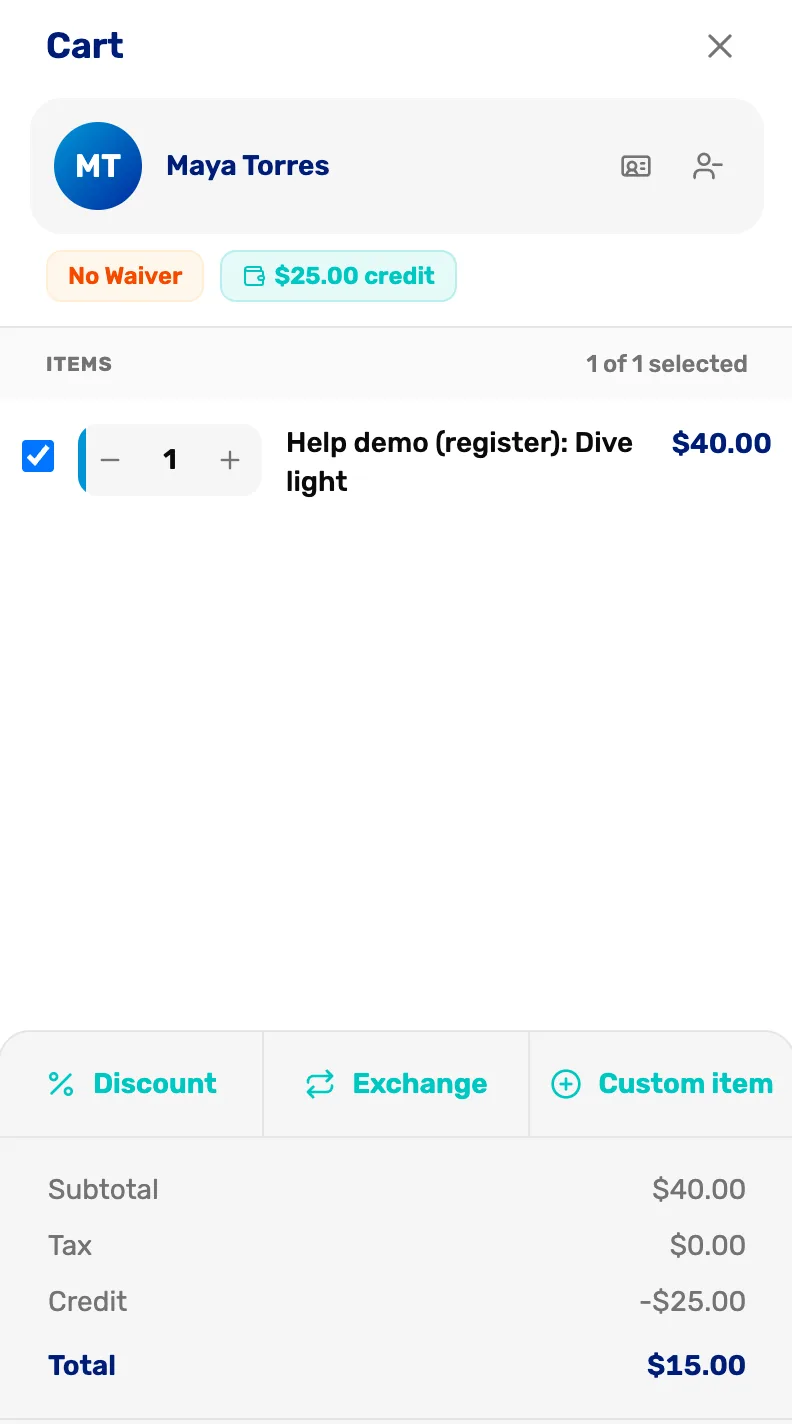
- The credit chip. The customer has credit. It shows only when they have some.
- Credit. The credit used on this sale.
- Total. What they still pay.
On the Customers list, a customer with credit has an amber chip with the amount, like $25.00 store credit.
What happens next
- Swap an item for store credit and ring up the new one: Exchanges and returns.
- When a refund can go back as store credit: Refund rules.
- Every other tab in a customer's details: The customer drawer, tab by tab.