
What this is for. The description is what sells a product online. Every description box in OneDive is now a full editor, with the same tools as Shopify's own product description editor: headings, lists, photos, links, videos and tables. You write it once in OneDive, and your Shopify store shows it exactly as you wrote it.
Where you'll find it
The same editor is in every description box:
- A product, on the register: Catalog, then a product or Add product.
- A product, in OneDive B2B: My Inventory › Add Product, or Edit on any product.
- A rental item: Rentals.
- A course: Courses.
- A trip: Trips.
The steps below use a product on the register. The other forms work the same way.
Write and format
Type in the box under Description. Press Enter for a new paragraph, or Shift+Enter for a new line in the same paragraph. Select some words, then choose a tool to format them.
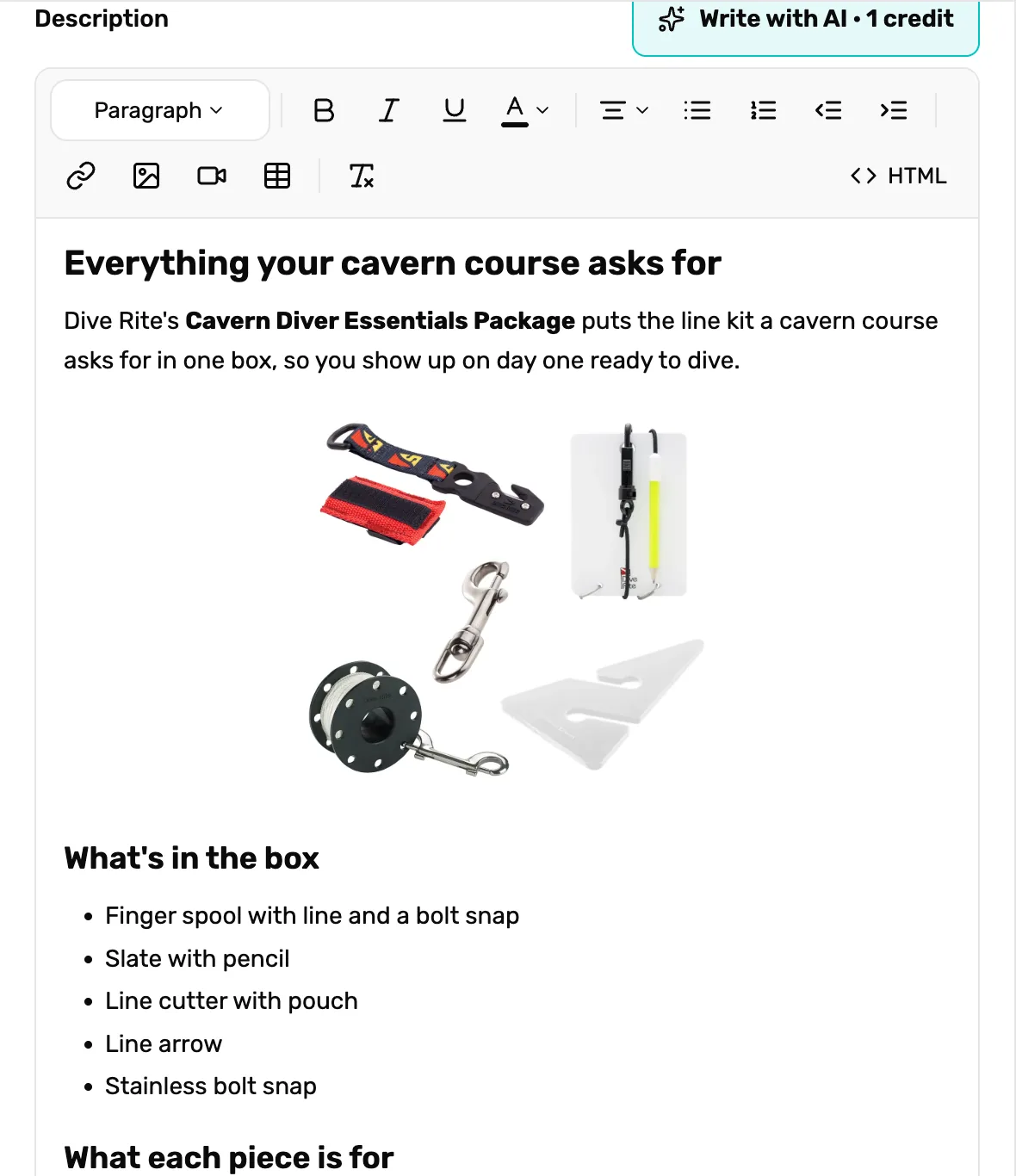
- Text style. Paragraph, Heading 1 to Heading 6, or Quote. Use a heading for each part of a long description.
- Bold, italic, underline. For the words that matter most.
- Color. Text color or highlight, from the swatches or a color code. Remove color takes it off.
- Alignment, lists and indent. Left, center or right; a bulleted or numbered list; Indent and Outdent move a list item in or out a level.
- Link, photo, video, table, clear. Insert link, Insert image, Insert video and Insert table are steps 3 to 6. Clear formatting turns selected text back to plain words.
- HTML. Shows the code behind the description. See step 7.
- A photo in the description. This one is centered and Small. Steps 2 and 3 show how.
Pasting from somewhere else? Headings, lists, tables, links and photos come across. The other site's fonts and page styles are left out, and a message says so. Choose Paste as plain text on that message if you want the words only.
Write with AI, above the box on products, courses and trips, writes a formatted description for you from the details on the form. The line under the box shows how many AI credits you have left. Nothing changes until you choose Use this and then Save.
Add a photo, with its alt text
Put the cursor where the photo should go. For a photo on its own line, press Enter first, so it doesn't share a line with your words. Then choose Insert image.
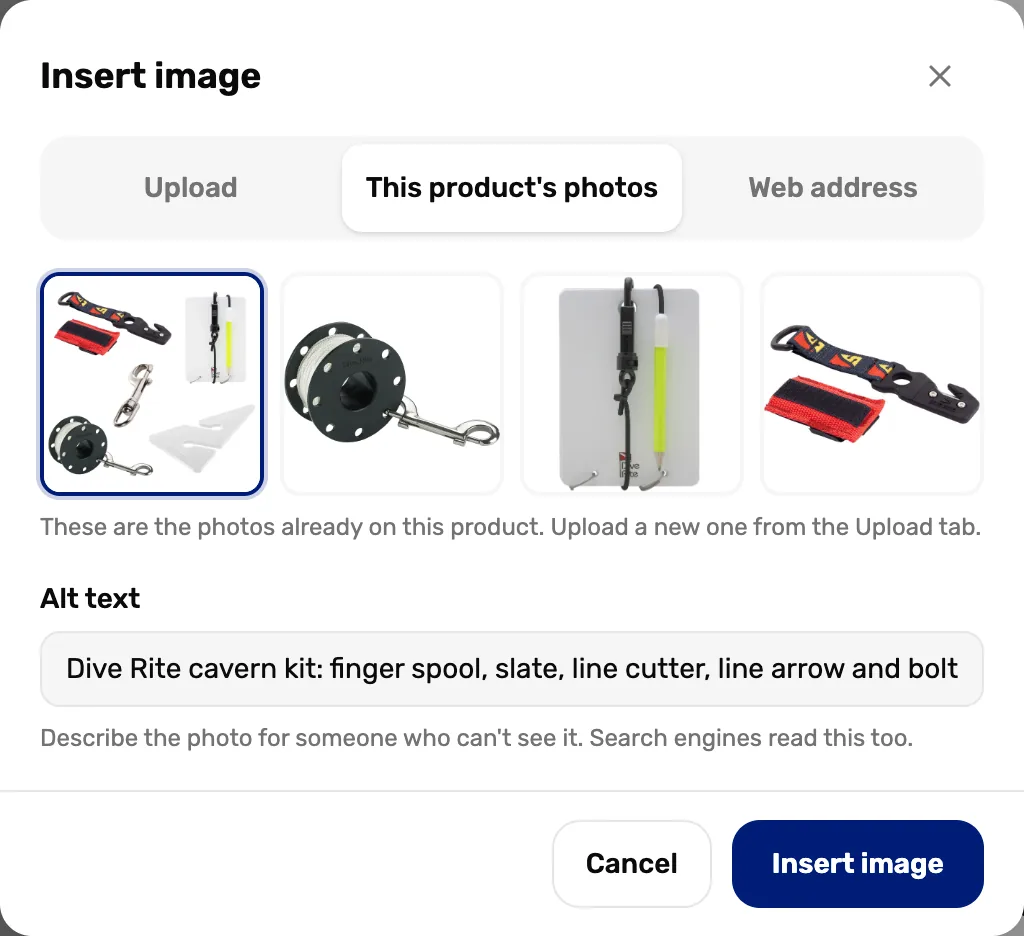
- Where the photo comes from. Upload a photo from your computer or tablet (JPG, PNG, WebP or GIF). This product's photos reuses a photo already on the product. Web address takes a photo's link; OneDive keeps its own copy, so the description doesn't break if that site takes the photo down.
- Alt text. Describe the photo for someone who can't see it. Screen readers read it out, and search engines read it too.
- Insert image. Puts the photo in the description.
Photos in the description don't count toward the product's 12 photos. A big upload shows Uploading on the photo; if you choose Save before it finishes, OneDive asks you to wait. If an upload fails, the photo keeps its place with Try again and Remove.
You can leave alt text blank and still save. The photo then shows an Add alt text button in the editor, so it's easy to spot later:
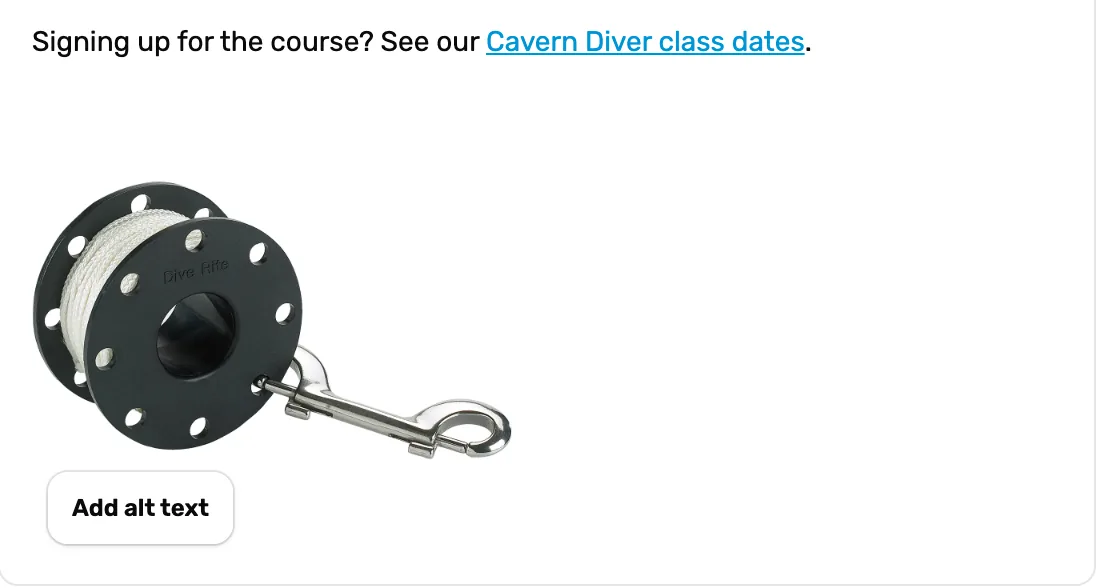
- Add alt text. Opens Image details with the alt text box ready.
Size and place the photo
Double-click a photo, or tap it and then its pencil button, to open Image details.
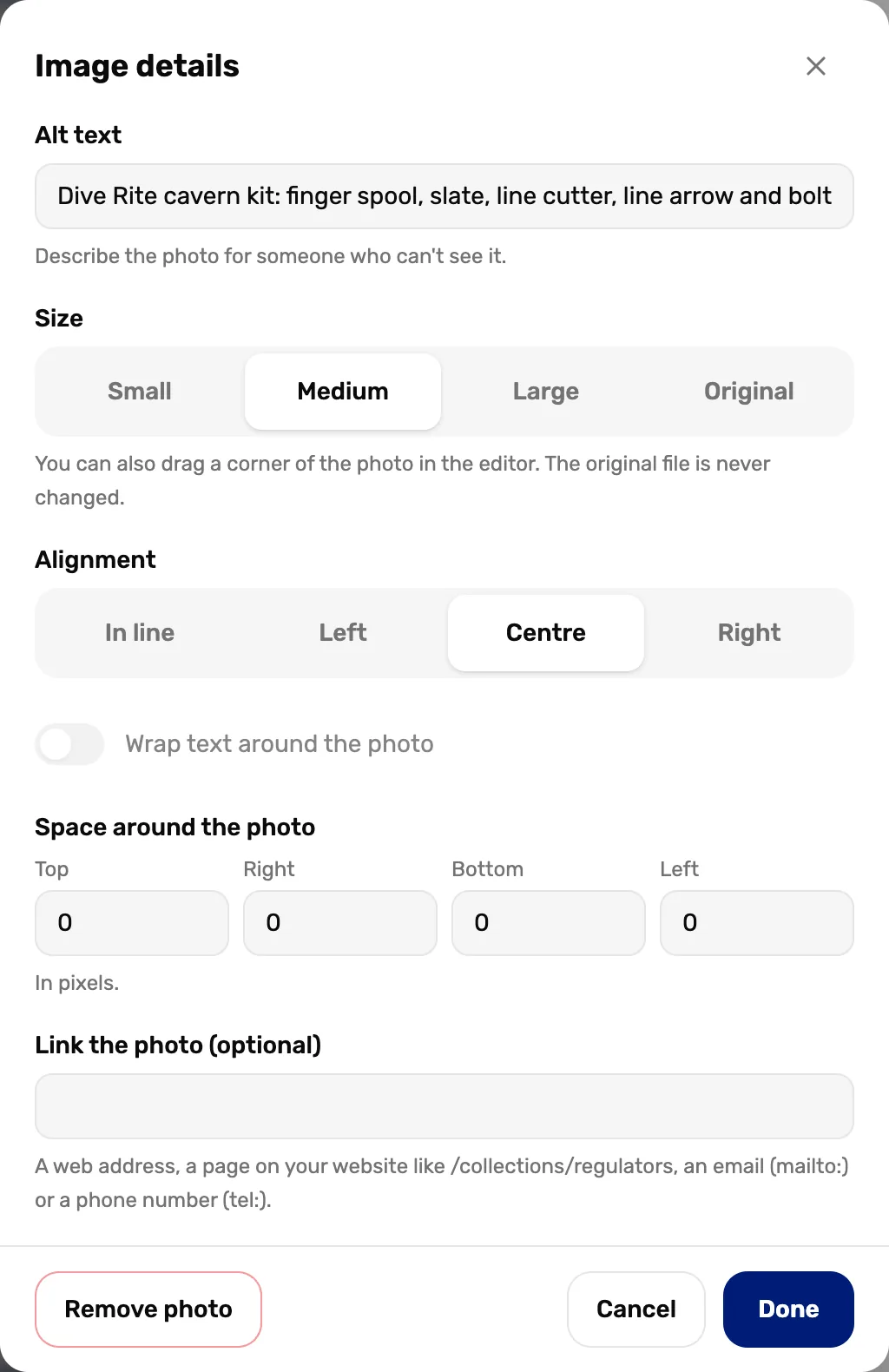
- Alt text. Change it here at any time.
- Size. Small, Medium, Large or Original. You can also drag a corner of the photo in the editor. The photo file itself never changes, and it never runs wider than a phone's screen.
- Alignment. In line sits it in the text. Left, Center and Right line up the photo and the rest of its line, which is why a photo on its own line works best.
- Wrap text around the photo. For a photo on the left or right: the words flow down beside it.
- Space around the photo. A gap in pixels on each side, so words don't touch the photo.
- Link the photo. Optional. Clicking the photo then opens that address.
- Remove photo. Takes it out of the description. The product's own photos are not touched.
Choose Done to keep your changes.
Add a link
Select the words to link and choose Insert link.
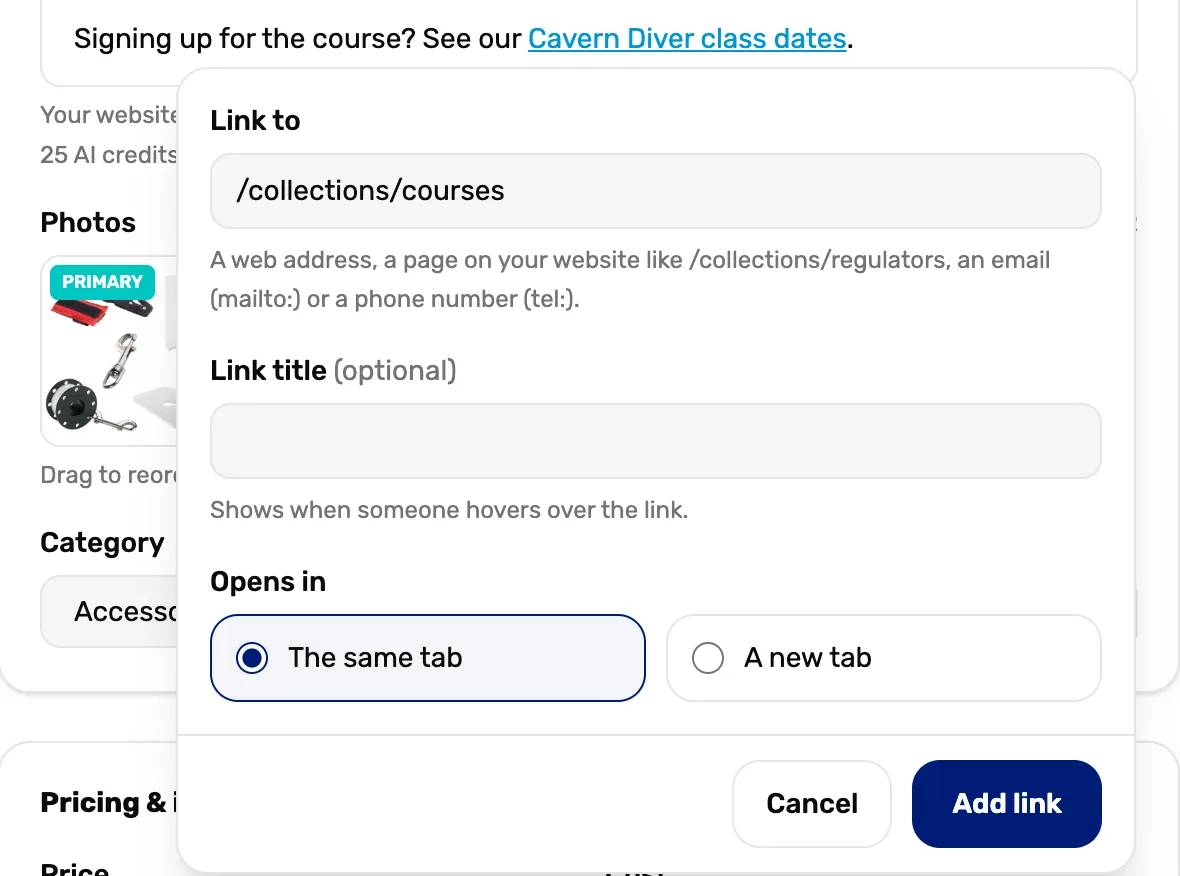
- Link to. A web address, a page on your own website like
/collections/regulators, an email address startingmailto:, or a phone number startingtel:. - Link title. Optional. Shows when someone holds the mouse over the link.
- Opens in. The same tab for pages on your own site. A new tab for other sites, so customers don't leave your store.
- Add link. Turns the words into the link.
To change a link later, click in it: its address shows with Edit and Remove link.
Add a video
Choose Insert video and paste a YouTube, Vimeo or SoundCloud link, or the embed code those sites give you. A preview shows before you choose Insert video.
A video from any other site can't go in a description. Upload it to YouTube first, then paste that link.
Add a table
Choose Insert table for two columns and two rows, the usual spec list: a name on the left, its value on the right. A table pasted from a website or a spreadsheet comes in as a table too.
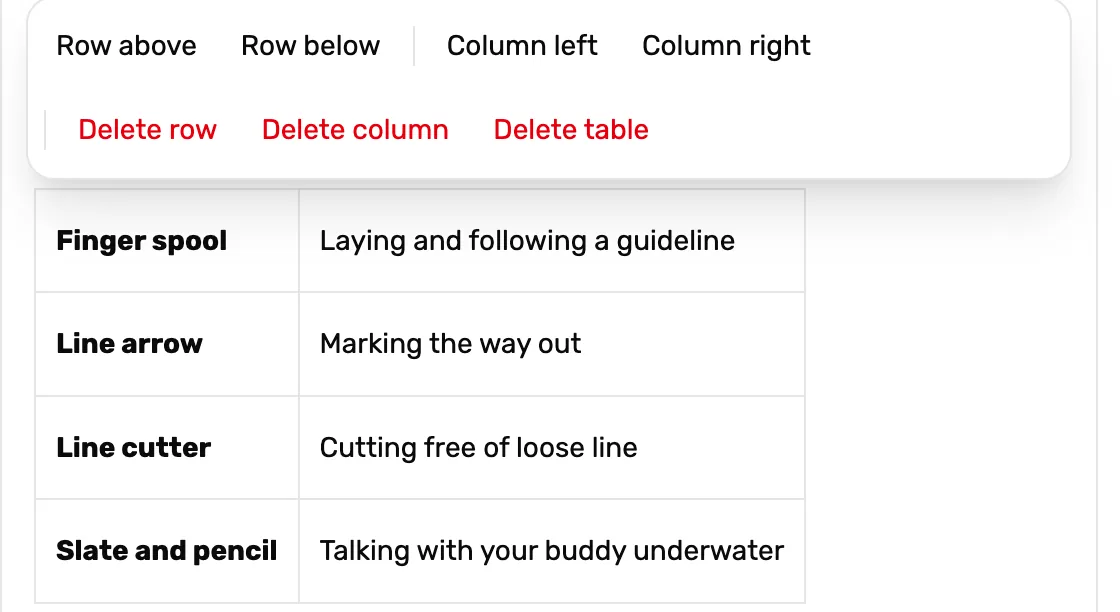
- Add rows and columns. Row above, Row below, Column left, Column right, from the cell the cursor is in.
- Delete. Delete row, Delete column, or Delete table for the whole table.
The bar shows while the cursor is in the table. Press Tab to move to the next cell; Tab in the last cell adds a new row.
Show HTML, if you need the code
Most people never need this. Choose HTML at the right of the toolbar to see and change the code behind the description, for example to paste code a brand sent you.
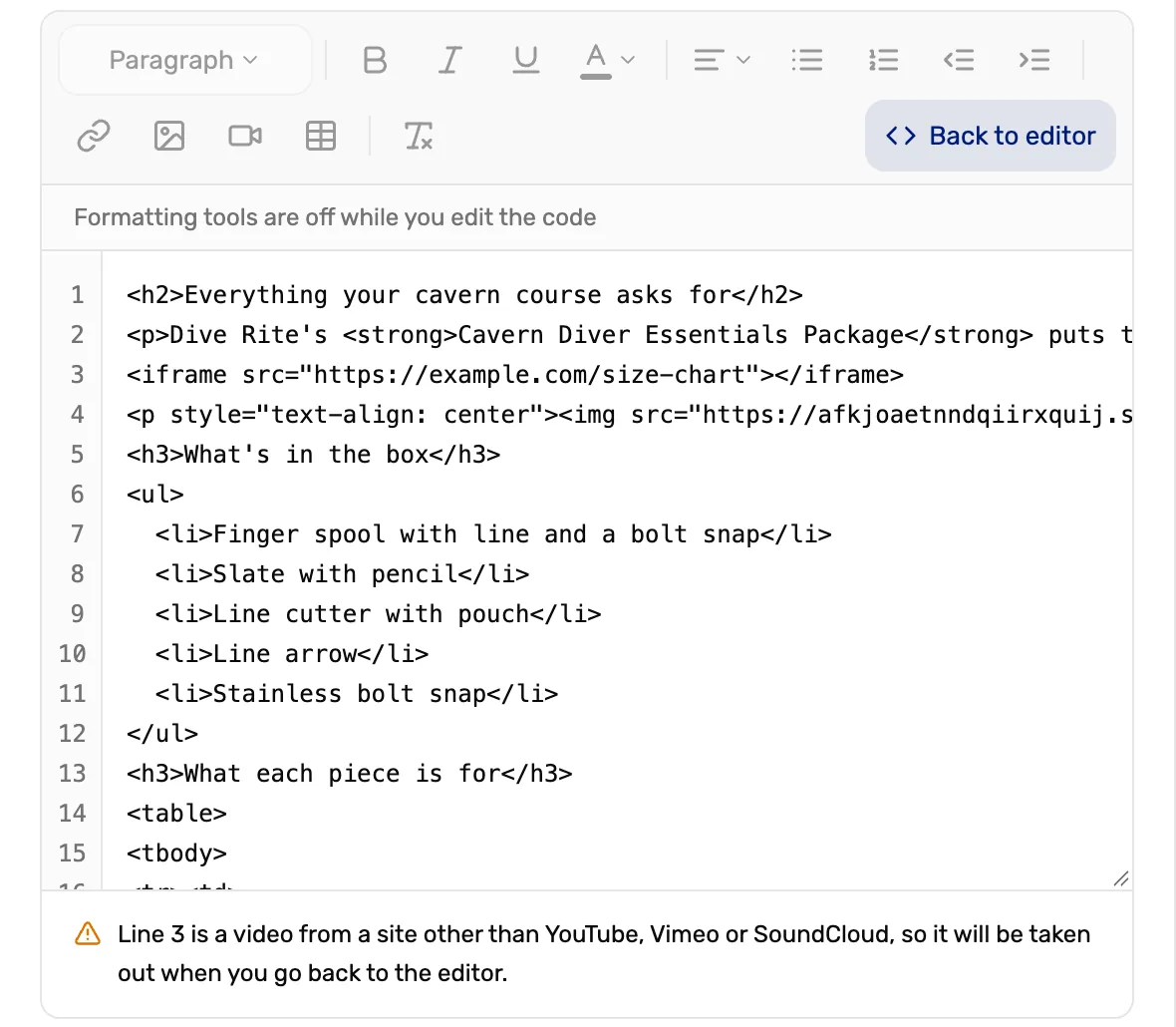
- Back to editor. Returns to the normal view. The formatting buttons are off until you do.
- A line that can't stay. Here, a video from another site.
- Why. Each line that can't be kept says why. It is taken out when you go back to the editor.
Code that runs (scripts, and buttons or links that run code) is never kept. Anything Shopify's own editor accepts is kept exactly as typed.
Save
Choose Save on the form. The description is saved with the product, rental, course or trip.
What reaches your Shopify store
- Products, courses and trips made in OneDive send their description to Shopify exactly as you wrote it, photos, tables and all, the next time they sync. Photos stay in OneDive and Shopify shows them from there.
- Products that were already on your Shopify store, the ones you linked or copied in Import products from Shopify, keep the description Shopify has. Editing it in OneDive changes it in OneDive only, for now, so change it in Shopify as well.
- A rental sends its description only when the rental is also sold on your website. The line under the box says which: "Your website shows this exactly as written here." or "Only your team sees this, here in Rentals."
If something looks wrong
- Save is grayed out and the box has a red border. A description can be up to 64 KB, the most Shopify accepts. A counter shows under the box from 48 KB. Shorten the text or take out a table. Photos don't count toward it.
- "Photos are still uploading. Save when they're done." Wait for the photo to finish, then save again.
- A photo, color or font from a pasted page is missing. Pasting leaves out another site's fonts and page styles on purpose, so the description matches your store. Set colors with Color.
- A description from before this change looks plain. Old descriptions open as plain paragraphs. Format them and save, and they send to Shopify formatted.
Good to know
- The register's course and trip pages show the description formatted. The list cards show the first two lines as plain text.
- Staff who can't edit the product see the description formatted, with no toolbar.
- Saving a product without touching its description leaves the description exactly as it was, even one imported from Shopify with code the editor can't show.