
What this is for. A serial number is how a regulator or a tank keeps its history. Every time you service a piece of gear with a serial, OneDive files it under the customer, so the next person at the counter can see what they own and when you last worked on it. If the customer shares their profile with your shop, the same gear and its service date also show up in their own OneDive app.
How gear gets there
You don't add gear by hand. A piece of gear lands on a customer's Gear tab when a service ticket for that customer records its serial number:
- at drop-off, on the serial step of a new ticket (see Take in gear), or
- later, when a serial is added to the ticket.
Only gear types marked Has a serial number (intake asks for it) ask for a serial. Gear taken in with Can't read it or No serial on this item is serviced as usual but isn't filed, because there is no serial to file it by. To check which gear types ask, see Set up your service menu.
The Gear tab
Go to Customers, tap the customer, then tap Gear. On a narrow screen, swipe the tab row sideways to reach it.
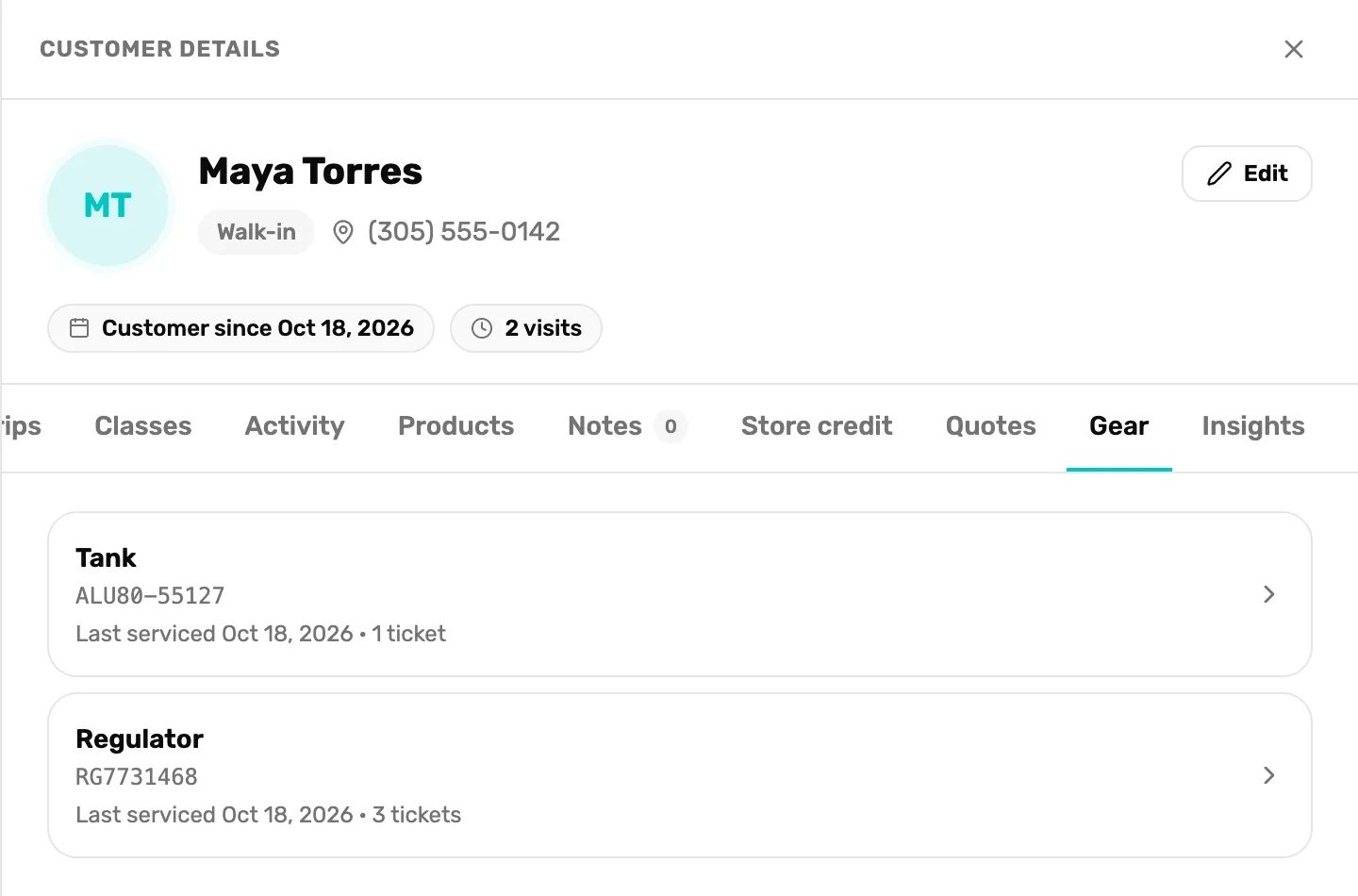
- The gear type. From your service menu, like Regulator or Tank.
- The serial number. As typed at the counter, in capitals.
- Last serviced and tickets. The date of its newest ticket, and how many tickets it has had at your shop.
- The arrow. Opens its newest ticket on the Service board.
The gear the customer had serviced most recently is at the top.
Last serviced is the day the newest ticket was finished. If that ticket isn't finished yet, it's the day the gear was dropped off. A ticket counts as finished when it moves into Ready for pickup or is picked up.
Tap a row to open that gear's newest ticket in Service. The ticket lists the gear's earlier tickets under Service history.
With no serial-numbered gear yet, the tab says No serialized gear on file yet. It appears here after a service ticket records a serial.
When gear changes hands
If a serial that's on file for one customer comes in for another and you record the new owner, the gear moves. It leaves the first customer's Gear tab and appears on the new owner's. Its tickets go with it.
Their own OneDive gear list
Divers have a gear list in their OneDive app, where they keep their own kit and its service dates. Your shop can add to it, but only when the customer shares their profile with you.
When a ticket records a serial for a customer who shares with you:
- The gear is added to their OneDive gear list, with its serial. If they already listed the same serial themselves, OneDive uses their entry instead of adding a second one.
- The ticket's Activity says so, with the line Added to the customer's OneDive gear list.
- When the ticket is finished, their list shows "Last serviced" with the date and your shop's name. If they set how often the gear should be serviced, their list also shows when it's due next.
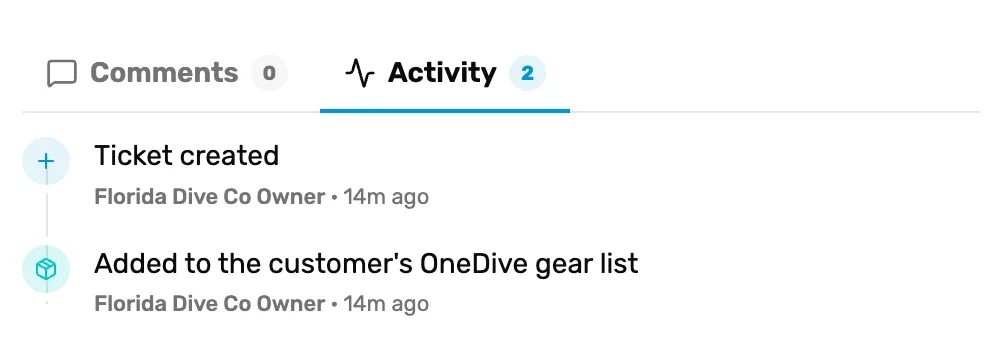
- Added to the customer's OneDive gear list. This gear now shows in the customer's own app. Nothing else on the ticket changes.
What they see in their app is the gear, its serial, the date it was last serviced and by which shop. They never see the ticket, its notes, the answers or what it cost. The gear is theirs from then on: they can edit it, retire it or delete it, and your Gear tab doesn't change when they do.
Who counts as sharing with you
| The customer | Their gear in their OneDive list |
|---|---|
| A customer you added yourself | Added. They see it once they set up their OneDive account. |
| Awaiting consent | Not yet. When they tap Share my profile, all their gear from your shop is added, with its last service dates. |
| Sharing their profile with you | Added straight away. |
| Consent revoked | Nothing new is added and no dates change. Gear already in their list stays there: it's theirs. |
Your own Gear tab works the same in every case. Sharing only decides what reaches their app. See A customer who is already on OneDive.
Which heading their gear goes under
Each gear type has a heading it uses in the diver's list, such as Regulator, BCD or Dive computer. OneDive's own gear types, marked platform, have theirs set for you. For a gear type your shop added, the owner or a General Manager can change it: go to Service › Configure services, tap the pencil on the gear type, and pick a heading under Shows in the diver's gear list as. A gear type you added starts on Other.
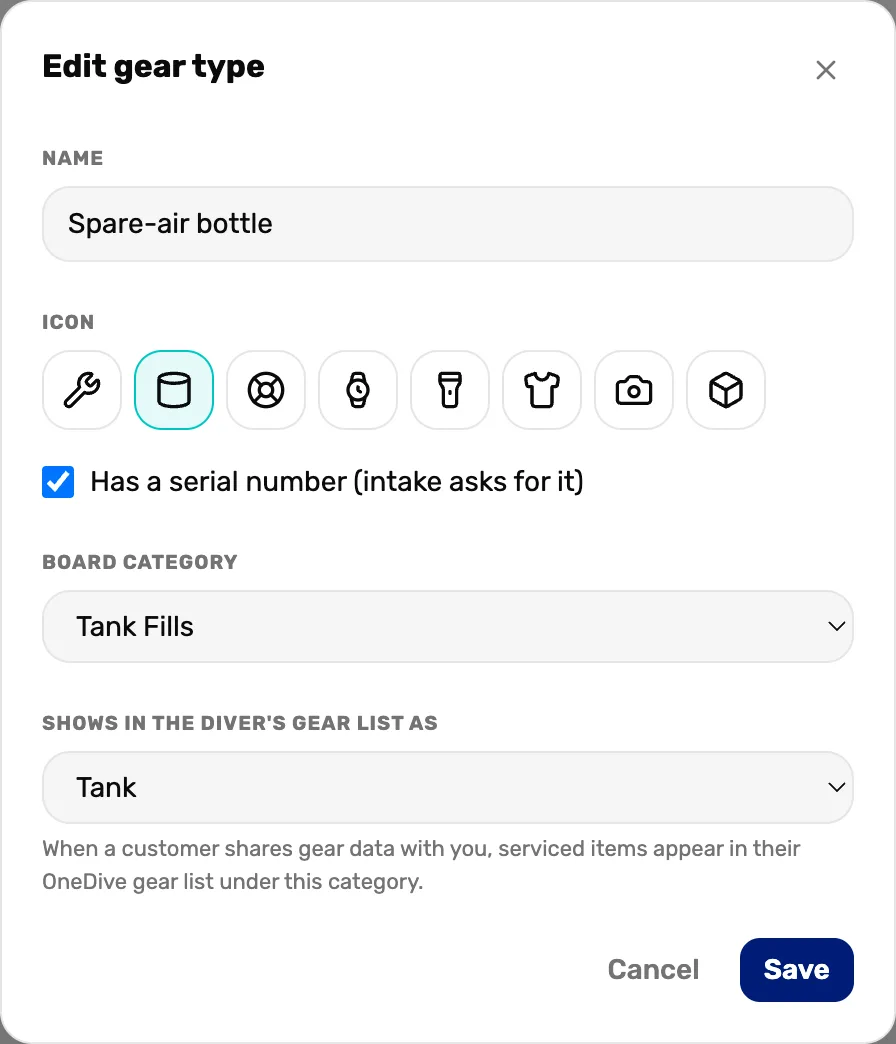
- Has a serial number (intake asks for it). Ticked: this gear asks for a serial, so it can be filed on the customer.
- Shows in the diver's gear list as. The heading it goes under in the customer's own app.
What happens next
- The other tabs on the same page: The customer drawer, tab by tab.
- Recording, fixing or moving a serial: Serial numbers on a ticket.