
What this is for. Some trips aren't one price for everyone. A liveaboard has cabins at different prices, and a reef dive might charge extra for nitrox or less for a non-diver. Options are the choice every diver must make, like which cabin, and each option has its own price and its own seats on each date. Add-ons are extras on top of whichever seat they pick. Set them up once on the trip, and the register and online booking both ask for them.
Before you start
- Options: pick one. Each diver picks exactly one. The option's price is the seat's price, per person. A trip with options doesn't use its Base price.
- Add-ons: pick any. Each diver can tick none, one or several. Each adds its price to the seat.
- A negative add-on is a discount. An add-on of -50 takes $50 off the seat, like a non-diver on a dive boat.
- The owner or a General Manager sets options and add-ons on the trip. A Manager can change the seats each departure gives an option.
Add the options and add-ons to the trip
Go to Trips, choose Manage trip, then Edit details. A new trip has the same section in Add trip. Scroll down to Options.
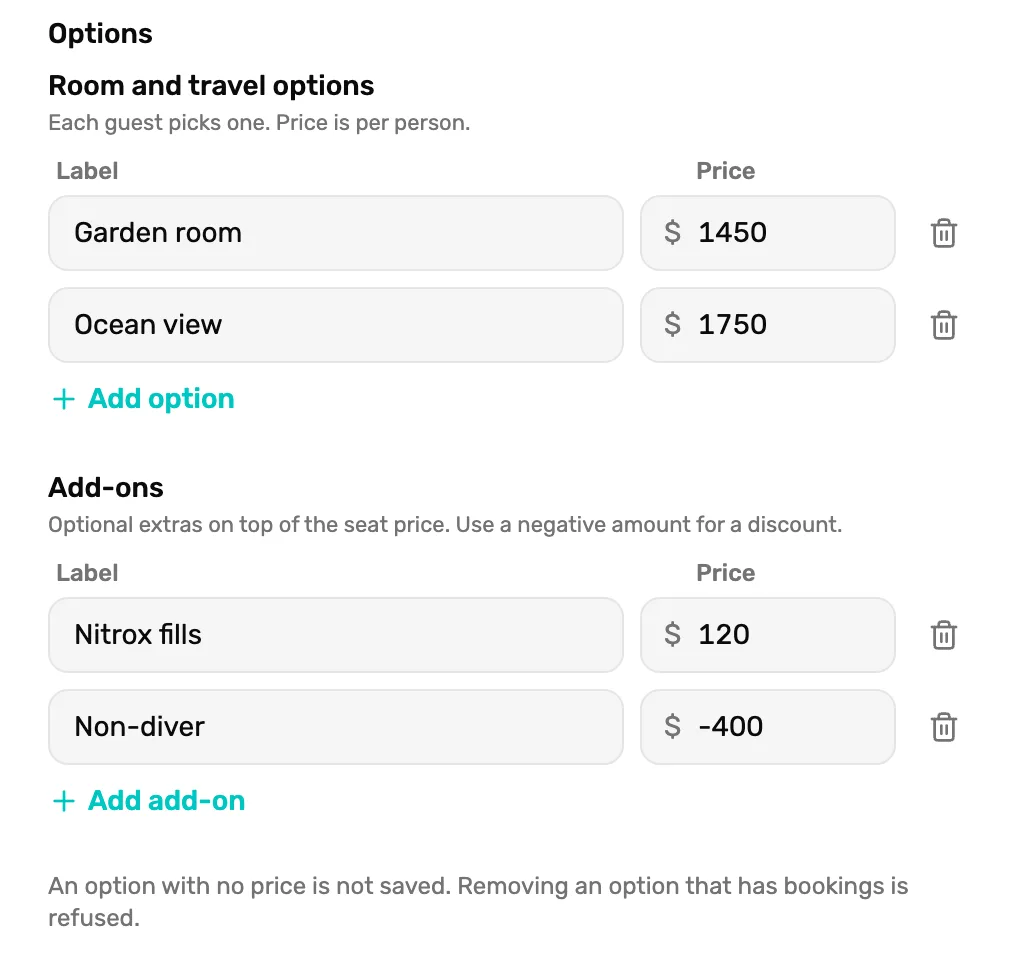
- Room and travel options. "Each guest picks one. Price is per person."
- Price. The seat price for that option. Required: a label with no price shows Price required.
- Add option. Adds a row. The bin beside a row takes it off.
- Add-ons. "Optional extras on top of the seat price. Use a negative amount for a discount."
- A negative price. Type a minus sign first, like -400. That's a discount.
- Add add-on. Adds a row.
Labels can be up to 40 characters, and each must be different. Tap Save changes.
Give each date its seats per option
Options get their seats on each departure, not on the trip. Open the departure from All departures and tap Edit departure, or tap Add departure for a new date. Under Seats per option, type how many seats each option has on this date.
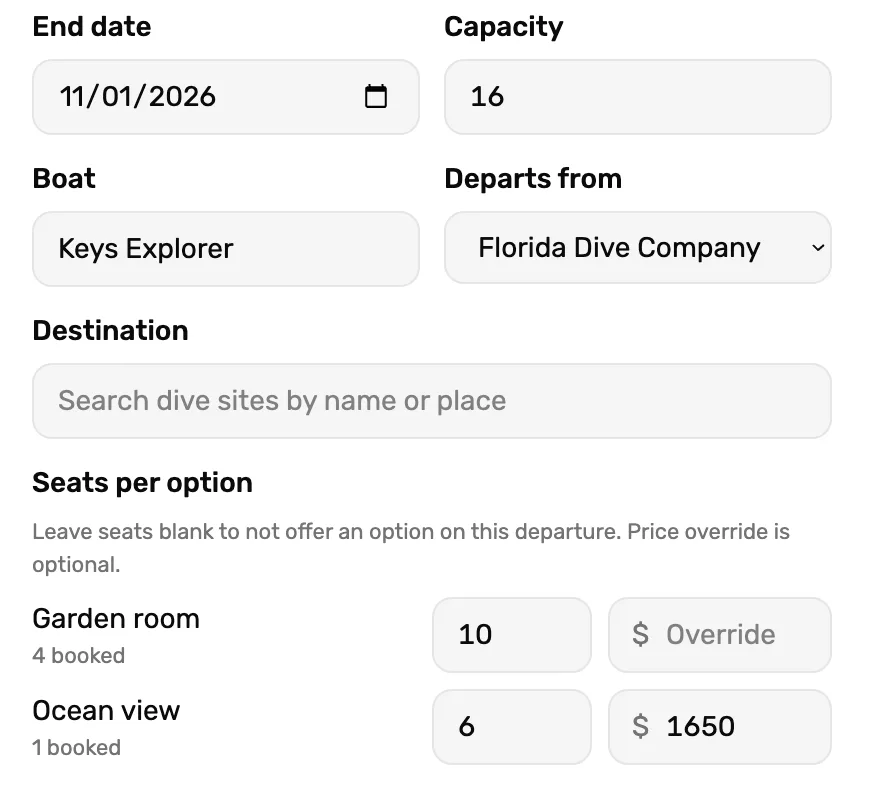
- Capacity. The most divers this date takes, whatever they pick.
- An option's row. Its name, and how many are booked on it already.
- Seats. How many of this option this date can take. Leave it blank and the option isn't offered on this date.
- Override. A different price for this option on this date only. Optional.
Both limits count. A date with Capacity 16 and 10 seats on each of two options still takes 16 divers at most.
- A new departure starts with every option's seats blank. Type a number for each option you're offering, or nobody can book that option. With none filled in, the dialog says "No option has seats. Nobody can book this departure until one does."
- Below booked seats means you typed fewer seats than are already sold on that option. Raise it.
- Slots your online schedule makes give every option the slot's full seats. Change them on a slot with Edit departure.
Sell them at the register
At the register, tap the Trips tile and the departure. Book trip seats opens with the choices at the top.
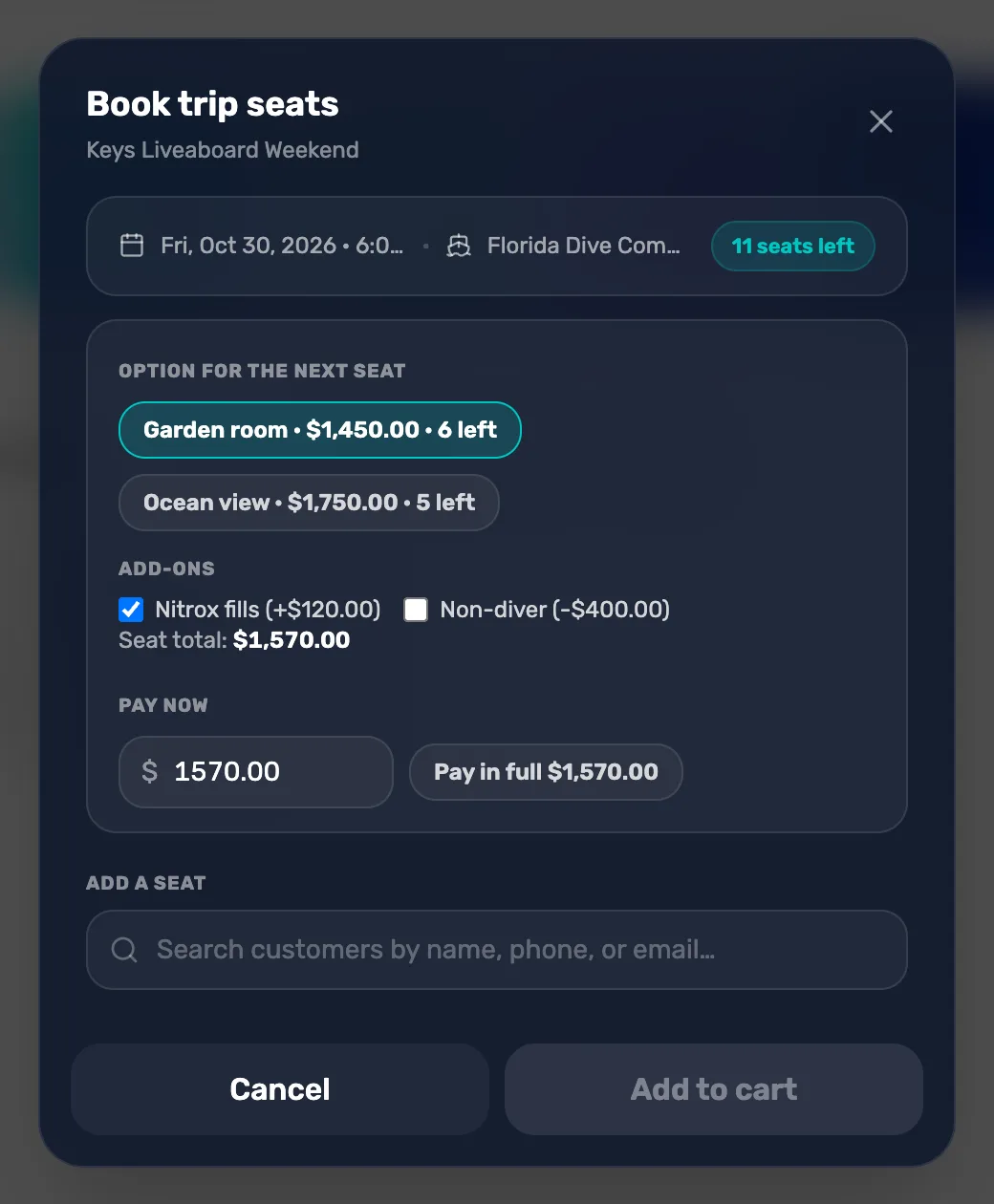
- Option for the next seat. Each option with its price and seats left. A full one says Full and can't be picked.
- Add-ons. Tick what this diver wants. A discount shows a minus.
- Seat total. The option plus the add-ons ticked. It says "pick an option" until one is picked.
- Add a seat. Search for the diver. It says "Pick an option first" until an option is picked.
Pick the option and the add-ons, then add the diver. Their seat keeps what was picked when you added them. The picks stay for the next diver, so change them before you add someone who wants something different. Each seat in the list shows its option, how many add-ons, and its total.
Pay now, deposits and checkout work as for any seat. See Sell a trip seat.
What divers see online
If you sell the trip online, a diver booking it sees Choose your option and Add-ons on the Who is diving? screen. Prices there include the OneDive booking fee, as every online price does. A trip with only one option shows no choice: that option is the seat.
The diver must pick an option to continue. Add-ons are ticks, like at the register, and a discount shows with a minus. Every option and add-on on the trip is listed online. An option with no seats left on that slot can't be booked.
Find them on the manifest
Each seat's line on the manifest names its option and add-ons, like "Garden room + Nitrox fills". Download manifest (CSV) under the list has them in the Option and Add-ons columns.
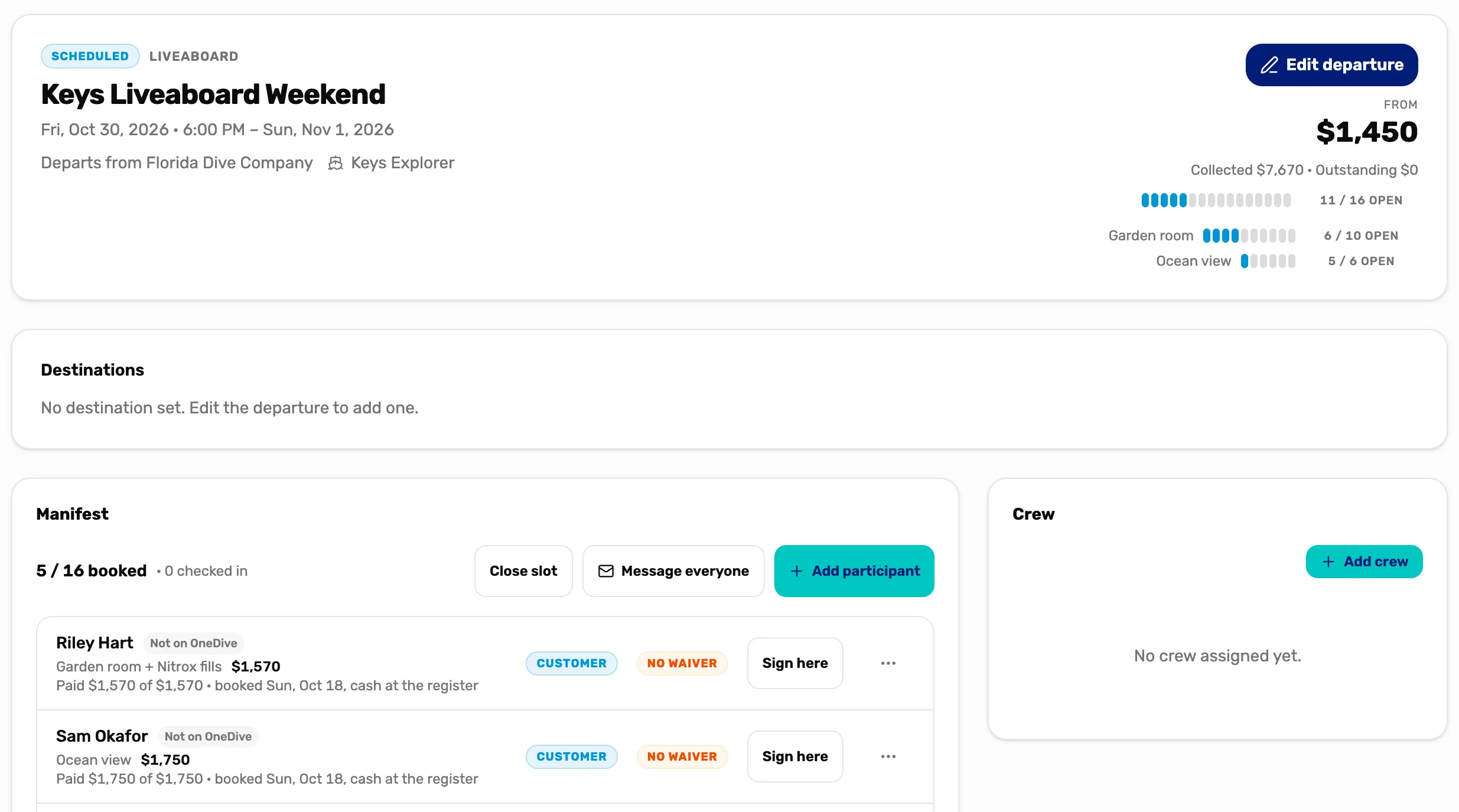
- A seat's line. The option, then each add-on.
- Another option. Each diver's own pick.
- Seats per option. The header shows each option's seats booked and left.
Adding someone straight onto the manifest with Add participant asks for the Option and the Add-ons too.
Changing them later
- A new price is used for seats sold from then on. A seat already booked keeps the price it was sold at.
- An option someone has booked can't be removed. Saving the trip without it is refused.
- A booked seat's option can't be changed. To move a diver to another option, cancel their seat and book them again. See Cancel a seat and refund it.
What happens next
- Sell the first seat with an option: Sell a trip seat.
- Put the trip online with its options: Put a trip online.
- How trips, departures and seats fit together: Trips, departures, bookings and manifests.