
What this is for. Before a dive you want three things ready: the rental gear each diver booked, a list you can print or share with the boat, and a quick way out when the whole day is off. The Gear to pull card lists every rental set to get off the shelf, with sizes. Download manifest gives you the boat list as a spreadsheet. Close a day closes every slot on a date in one go, refunding and telling every diver. Checking in, no-shows and closing a single slot are in Run the day of the dive.
See the gear to pull
Go to Trips, choose Manage trip, and tap the date under All departures. Gear to pull is on the right, under Crew.
-
One row for each seat with rental gear: who it's for and each item's size. A diver who didn't come is struck through.
-
Out means the set is already checked out to the diver.
-
Not reserved means no set is held for this seat yet. Pull it by hand.
-
The line at the bottom says whether the sets are held for this slot.
-
The gear comes from online bookings. It's the gear in What a seat includes: sets included in the price, and sets the diver added. Gear rented at the register isn't here. It's on the Calendar.
-
No seat has gear? The card doesn't show.
-
Sets are held from a day before the slot. Until then the line says "No set is reserved for these seats yet. Pull them by hand." That's normal for a dive more than a day away. When every set is held, it says "Held for this slot at booking. Out at check-in, back at return."
Check in, and the set goes out
When you check a diver in on the manifest, their set is checked out to them. The message after Check in tells you what happened to it:
- "Rental set checked out." Done.
- "The rental set was already out." Someone checked it out already.
- "No rental set is reserved for this seat. Pull one by hand." Hand them a set and check it out from Rentals.
- "The rental set could not be checked out:" and why, like "that size is not on the shelf". The diver is still checked in. Sort the gear out in Rentals.
When the gear comes back, check it in like any rental. It says "Paid with the trip booking." See Check gear out and back in.
Close a whole day
A holiday, or a storm that wipes out every slot on a day. Open the trip from Trips with Manage trip. On the Schedule card, tap Close a day. It lists each day of the week on screen that still has open slots, like "Sat 24 · 2 slots, 5 booked".

- Close a day. Lists the days you can close.
- A day. How many slots are open on it, and how many divers are booked.
- Only the week on screen is listed. For another week, move to it with the arrows on the card first.
- Days that have passed aren't listed. "No open slots this week." means nothing is left to close this week.
- No Close a day? Your shop needs a time zone: set it in Settings › Business › Locale. It also isn't there while the schedule is turned off.
Tap the day. The close window opens, the same as Close slot on a manifest, for every open slot that day.
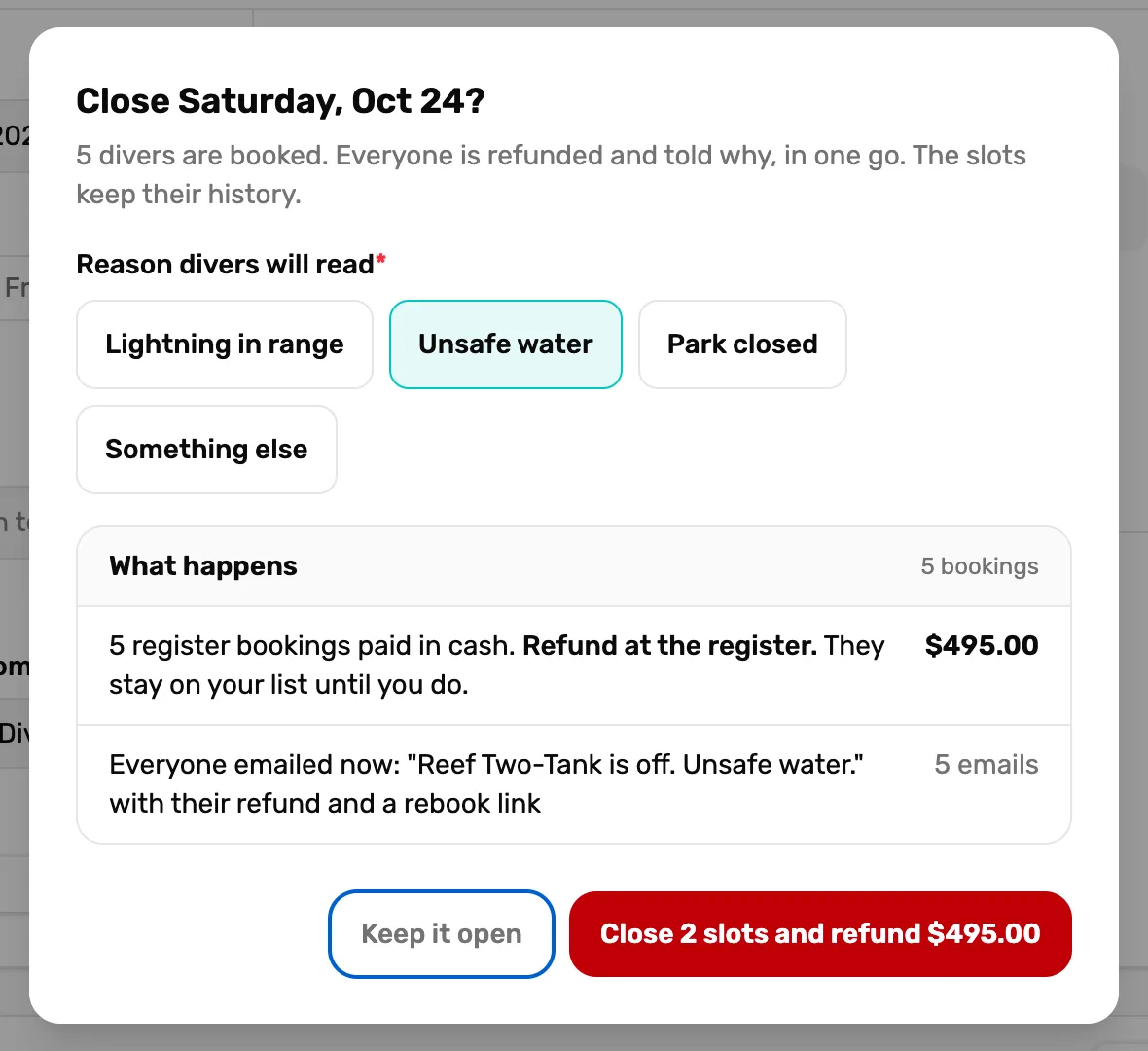
- The heading. The day, and how many divers are booked.
- Reason divers will read. Required. It goes in every diver's email. Something else lets you type your own.
- What happens. Who gets money back and how, with the total, and how many emails go out. Here every seat was paid in cash at the register, so it says to refund them at the register. Online bookings are listed as refunded to their cards, booking fees included.
- Close and refund. Names how many slots and the total. Keep it open changes nothing.
Everything that closing one slot does happens on each: online bookings are refunded to their cards, everyone is emailed, and rental sets not yet checked out go back on the shelf. Seats paid at the register are listed to refund in person. See Cancel a seat and refund it.
Download the manifest
Under the manifest's list, tap Download manifest (CSV). It saves a spreadsheet of every seat, in the order on screen. Open it in Excel, Numbers or Google Sheets, print it, or send it to your captain.

- Download manifest (CSV). Saves the list as a file.
The columns are Name, Status, Checked in, Booked, Booked by, Option, Add-ons, Gear, Total, Paid, Balance, Waiver, Certification, Phone, Role and Note. A diver's phone and certification are only there if they share their details with your shop.
A season cut short
If you save the Schedule card with a shorter season, and slots with bookings are now outside it, the card says so, like "1 booked slot is now outside the season." Those slots stay, with their divers, until you close them. Tap Close and refund them. The same close window opens, titled "Close the slots outside the season?"
What happens next
- On the day itself: Run the day of the dive.
- Taking one diver off instead of a whole day: Cancel a seat and refund it.
- Gear back from the boat: Check gear out and back in.