
What this is for. Your shop counts its cash drawer, so every dollar of cash has to go through a drawer on a register. Cash sales off means OneDive doesn't know this device as a register, so there's no drawer for the cash to go into. Until that's fixed, this device can't take cash or give cash back. Card and every other way to pay still work.
What you see
The orange pill sits at the top left of the register, just before the Cashier tab. Tap it to see what's wrong and what to do.

- Cash sales off. This device can't take cash. Tap it for the reason and the fix.
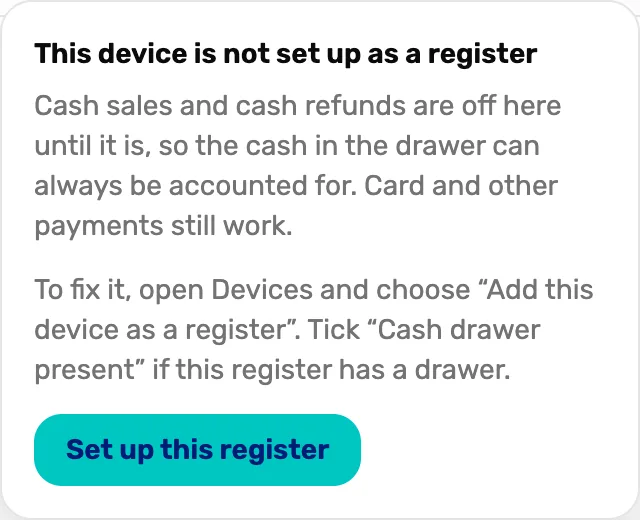
- This device is not set up as a register. The reason, every time. Only cash in and cash out are blocked.
- Set up this register. Shown to the owner, a General Manager and a Manager. It opens Settings › Devices. Everyone else is told to ask a manager.
If someone tries cash anyway, checkout stops before any money moves and says This device isn't set up as a register. A cash refund says the same. Go back and take a card or another method, or take the cash at a register that's set up.
Why it happens
OneDive knows each device by a code it saves in that device's browser. A device shows Cash sales off when that code doesn't belong to a register. There are three ways that happens:
- The device was never added as a register. A new tablet or laptop starts this way.
- Its register was deactivated. Deactivate on a register in Settings › Devices also unpairs every device that was that register.
- The browser forgot the device. OneDive sees a new device when the browser's saved data is cleared, in a private window, in a different browser on the same tablet, or on a brand new tablet. On an iPad, the icon saved to the home screen keeps its own data, so it counts as a different device from Safari.
Check which it is
On the device showing the pill, open Settings › Devices and look at Current device, the one marked This device.
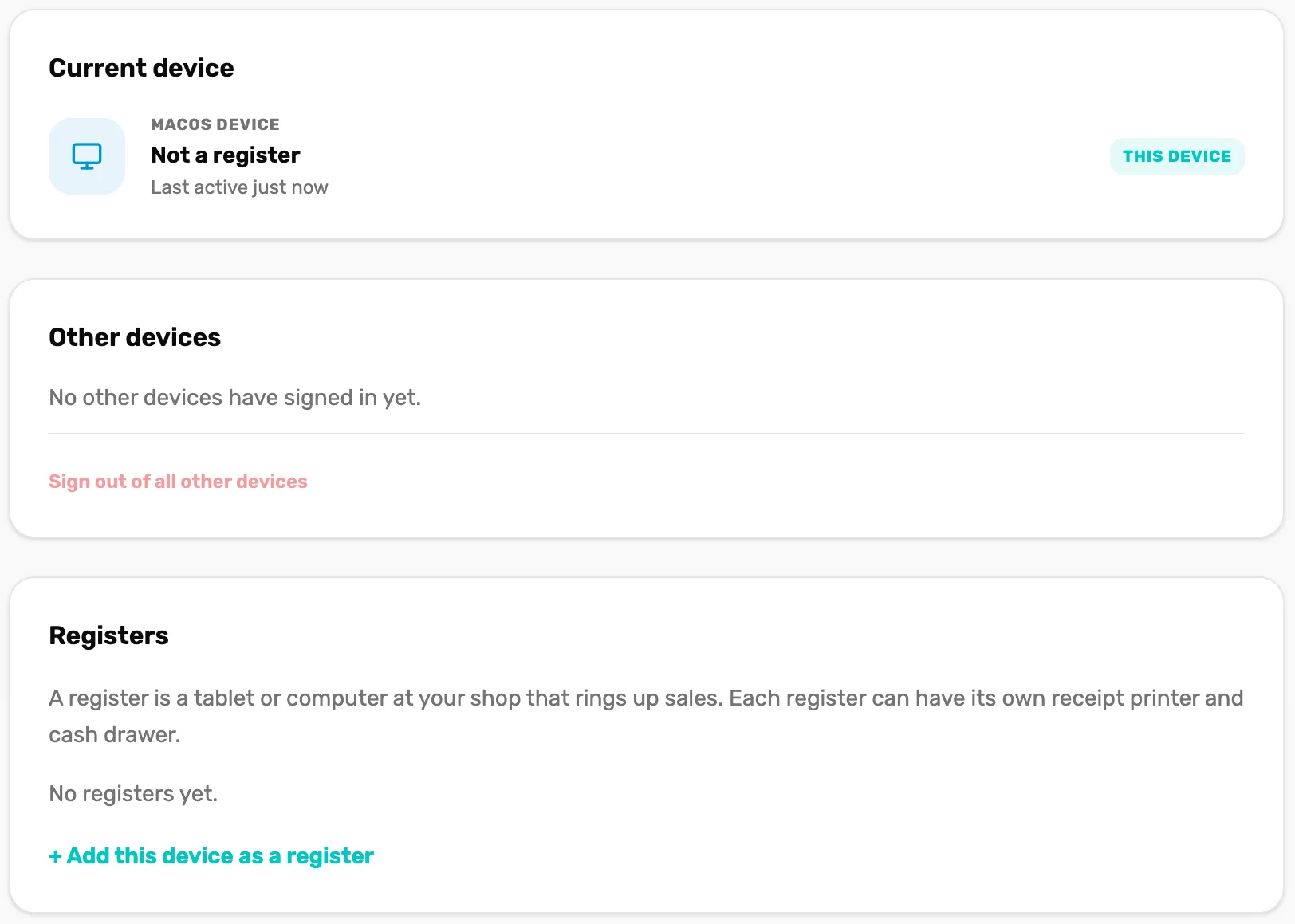
- Not a register. This device isn't a register. Fix it below.
- This device. The card describes the device you're holding.
- + Add this device as a register. Only shows when this device isn't a register.
- It says "Not a register" and the register you expected is under Registers: the browser forgot the device (cause 3), or the register was deactivated (cause 2). A deactivated register has no Deactivate link beside it.
- It says "This device is the register" and a name: the device is set up. Go back to the register and reload the page. The pill changes to Drawer closed.
Fix it
The owner or a General Manager does this, on the device itself.
- Tap Cash sales off, then Set up this register. Or go to Settings › Devices.
- Under Registers, choose + Add this device as a register.
- Type a Name, like Front counter, and pick the Location it's at.
- Tick Cash drawer present if a cash drawer is attached. Without it, this register can't take cash either. See below.
- Choose Add this device as a register.
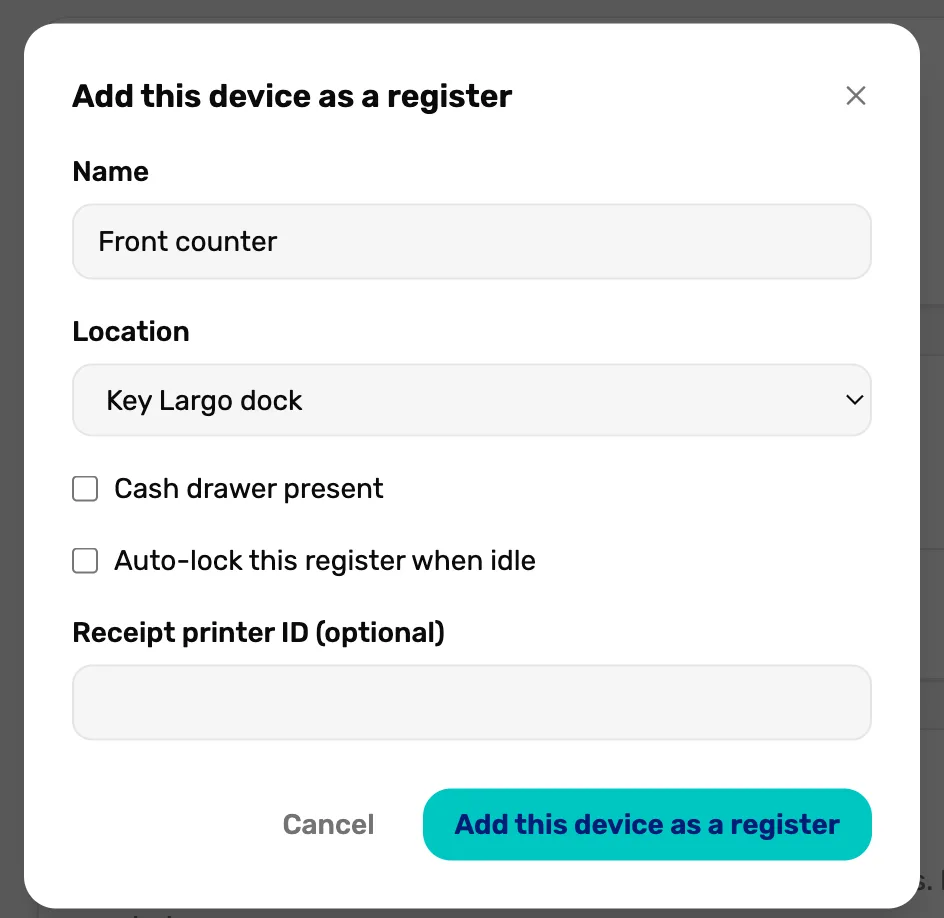
- Cash drawer present. Tick it for a register with a drawer.
- Add this device as a register. Saves it. The device is now a register.
Go back to the register. The pill now says Drawer closed. Tap it and count the cash in to open the drawer, then cash works. If the pill hasn't changed, reload the page.
- The old register was deactivated, or the browser forgot the device? Add it again the same way. It's a new register, with the name you give it.
- "Running a register at another location needs a bigger plan" means your plan has no room for a register at that location. Pick a location that already has one, or contact us.
- Adding it also lets the register lock behind a PIN. See Device access and auto-lock.
No owner or General Manager in the shop right now?
Take cash at a register that's already set up, and card or other methods on this one. Front Desk staff see the same advice when they tap the pill.
No pill at all, but cash is refused
The pill shows only on a register screen wide enough for the top bar, like an iPad or a laptop, and only when your shop counts its cash drawer. If cash is refused with Open the cash drawer first and there's no Drawer closed at the top:
- The register is set up without a drawer. The owner or a General Manager goes to Settings › Devices, choose Configure on the register, tick Cash drawer present and choose Save changes. Then Drawer closed appears, and you can open the drawer.
- The screen is too narrow. Turn the tablet, or use a bigger screen, to see the top bar.
What happens next
- Take payment once the drawer is open: Take payment: cash, card, check and store credit.
- Refund cash from a past sale: Find a sale and refund a line.
- More on registers and the lock: Device access and auto-lock.