
What this is for. Your profile is your own name, phone number and photo. You change it in one place, OneDive B2B, and the register picks it up, because both use the same sign-in. Your name is how your team sees you across OneDive: in the staff list, on crew and class staff, and on the register's top bar. Your photo is only shown to you, at the top of each app, so you can tell at a glance whose sign-in you're on.
Before you start
- You need your own sign-in. The owner, General Managers and Managers sign in with an email and password. Staff who only use a PIN have no profile page: the owner or a General Manager sets their name in Settings › Users & Access. See Add a PIN-only operator.
- The register has no profile page. Make every change in OneDive B2B.
Open your profile
In OneDive B2B, tap your picture at the top right. It is a letter until you add a photo. Choose Settings. Settings opens on Profile. You can also go straight to Settings › Profile.
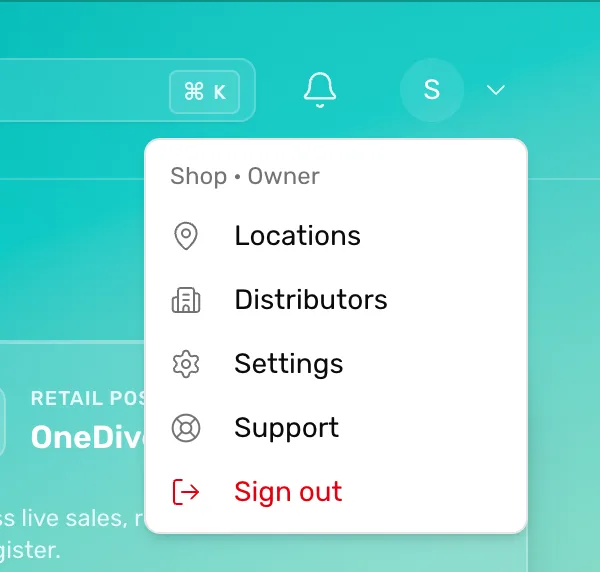
- Your picture. Opens the account menu. A letter until you add a photo.
- Settings. Opens Settings on your profile.
Change your name and phone
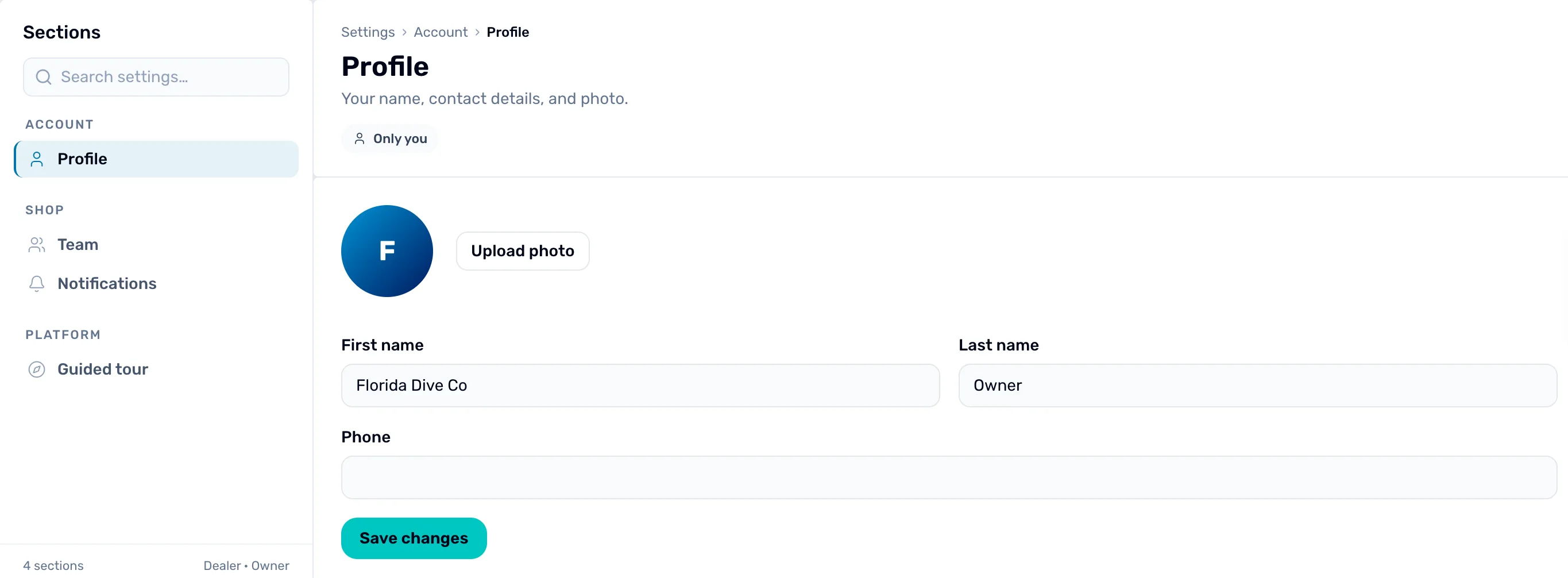
- Profile. On the left, under Account. Everyone with a sign-in has it.
- Your photo. The first letter of your name until you add one.
- Upload photo. Adds or replaces your photo. Step 3.
- First name and Last name. How your team sees you in OneDive.
- Phone. Your own number.
- Save changes. Saves your name and phone.
Type your changes and tap Save changes. You see ✓ Saved beside the button for a few seconds.
Your email isn't on this page. It is the email you sign in with. To change your password, sign out and tap Forgot password? on the sign-in page.
Add your photo
Tap Upload photo and pick a picture. It has to be a PNG, JPEG or WebP file, 2 MB or smaller. The button reads Uploading… while it goes up.
The photo saves as soon as it's uploaded, without Save changes. It shows on the page and in the top right.
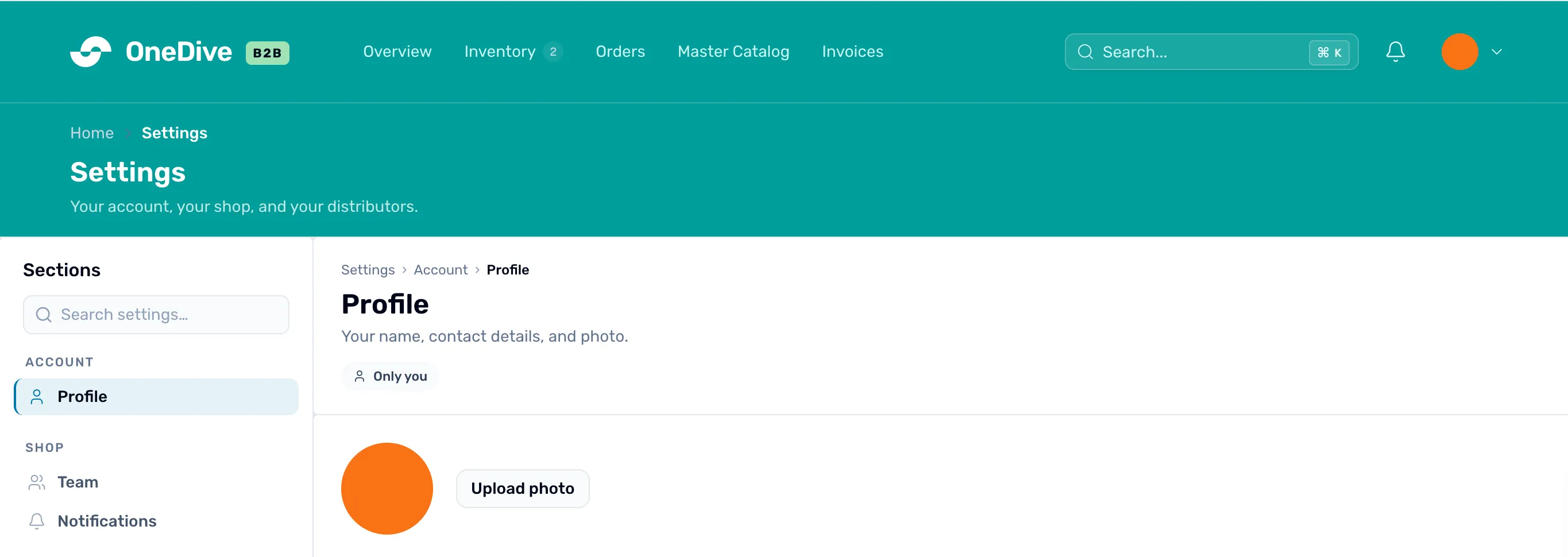
- Your photo. Saved straight away.
- Upload photo. Tap again to pick a different photo. It replaces this one.
- The top right. The same photo, on every page of OneDive B2B.
If it says "Could not upload your photo. Please try a PNG, JPEG, or WebP under 2 MB.", the file is too big or isn't one of those three kinds. Save it as a smaller JPEG and try again.
There's no button to remove a photo. Upload a different one to replace it.
Where your name and photo show
- The register's top bar. Your photo and name, on the right. Reload the register to see a change. When someone else switches in with their PIN, the bar shows their name and initials instead, never a photo.
- The top of OneDive B2B. Your photo in the account button.
- Your team's lists. Your name in Settings › Users & Access, on the Switch User list, and in the pickers for trip crew and class staff.

- Your photo. From your OneDive B2B profile.
- Your name. Your first and last name from the same page.
Only you see your photo. Other people on your team see your name, not your photo.
What happens next
- What each person on your team can do: Roles and what each can do.
- What the bell at the top of each app shows you: Your notifications and where each opens.
- Get from OneDive B2B to the register: Open the register from OneDive B2B.