
What this is for. Crew are the people from your team working a departure: the captain, the divemasters, the cook. One of them can be the trip leader, the person in charge on the day. Putting them on the departure means anyone who opens it knows who's going, and their names go into your calendar feed. Crew don't take seats on the manifest.
Before you start
- Crew come from your team. Anyone active in Settings › Users & Access can be crew, including people who only use a PIN. Add someone there first if they're missing.
- One trip leader per departure. Any number of other crew.
- A cancelled departure takes no new crew. It says "This departure is cancelled — no new crew assignments." The crew already on it stay listed.
Open the departure
Go to Trips, choose Manage trip, and tap the day under All departures. The Crew box is on the right, beside the Manifest.
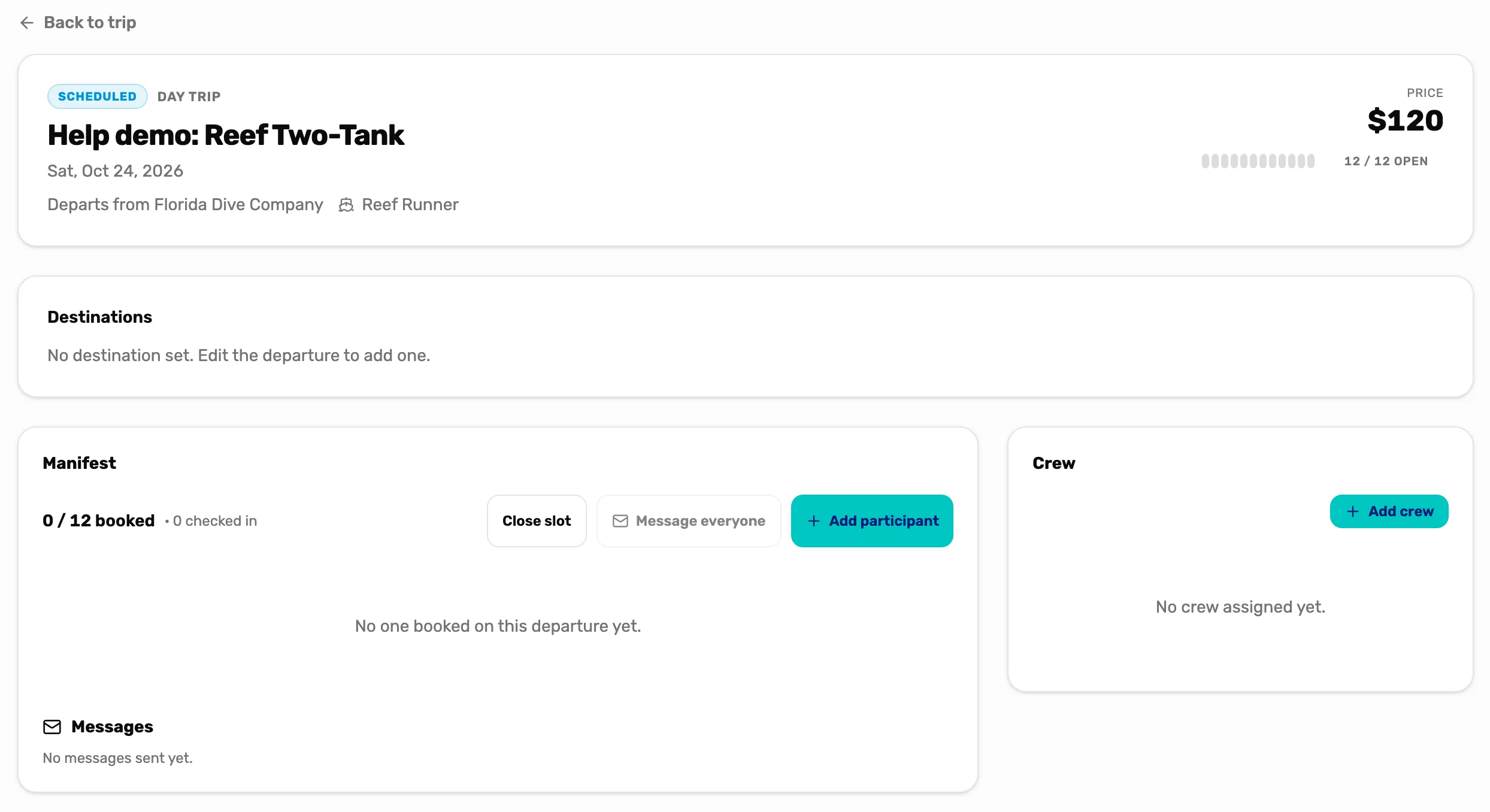
- Crew. Who's working this departure.
- Add crew. Puts someone on it. Step 2.
Add a crew member
Tap Add crew. In the box:
- Staff member. Pick the person from the list.
- Role. It starts on Captain. The roles are Trip leader, Captain, First Mate, Mate, Divemaster, Instructor, Cook, Host, Videographer, Naturalist and Medic.
- Notes. Optional, like "Driving the van".
- Tap Add crew.
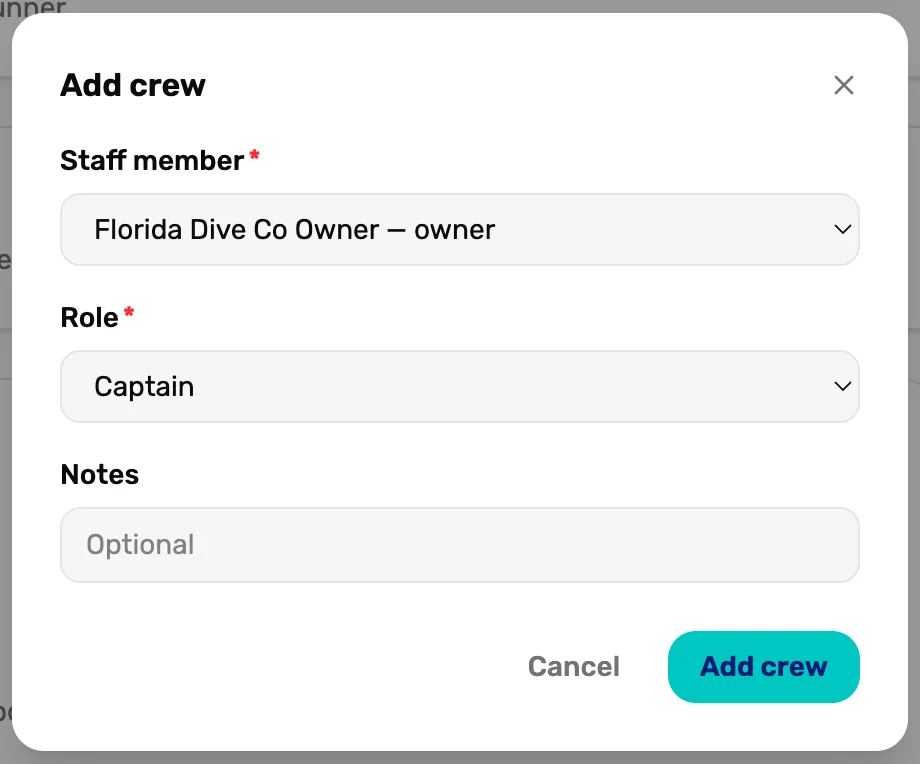
- Staff member. Everyone active on your team.
- Role. What they do on this departure. It doesn't change their role in your shop.
- Notes. Shows under their name in the list.
- Add crew. Saves. Grey until you pick a person.
Repeat for each person.
Name the trip leader
Add the person, or edit their row, and pick Trip leader as their role. A departure has one trip leader. Once it has one, Trip leader is grey for everyone else, and the box says "This departure already has a trip leader."
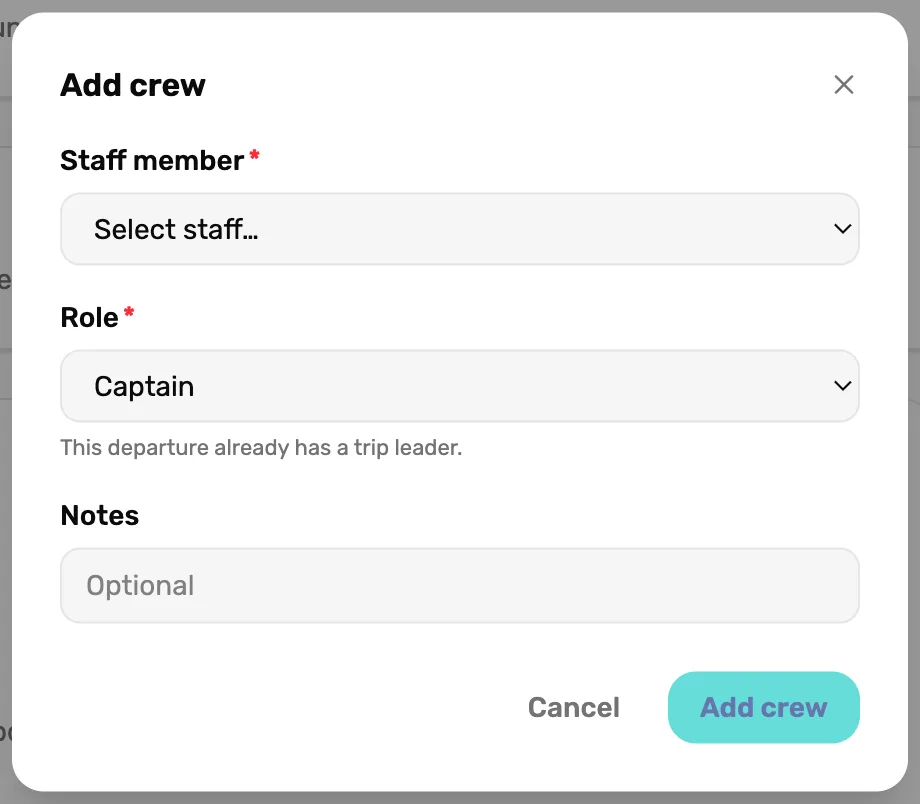
- Role. Trip leader is greyed out in this list. Someone else is the leader already.
- This departure already has a trip leader. Change the leader first, below.
To change the leader, edit the current leader's row and pick the new person as the Staff member. Or give the current leader another role first, then make someone else Trip leader.
Check the departure
The top of the departure now says Trip leader: and their name. The Crew box lists everyone with their role.
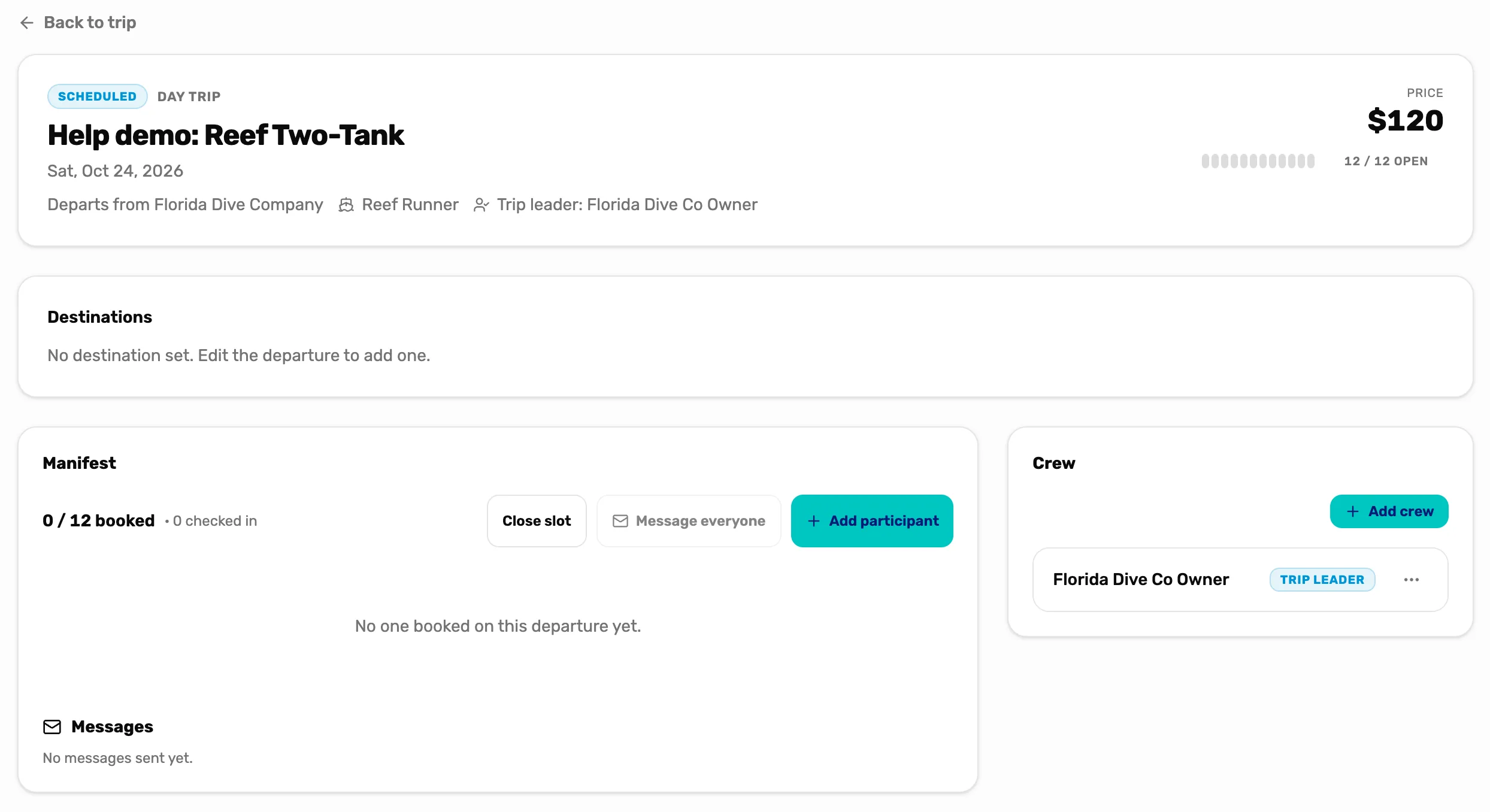
- Trip leader. The leader's name, after the boat.
- A crew row. Their name, any note, and their role.
- The three dots. Edit or Remove.
Change or remove someone
Tap the three dots on their row.
- Edit opens Edit crew. Change the person, the role or the note, and tap Save changes.
- Remove asks you to check, like Remove Sam Ortiz from this departure? Tap OK.
Where crew show up
- The departure page. The Crew box, and Trip leader: at the top.
- Your calendar feed. Each departure's notes in Google Calendar, Outlook or Apple Calendar list the crew with their roles, like "Sam Ortiz (captain), Jamie Cole (trip leader)". See Put your calendar in Google or Outlook.
Divers don't see your crew, not when they book and not in their emails. Crew aren't on the manifest either.
What crew can see
OneDive doesn't send crew a message or give them a list of their own. Tell them yourself, or share your calendar feed with them so the week's departures and crew are in their own calendar. Anyone who can open Trips sees the crew on each departure.
What happens next
- Set up the departure first: Add a trip and a departure.
- On the day, check divers in from the manifest: Run the day of the dive.
- Put the schedule and crew in your phone's calendar: Put your calendar in Google or Outlook.