
What this is for. Fills, inspections and quick jobs are sold at the counter like anything else. Your services menu sits under its own tile on the register, so a fill is one tap and can go in the same sale as a mask or a bottle of defog.
Open Services and tap the service
On the Cashier screen, tap the Services tile. Tap a service once to add it to the cart.
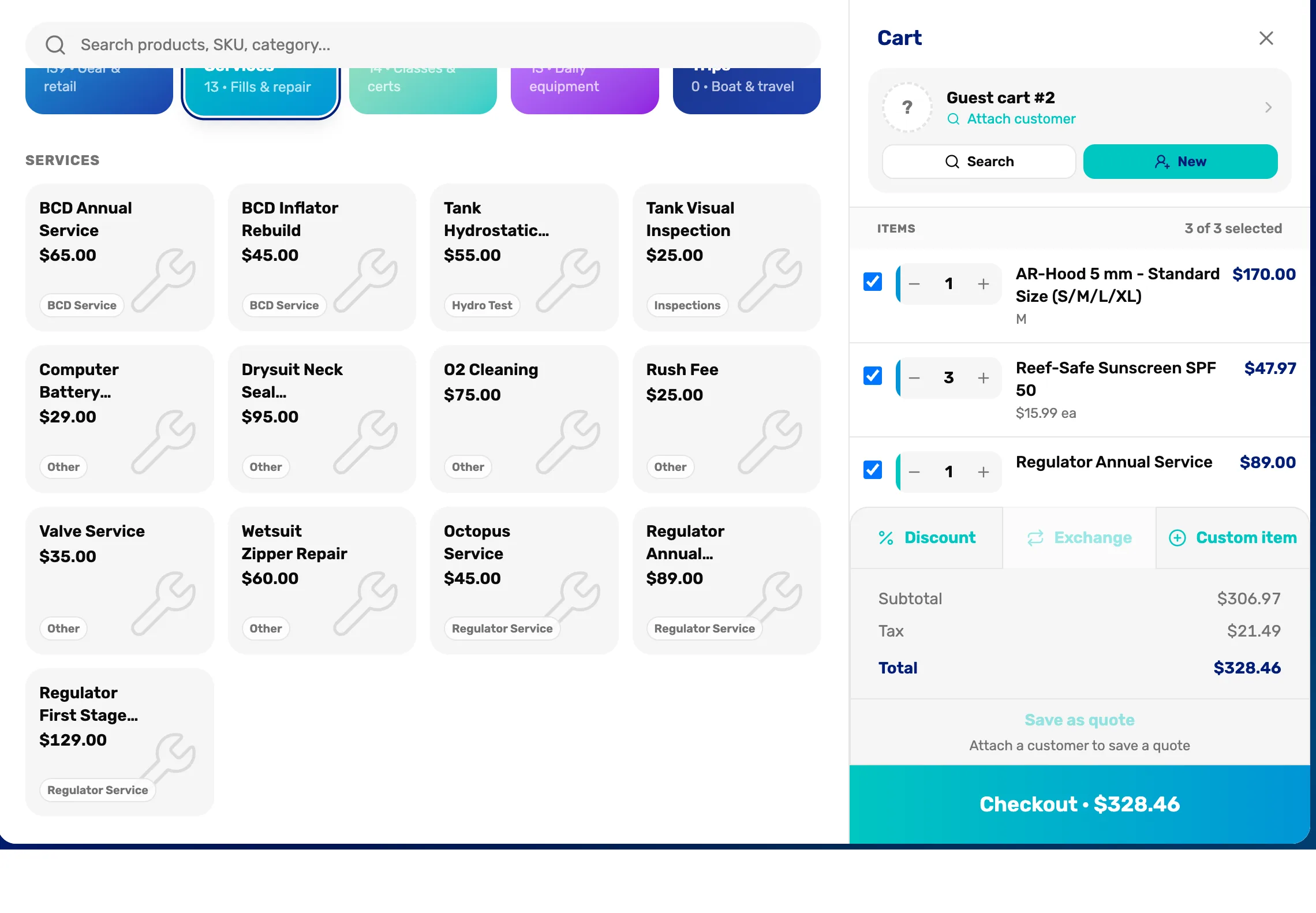
- The service. Its price and its category. One tap adds one. There is no size, stock or quantity to pick.
- The line in the cart. Change the quantity here if the customer wants more than one, for example three fills.
The Services tile says how many services you have. If it says No services configured yet, set up your menu first in Service › Configure services. Set up your service menu walks through it.
Check the tax
Services other than tank fills count as labor. If your location has a separate tax rate for labor, the cart shows a tax line for it, with how much labor it was charged on. Set it in Settings › Payments & Finance › Tax configuration. Without a labor rate, labor is taxed like everything else.
Take payment
Tap Checkout and take payment as usual.
What happens next
- Charging for a repair ticket? The ticket sends its work and parts to the register for you, and those lines say From ticket. Their prices are set on the ticket. See Charge for the work and hand it back.
- To change a service's price or add a new one, go to Service › Configure services.