
What this is for. Your waivers live in your own SmartWaiver account. Connecting it lets a customer sign on your register screen or from an email, and every signed waiver comes back into OneDive on its own and lands on the right customer. You end up with a green waiver tick on the customer in the cart and on the boat manifest, with no paper to file.
Copy your API key from SmartWaiver
Sign in to your SmartWaiver account and open Settings, then Integrations, then API. Copy the API key.
Keep it private. Anyone with the key can read your waivers.
Connect it in OneDive
Go to Settings › Integrations and find Waivers. Point at or tap the SmartWaiver card to show Connect, then tap it.
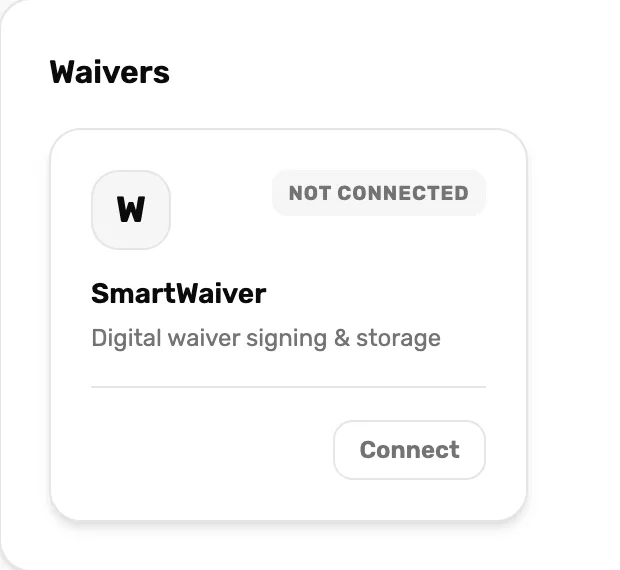
- Not connected. No waiver can be signed or sent through OneDive yet.
- Connect. Asks for your API key. It only shows when you point at or tap the card.
Paste the key and tap Connect. The button reads Verifying… while OneDive checks the key with SmartWaiver and copies in your waiver templates.
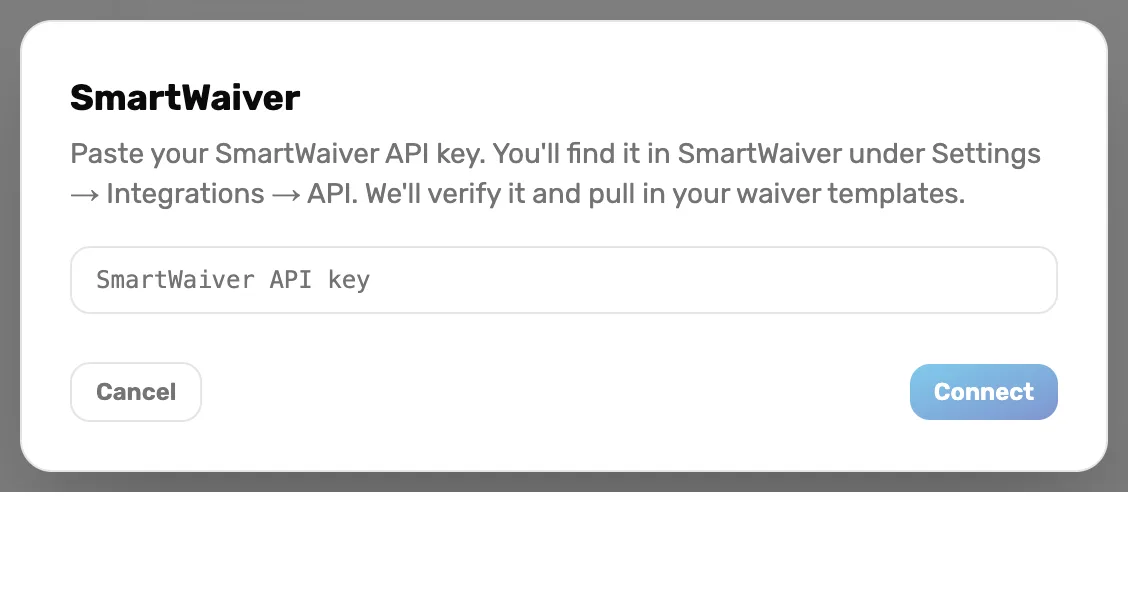
- SmartWaiver API key. Paste the key from step 1.
- Connect. Checks the key and connects. Stays grey until there is a key.
When it works you see Connected to your SmartWaiver account name, with how many templates came across. The card now says Connected.

- Connected. Signed waivers now come into OneDive by themselves.
Says "SmartWaiver rejected that key. Check it and try again."? The key was copied wrong or has been replaced in SmartWaiver. Copy it again.
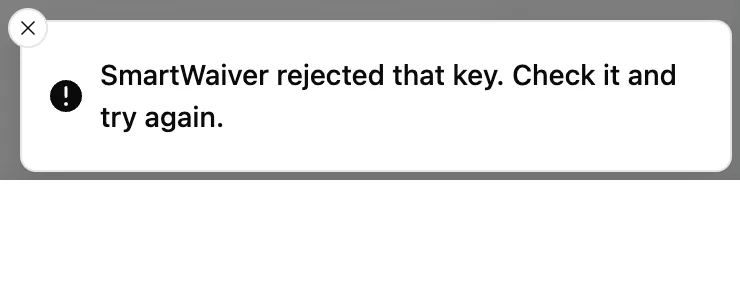
- Nothing is saved. A key SmartWaiver refuses is never stored. Try again with the right one.
Check which waiver is sent
Point at or tap the card again and tap Manage. Under Waiver to send, pick the template OneDive uses when staff tap Sign now or Email waiver at the register. When you first connect, your first template is picked for you, unless you had already chosen one.

- Account. The SmartWaiver account you connected.
- Instant delivery. On means signed waivers arrive almost at once. Off — waivers still sync, just less promptly means they come in on the regular check, about every five minutes. Instant delivery is turned on in your SmartWaiver account, not in OneDive.
- Waiver to send. The template for Sign now and Email waiver. No templates synced means your SmartWaiver account has no templates yet.
See it ticked in Setup
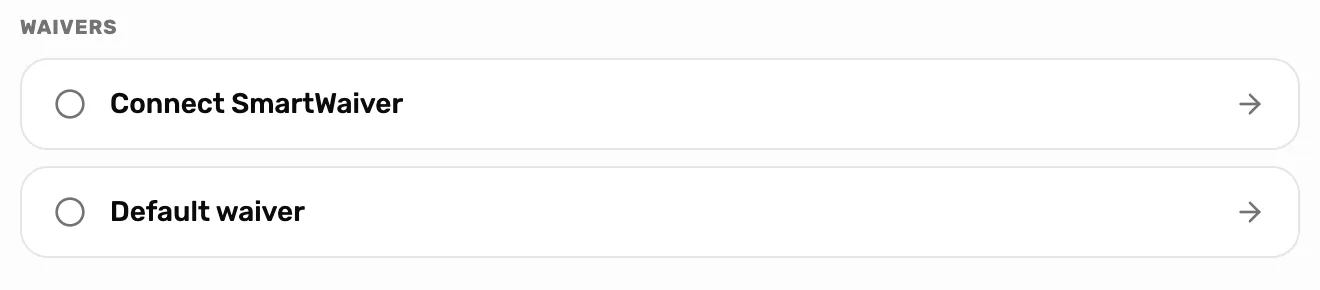
Setup has a Waivers section with two items. Connect SmartWaiver ticks when the account is connected. Default waiver ticks when a waiver to send is chosen. Both items open this same card.
Setup, before and after

Attach waivers that need matching
When a customer signs, OneDive puts the waiver on the right customer by itself if:
- they signed from a link OneDive sent them with Email waiver, or
- exactly one of your customers has the email they signed with.
Anything else waits under Needs matching: a different email, no email, or two customers sharing one. OneDive never guesses, because a waiver on the wrong person is worse than none. The card shows how many are waiting, for example 2 waivers need matching. Tap Manage to see them.

- Link. Search your customers by name or email and tap the right one. The waiver goes on their record.
- Create. Makes a new customer from the signer's name and email. Grey when the waiver has no email: use Link instead.
- Dismiss. Takes it off the list without attaching it, for a test or a duplicate.
After Link or Create you see Waiver attached to the customer, and the customer's waiver shows as signed in the cart.

- Search customers by name or email…. Tap the customer the waiver belongs to.
Use it at the register
With a customer in the cart, tap No Waiver or Waiver expired under their name.
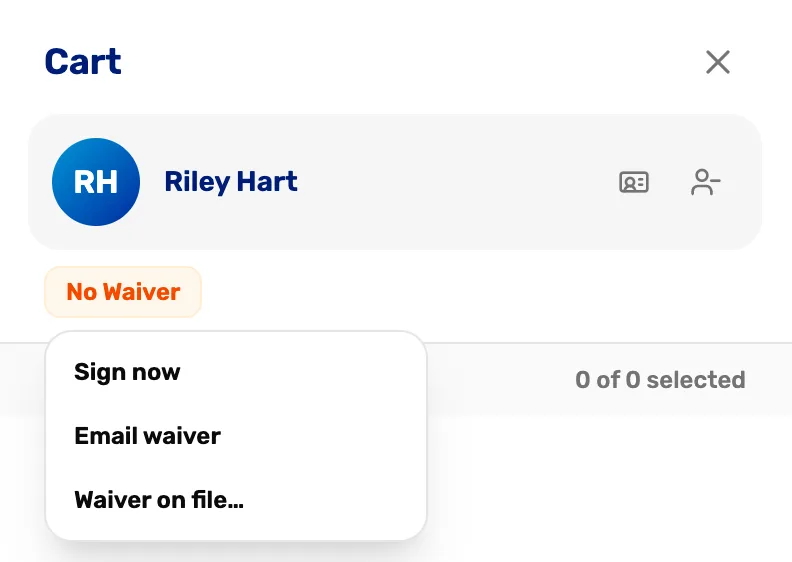
- No Waiver. Tap it for the three choices.
- Sign now. Opens your waiver on this screen for the customer to sign. When they finish you see Waiver signed and on file.
- Email waiver. Emails them a link to sign. Needs an email on the customer.
- Waiver on file…. Records a paper waiver. Works without SmartWaiver.
- Sign waiver. The customer signs here. Cancel closes it. If it says the signature went through but couldn't be filed, it comes in by itself within a few minutes.
Before SmartWaiver is connected, Sign now says so, and Email waiver shows the same message. Record paper waivers with Waiver on file… until it is.
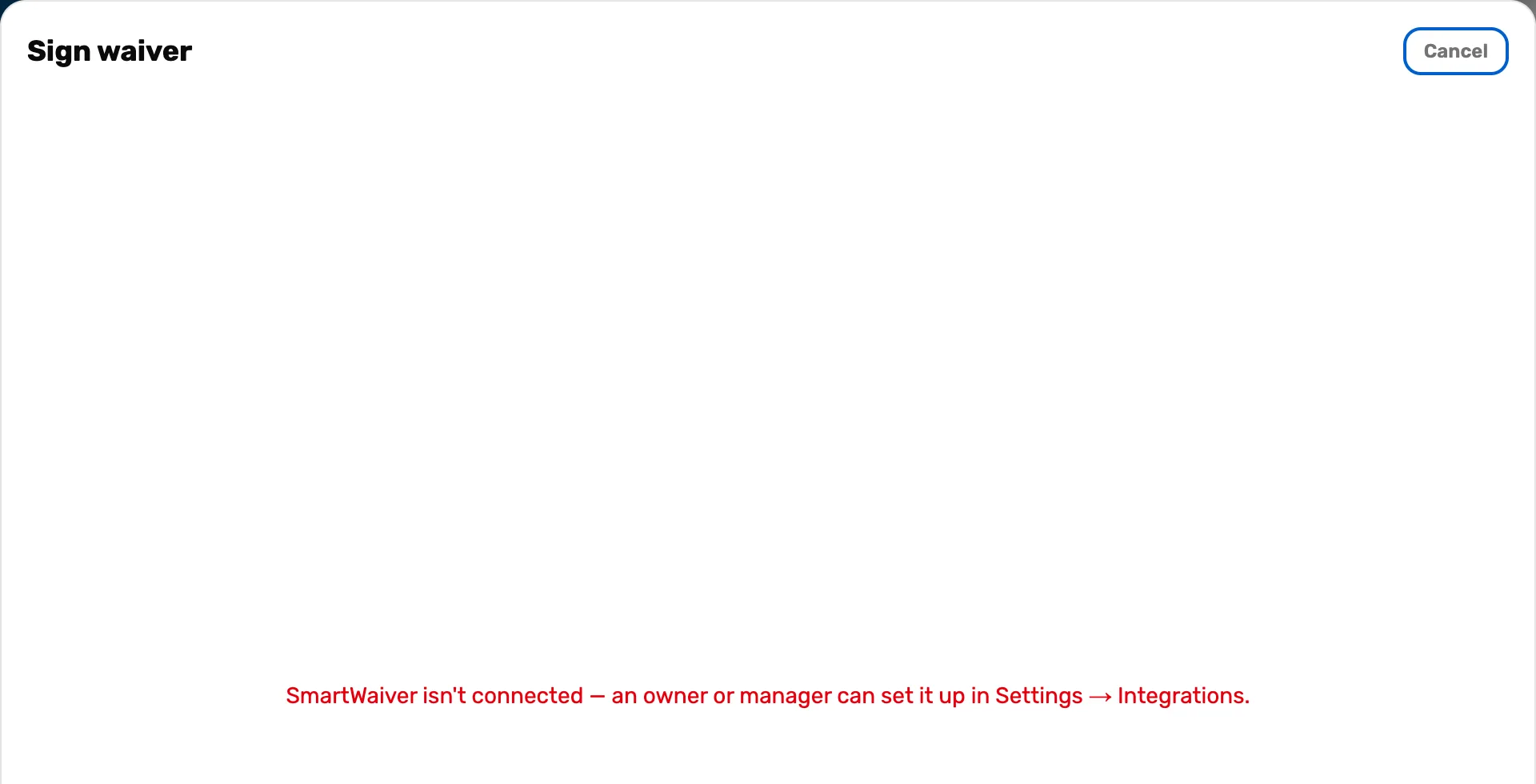
- SmartWaiver isn't connected. Do steps 1 and 2. No default waiver chosen yet means do step 3.
If something goes wrong
- The card says Reconnect. SmartWaiver stopped accepting the saved key, so waivers have stopped coming in. Tap Manage, then Disconnect… and Confirm disconnect, and connect again with a current key from step 1.
- "SmartWaiver rejected the shop's API key. A manager needs to reconnect it." The same problem, seen at the register. The owner or a General Manager reconnects.
- They signed, but the cart still says No Waiver. Give it a few minutes, then look under Needs matching (step 5).
- The waiver email never came. See The customer did not get the receipt or the waiver.
What happens next
- Every signed waiver shows on the customer's page and on trip manifests, so divers who signed are ready at the boat. See Run the day of the dive.
- The day-to-day register side is in Attach a customer and their waiver.